MuviPe · Manual
The Admin Panel
What each screen is for and how it works, from signing in to going live with a title, with the real screens marked up.
Start here
What the admin panel is
The admin panel is where MuviPe is run from: who the members are, how money is split, what the platform charges, which ads run, and which films and series are on sale. This guide walks through every screen, with the real screen beside what each marked part does.
Members, money settings, configuration, services and the site's text pages.
Reviewing ad files, campaigns, sponsor funds and sponsors.
The library of movies and series, producers, genres, languages and content types.
How to read this guide
Each screen is shown with amber outlines and numbers. The numbered list under the picture explains each marked part, in the same order. Click any picture to open it full size.
Getting in
Signing in
Only accounts with the admin role can use the admin panel. Admin accounts are provisioned, never self-served: nobody can sign up as an admin.
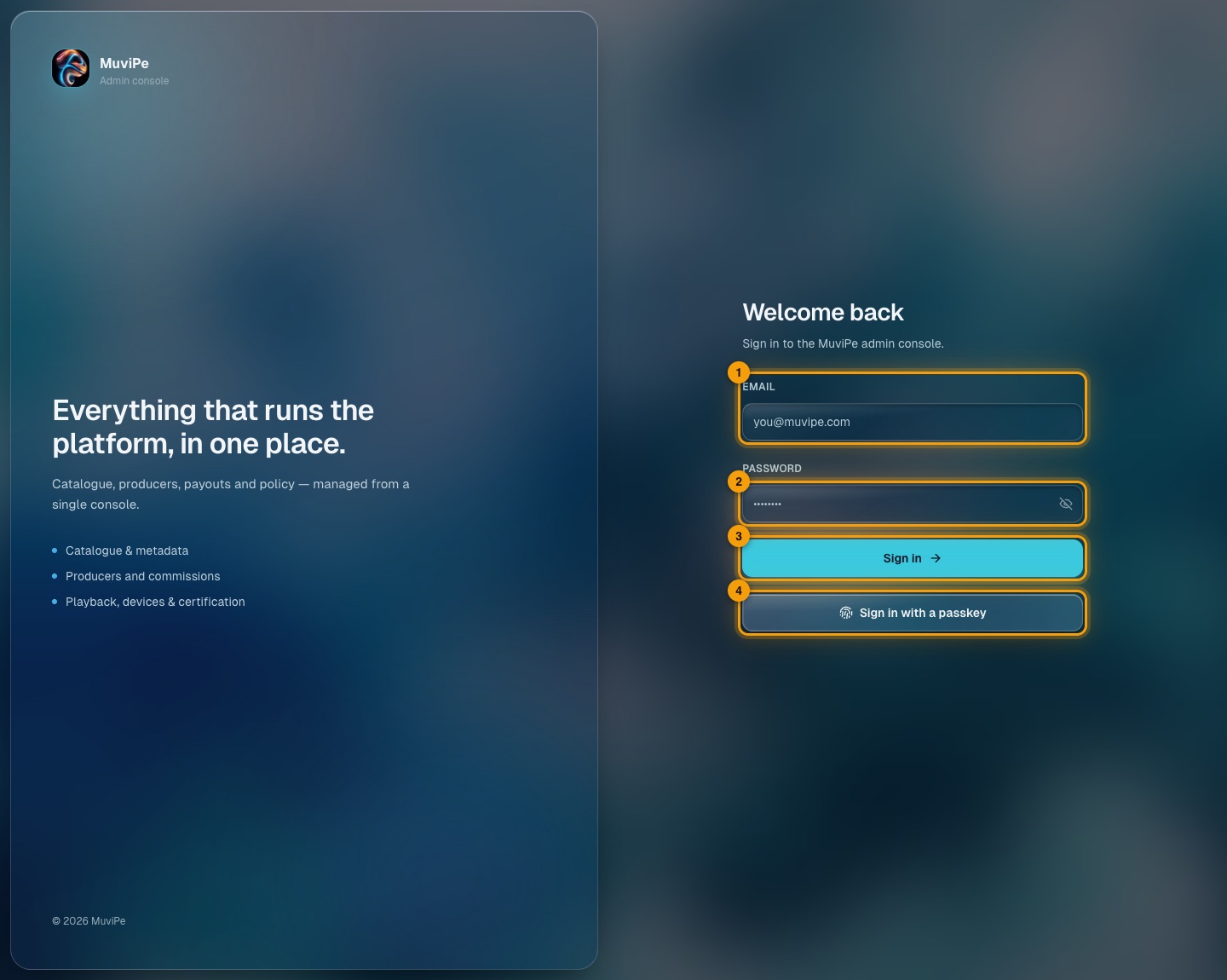
The admin sign-in page.
- 1Email — the admin account's email address.
- 2Password — use the eye icon at the end of the field to show what you typed.
- 3Sign in — signs in with email and password.
- 4Sign in with a passkey — signs in with a passkey saved on your device (fingerprint, face or device PIN) instead of a password.
Getting around
The layout: rail, panel and account
Every screen shares the same frame. Learn it once and the rest of the panel follows.
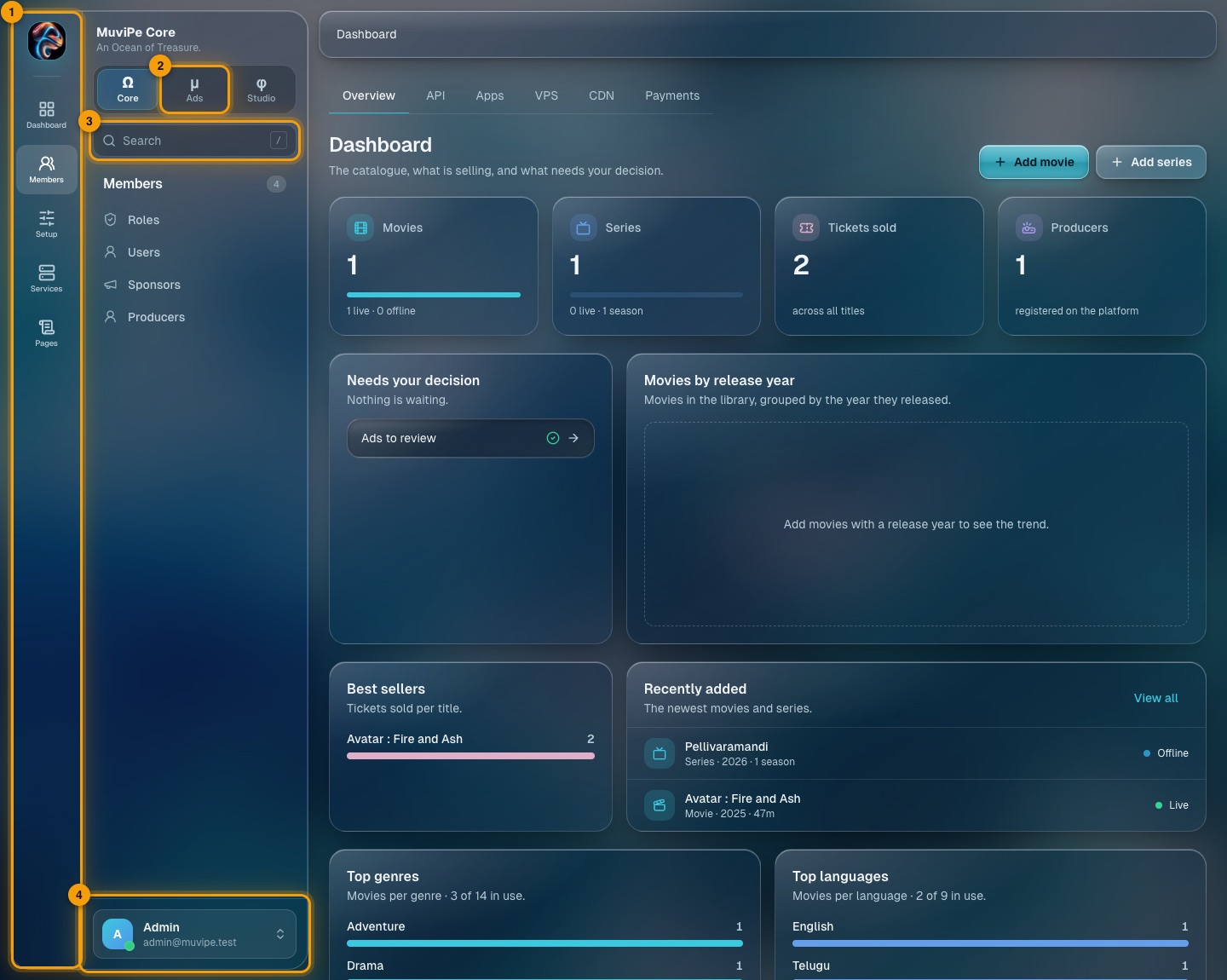
The frame around every screen, shown on the Core dashboard.
- 1The rail — the narrow bar on the far left. The MuviPe logo at the top takes you to the dashboard; below it is one icon per section of the portal you are in (Core: Dashboard, Members, Setup, Services, Pages). Click an icon to show that section's screens in the panel beside it.
- 2Portal switcher — Core, Ads and Studio. The rail and panel change to that portal's sections. The portal also switches by itself when you open a screen that belongs to another one.
- 3Search — filters the current portal's screens by name as you type. Press / anywhere to jump to it.
- 4Account card — your name and email, with a menu for your account and for signing out.
- A section with a single screen (like Dashboard) opens it straight away. A section with several shows them in the panel.
- Two screens live in two portals: Sponsors (Core and Ads) and Producers (Core and Studio). Opening them from Ads or Studio keeps you in that portal.
- Some entries are greyed out with a Soon tag, such as Directors and Cast & Crew in Studio. They are planned and not built yet.
Portal 1 · Ω
MuviPe Core
Everything that runs the platform.
Dashboard
The first screen after signing in. It is the platform at a glance, with tabs for the health of the systems underneath.
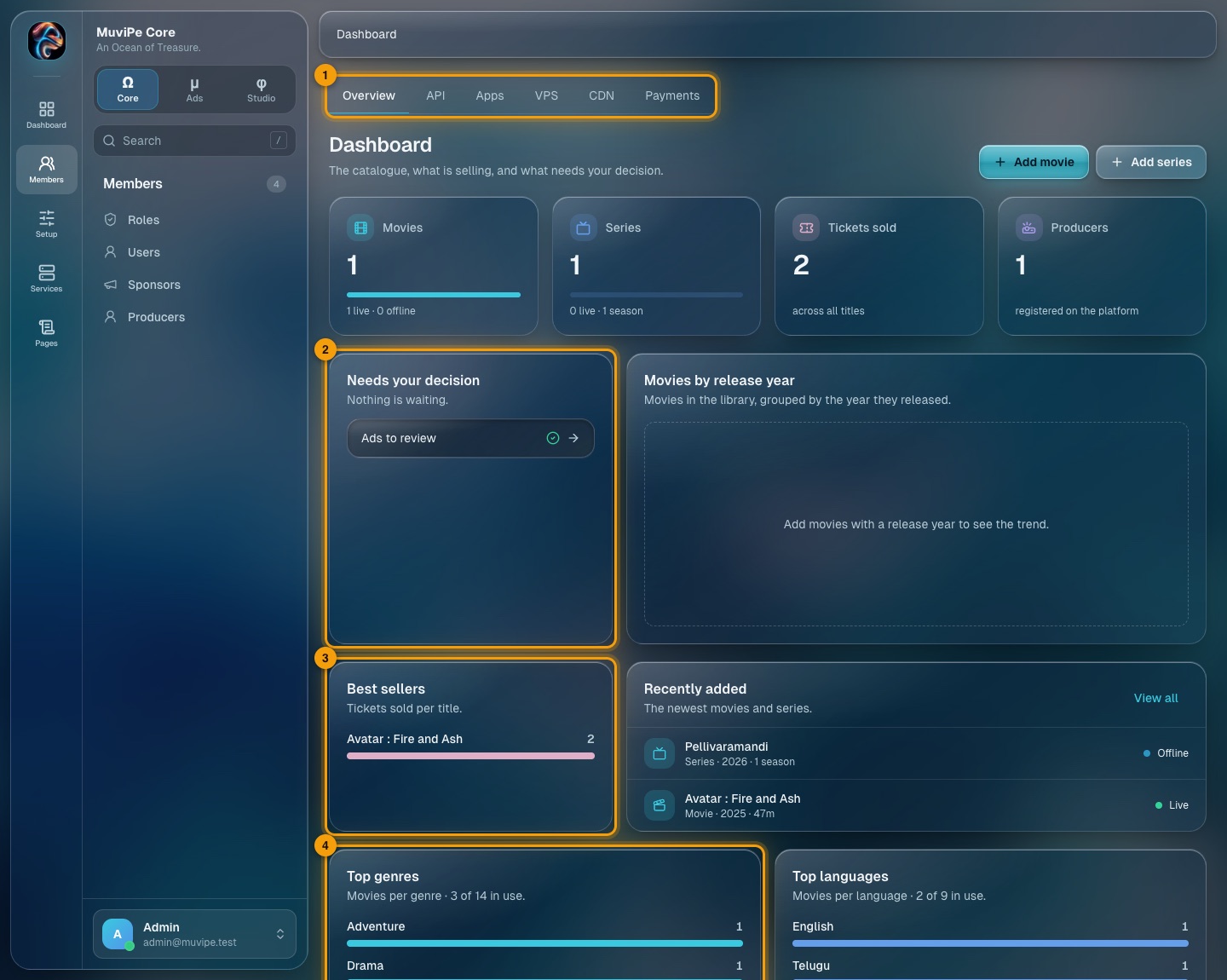
Core dashboard, Overview tab.
- 1Tabs — Overview (the catalogue and sales), then API, Apps, VPS, CDN and Payments for the state of each system. Their details are explained under Services.
- 2Needs your decision — things waiting for an admin. Today that is Ads to review: a tick means nothing is waiting, and a count means ad files are in the queue. It links to Creative review.
- 3Best sellers — tickets sold per title.
- 4Top genres — how many movies use each genre. Top languages sits beside it.
The four cards at the top count movies, series, tickets sold and producers. The shortcuts Add movie and Add series start a new title. Recently added lists the newest titles with their live or offline state.
Members
Everyone who has an account. One account has one role, set when the account is created from the portal it signs up in.
Roles
The roles an account can have: User, Producer, Sponsor, Admin and Editor.
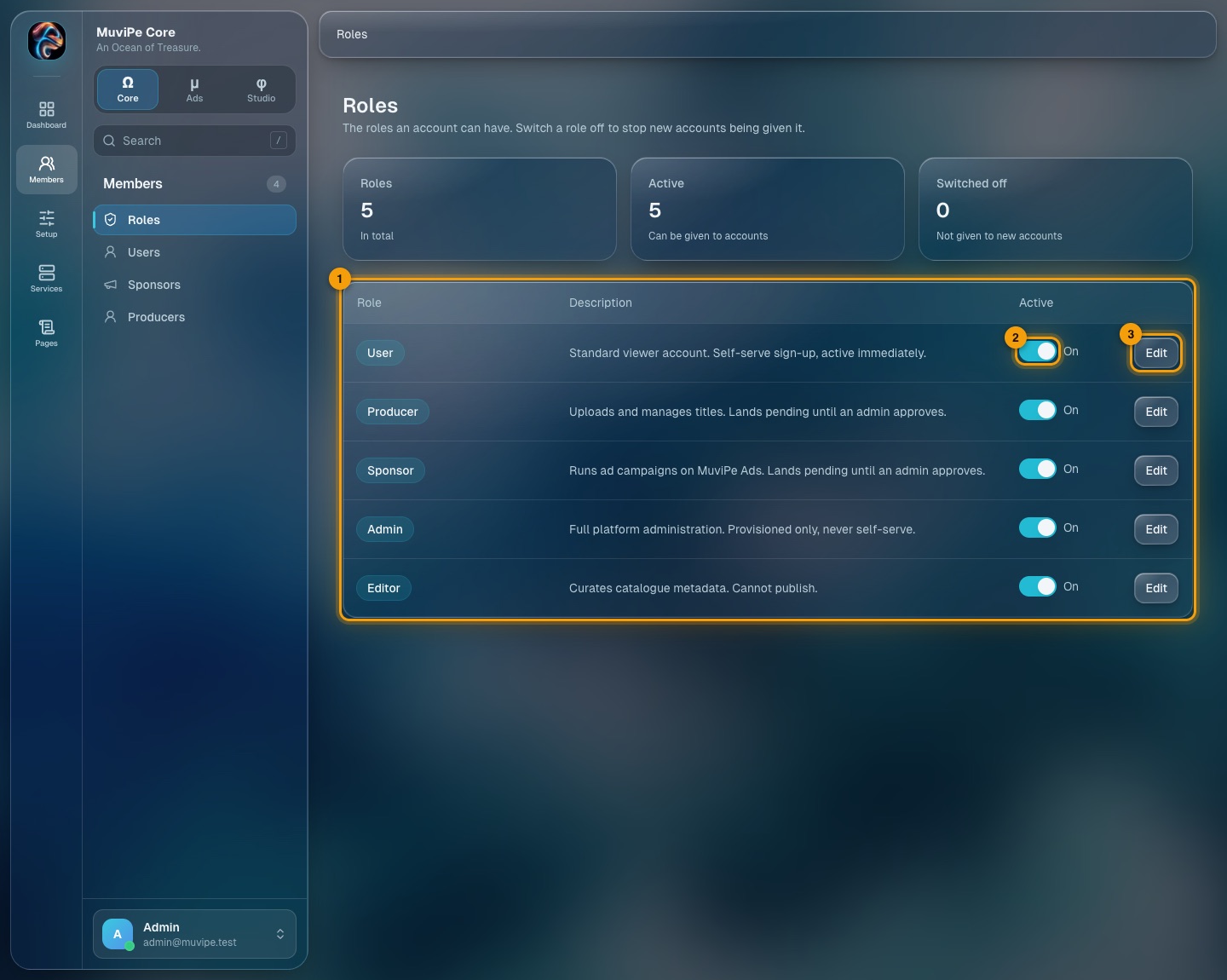
The Roles list.
- 1Roles table — each role with a description of who it is for. For example, Admin is provisioned only, never self-served, and the Producer and Sponsor descriptions note that those accounts start out pending.
- 2Active switch — switching a role off stops new accounts being given it. Existing accounts keep their role.
- 3Edit — opens a side sheet to change the name and description.
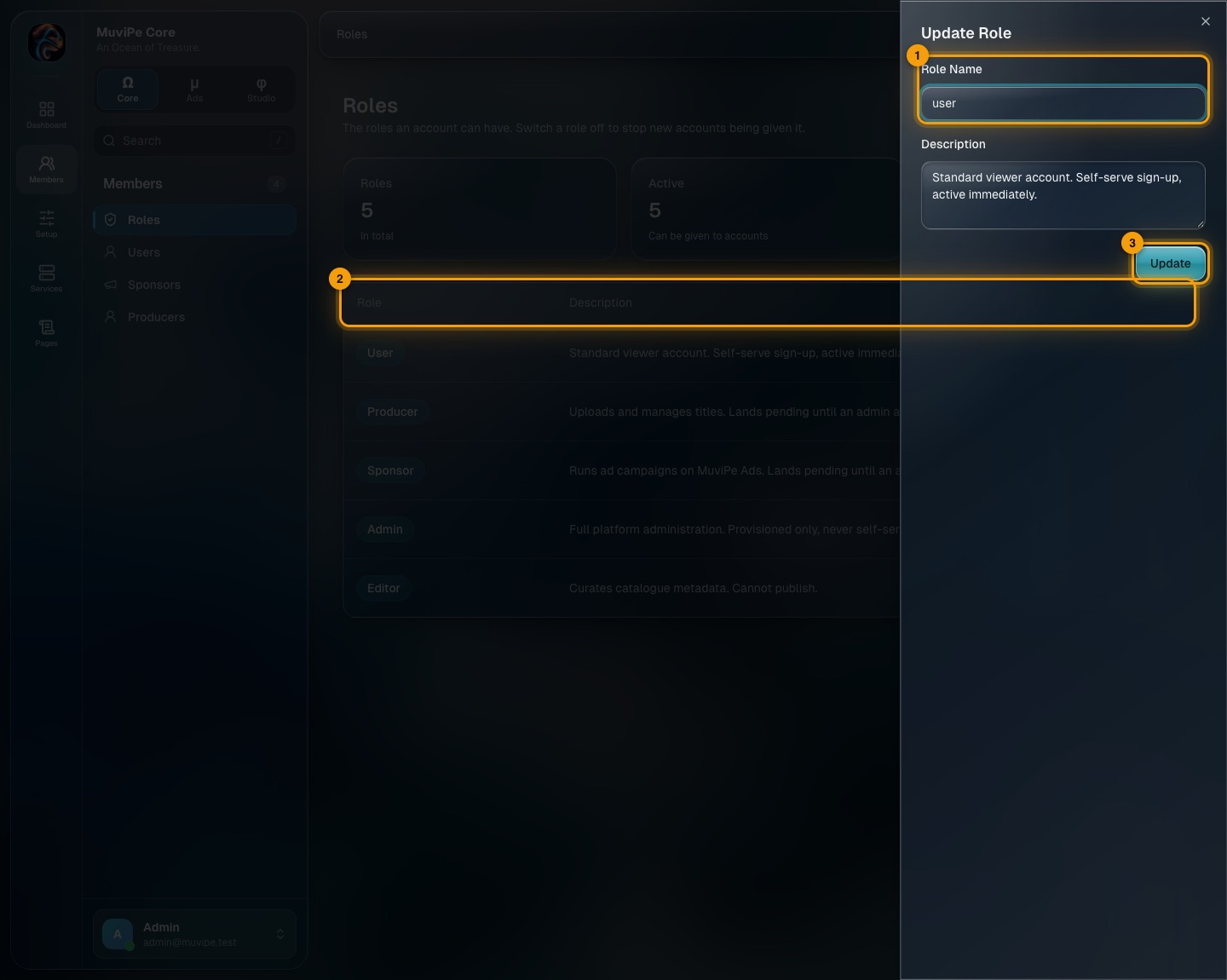
Editing a role.
- 1Role Name — what the role is called.
- 2Description — the sentence shown in the table.
- 3Update — saves both.
Users
Every account on MuviPe, with its role.
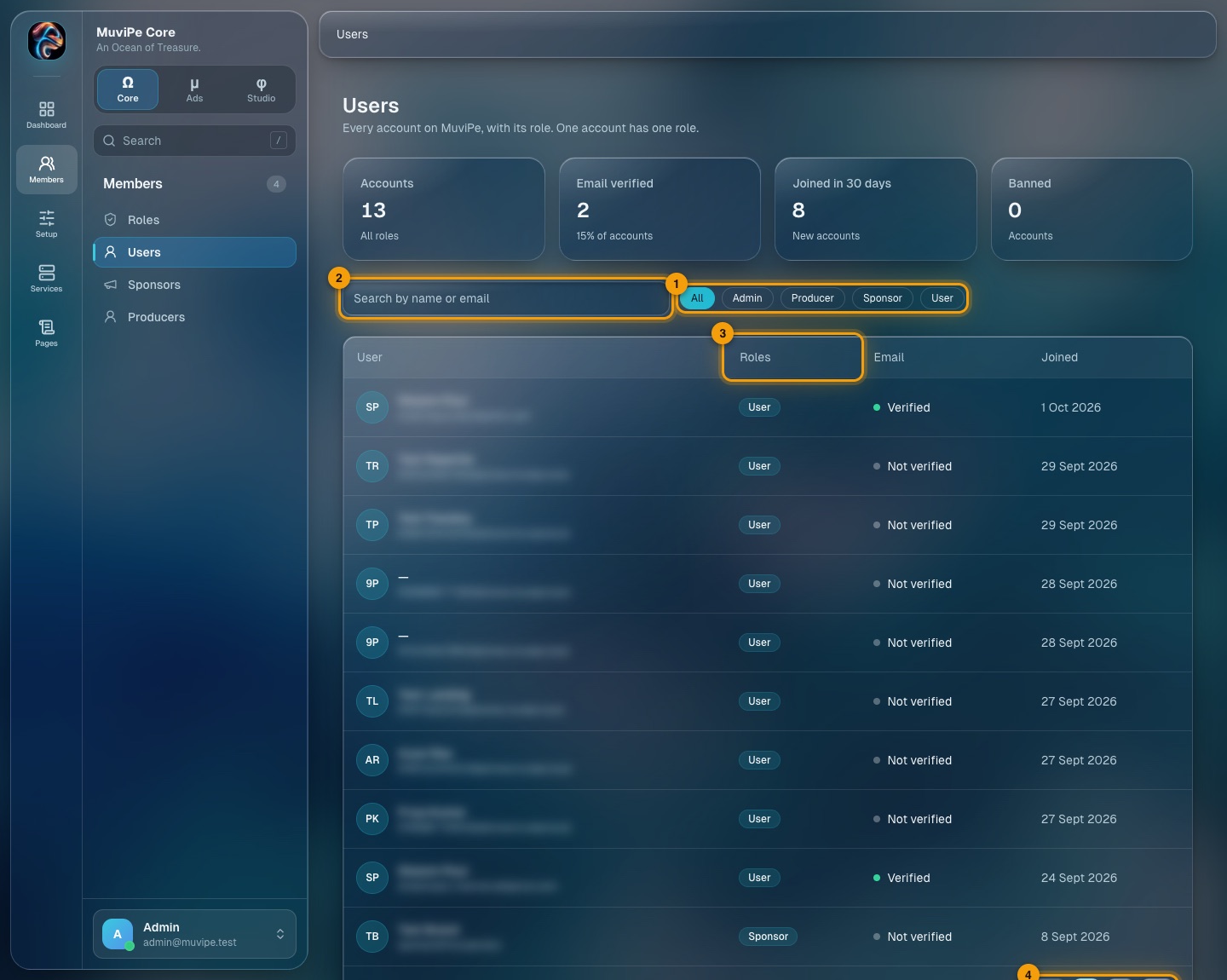
The Users list.
- 1Role filter — All, Admin, Producer, Sponsor or User.
- 2Search — finds an account by name or email.
- 3Roles column — the account's single role.
- 4Pages — move through the list.
The cards on top count accounts, email-verified accounts, accounts joined in the last 30 days, and banned accounts. The Email column shows whether the address is verified, and the last column when the account joined.
Sponsors
Sponsor accounts and how much storage each one uses. This screen is also reachable from the Ads portal.
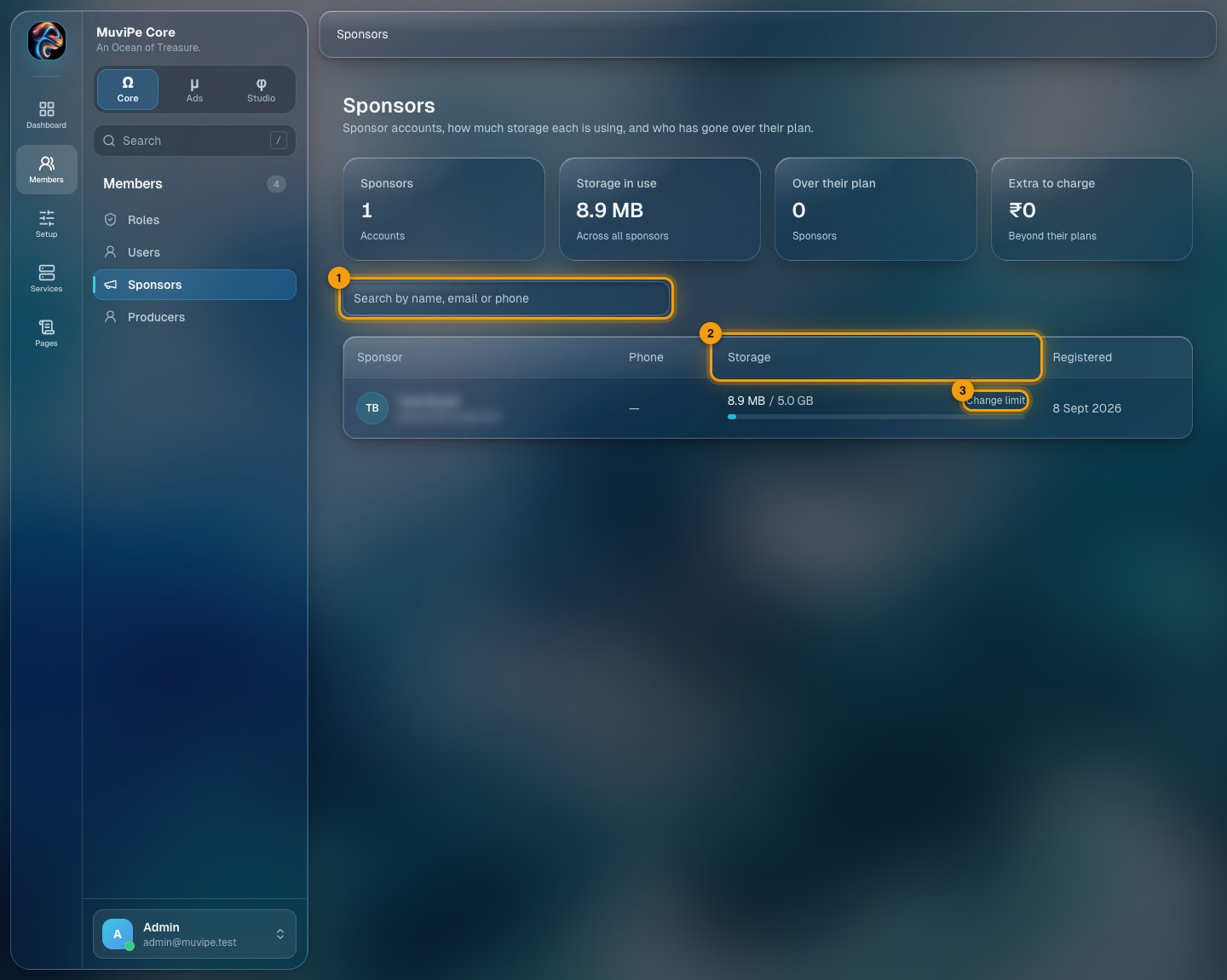
The Sponsors list.
- 1Search — by name, email or phone.
- 2Storage — how much of the sponsor's limit is used. A Custom limit tag appears when this sponsor has its own limit instead of the platform default.
- 3Change limit — set this sponsor's own limit in MB. Leave it blank to go back to the platform default (set under Storage plans).
Producers
Which parts of the Producer panel each producer can use. A switched-off part disappears from the producer's sidebar and cannot be opened.
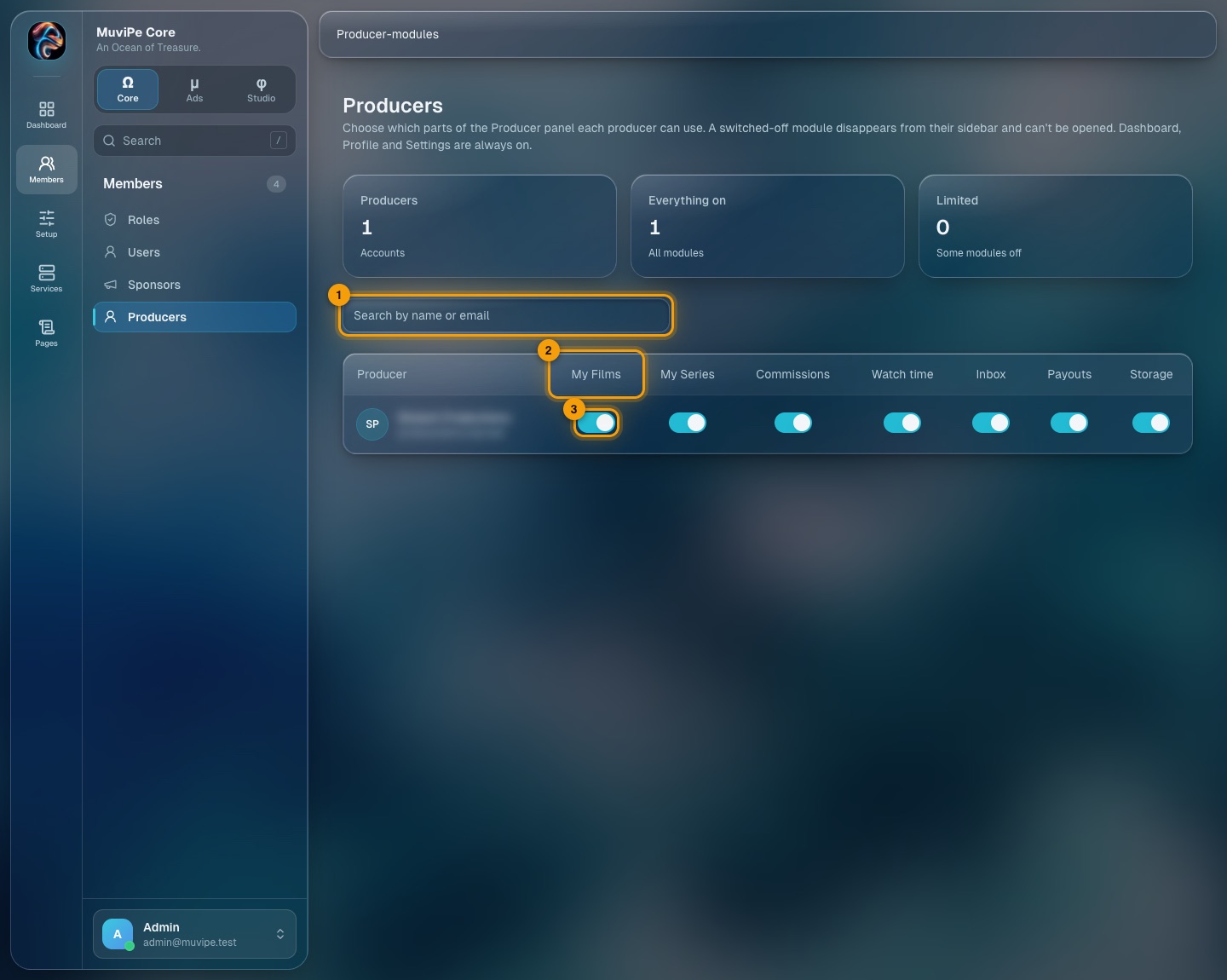
The Producers module switches.
- 1Search — by name or email.
- 2Module columns — My Films, My Series, Commissions, Watch time, Inbox, Payouts and Storage.
- 3Switch — turns one module on or off for one producer.
- Dashboard, Profile and Settings are always on.
- The cards above the table show how many producers have everything on and how many are limited.
Finance
The money rules. Two screens: Commissions for what a ticket and a wallet cost, and Storage plans for what each account may store.
Commissions
Four tabs. Everything about the ticket split changes from the next season only: the running season keeps the split it began with.
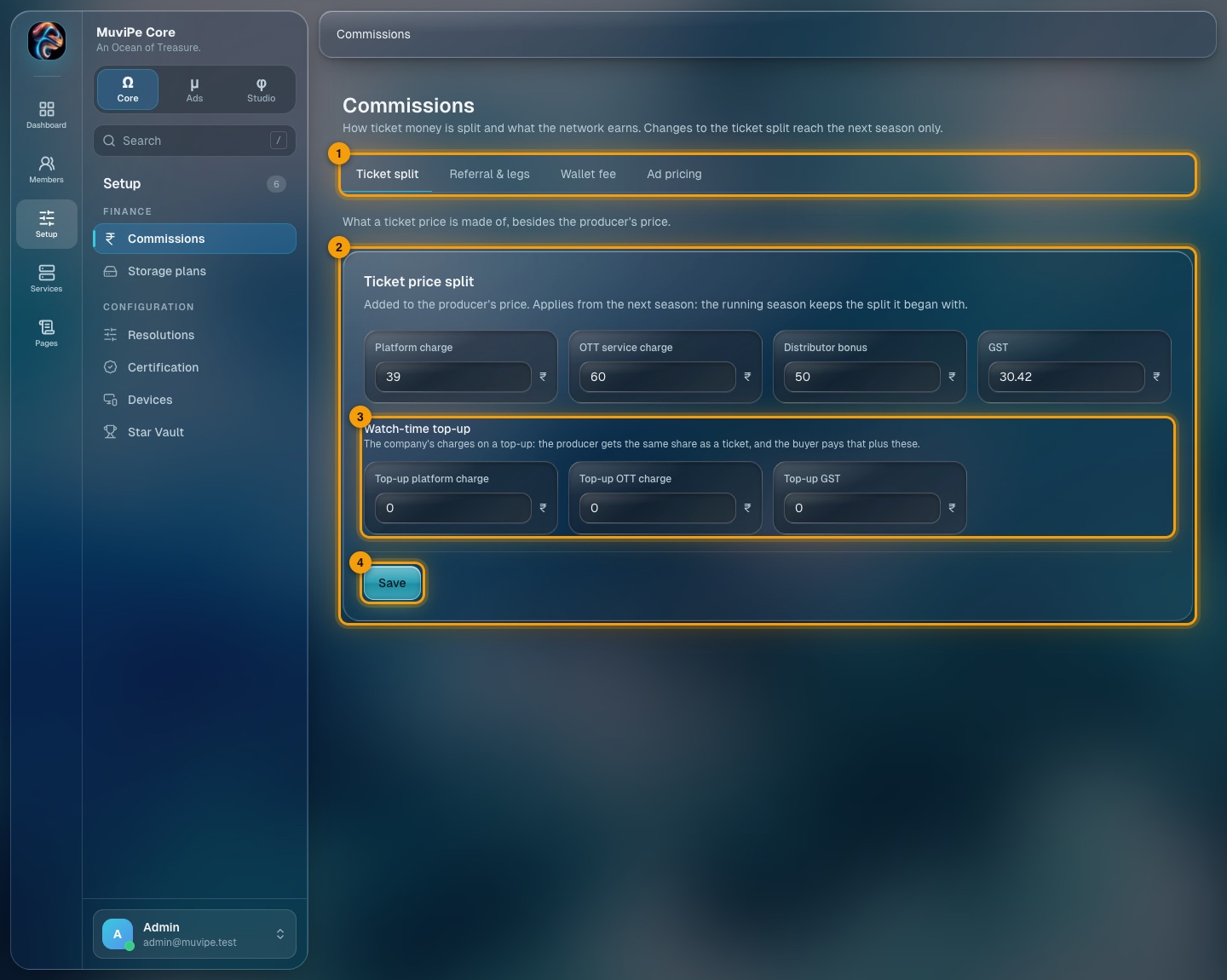
Commissions → Ticket split.
- 1Tabs — Ticket split, Referral & legs, Wallet fee, Ad pricing.
- 2Ticket price split — what is added to the producer's price: platform charge, OTT service charge, distributor bonus and GST, each in rupees.
- 3Watch-time top-up — the company's charges when someone tops up watch time. The producer gets the same share as for a ticket, and the buyer pays that plus these charges.
- 4Save — saves the split. It applies from the next season.
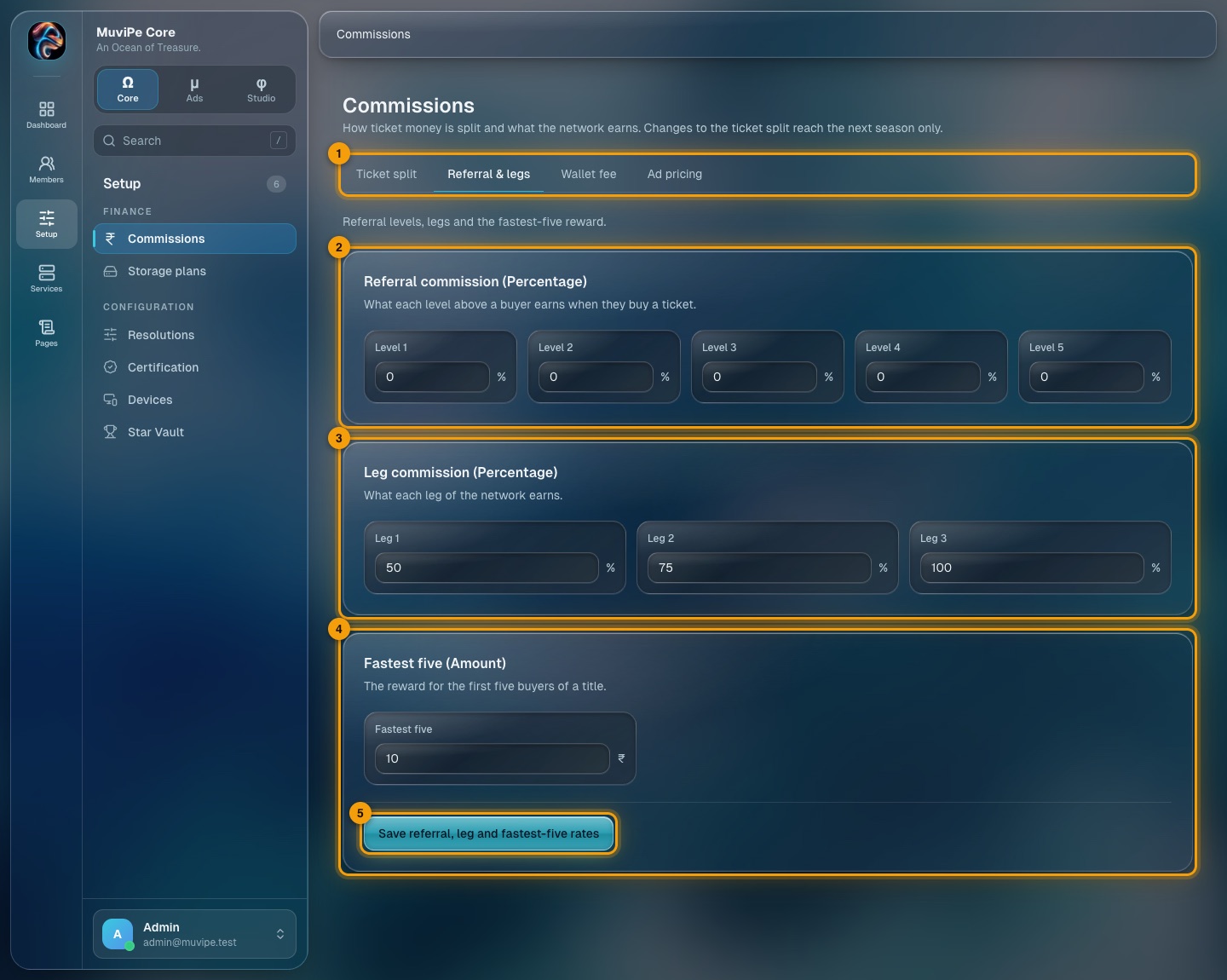
Commissions → Referral & legs.
- 1Tab — Referral & legs.
- 2Referral commission — what each of five levels above a buyer earns when the buyer buys a ticket (shown as percentages).
- 3Leg commission — what each of three legs of the network earns.
- 4Fastest five — the reward for the first five buyers of a title.
- 5Save — saves all three together.
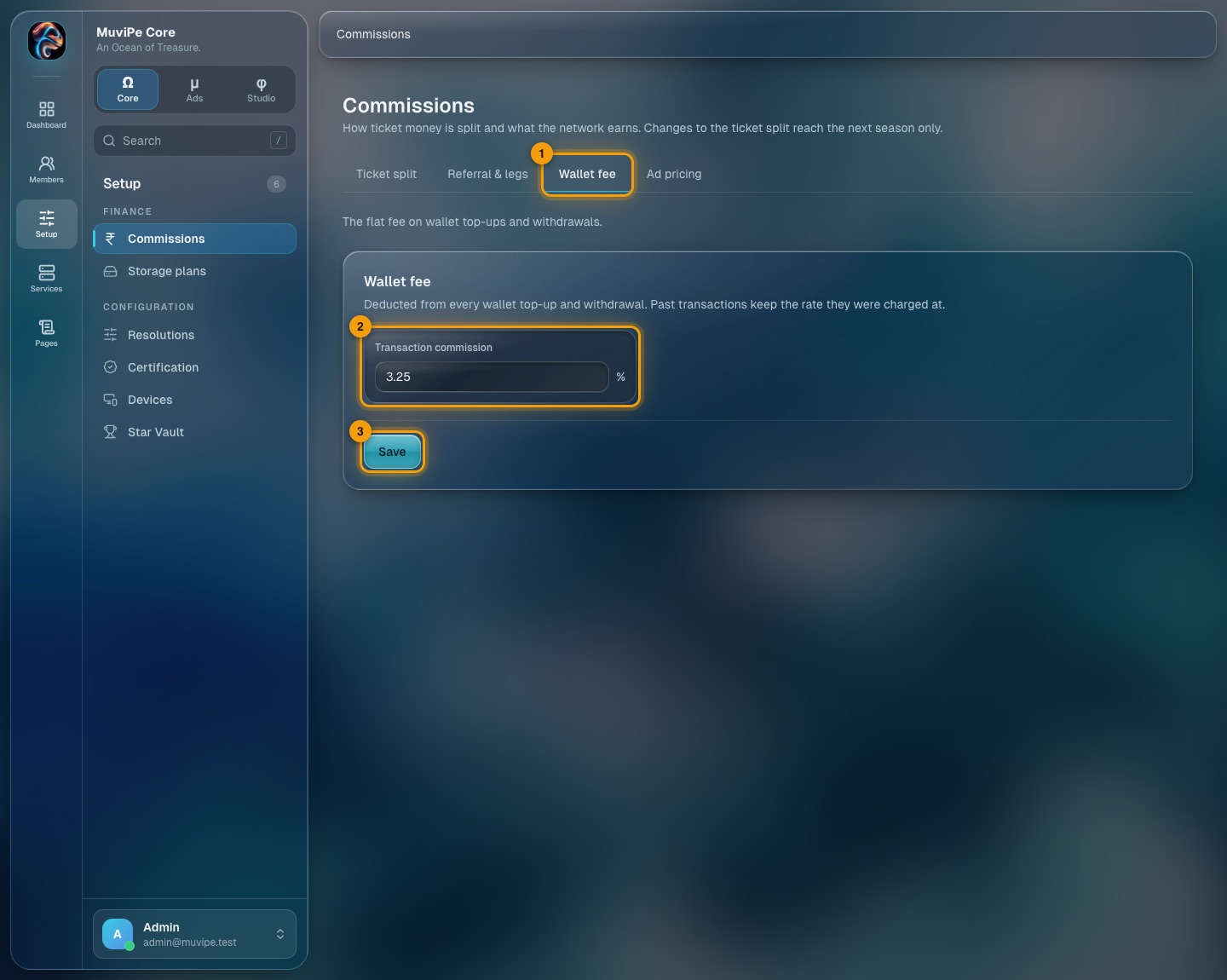
Commissions → Wallet fee.
- 1Tab — Wallet fee.
- 2Transaction commission — the flat percentage taken from every wallet top-up and withdrawal. Past transactions keep the rate they were charged at.
- 3Save — saves the fee.
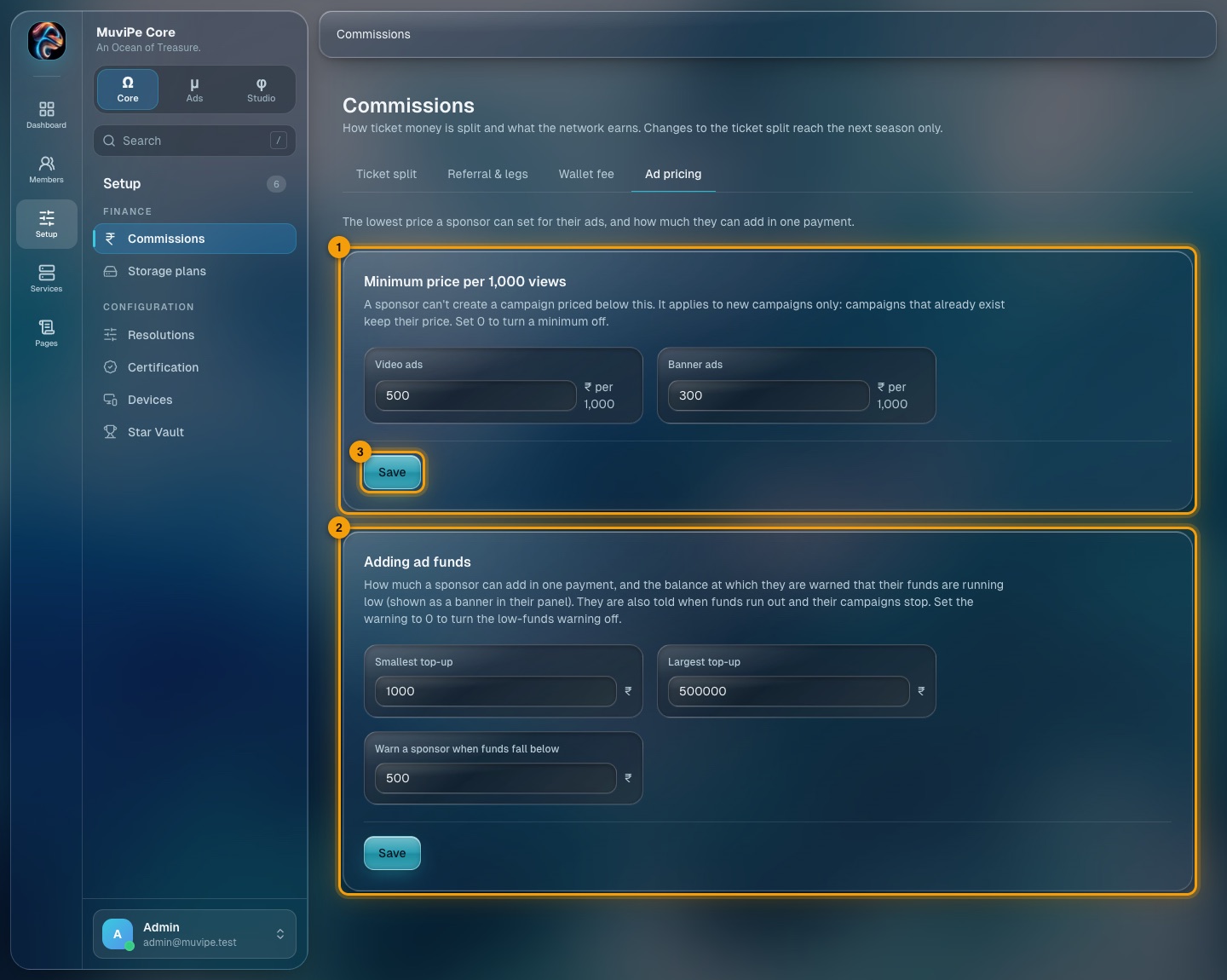
Commissions → Ad pricing.
- 1Minimum price per 1,000 views — the lowest price a sponsor may set, separately for video ads and banner ads. It applies to new campaigns only; running campaigns keep their price. Setting 0 turns a minimum off.
- 2Adding ad funds — the smallest and largest amount a sponsor can add in one payment, and the balance below which the sponsor is warned that funds are low (a banner in their panel). Set the warning to 0 to turn it off.
- 3Save — each card has its own Save button.
Storage plans
What each kind of account stores for free, and what extra storage costs.
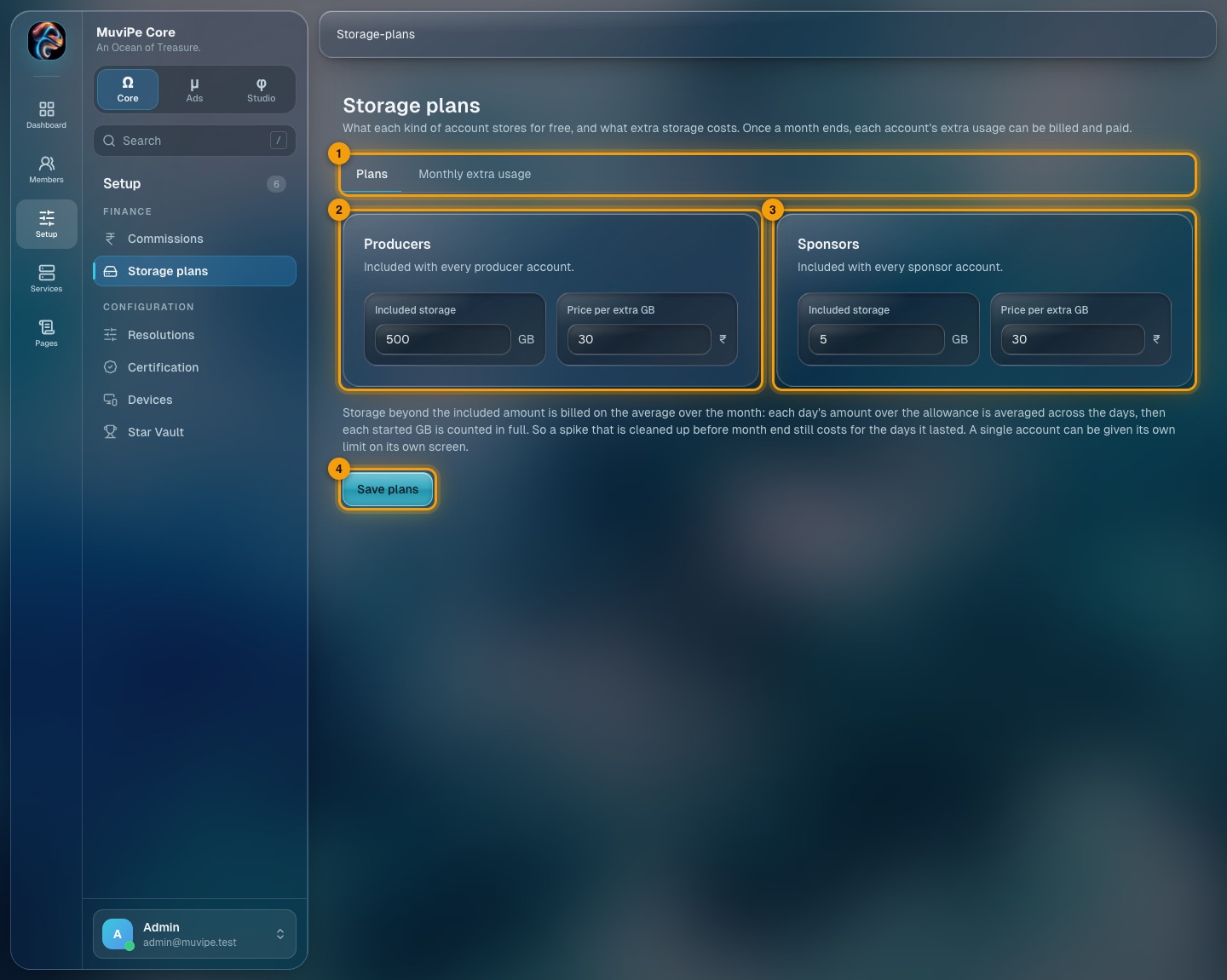
Storage plans → Plans.
- 1Tabs — Plans and Monthly extra usage.
- 2Producers — the free storage included with every producer account, and the price per extra GB.
- 3Sponsors — the same for sponsor accounts.
- 4Save plans — saves both plans.
- Storage beyond the allowance is billed on the monthly average: each day's amount over the allowance is averaged across the days, then each started GB counts in full. A spike that is cleaned up before month end still costs for the days it lasted.
- One account can be given its own limit on its own screen (see Sponsors).
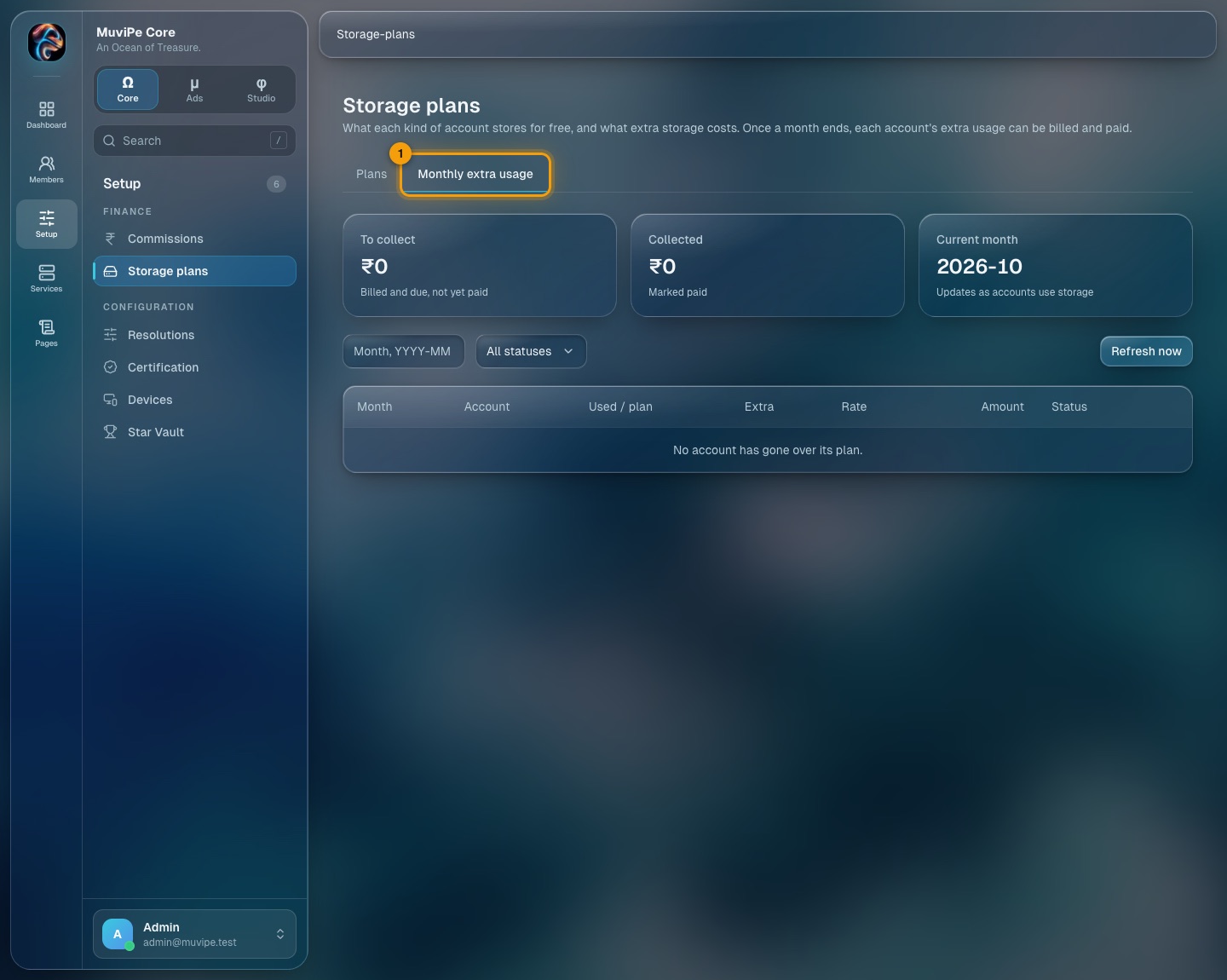
Storage plans → Monthly extra usage.
- 1Monthly extra usage — once a month ends, each account's extra usage can be billed and paid. This tab lists the months and what each account owes.
Configuration
Short lists that the catalogue and the apps use. They work the same way: a table of names, with an Edit button on each row that opens a side sheet.
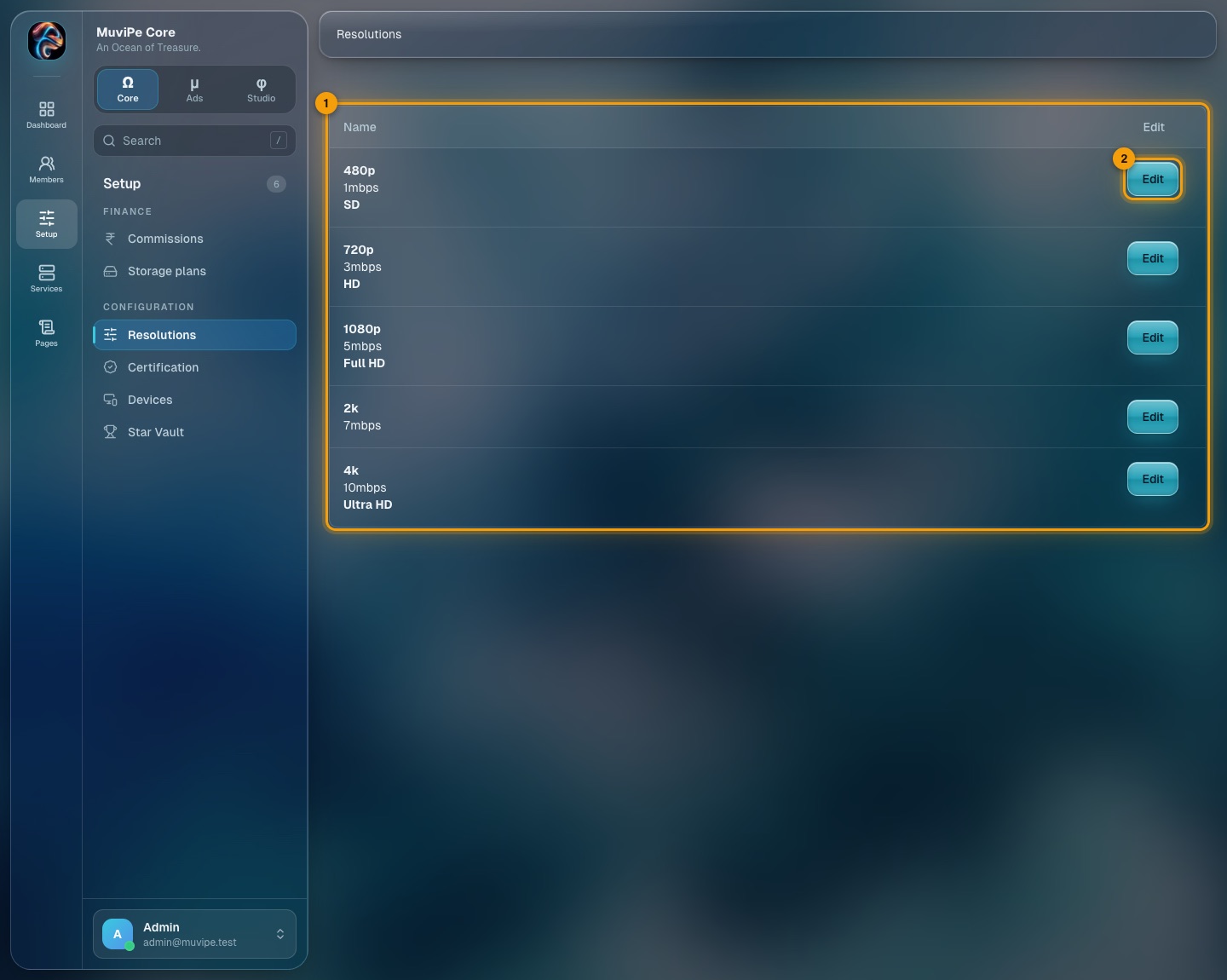
Resolutions.
- 1The list — the video resolutions offered: name, bitrate and quality label (for example 720p, 3mbps, HD).
- 2Edit — opens a side sheet to change one.
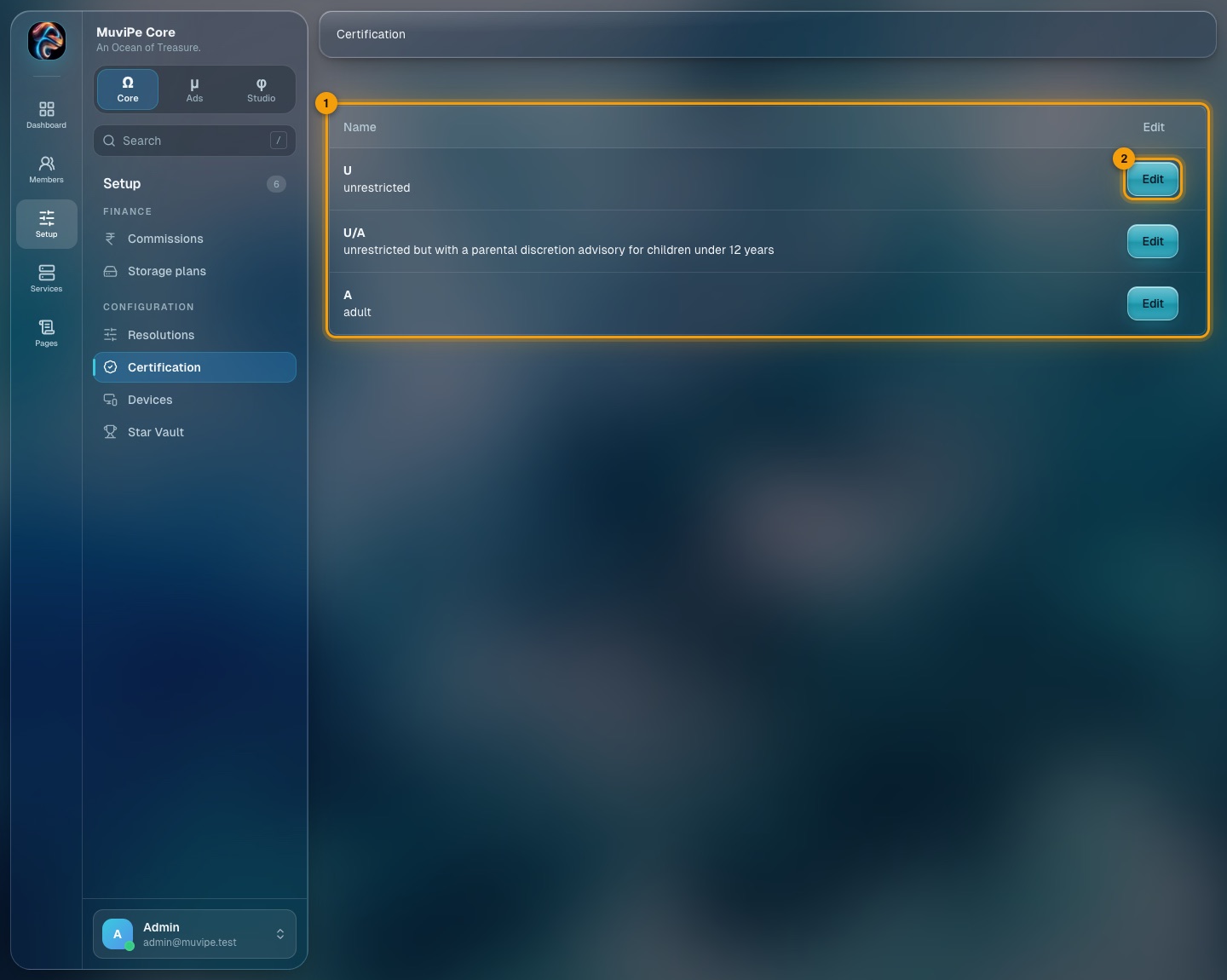
Certification.
- 1The list — age ratings such as U, U/A and A, used when a title is given its certificate.
- 2Edit — change the name or description.
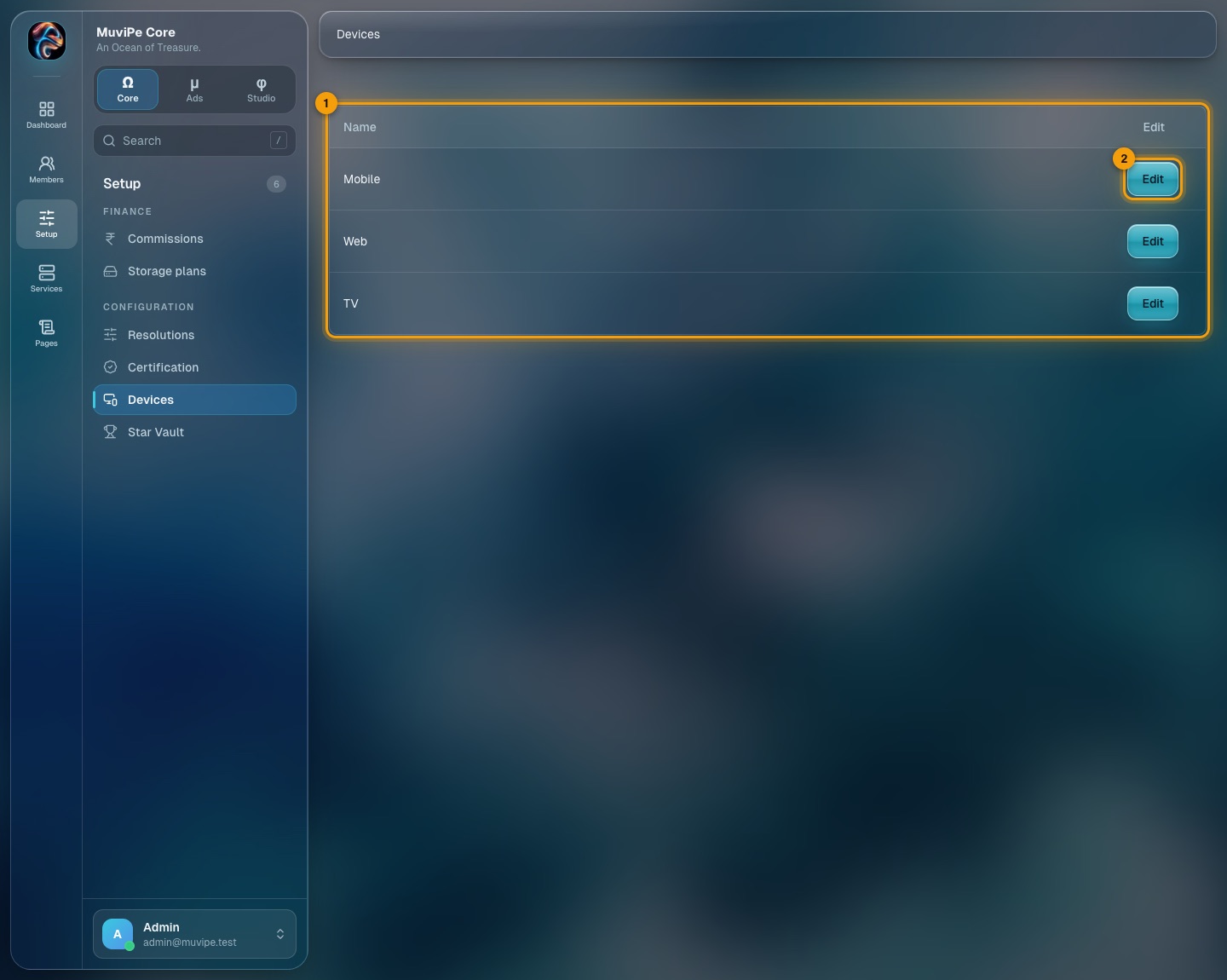
Devices.
- 1The list — the kinds of device viewers watch on (Mobile, Web and TV).
- 2Edit — rename one.
Star Vault
The rules of the star programme: how long a season runs, what each achievement pays and how far a member has to get on each track to reach a rung. Every season freezes a copy of the rules when it begins. Changes here reach the next season only. The one running now is not affected.
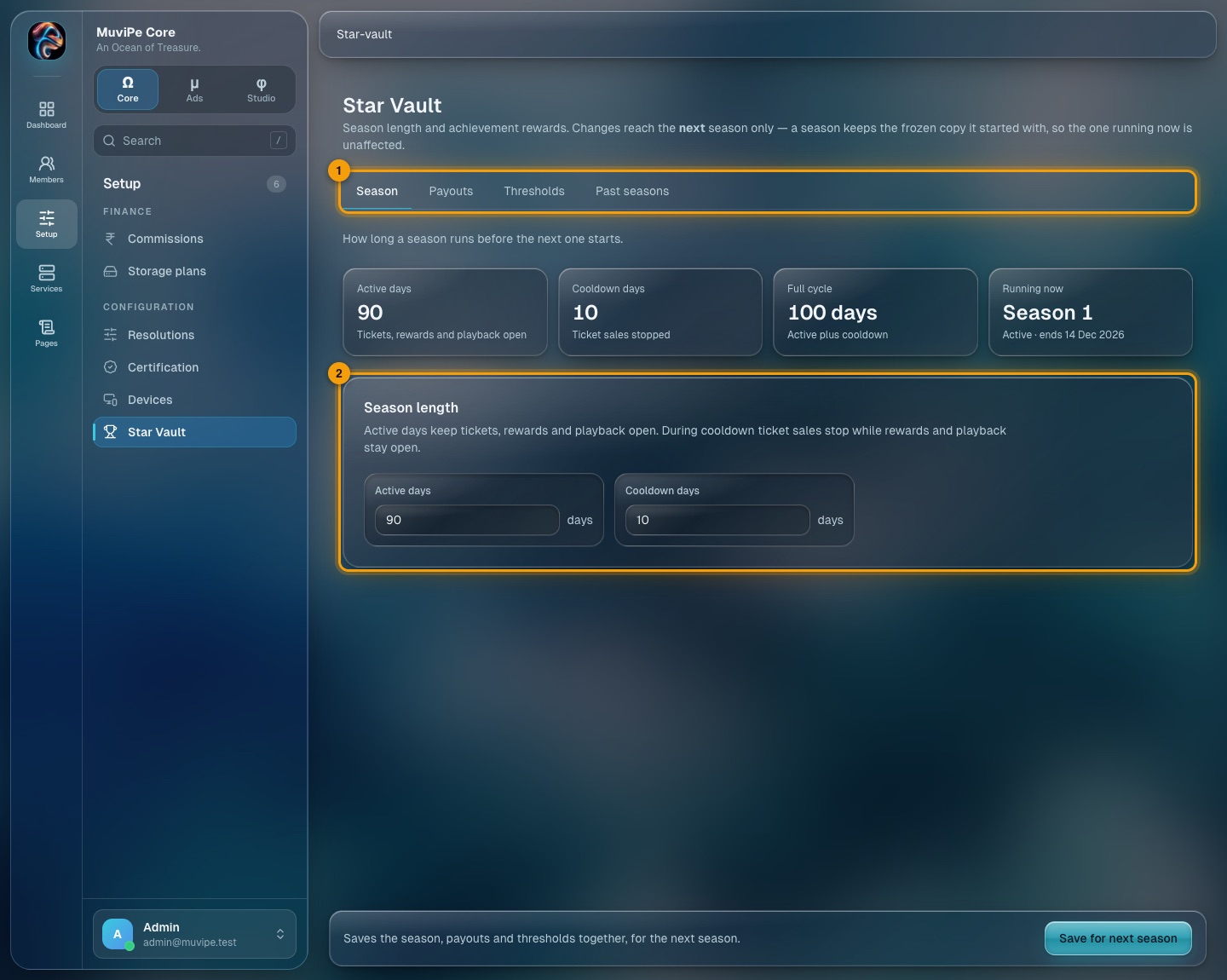
Star Vault → Season.
- 1Tabs — Season, Payouts, Thresholds, Past seasons.
- 2Season length — active days keep tickets, rewards and playback open. During the cooldown, ticket sales stop but rewards and playback stay open.
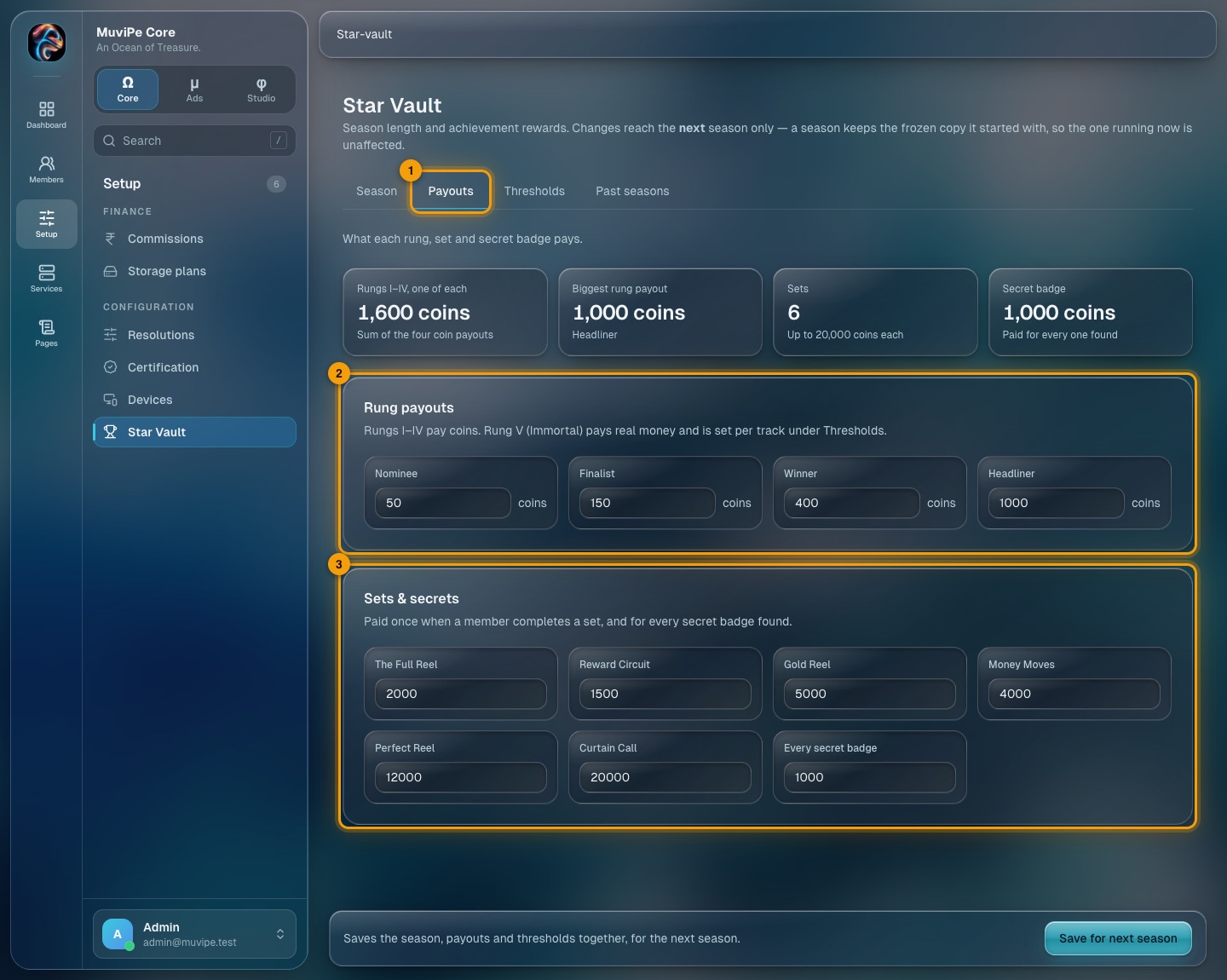
Star Vault → Payouts.
- 1Tab — Payouts.
- 2Rung payouts — Nominee, Finalist, Winner and Headliner (rungs I to IV) pay coins. Rung V, Immortal, pays real money and is set per track under Thresholds.
- 3Sets and secrets — what a member is paid once for completing a set, and for every secret badge found.
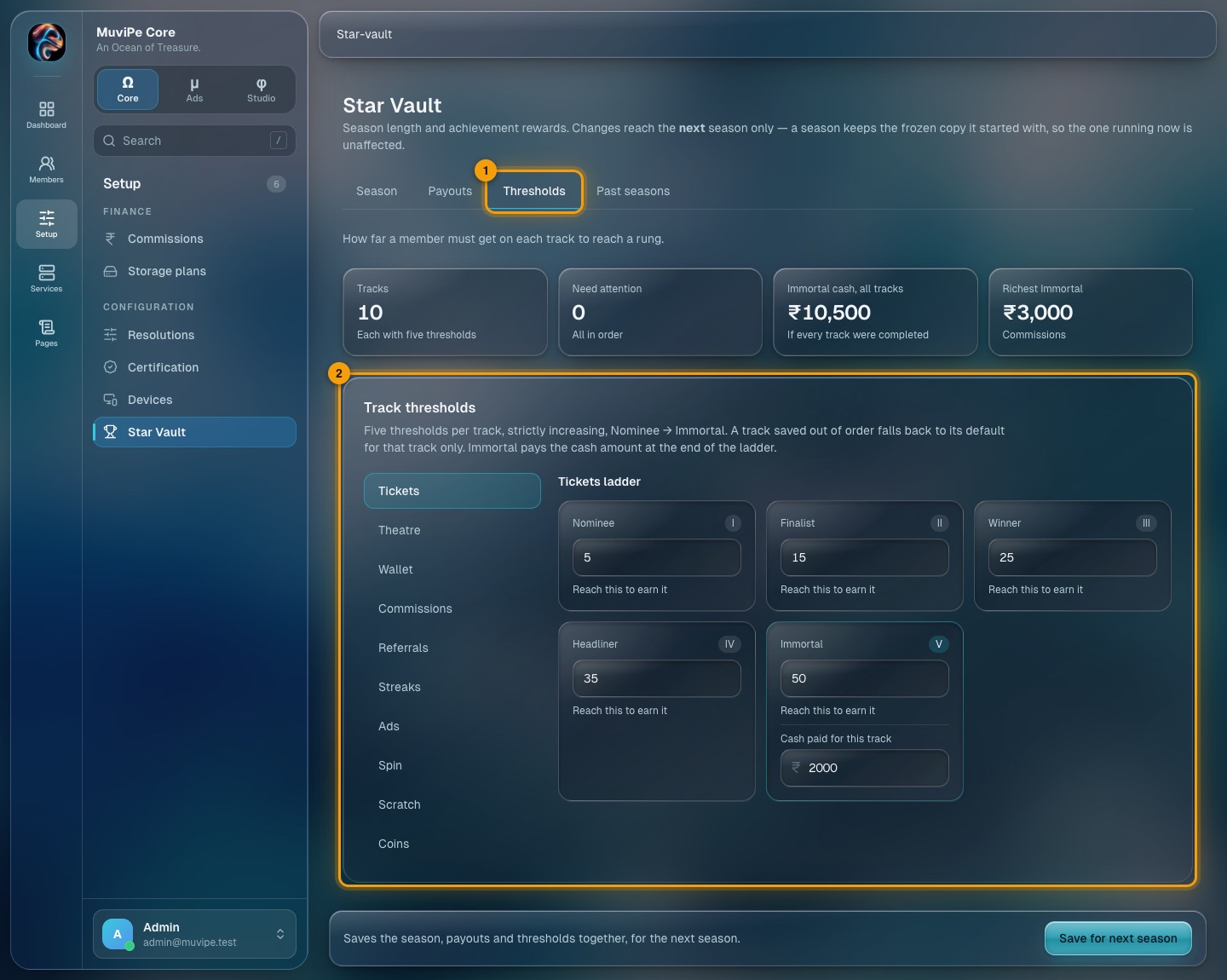
Star Vault → Thresholds.
- 1Tab — Thresholds.
- 2Track thresholds — five per track, strictly increasing. A small amber dot beside a track means its numbers are not in order and cannot be saved.
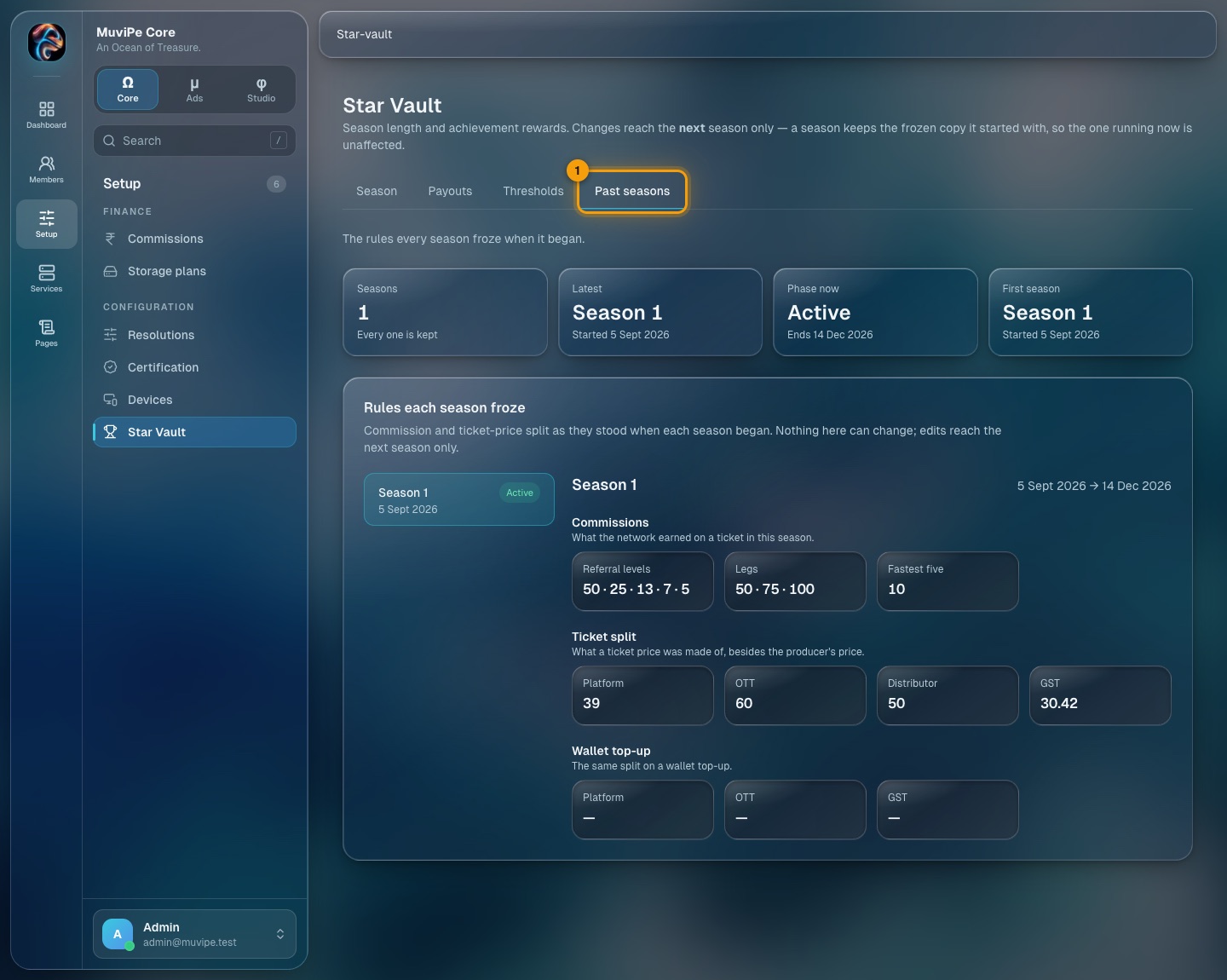
Star Vault → Past seasons.
- 1Past seasons — the rules every earlier season froze when it began, so any old season can be looked up in one place.
Services
Live health and numbers for the outside services MuviPe depends on. These screens name the providers on purpose. Provider keys are held only on the API server and never reach the browser. Each screen refreshes about every 30 minutes, and Fetch again refreshes it now.
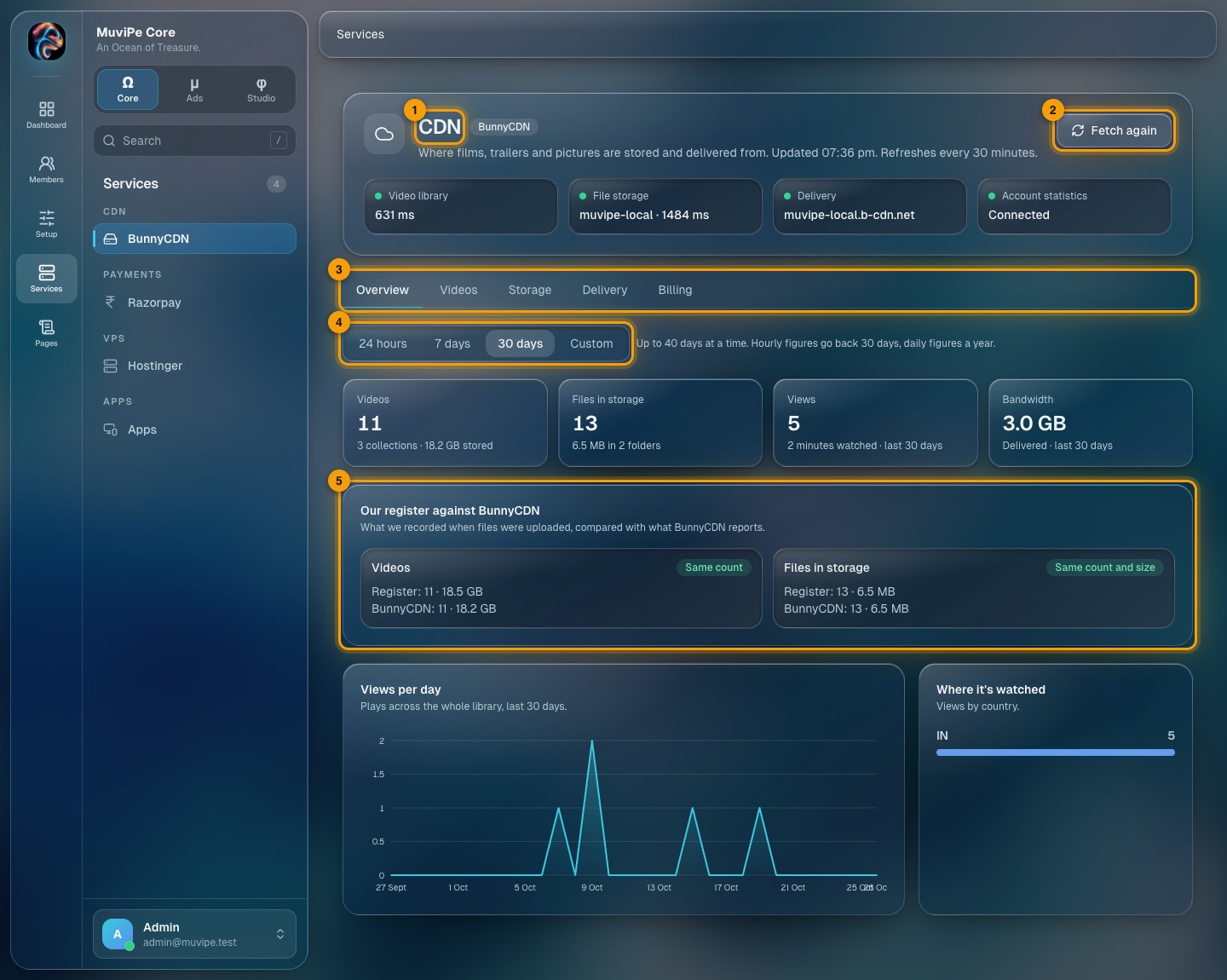
Services → BunnyCDN.
- 1Title and provider — what this screen is. The four tiles beneath show whether the video library, file storage, delivery and account statistics answer.
- 2Fetch again — refreshes now.
- 3Tabs — Overview, Videos, Storage, Delivery and Billing.
- 4Range — 24 hours, 7 days, 30 days or a custom range (hourly figures go back 30 days, daily figures a year).
- 5Our register against BunnyCDN — compares what MuviPe recorded when files were uploaded with what the CDN reports. Same count means they agree; a difference points to a missing or extra file.
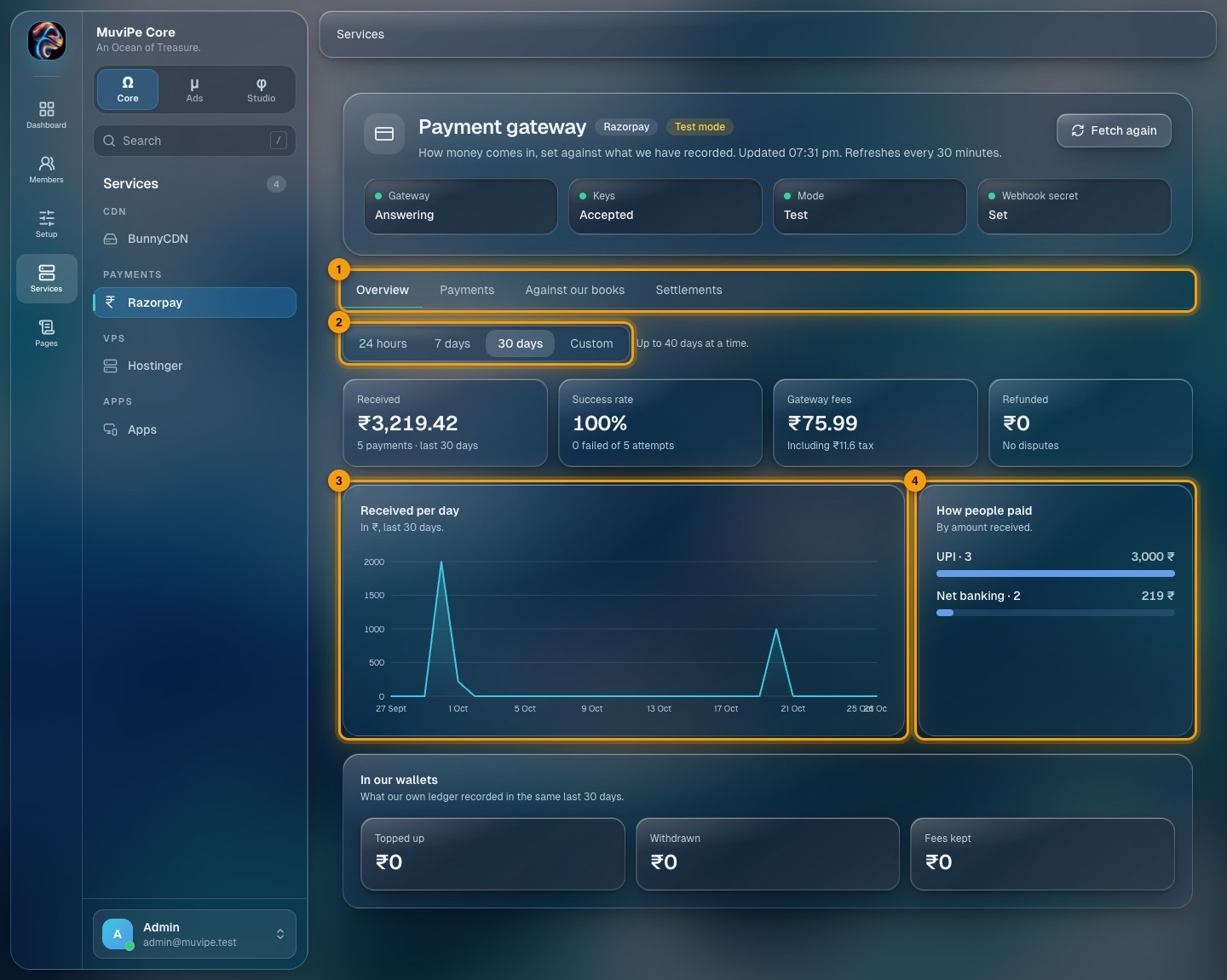
Services → Razorpay.
- 1Tabs — Overview, Payments, Against our books (checks the gateway's figures against MuviPe's own records) and Settlements.
- 2Range — 24 hours, 7 days, 30 days or custom.
- 3Received per day — money received, per day.
- 4How people paid — received amount by method (UPI, net banking and so on). Beneath is In our wallets: what MuviPe's own ledger recorded over the same period.
The four tiles at the top say whether the gateway answers, the keys are accepted, which mode it is in (Test or live) and whether the webhook secret is set.
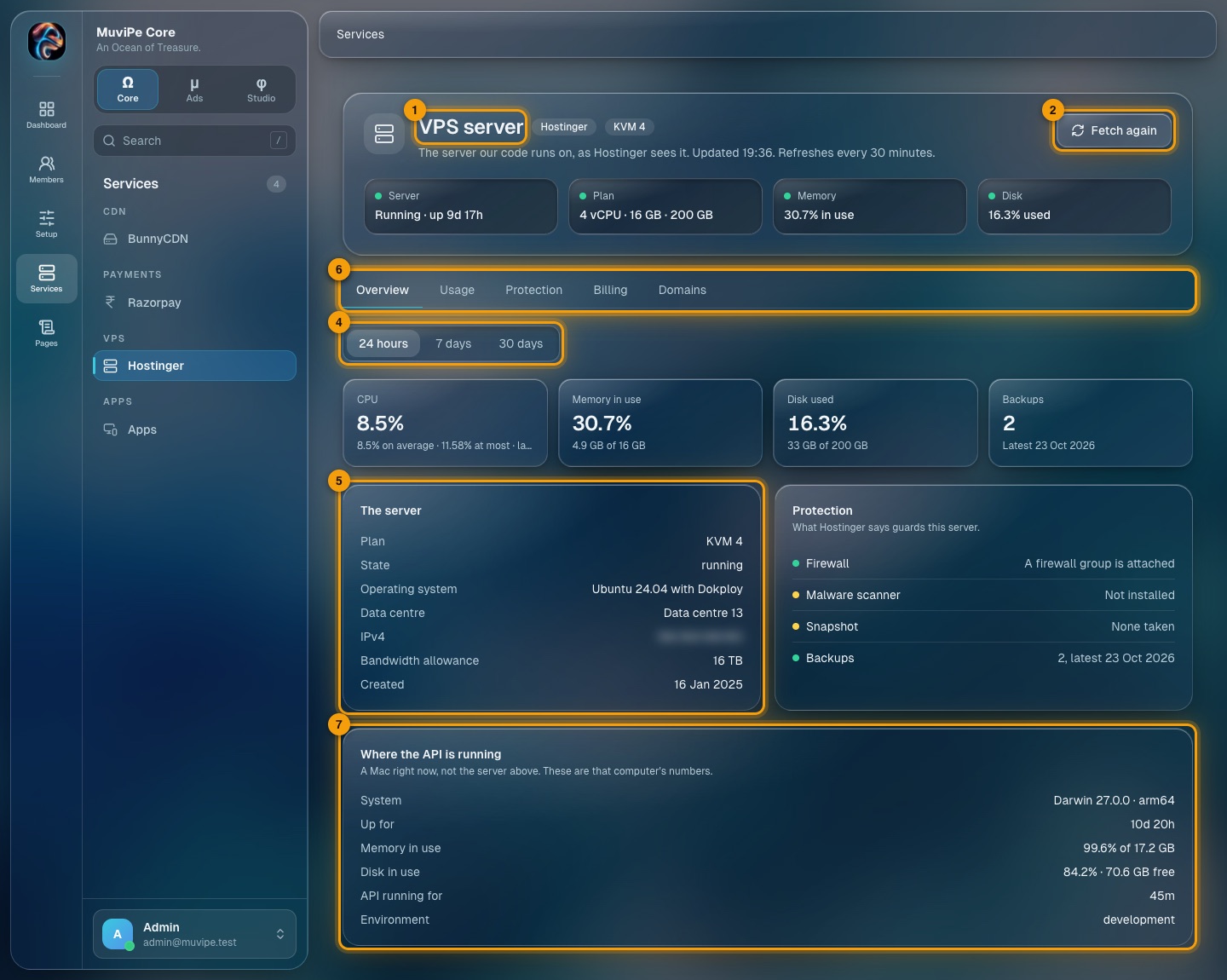
Services → Hostinger (the server).
- 1Title — the server and its plan. The tiles show its state, plan, memory and disk.
- 2Fetch again — refreshes now.
- 3Tabs — Overview, Usage, Protection, Billing and Domains.
- 4Range — 24 hours, 7 days or 30 days.
- 5The server — plan, state, operating system, data centre, address, bandwidth allowance and when it was created.
- 6Protection — what the host says guards the server: firewall, malware scanner, snapshot and backups. An amber dot means something is missing.
- 7Where the API is running — numbers for the machine the API is running on right now. Locally it shows that computer, not the server above.
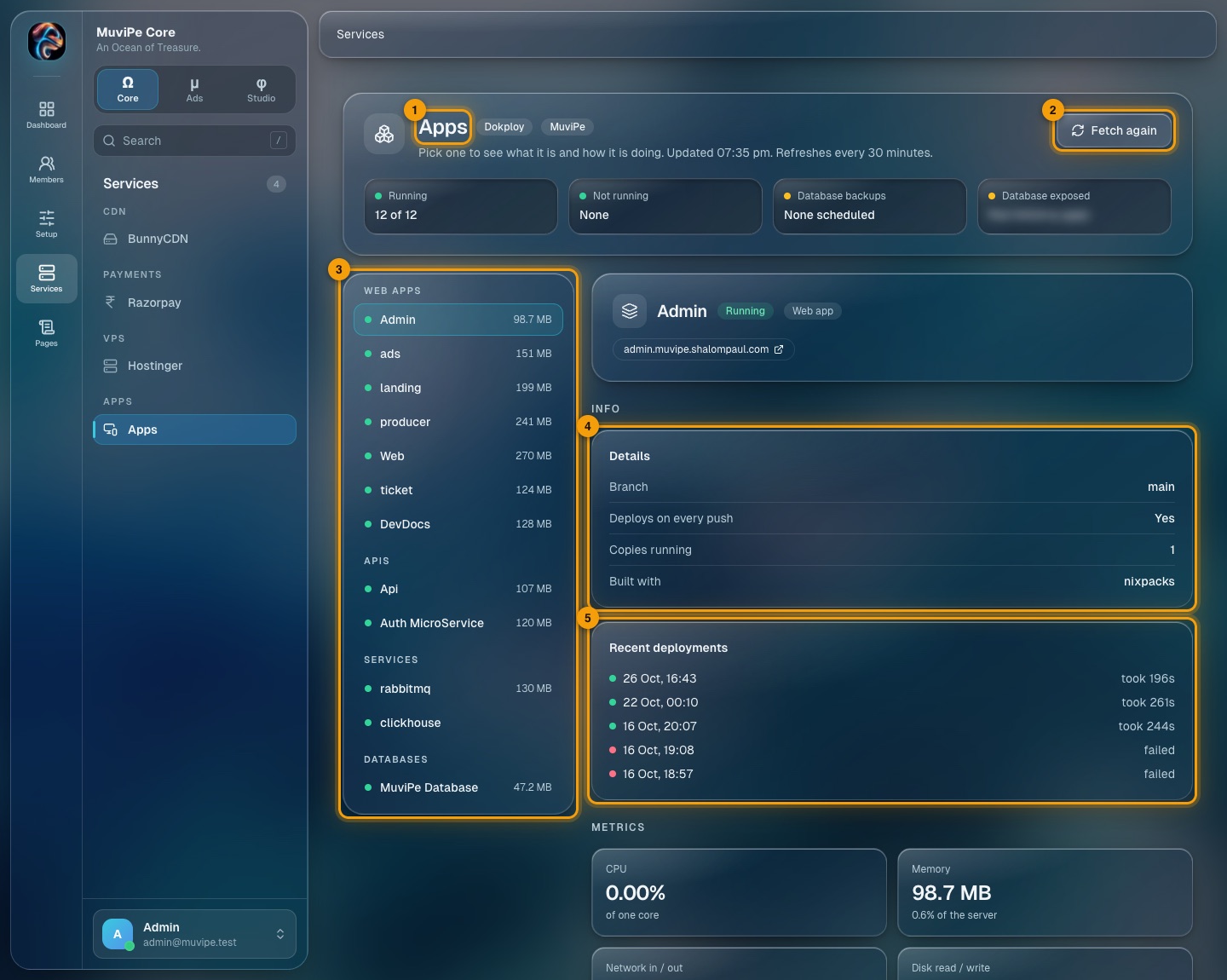
Services → Apps (the deployment platform).
- 1Title — the deployment platform and project. The tiles show how many apps are running, how many are not, database backups, and whether a database port is open to the internet.
- 2Fetch again — refreshes now.
- 3App list — every web app, API, service and database, each with a status dot and its memory use. Pick one to see its details on the right.
- 4Details — branch, whether it redeploys on every push, copies running and how it is built.
- 5Recent deployments — when each deploy ran and how long it took, or failed. CPU, memory and network charts follow.
Pages
The wording of the site's own pages is edited here, not in code. Saving updates the live page. Every page is a text editor with a toolbar for headings, bold, italic, underline, colour, lists, links and images.
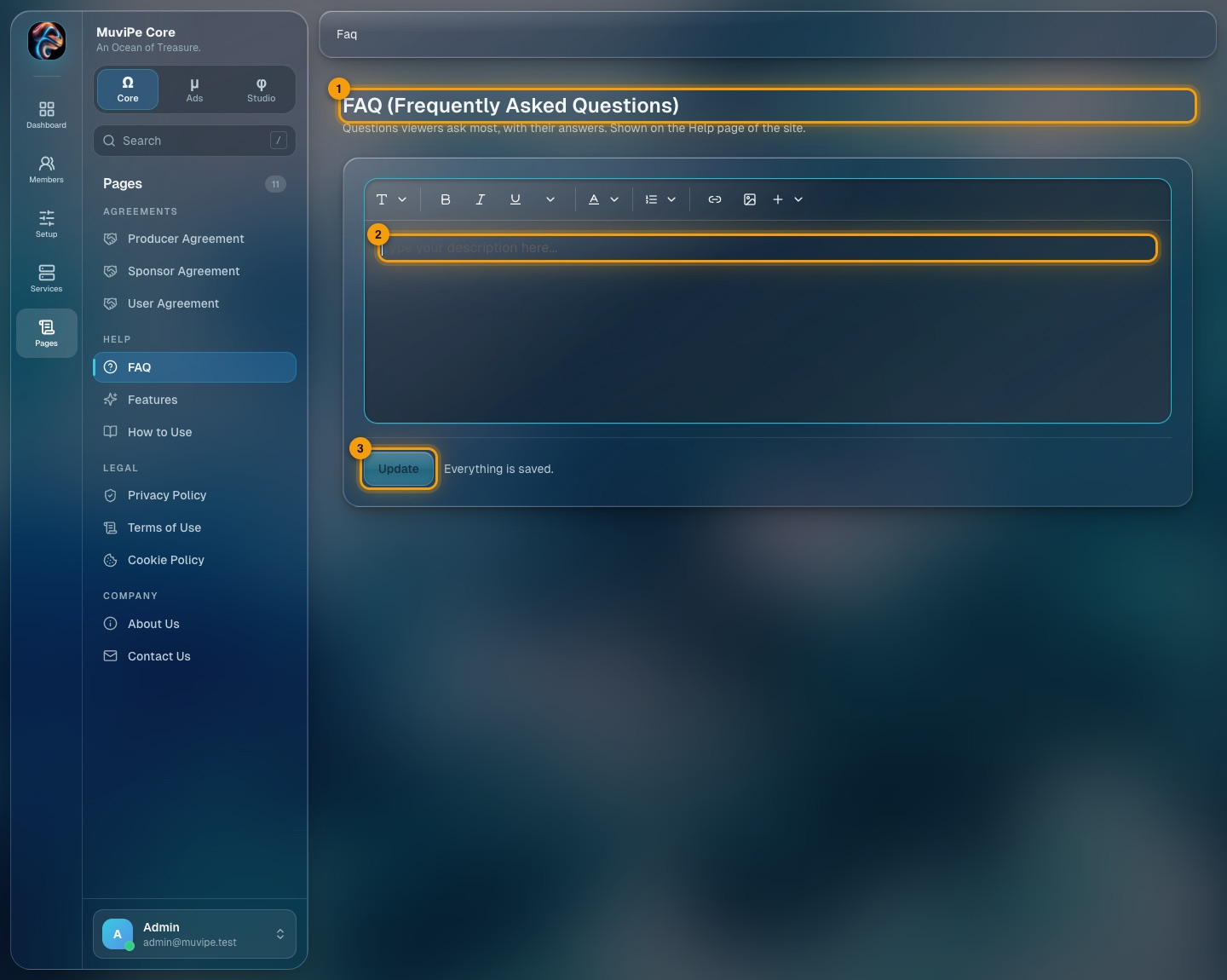
Pages → FAQ.
- 1Title and description — which page this is and who reads it.
- 2Editor — write and format the text.
- 3Update — publishes the text.
The same editor is used for Sponsor Agreement, User Agreement, FAQ, Features, How to Use, Privacy Policy, Terms of Use, Cookie Policy, About Us and Contact Us.
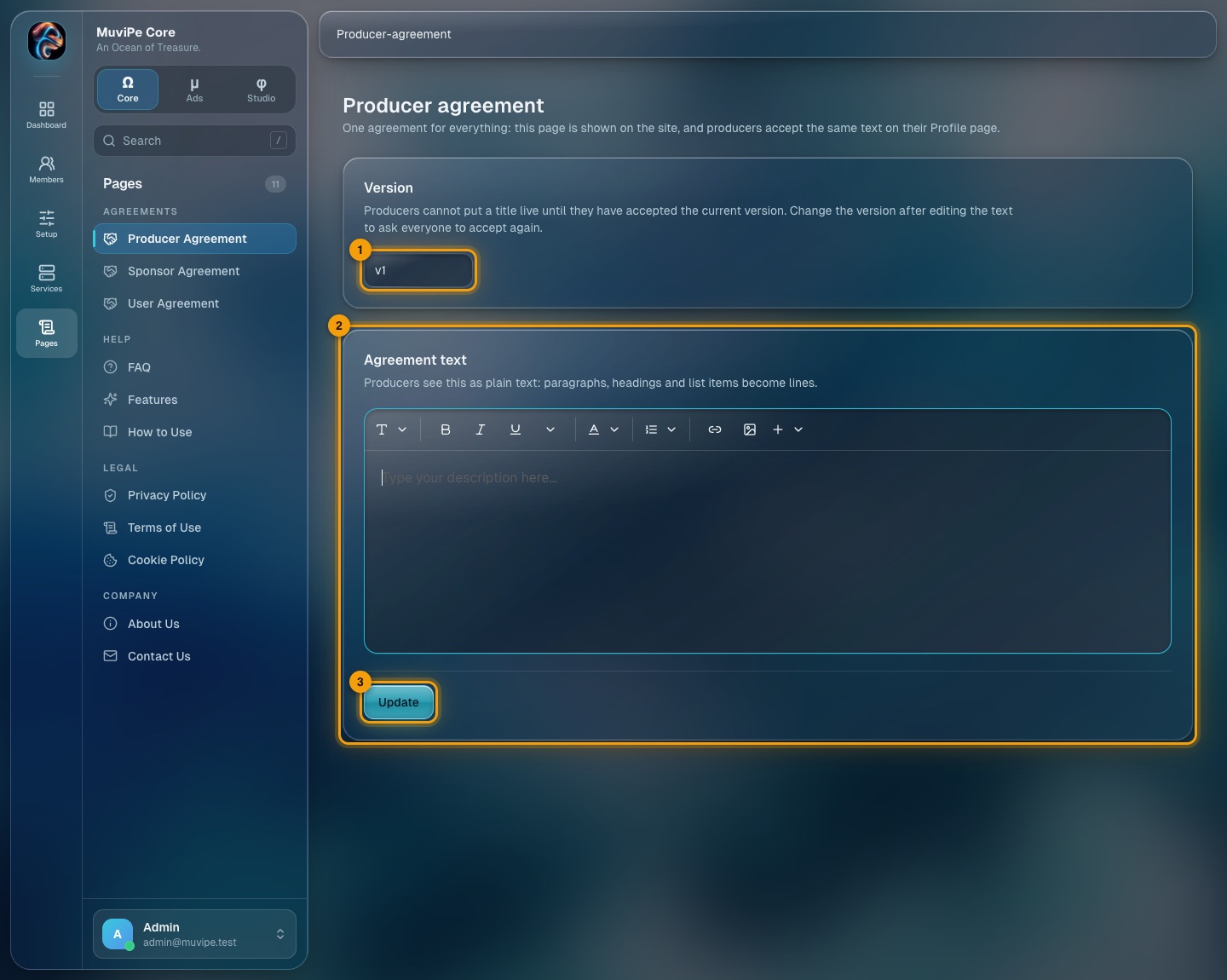
Pages → Producer Agreement (the one with a version).
- 1Version — producers cannot put a title live until they have accepted the current version. After you edit the text, change the version (for example v1 to v2) to ask everyone to accept it again.
- 2Agreement text — producers see it as plain text: paragraphs, headings and list items become lines.
- 3Update — publishes the text and the version.
Portal 2 · μ
MuviPe Ads
Reviewing what sponsors run, and the money behind it.
Dashboard
Sponsors, campaigns, what they have spent, and how often ads were watched.
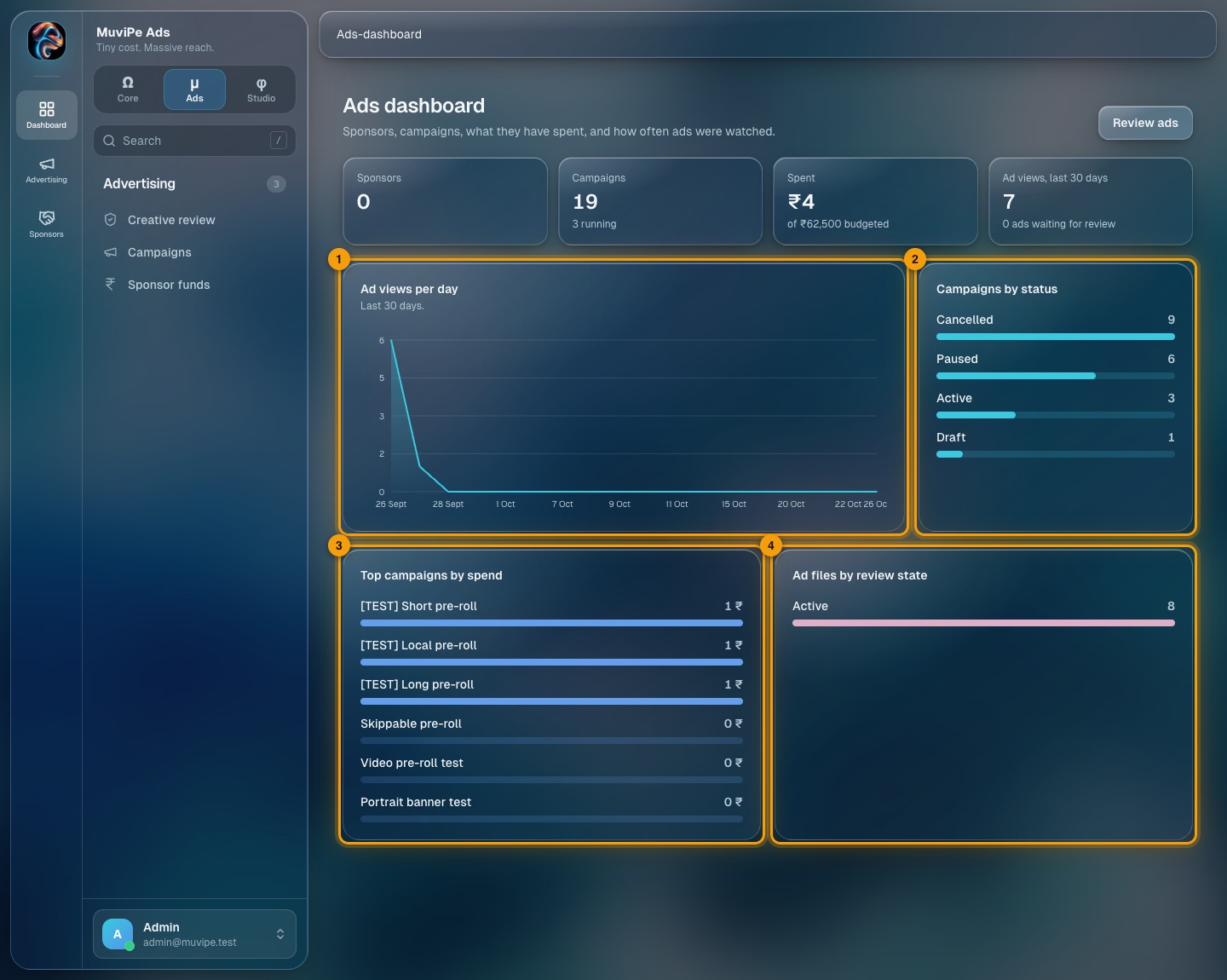
The Ads dashboard.
- 1Ad views per day — how many times ads were watched, over the last 30 days.
- 2Campaigns by status — how many are draft, active, paused, completed or cancelled.
- 3Top campaigns by spend — which campaigns have spent the most.
- 4Ad files by review state — how many uploaded ad files are in each review state.
The cards at the top count sponsors, campaigns (and how many are running), money spent against budgeted, and ad views in the last 30 days. Review ads jumps to the review queue.
Creative review
Images and videos that sponsors uploaded and that passed the automatic checks, waiting for a human decision.
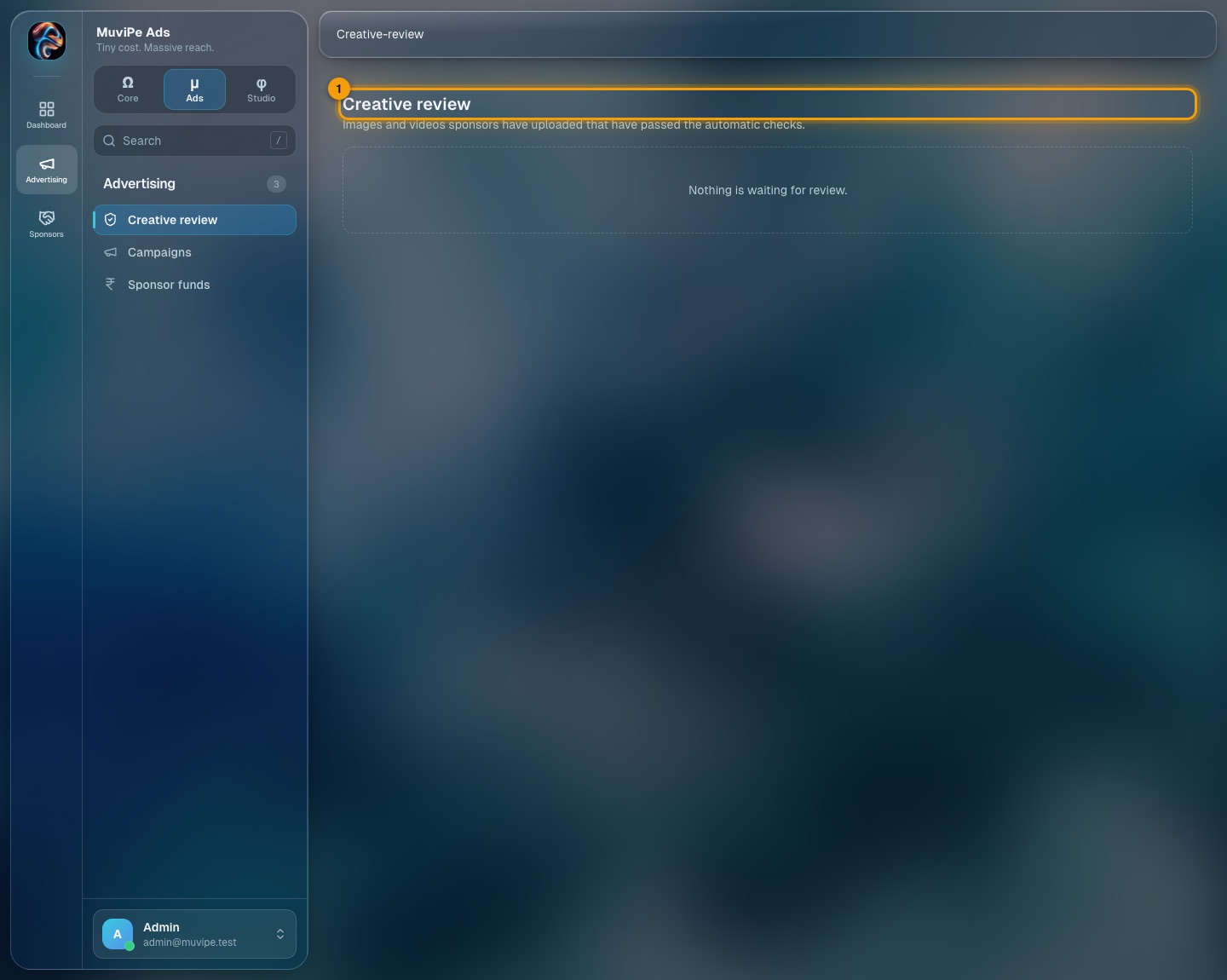
Creative review with nothing waiting.
- 1The queue — empty here, so it says Nothing is waiting for review. When there are files, each is shown with its type and dimensions and two buttons: Approve, and Reject, which asks for a reason (required).
- Automatic checks come first. A video longer than 2 minutes is rejected automatically and never reaches this queue.
- A file that is approved can be served in a campaign; a rejected one cannot, and the sponsor sees the reason.
Campaigns
Every campaign that every sponsor has created. Sponsors run their own campaigns; admin can pause, resume or cancel any of them.
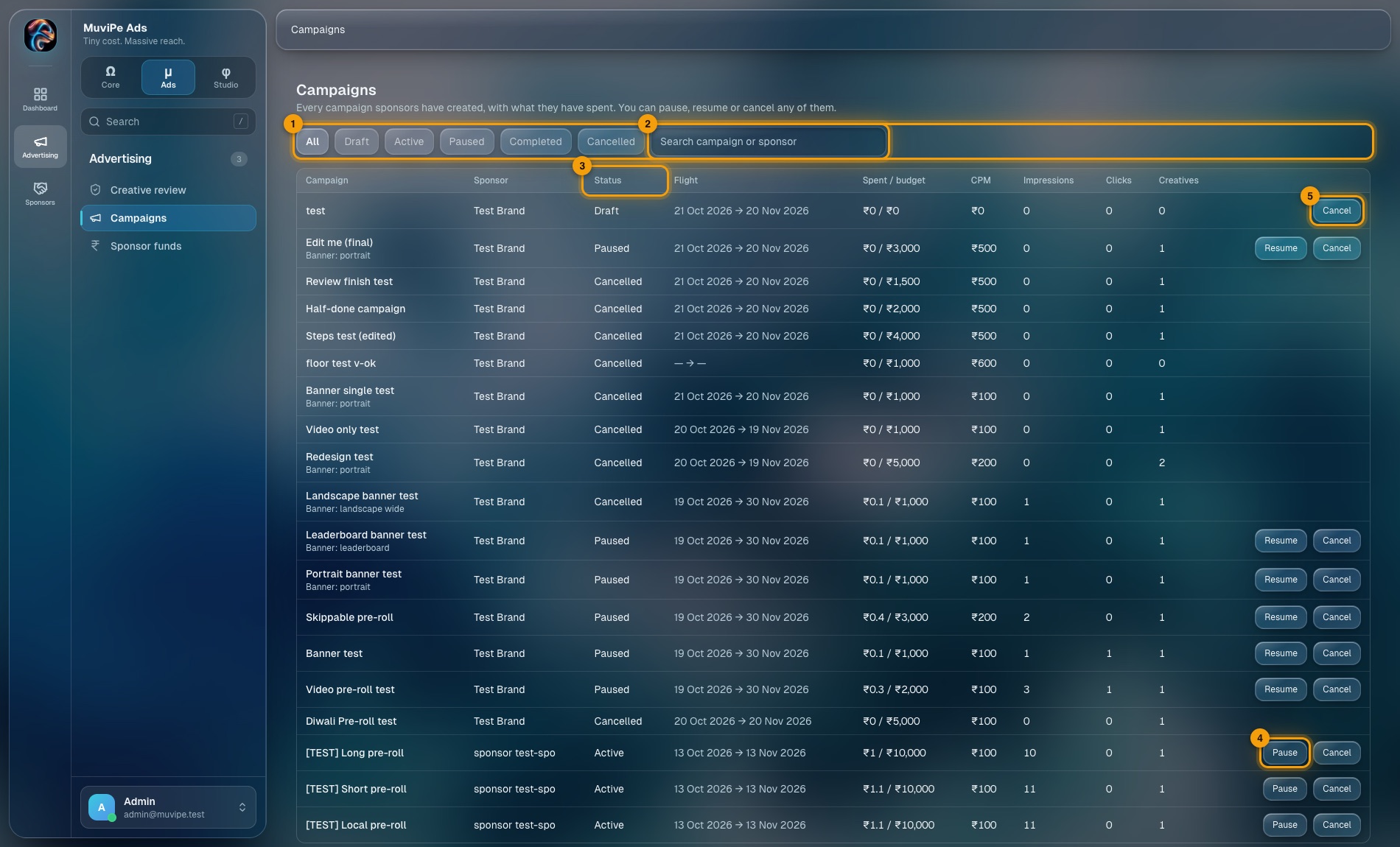
The Campaigns list.
- 1Status filter — All, Draft, Active, Paused, Completed or Cancelled.
- 2Search — by campaign or sponsor name.
- 3Status — where the campaign is. Beside it: flight dates, spent against budget, the price per 1,000 views (CPM), impressions, clicks and the number of creatives.
- 4Pause — stops an active campaign serving. A paused one shows Resume instead.
- 5Cancel — ends the campaign for good. Completed and cancelled campaigns have no buttons.
- Banner campaigns show which banner shapes they use under the name.
- Billing is per 1,000 views, from the first impression in a session. Clicks are counted and reported but are free.
Sponsor funds
The ad money each sponsor has added, what their campaigns have spent, and what is left. Views are taken off the balance as they are served, and a campaign stops when the balance runs out.
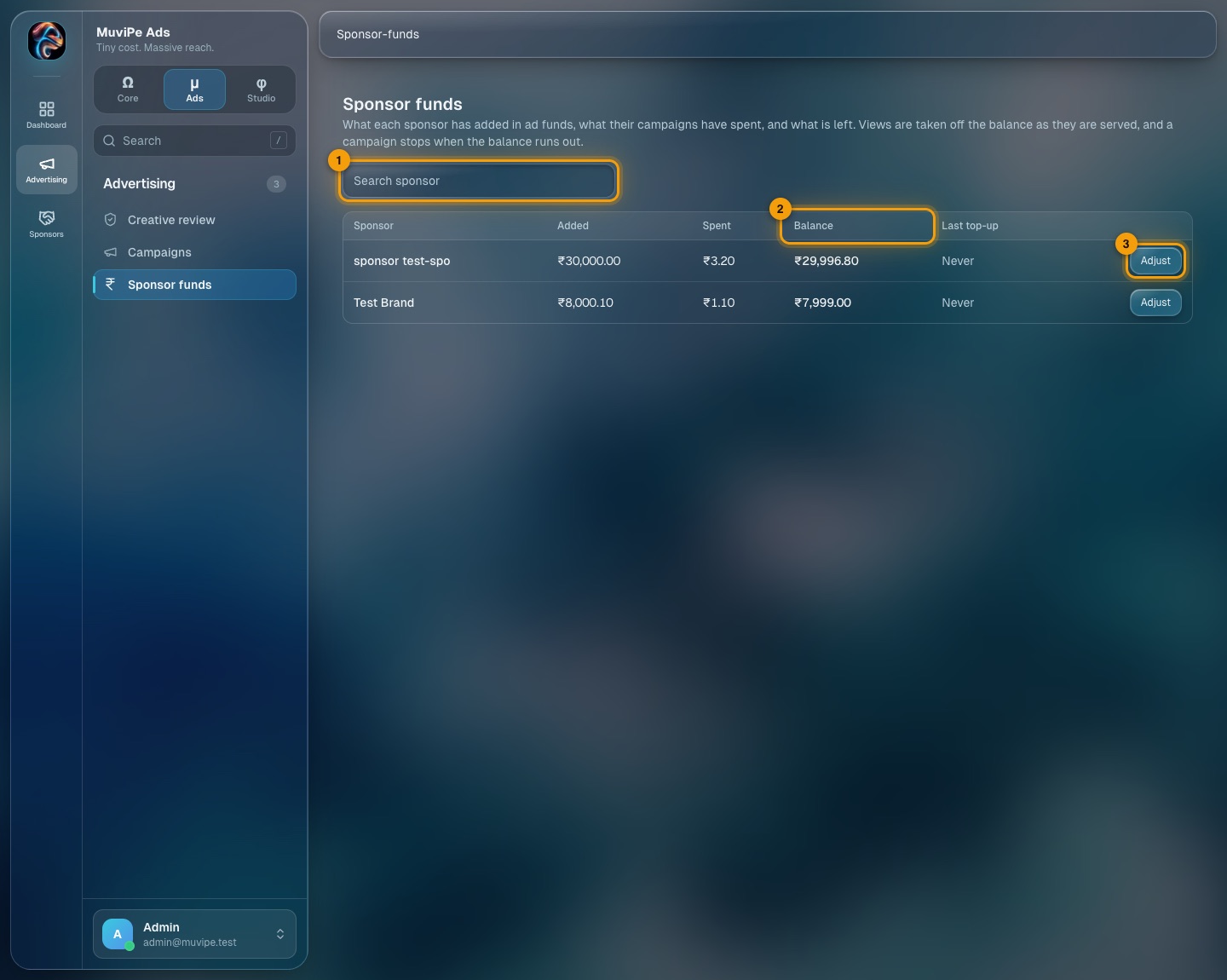
The Sponsor funds list.
- 1Search — by sponsor.
- 2Balance — what is left. Beside it: money added, money spent and the last top-up.
- 3Adjust — opens the add or remove panel for that sponsor.
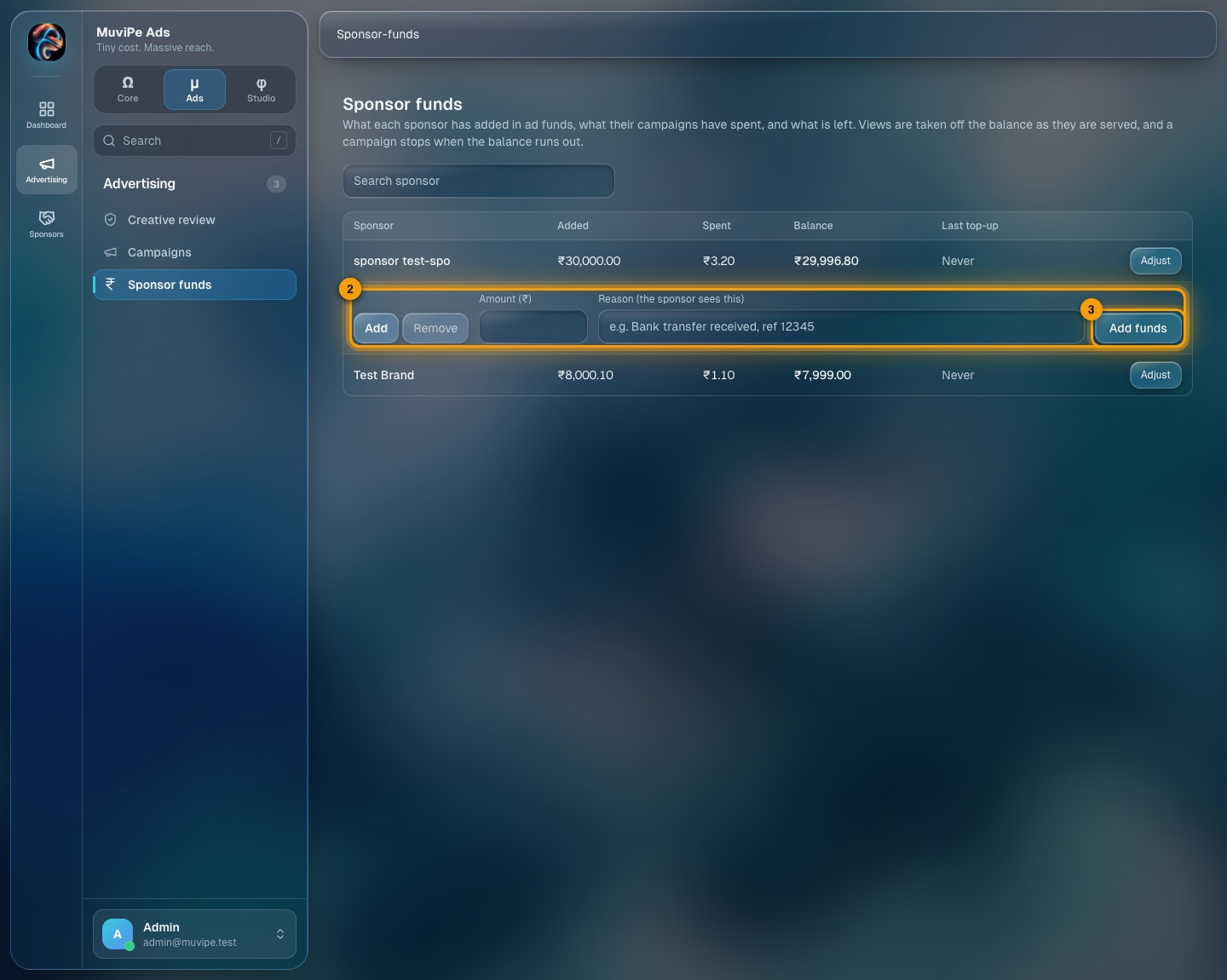
Adjusting a sponsor's funds.
- 1Amount — in rupees. Use Add or Remove beside it to choose the direction.
- 2Reason — required. The sponsor sees it, so write it plainly (for example Bank transfer received, ref 12345).
- 3Add funds — applies the change.
Sponsors
The same Sponsors screen as in Core (see Sponsors), kept in this portal so everything about advertisers is in one place.
Portal 3 · φ
MuviPe Studio
The film loft: every title on MuviPe, and the lists that describe it.
Dashboard
The library and the producers behind it.
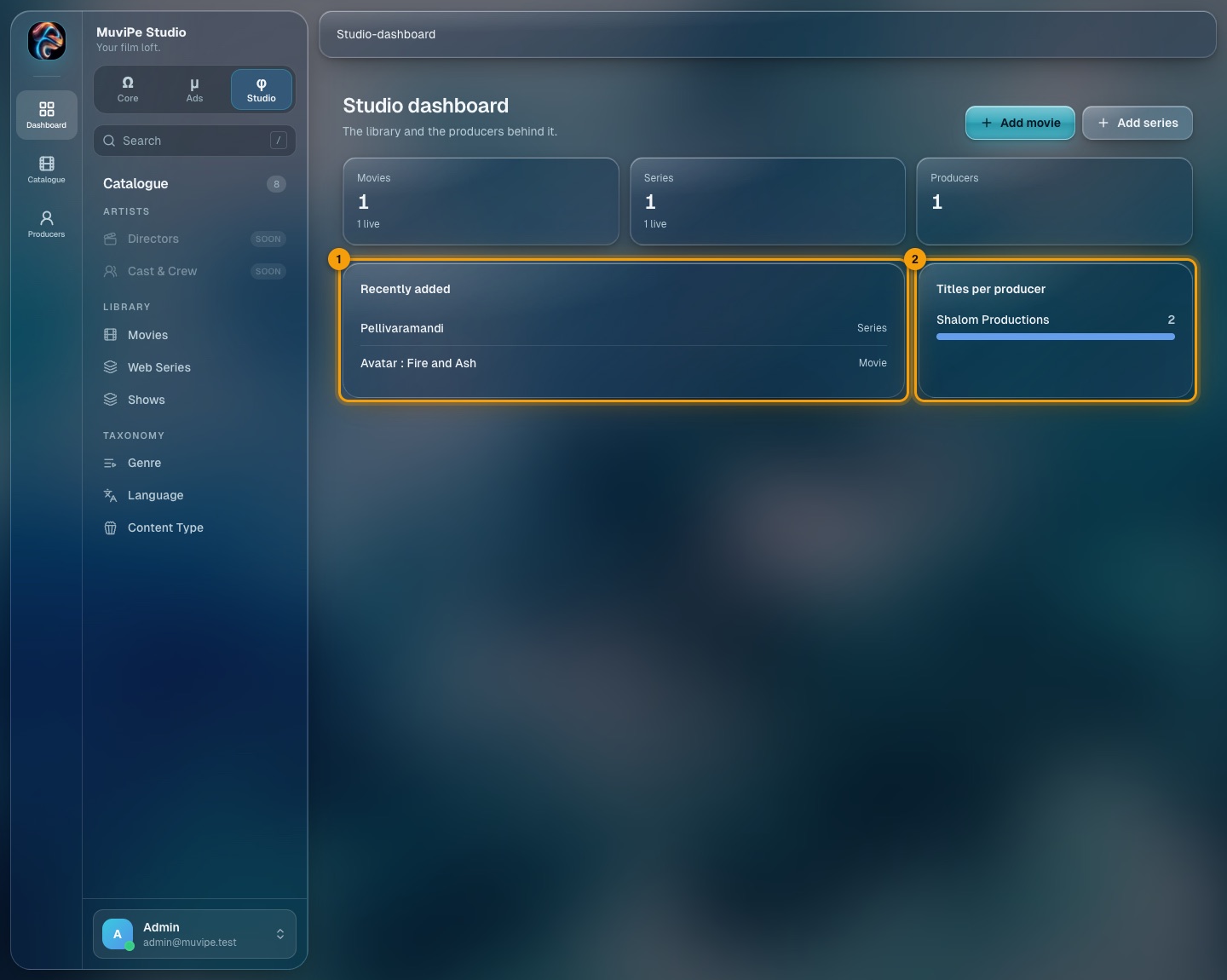
The Studio dashboard.
- 1Recently added — the newest titles.
- 2Titles per producer — how many titles each producer has.
Library
Movies and Web Series, and any other content type you add. Admin owns content: you add and manage titles for their producers, who see them but do not edit.
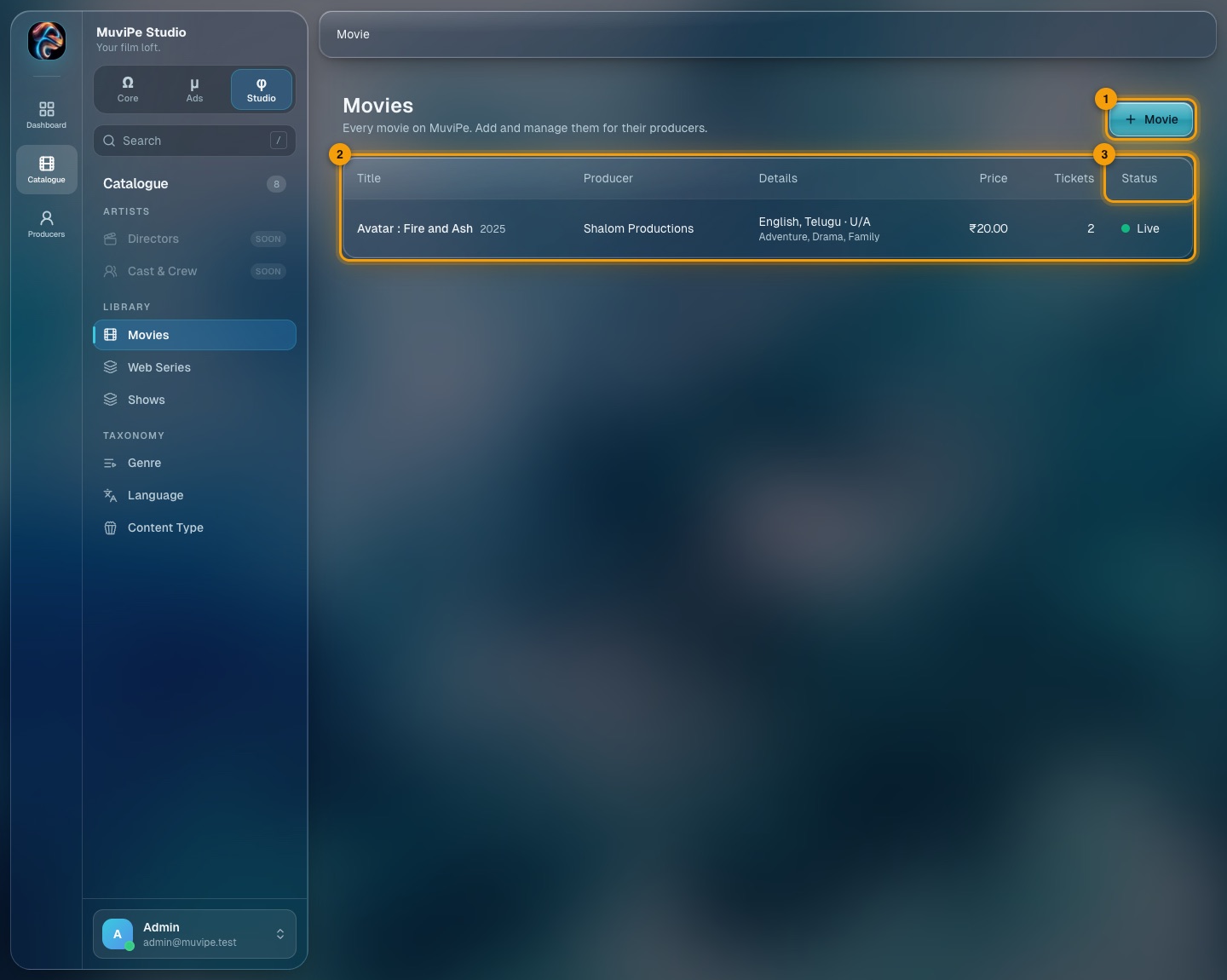
The Movies list.
- 1Add a movie — starts a new movie.
- 2The list — title and year, producer, language and certificate with genres, price, tickets sold and status.
- 3Status — Live (on sale) or Offline.
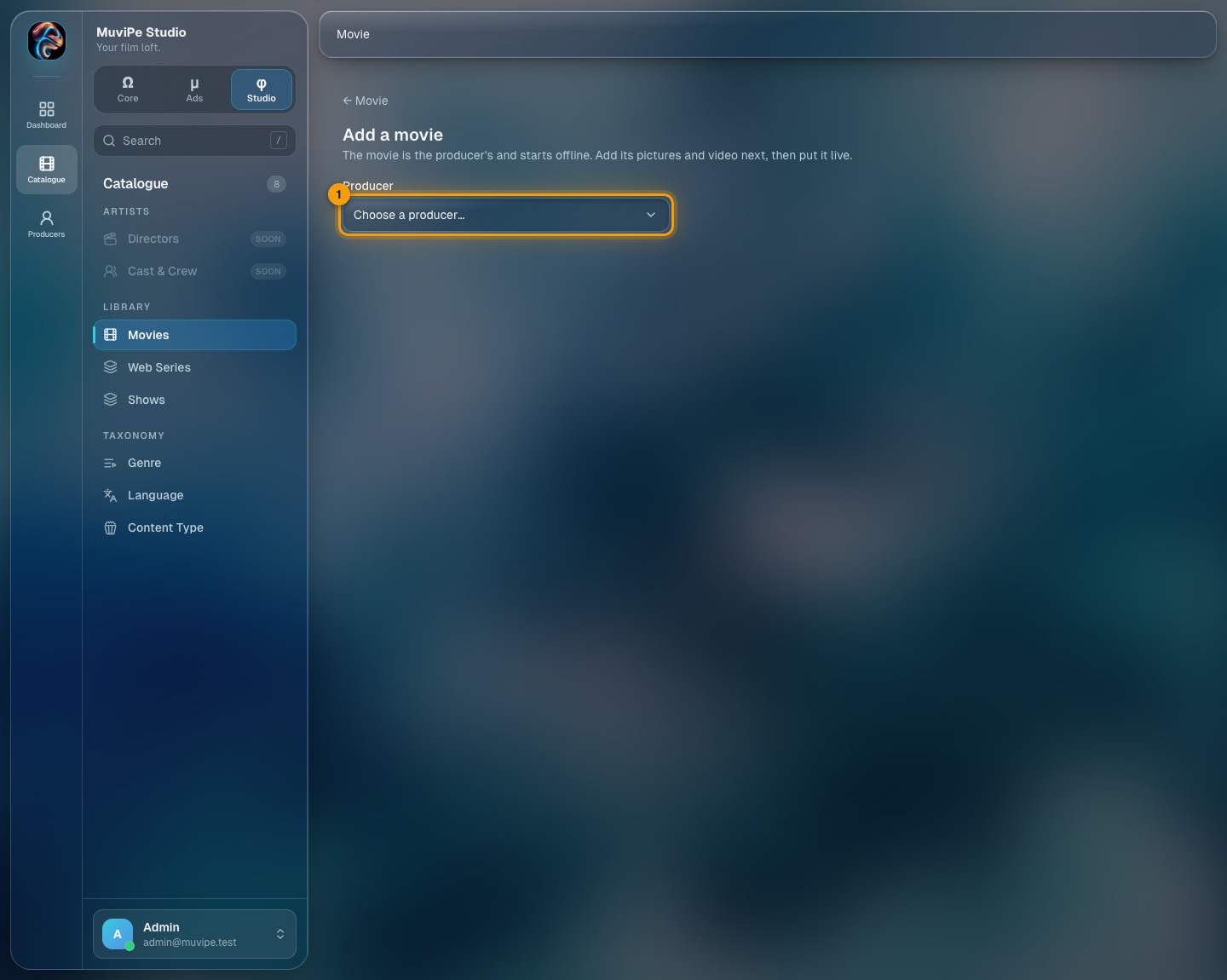
Adding a movie.
- 1Producer — the title belongs to a producer, so you choose one first. The movie then starts offline; add its pictures and video next, then put it live.
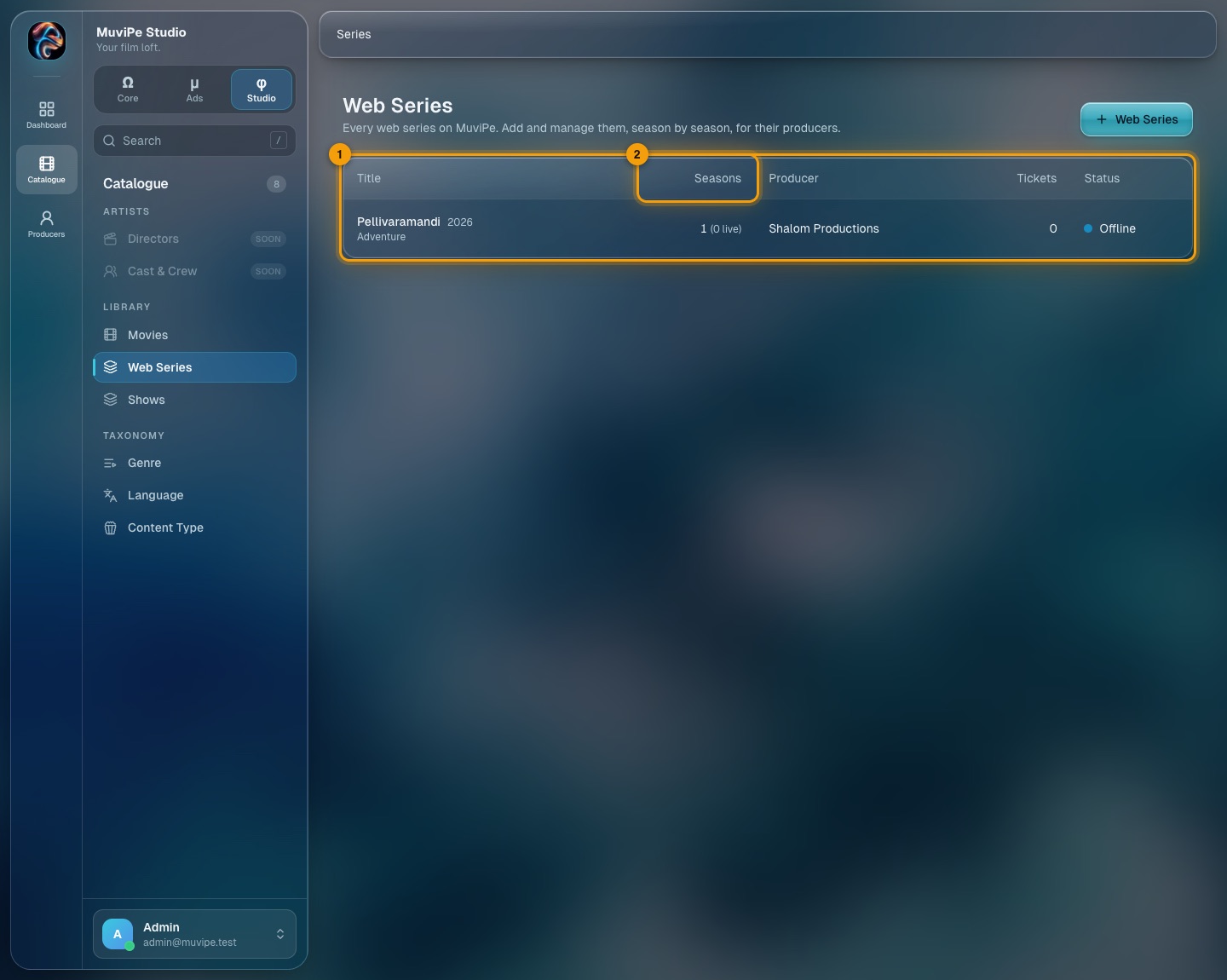
The Web Series list.
- 1The list — each series with its producer, tickets and status.
- 2Seasons — how many seasons it has and how many are live, for example 1 (0 live).
Title workspace
Opens when you click a title. Everything about one title is here, in tabs. The header shows the title, whether it is Live or offline, and a Take offline or Put live button.
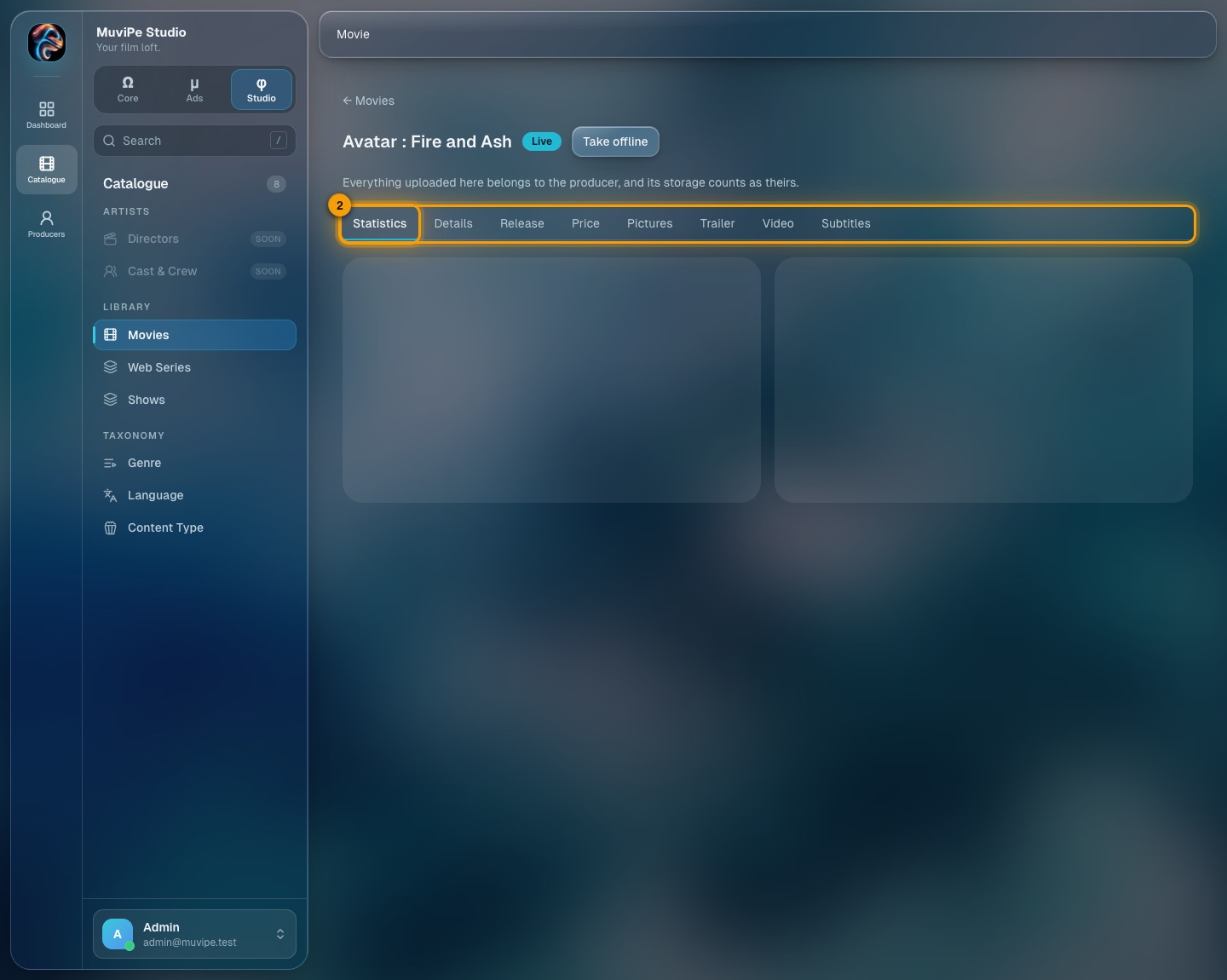
Statistics.
- 1Tab — Statistics.
- 2Tabs — the full set for this title: Statistics, Details, Release, Price, Pictures, Trailer, Video and Subtitles. A season shows Episodes instead of Video and Subtitles.
Statistics shows, for the running season and then overall: how much of the granted watch time has been used, tickets sold and how many people hold them, how many people watched, and plays. Beneath is the video itself: its length, quality, stored size, subtitle languages, when it was uploaded and the qualities viewers can watch at.
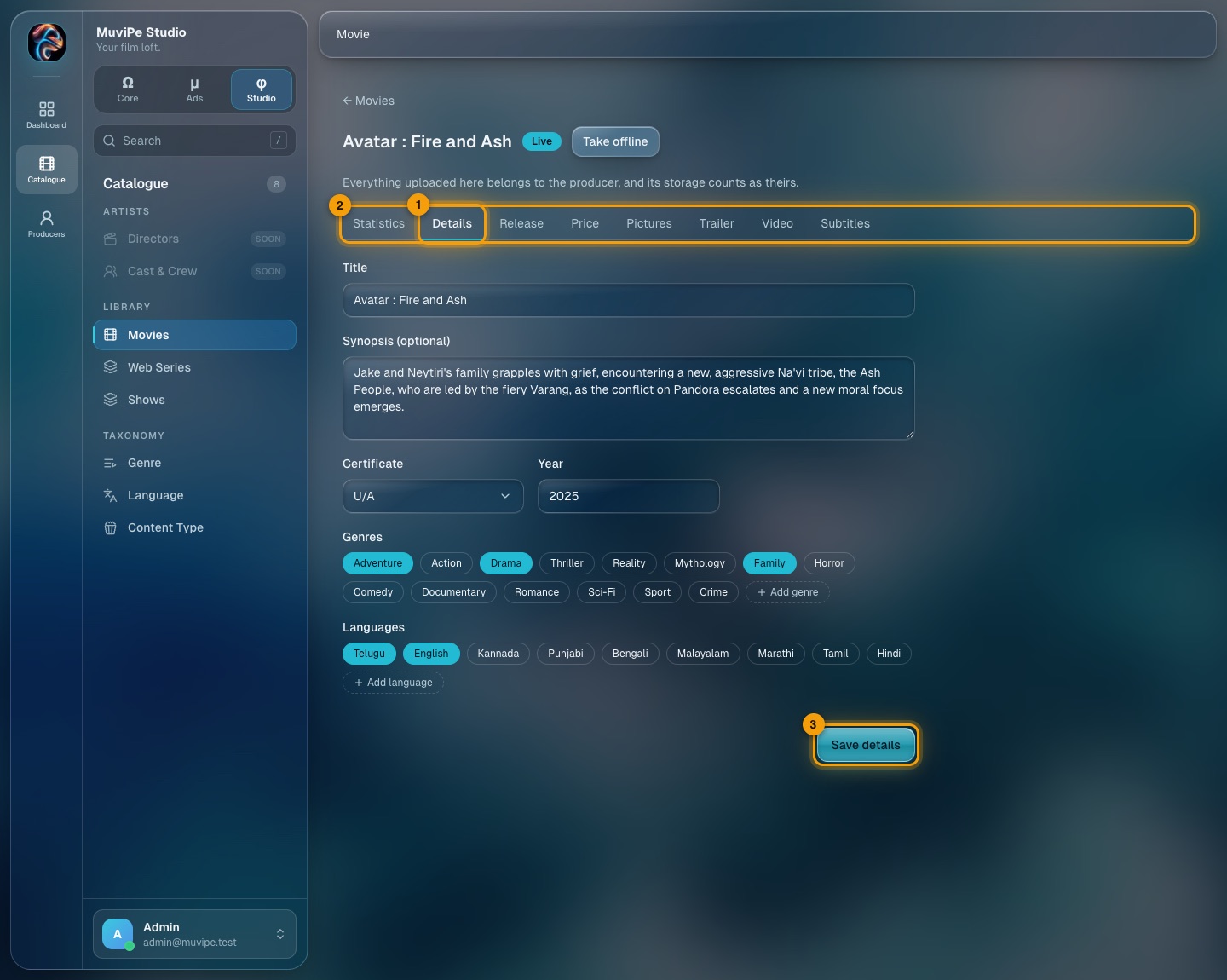
Details.
- 1Tab — Details.
- 2Tabs.
- 3Save details — saves the title, synopsis, certificate, year, genres and languages. You can pick several genres and languages, and add a new one from here.
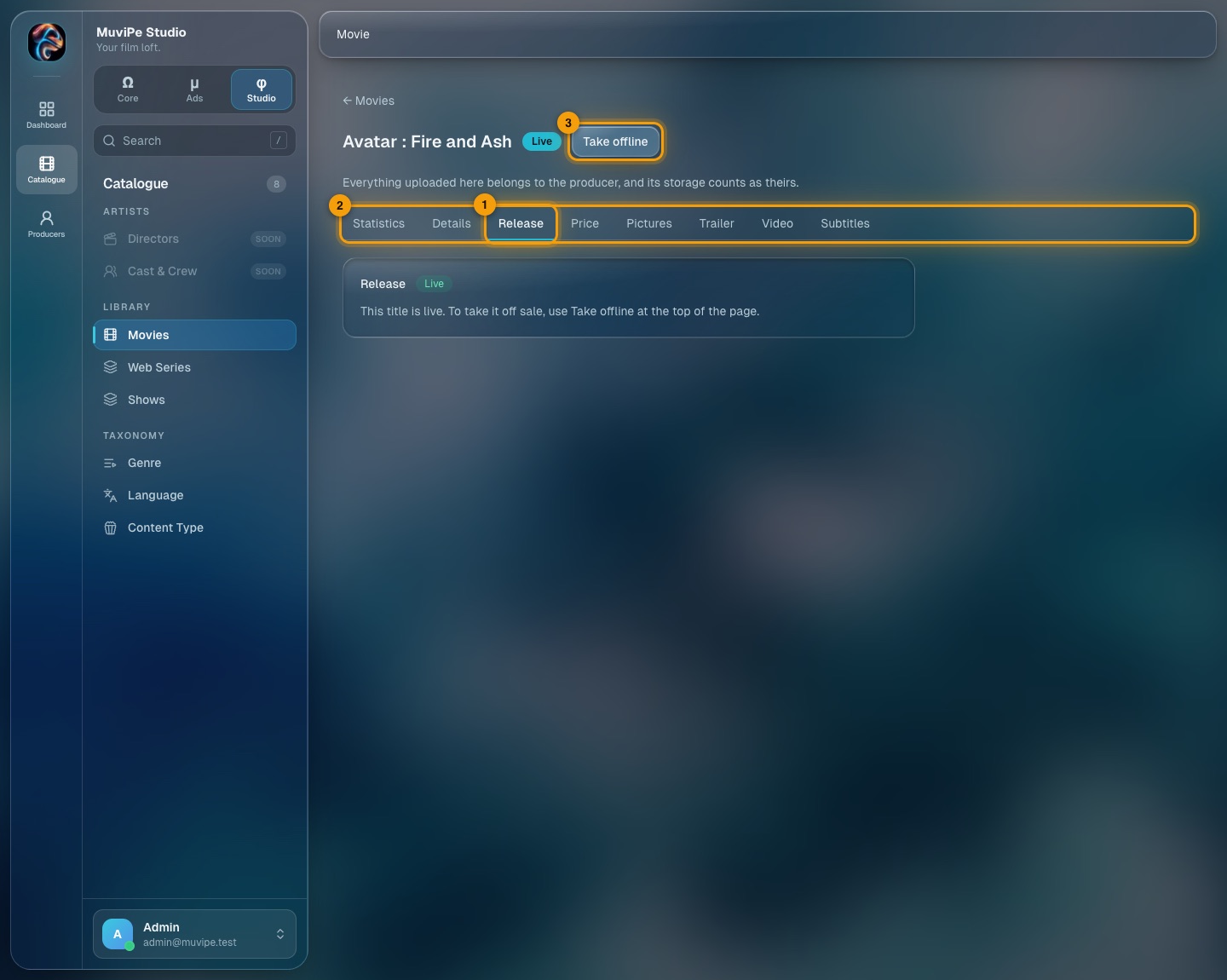
Release.
- 1Tab — Release.
- 2Tabs.
- 3Take offline — takes the title off sale. A live title's trailer and video cannot be replaced until it is offline.
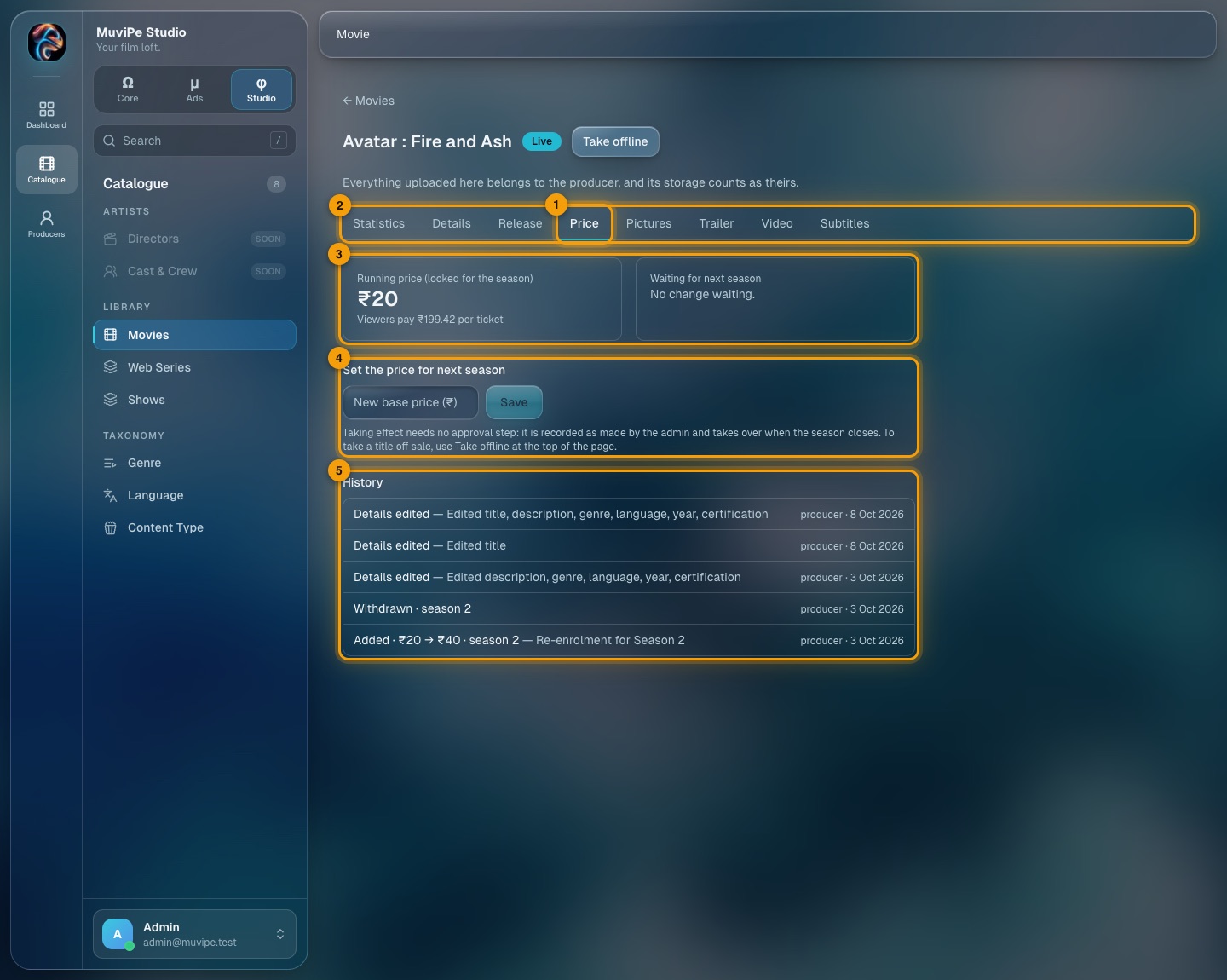
Price.
- 1Tab — Price.
- 2Tabs.
- 3Running price — locked for the season, with what viewers actually pay per ticket. Beside it: any change waiting for next season.
- 4Set the price for next season — enter a new base price and Save. A running title's price is never changed mid-season; the new price takes over when the season closes.
- 5History — every change to the title and its price, with who made it and when.
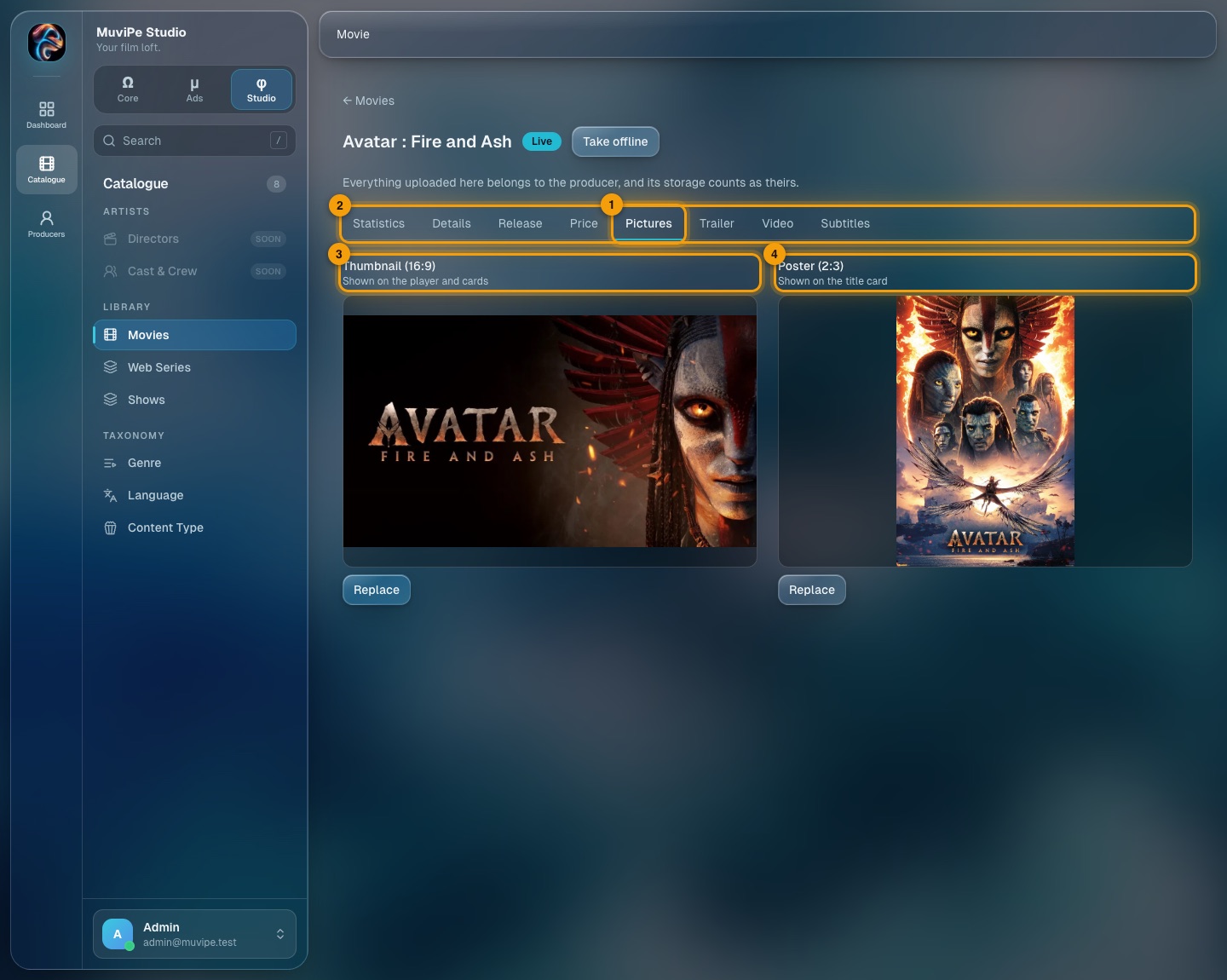
Pictures.
- 1Tab — Pictures.
- 2Tabs.
- 3Thumbnail (16:9) — shown on the player and cards.
- 4Poster (2:3) — shown on the title card. Use Replace to change either.
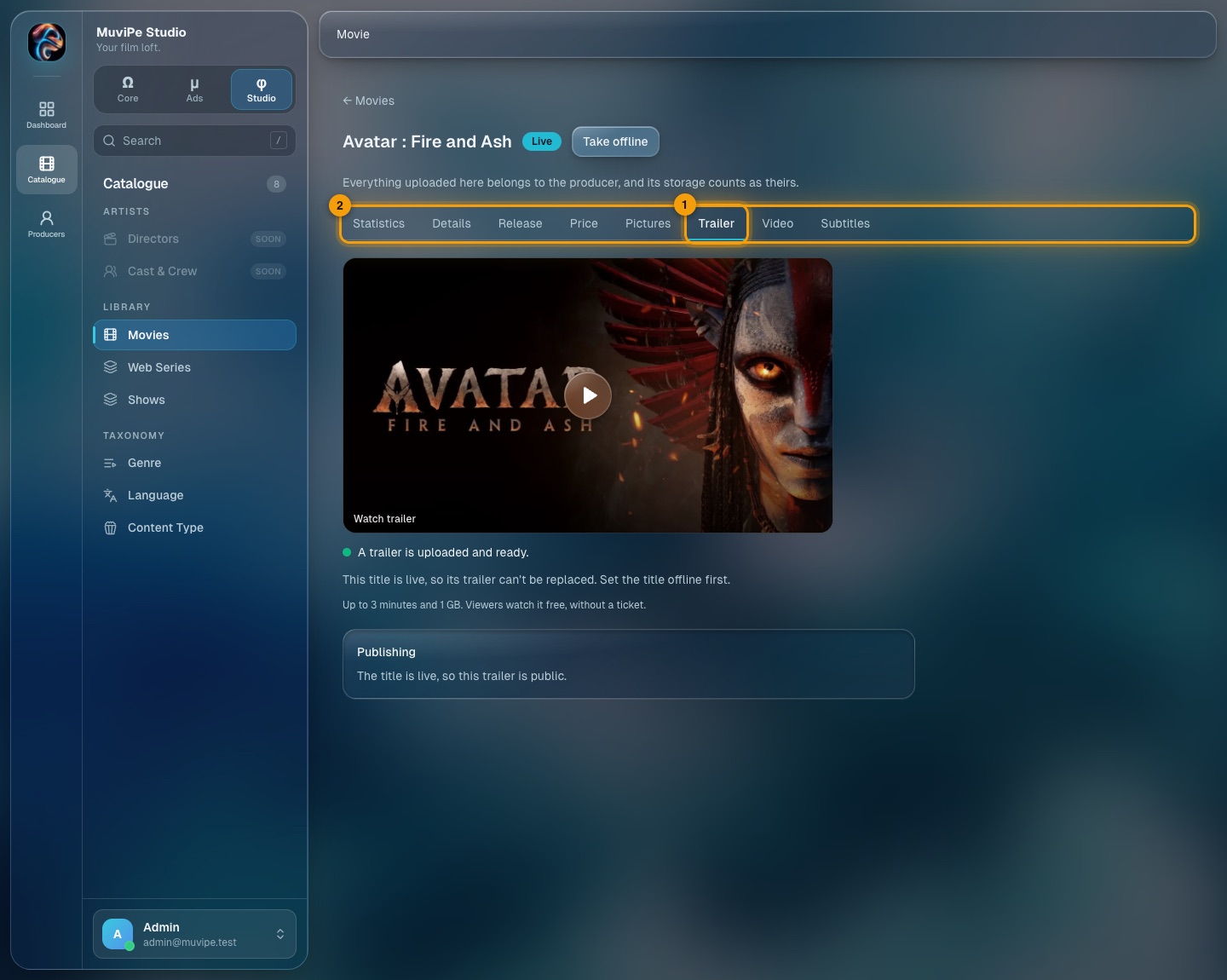
Trailer.
- 1Tab — Trailer.
- 2Tabs.
The trailer is up to 3 minutes and 1 GB, and viewers watch it free without a ticket. A live title's trailer cannot be replaced: take the title offline first. Publishing the trailer makes it public.
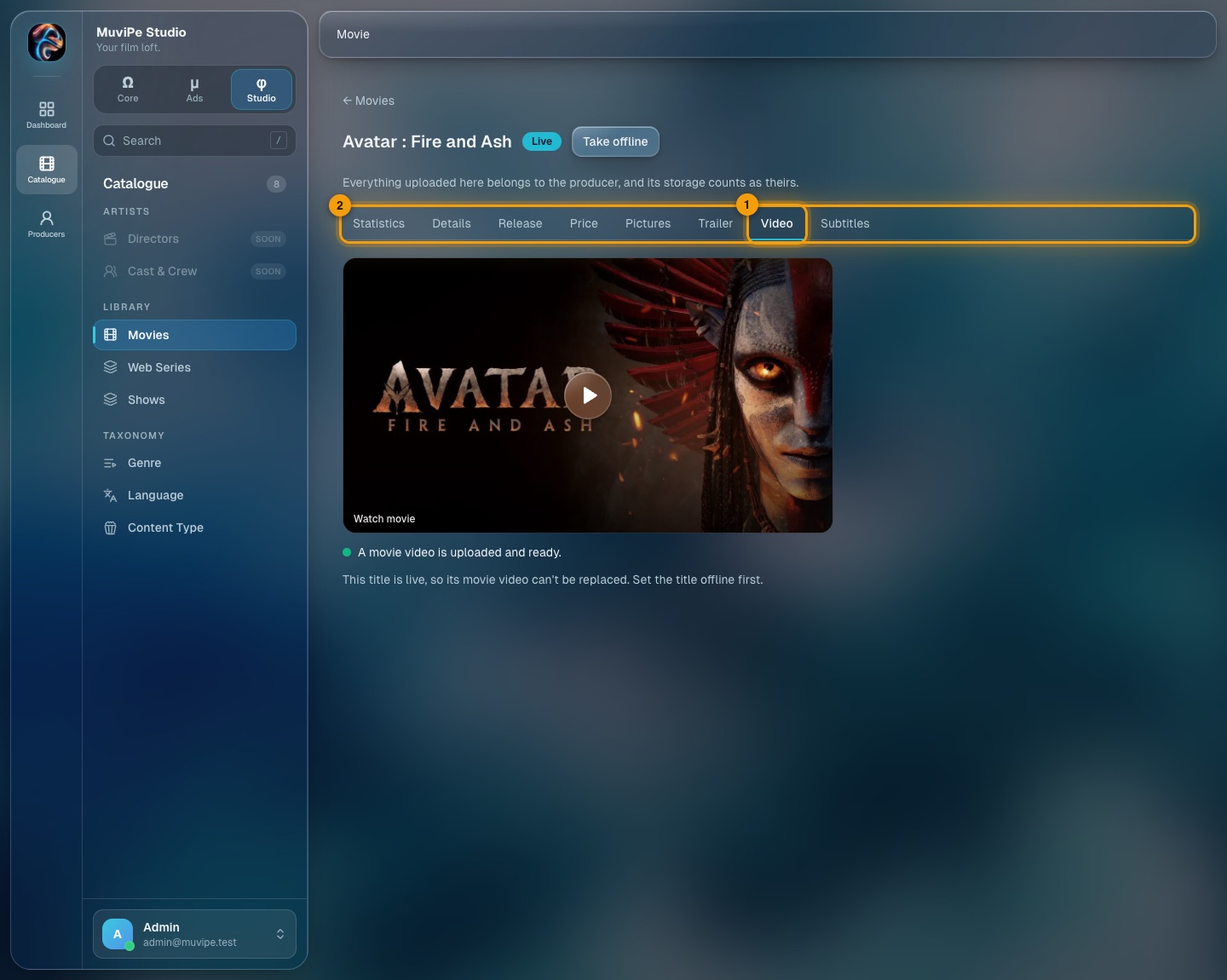
Video.
- 1Tab — Video.
- 2Tabs.
The movie video is uploaded here. As with the trailer, a live title's video cannot be replaced until the title is offline.
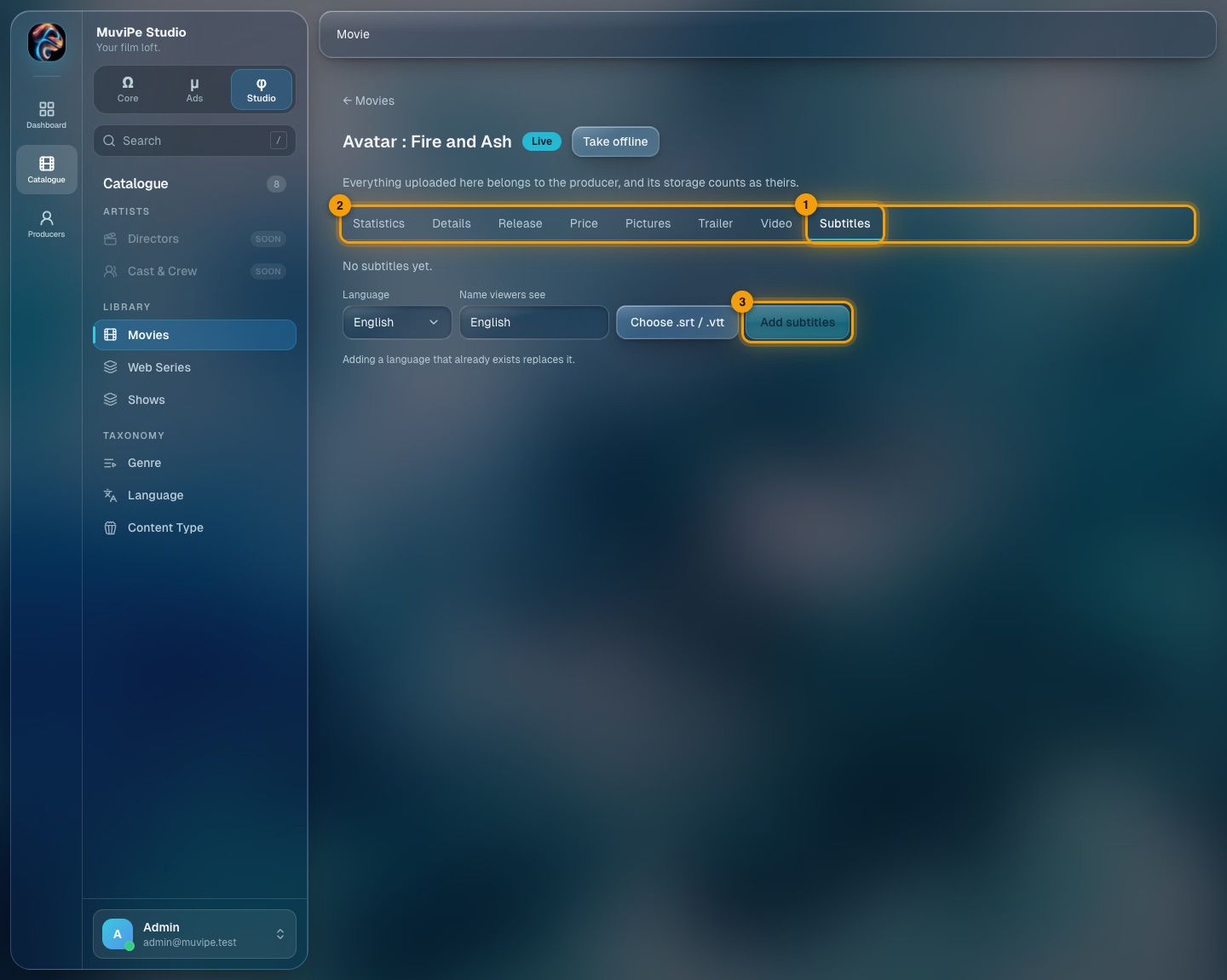
Subtitles.
- 1Tab — Subtitles.
- 2Tabs.
- 3Add subtitles — pick a language, type the name viewers will see, choose an .srt or .vtt file and add it. Adding a language that already exists replaces it.
Series and seasons
A web series has a series page, with its seasons, and each season has its own workspace.
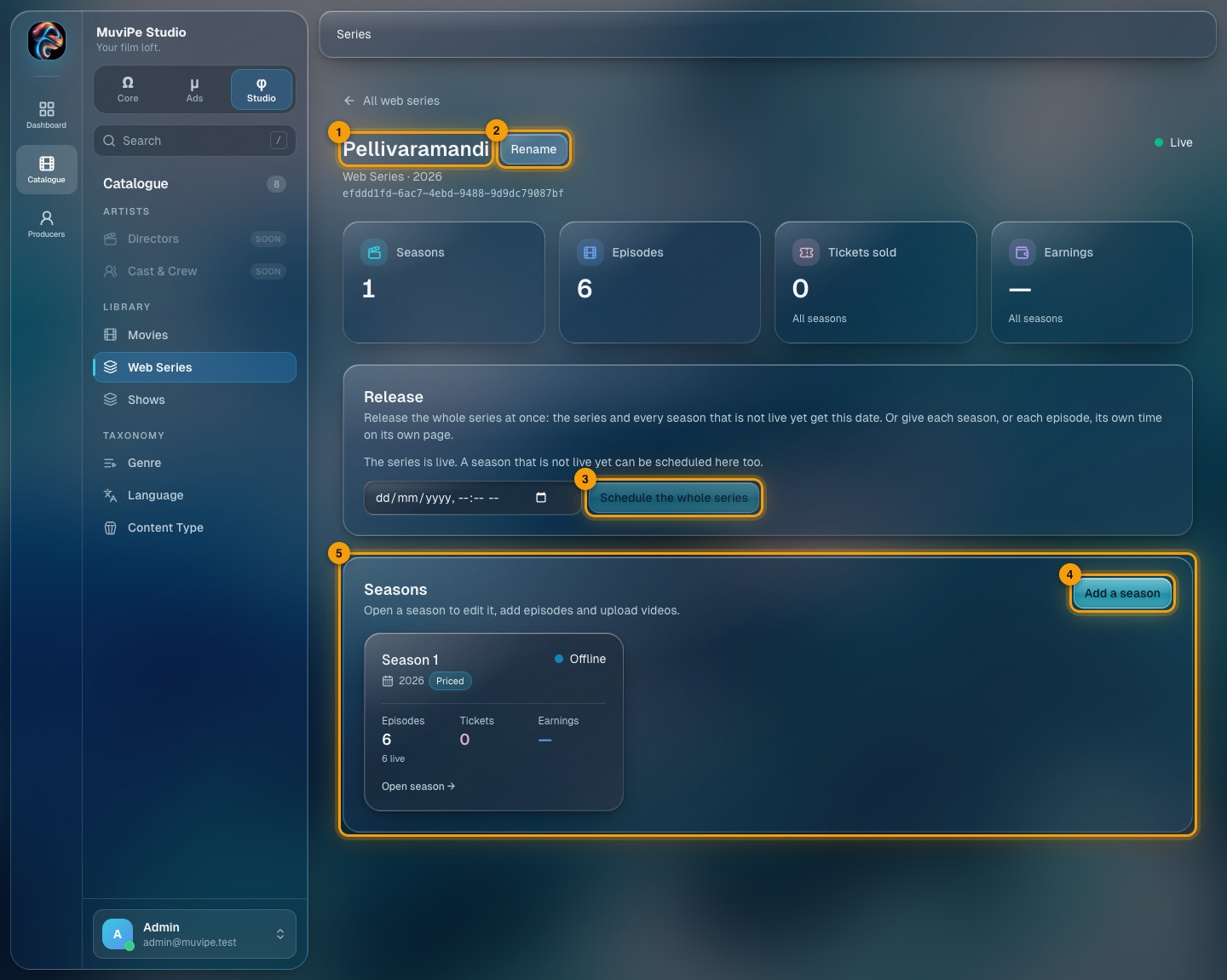
A series page.
- 1Title — with the producer and year beneath it.
- 2Rename — changes the series name.
- 3Schedule the whole series — release the series and every season that is not live yet on one date, or give each season or episode its own time.
- 4Add a season — adds the next season with its details and first price.
- 5Open season — opens that season's workspace.
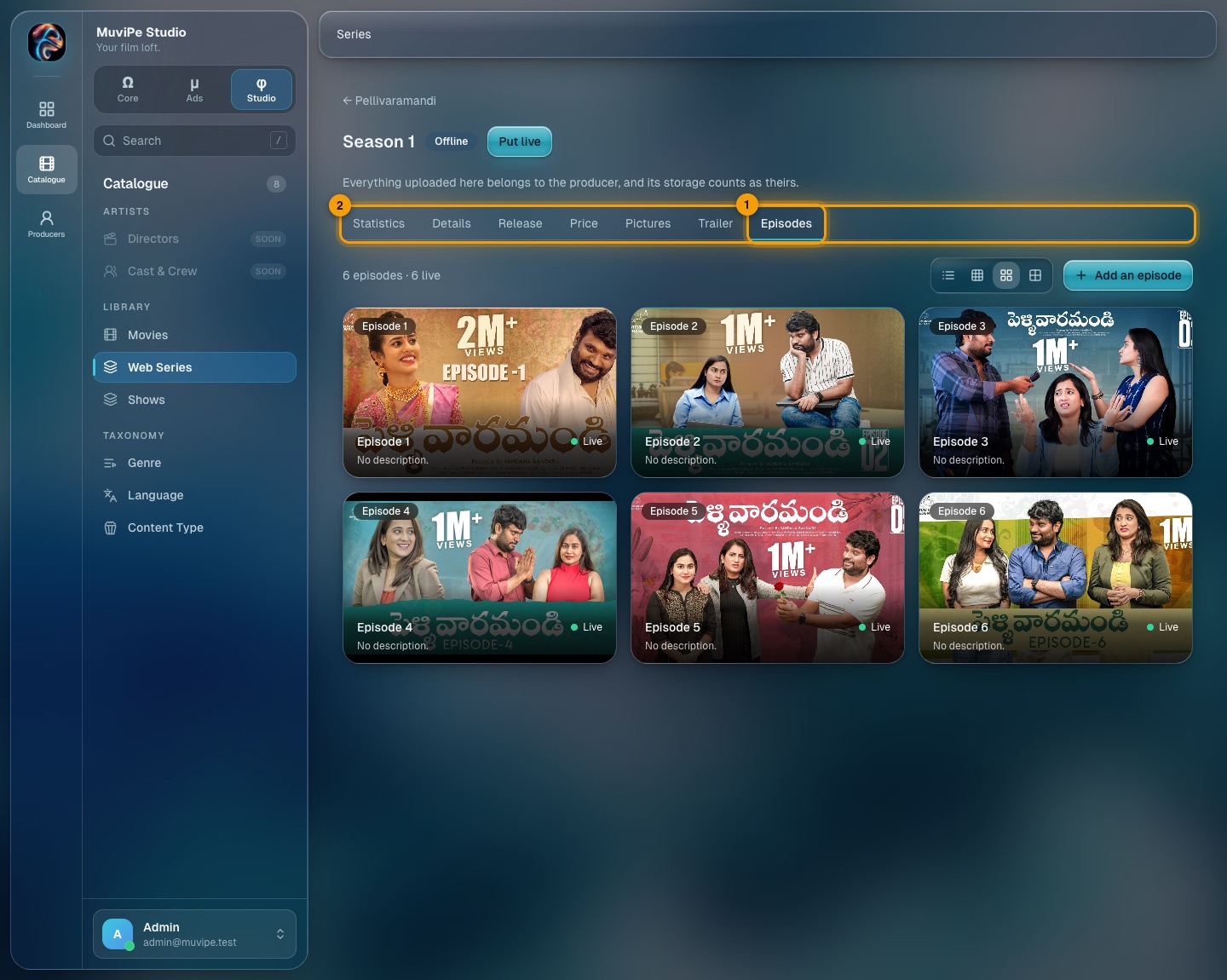
A season's Episodes tab.
- 1Episodes — every episode of the season, with its status. Switch between list and grid views, and add an episode.
- 2Tabs — a season has Statistics, Details, Release, Price, Pictures, Trailer and Episodes.
Genre, language and content type
These three screens are chip boards: each entry is a rounded chip. They work the same way.
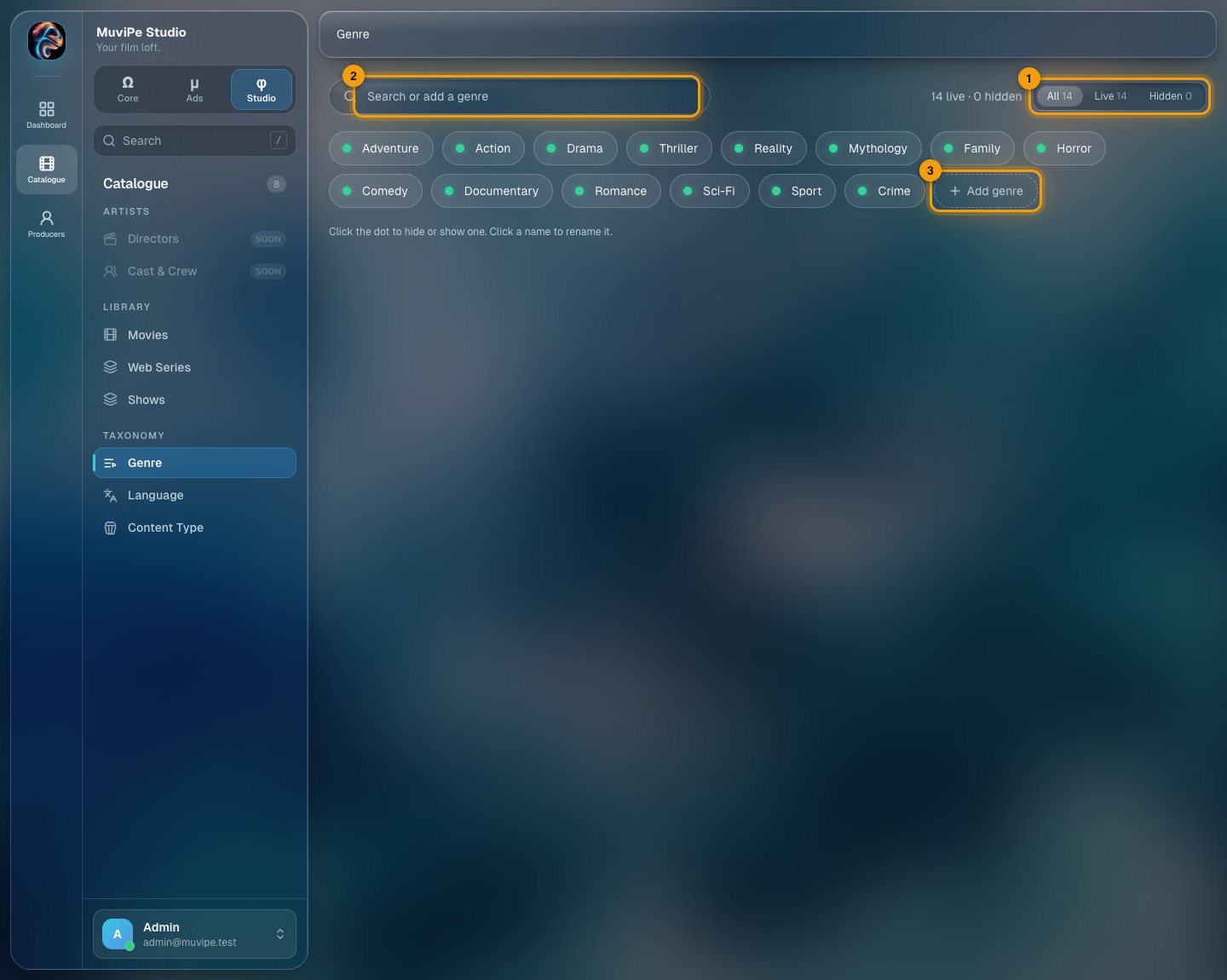
Genre.
- 1Filter — All, Live or Hidden.
- 2Search or add — type to find a genre, or type a new name to add one.
- 3Add genre — adds what you typed.
- Click the dot on a chip to hide or show it. The counters beside the filter show how many are live and how many are hidden.
- Click the name to rename it.
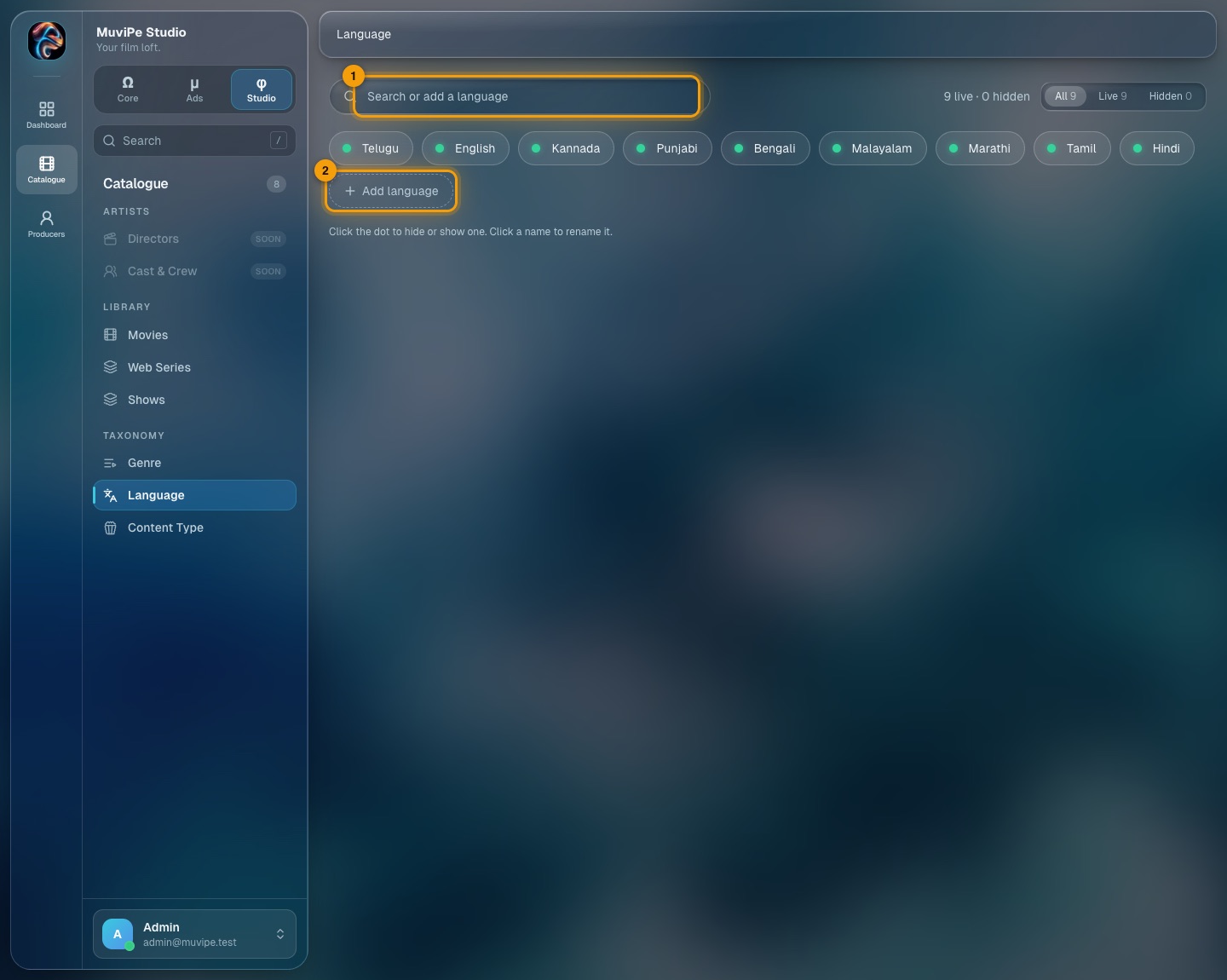
Language.
- 1Search or add — find a language or add one.
- 2Add language — adds it.
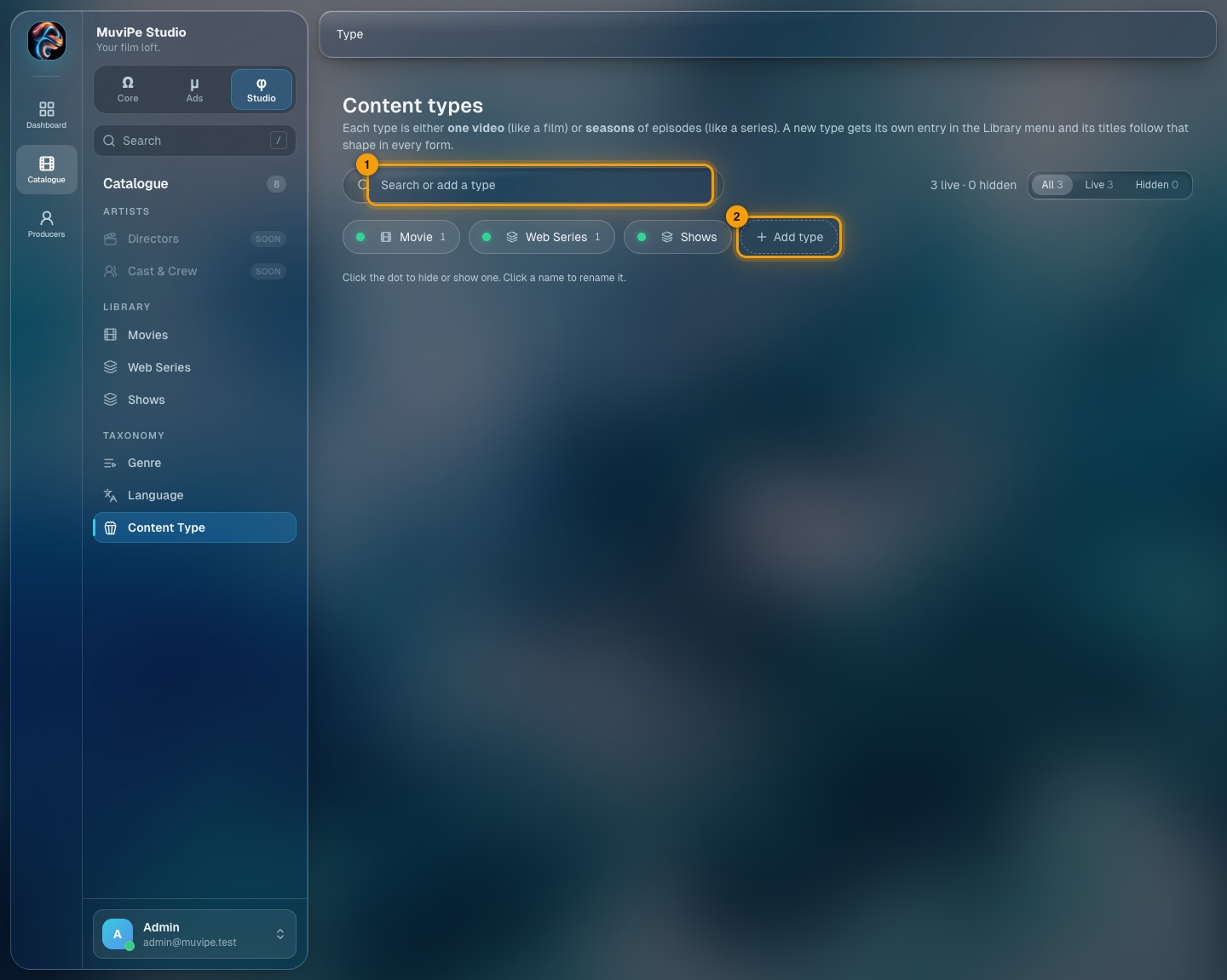
Content types.
- 1Search or add — find a type or add one.
- 2Add type — adds it.
- A content type decides how its titles behave: single video (like a movie) or multi-video (like a series with seasons). That choice cannot be changed once titles use the type.
- Every active type becomes its own entry under Library in the sidebar.
Quick reference
Common tasks
Where to go for the things you will do most.
Studio → Movies → add a movie and choose the producer → Pictures (thumbnail and poster) → Video (upload) → Details (genres, languages, certificate) → Price (the first price) → Release → put it live.
Ads → Creative review → read the file → Approve, or Reject with a reason the sponsor will see.
Ads → Sponsor funds → Adjust on their row → choose Add → amount and reason → Add funds.
Ads → Campaigns → Pause (can be resumed) or Cancel (permanent).
Core → Commissions → Ticket split → change the numbers → Save. It applies from the next season; the running season keeps its split.
Studio → open the title → Price → new base price for next season → Save. It takes over when the season closes.
Core → Members → Producers → switch the module off on their row.
Core → Members → Sponsors → Change limit → MB → save. Blank returns to the platform default.
Core → Pages → Producer Agreement → edit the text → change the version → Update.
Core → Services → Razorpay → Against our books tab.
Good to know
Rules that apply everywhere
- Admin owns content. Producers see their titles but do not edit them; uploads, prices and going live or offline are all handled here.
- Seasons are the base. Ticket split, star rules and prices change from the next season only. Past seasons are kept and can be looked up.
- Money changes only touch new things — new campaigns, new transactions, the next season.
- Producers earn nothing from ads. Ad money is between the sponsor and MuviPe.
- One account, one role. A person who needs two roles needs two accounts.
- Only Core → Services names providers. Everywhere else the CDN and payment providers are not named.