MuviPe · Manual
The Producer Panel
What each screen is for and how it works for a producer: watching films and series, earnings, watch time, payouts and account details, with the real screens marked up.
Start here
What the producer panel is
MuviPe Studio is where a producer sees how their films and series are doing: who bought tickets, how much was earned, what has been watched, and the payouts to their bank. MuviPe adds and manages the titles for the producer, so this panel is for watching and for account details, not for uploading.
Your films and series with their price, tickets, earnings and status.
Commissions on tickets sold, how much was watched, and payouts to your bank.
Profile, KYC, payout account, producer agreement and security.
How to read this guide
Each screen is shown with amber outlines and numbers. The numbered list under the picture explains each marked part, in the same order. Click any picture to enlarge it.
Getting in
Signing in and signing up
A producer signs in with an email and password, or a passkey. A new producer creates an account first.
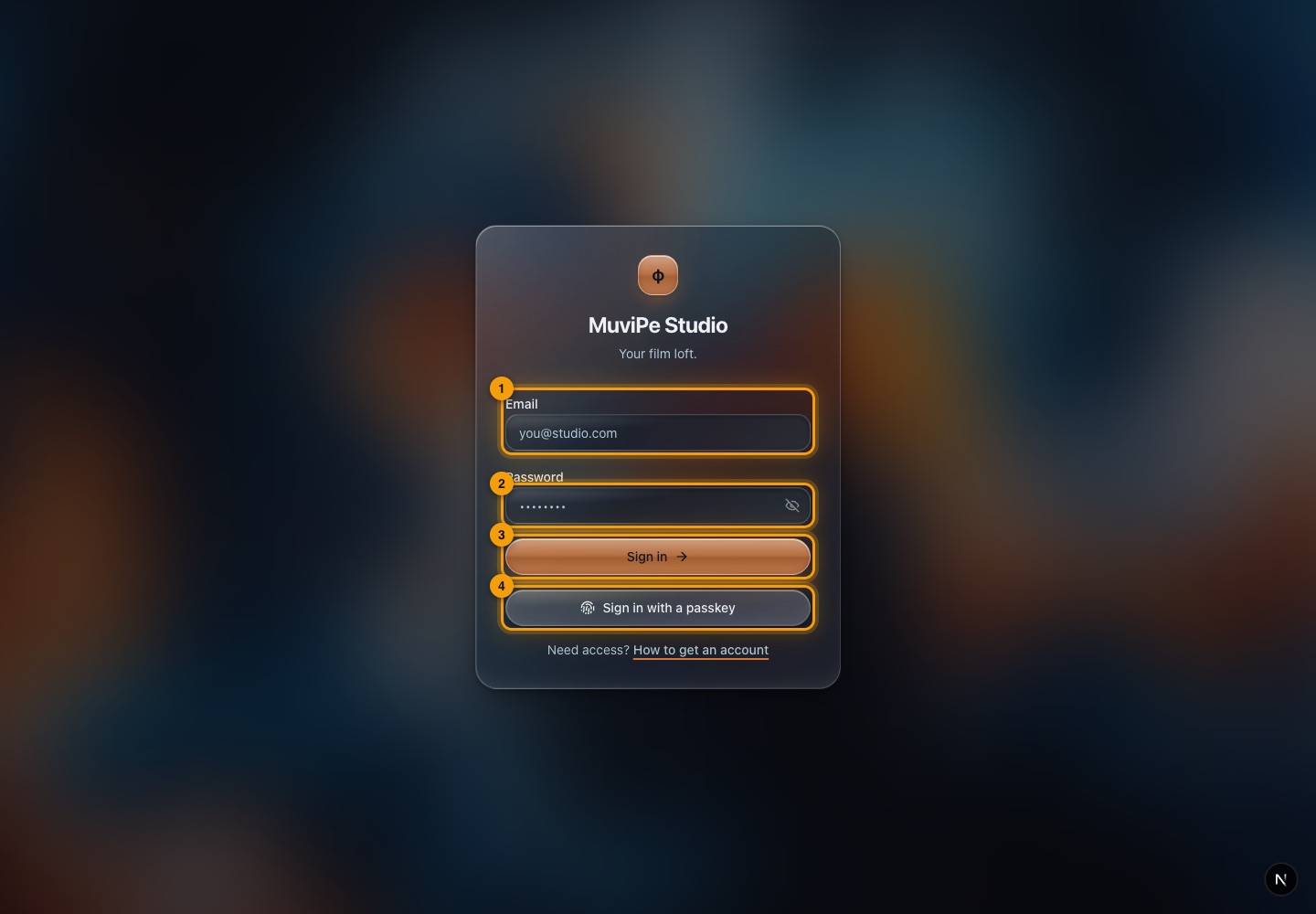
The sign-in page.
- 1Email — the address the account was created with.
- 2Password — your password; the eye icon shows what you typed.
- 3Sign in — signs in with email and password.
- 4Sign in with a passkey — use a fingerprint, face or screen lock saved on the device.
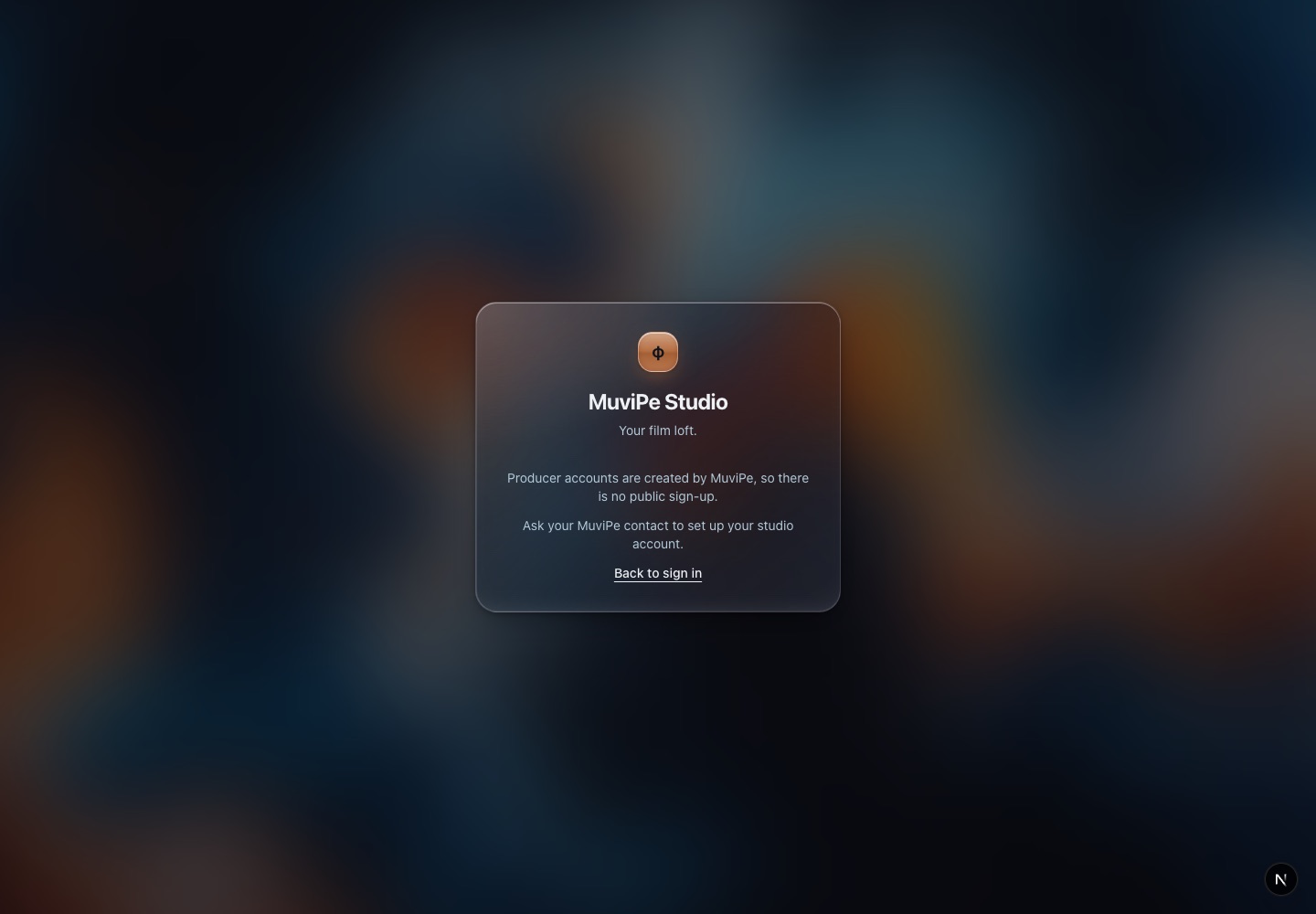
The sign-up page.
- 1Sign-up form — creates a producer account.
Getting around
The layout
The sidebar groups the panel into Overview, Catalogue and Earnings.
- Overview — Dashboard and Inbox.
- Catalogue — My Films and My Series.
- Earnings — Commissions, Watch time and Payouts.
- At the bottom of the sidebar, the Storage meter shows how much of your storage plan your files use, and the account card holds your account options.
- The top bar shows where you are and your wallet balance.
- MuviPe can switch parts of the panel off for an individual producer. A part that is off disappears from the sidebar and cannot be opened. Dashboard, Profile and Settings are always on.
Home base
Dashboard
Your earnings at a glance.
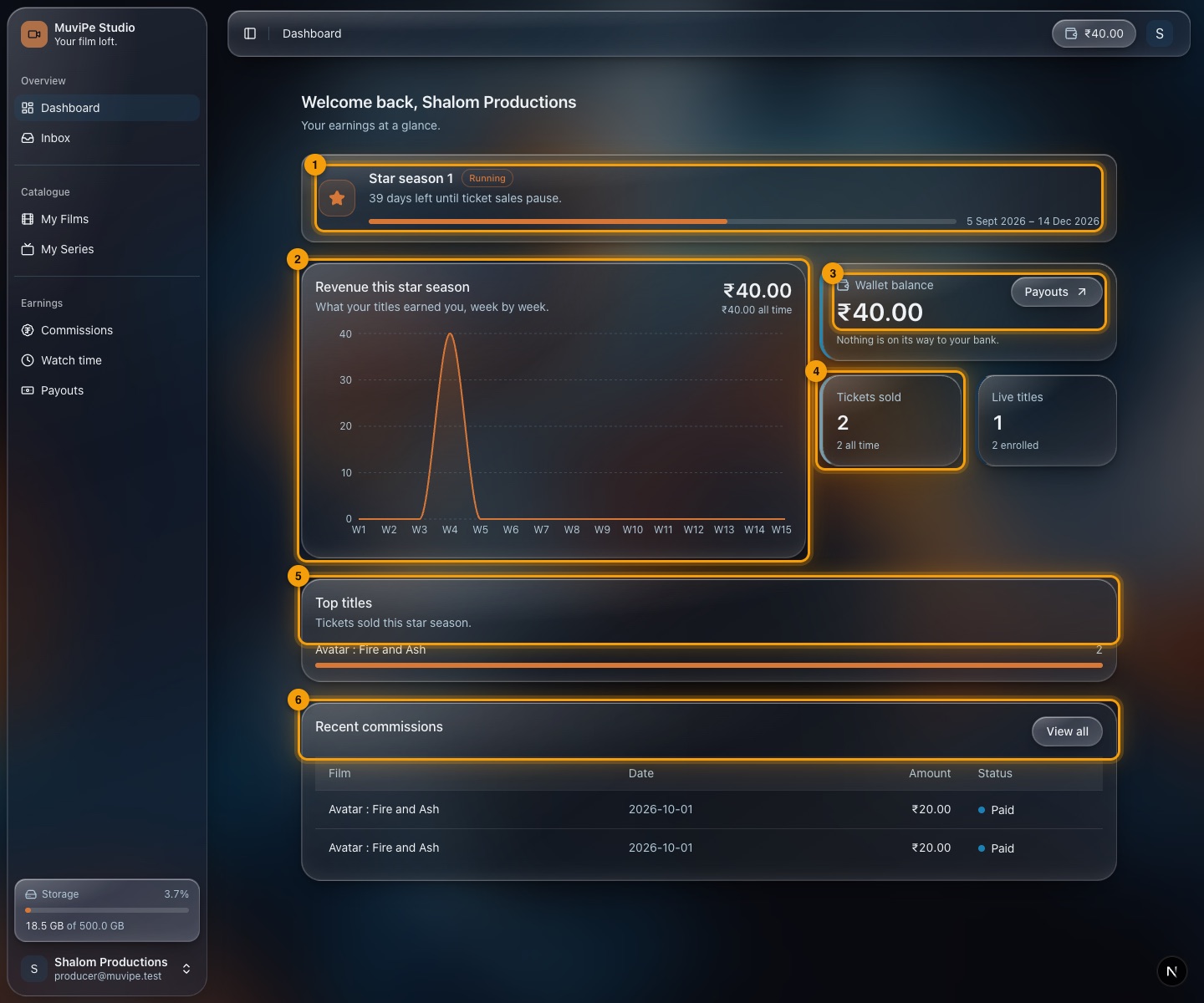
The Dashboard.
- 1Star season — the current season, whether it is running, and how many days are left until ticket sales pause. Rules for tickets change from one season to the next.
- 2Revenue this star season — a week-by-week chart of what your titles earned, with the total earned all time.
- 3Wallet balance — your balance, with a shortcut to Payouts. Beneath are Tickets sold and Live titles (and how many are enrolled).
- 4Top titles — tickets sold this season, by title.
- 5Recent commissions — your latest earnings with the film, date, amount and whether it is paid. View all opens Commissions.
Your titles
Films and series
Everything about a title is managed by MuviPe on your behalf. These screens show the result.
My Films
Your movies. MuviPe adds and manages them for you.
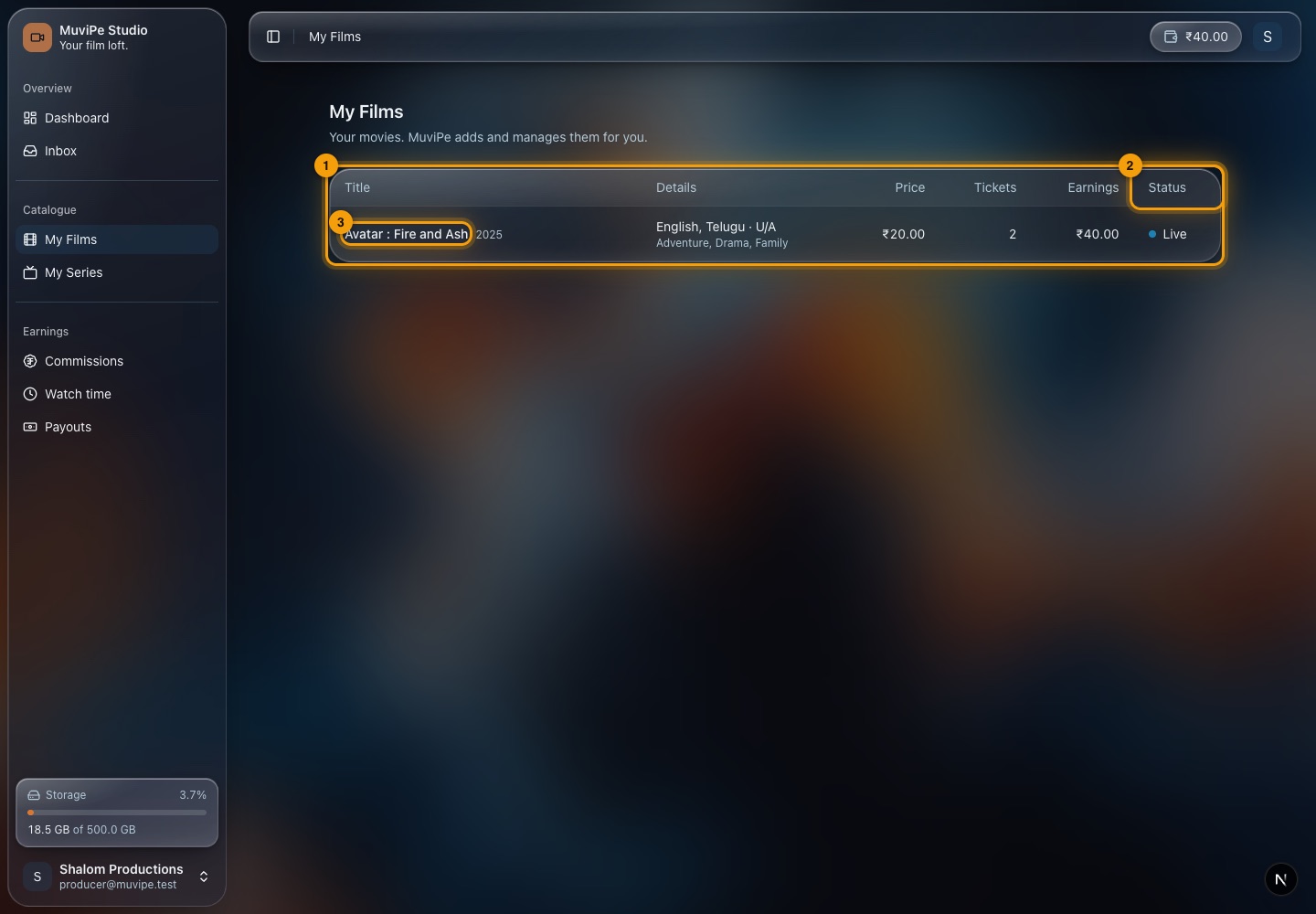
The My Films screen.
- 1The table — title and year, language and certificate with genres, the ticket price, tickets sold and earnings.
- 2Status — Live (on sale) or offline.
- 3A title — open it for its page.
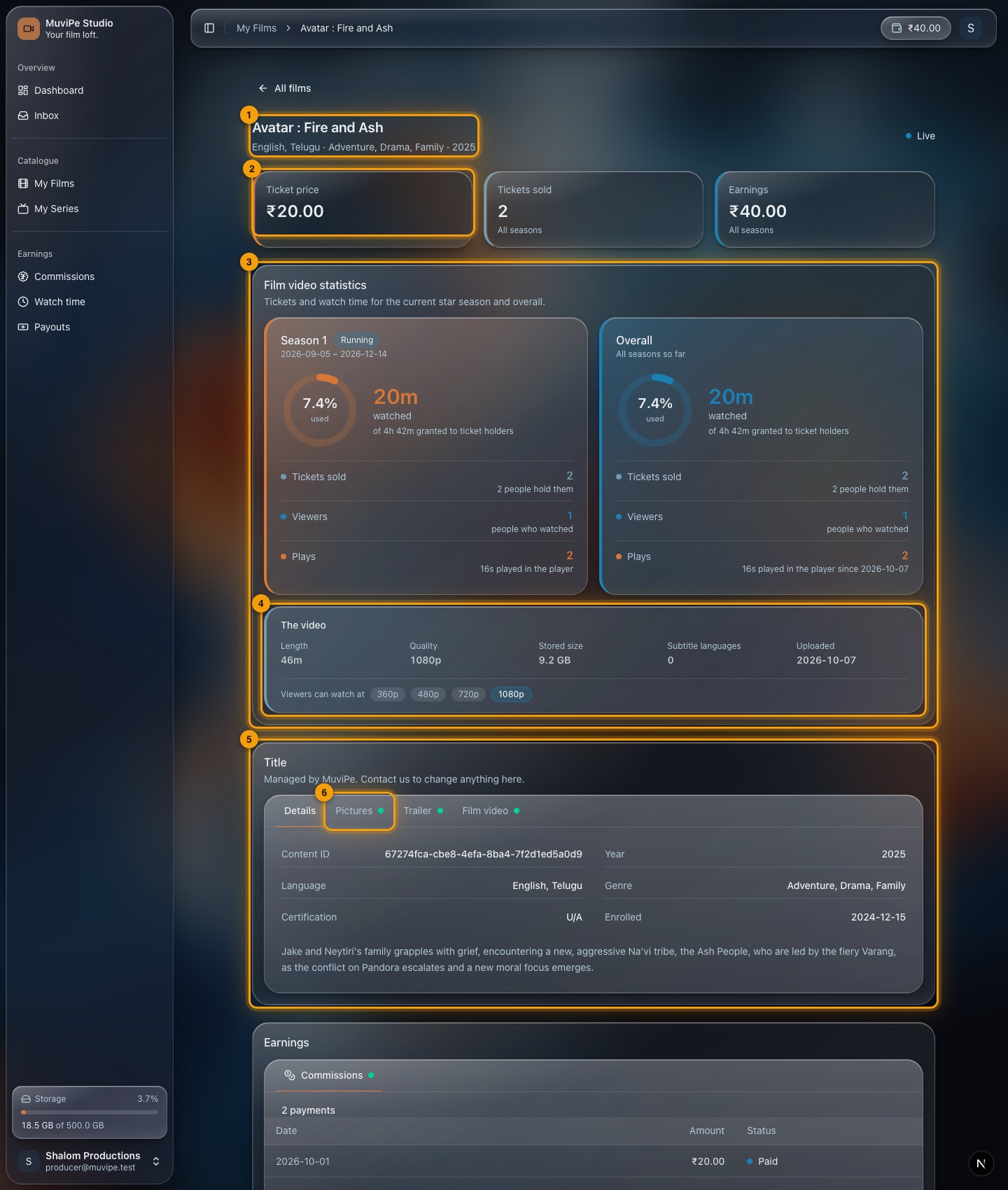
A film's page.
- 1Title and status — name, languages, genres and year, with a Live or Offline tag.
- 2Ticket price, tickets sold and earnings — across all seasons.
- 3Film video statistics — for the current star season and overall: how much of the granted watch time was used, tickets sold and how many people hold them, how many people watched, and plays.
- 4The video — its length, quality, stored size, subtitle languages, when it was uploaded and the qualities viewers can watch at.
- 5Title — the details MuviPe holds (content ID, year, language, genre, certification, enrolment date and synopsis). Tabs show its Pictures, Trailer and Film video; a green dot means one is uploaded.
- 6Pictures, Trailer and Film video — view only. Contact MuviPe to change anything.
- Changes go through MuviPe. The page says Managed by MuviPe. Contact us to change anything here.
- A running title's price is locked for the season. A new price starts from the next season and MuviPe approves each change.
My Series
Your web series, with their seasons and episodes.
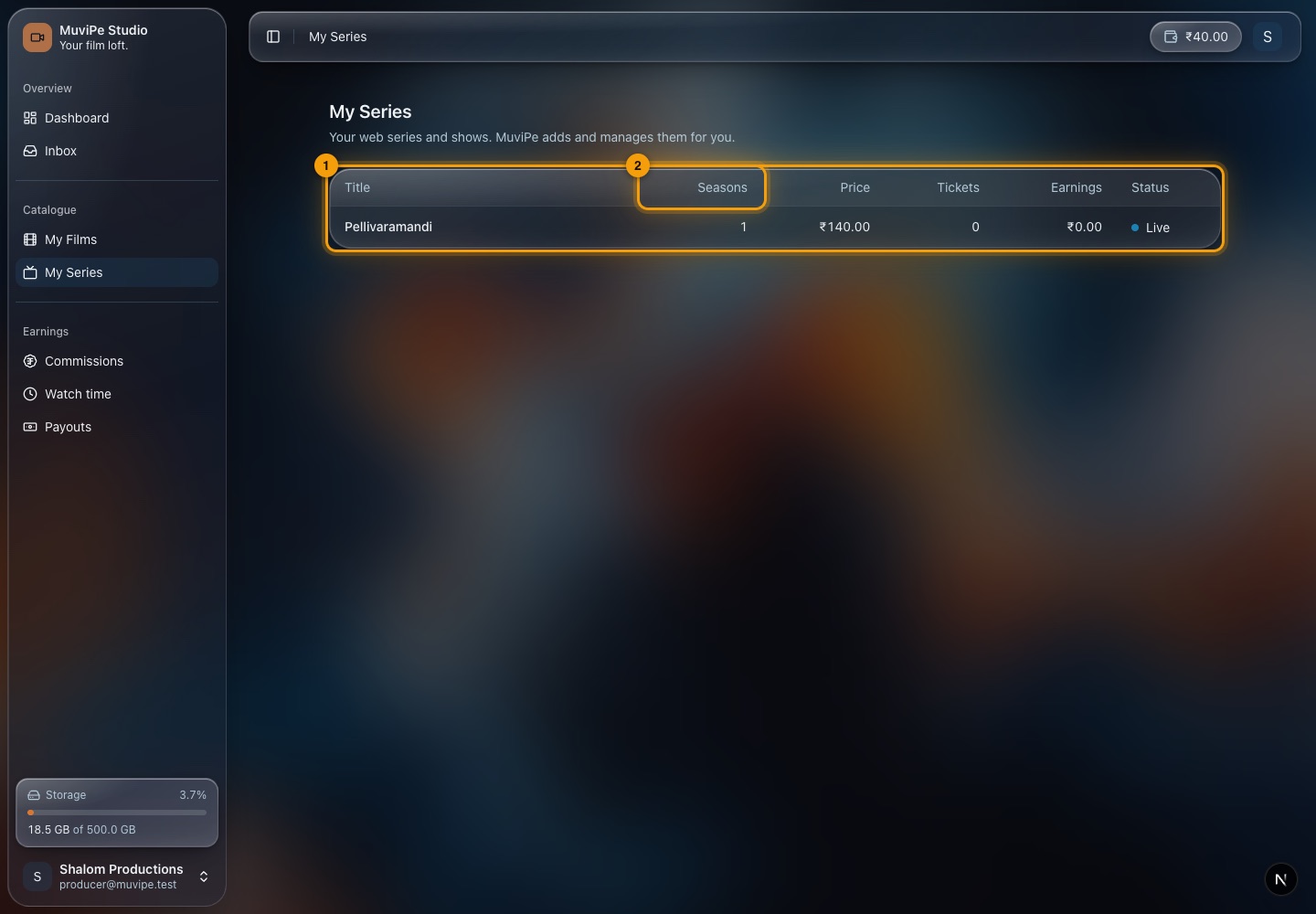
The My Series screen.
- 1The table — title, number of seasons, price, tickets, earnings and status.
- 2Seasons — how many seasons it has.
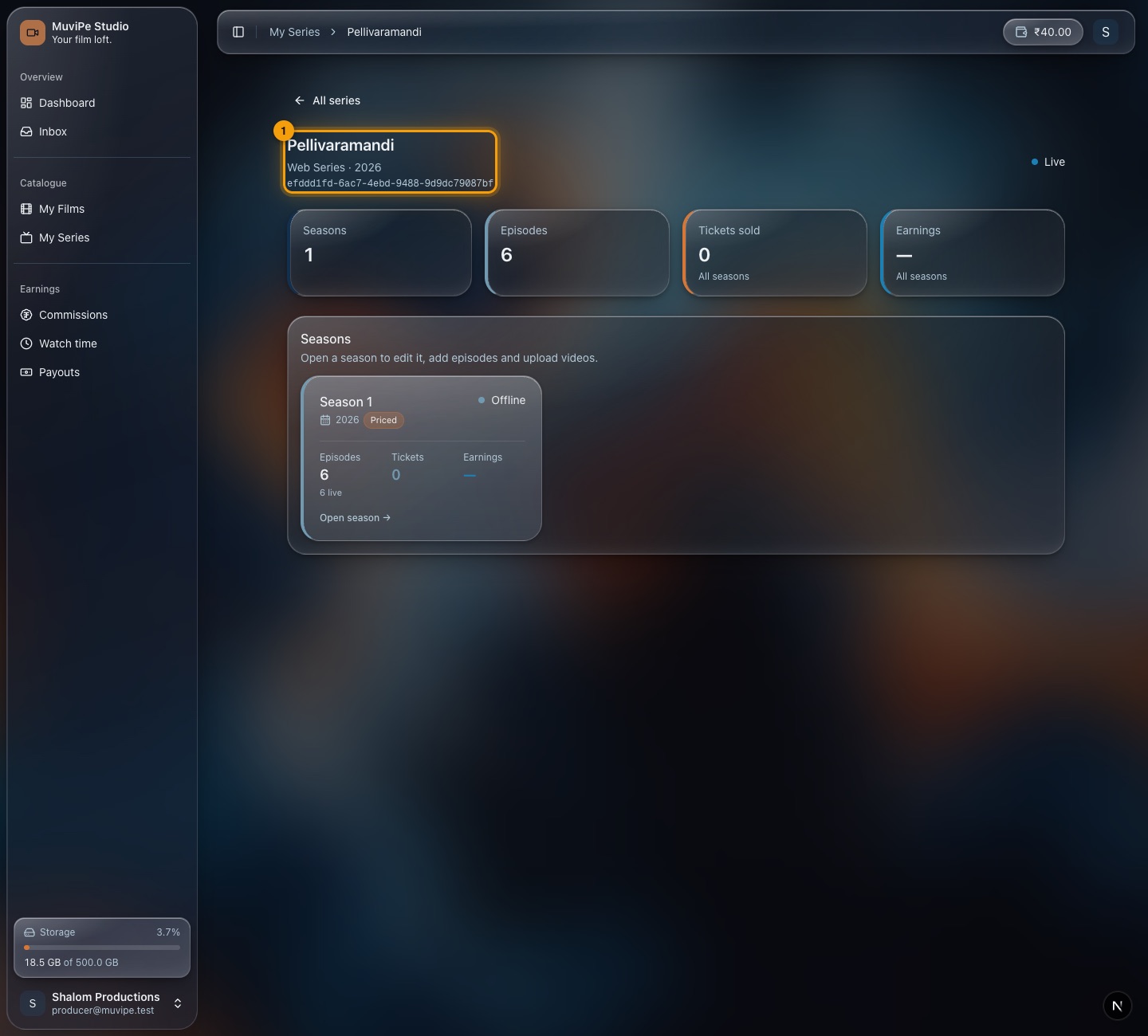
A series' page.
- 1Series title — with year, ID and a Live tag. The tiles show seasons, episodes, tickets sold and earnings across all seasons.
- 2Seasons — each season card shows whether it is live or offline, whether it is priced, its episodes (and how many are live), tickets and earnings. Open season goes to it.
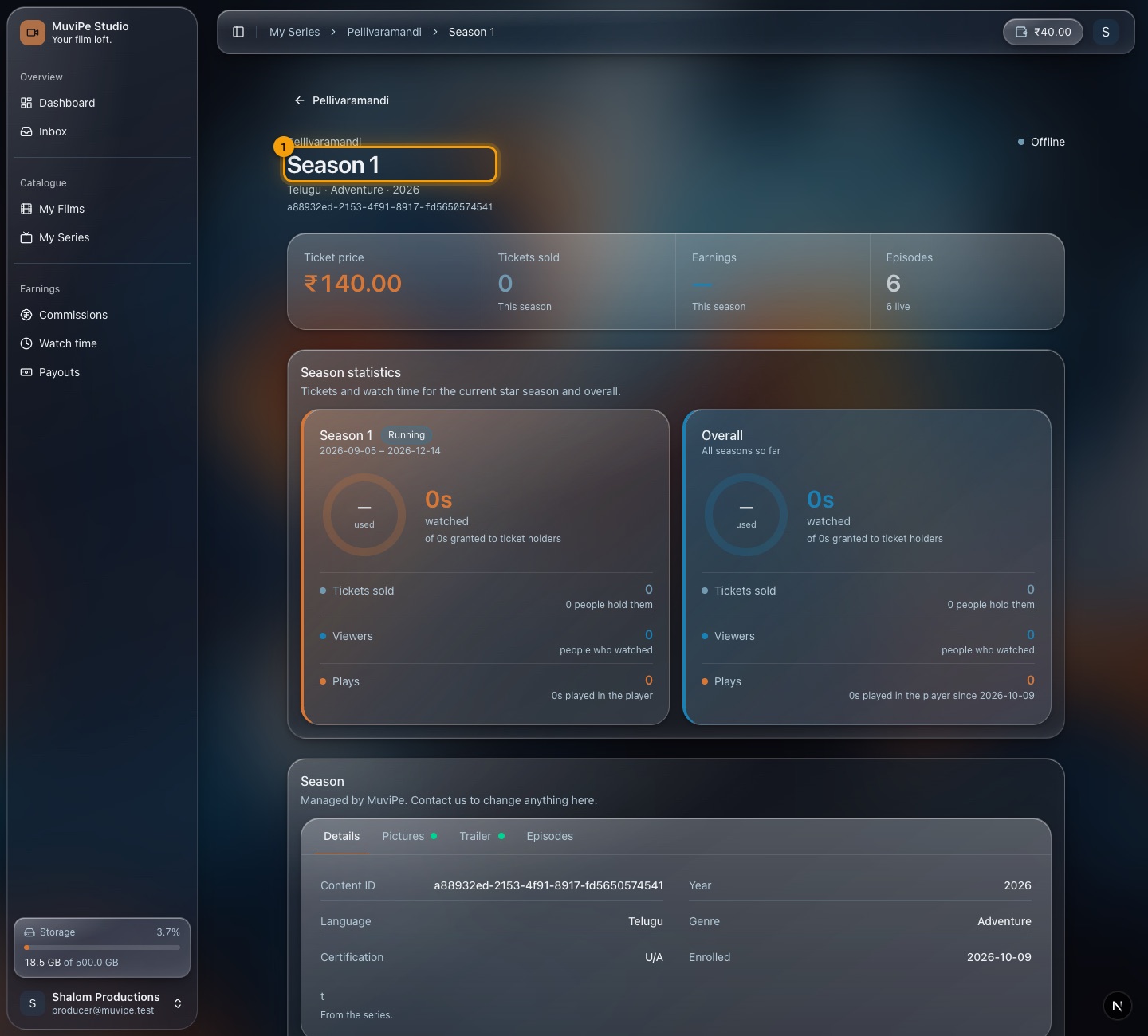
A season's page.
- 1Season title — with the series name above it. Beneath: ticket price, tickets sold, earnings and episodes for the season.
- 2Season statistics — watch time, tickets, viewers and plays for the current star season and overall.
- 3Season details — tabs for Details, Pictures, Trailer and Episodes (each episode's status and video).
Money
Commissions, watch time and payouts
Producers earn on tickets sold. Watch time is information only.
Commissions
What your titles have earned from ticket sales.
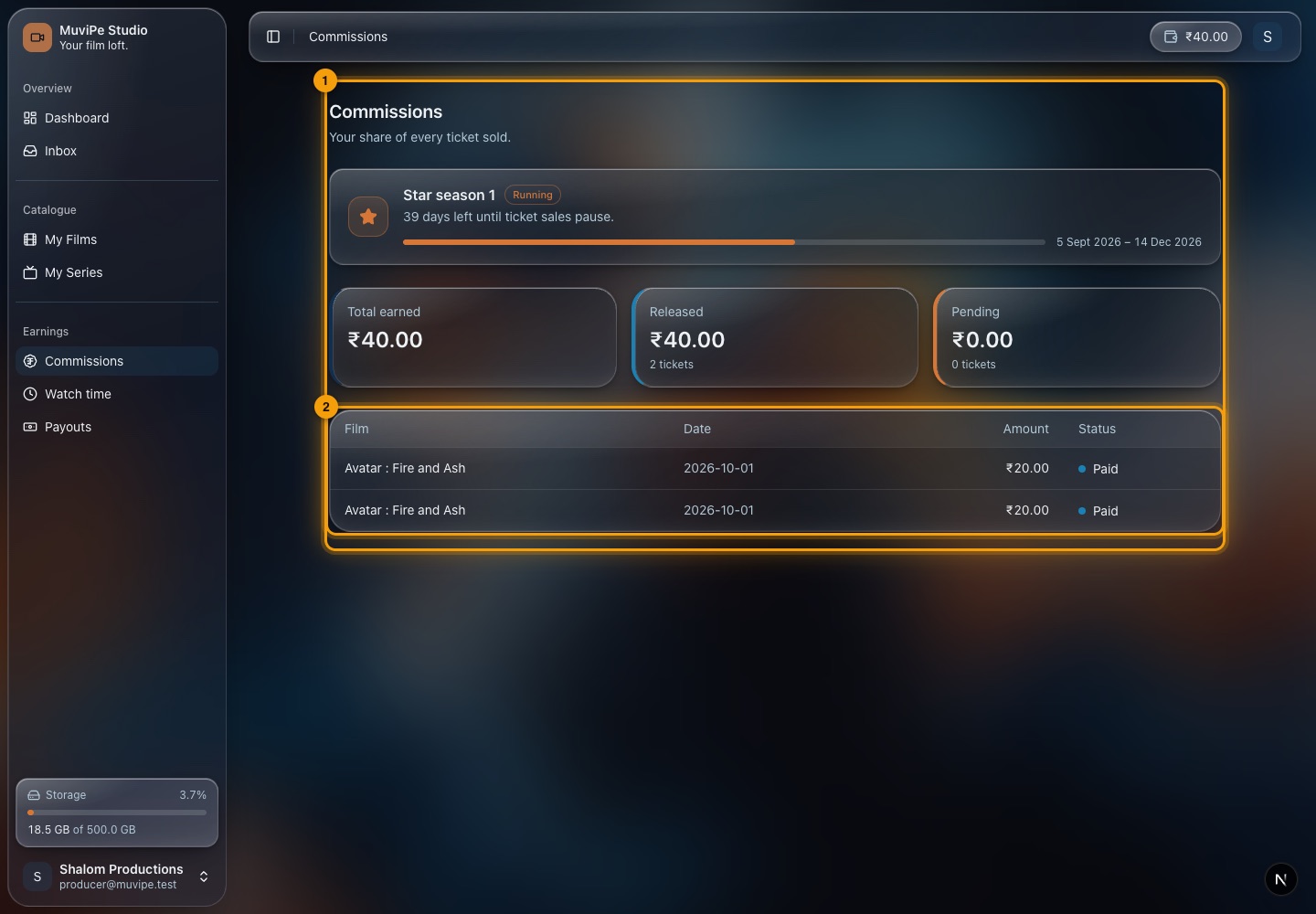
The Commissions screen.
- 1Commissions — each row is one earning: the film, the date, the amount and whether it is paid. The star season is shown above, because the rules for tickets are tied to the season.
- A ticket's price is the producer's price plus MuviPe's charges. The producer earns their price.
- Producers earn nothing from ads. Ad money is between sponsors and MuviPe.
Watch time
How much of your titles ticket holders have actually watched. Watch time is information only; you earn on tickets sold.
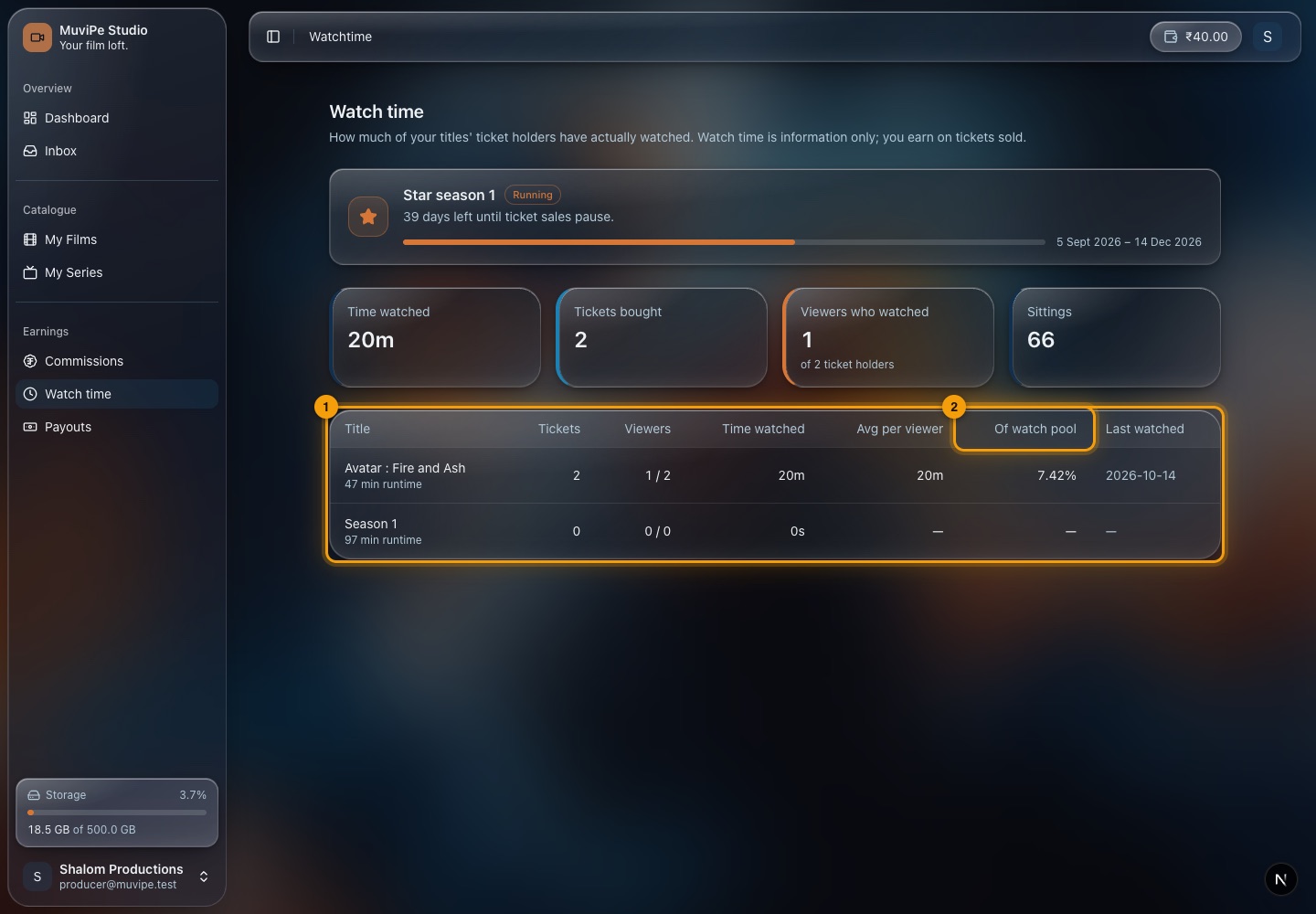
The Watch time screen.
- 1The table — for each title: tickets, viewers (watched out of holders), total time watched, average per viewer, share of its watch pool and when it was last watched.
- 2Of watch pool — what share of the watch time granted to ticket holders has been used.
The cards on top add up the time watched, tickets bought, viewers who watched and sittings for the season.
Payouts
Withdraw your wallet to your bank account.
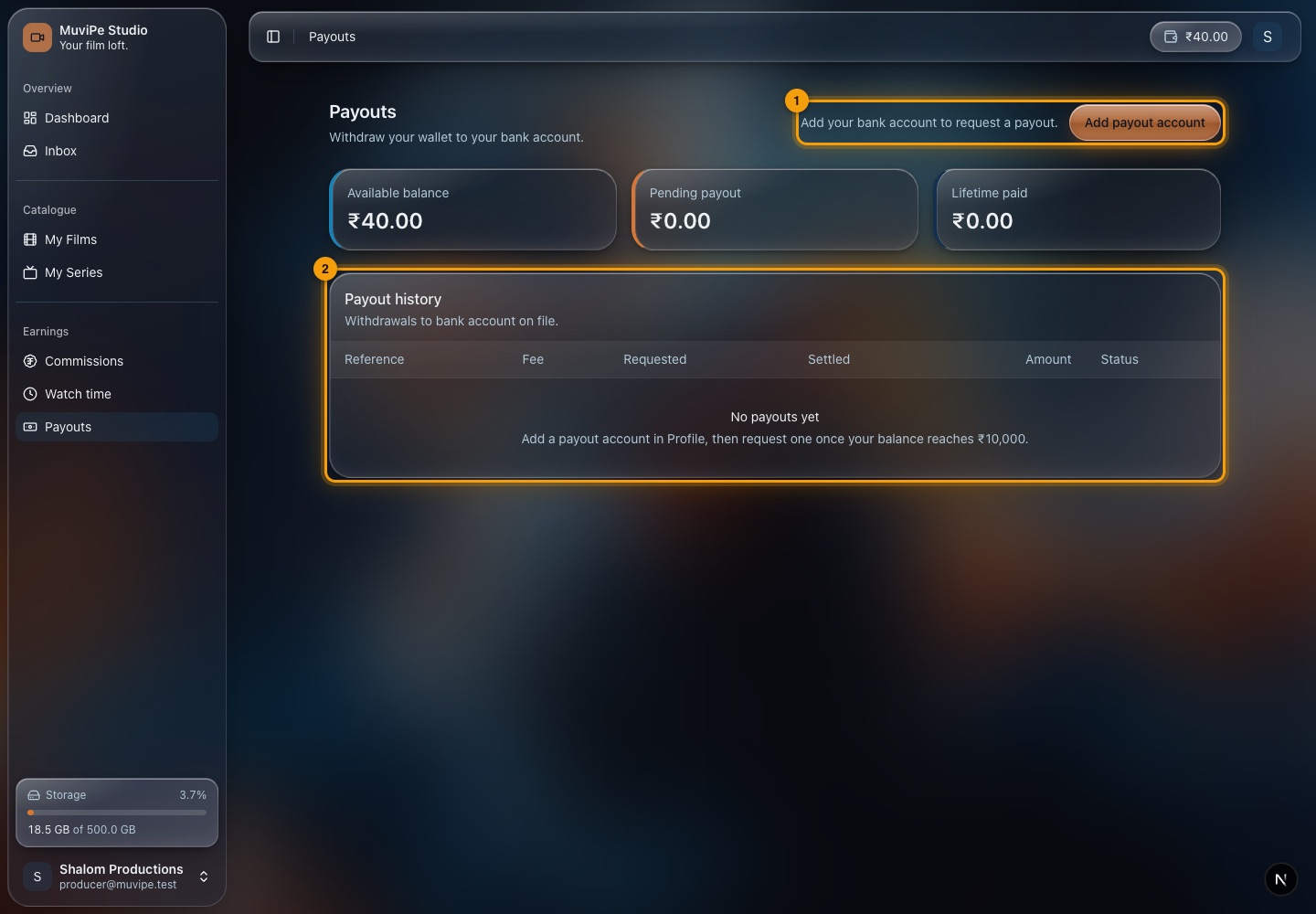
The Payouts screen.
- 1Payout account — until a bank account is saved, a notice and the Add payout account button appear here. Add it in Profile.
- 2Payout history — every withdrawal with its reference, fee, requested and settled dates, amount and status.
Above are Available balance, Pending payout and Lifetime paid.
- You can request a payout once the balance reaches ₹10,000, after saving a payout account.
- A fee is taken from each payout; it shows in the history.
Messages
Inbox
Messages about sales, titles, transactions and the system.
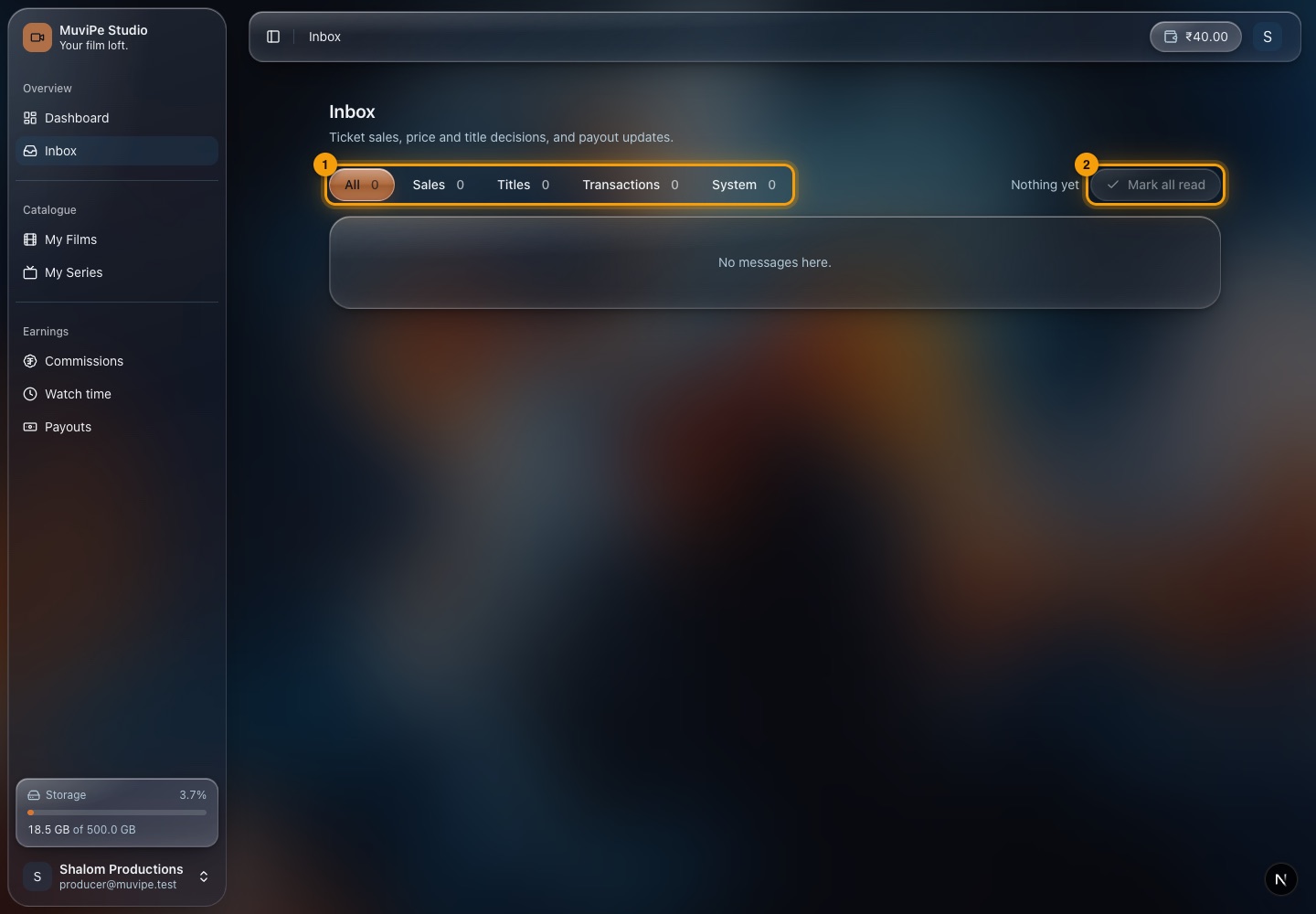
The Inbox.
- 1Categories — All, Sales, Titles, Transactions and System, each with a count of unread.
- 2Mark all read — clears the unread counts.
Files
Storage
How much of your storage plan your files use.
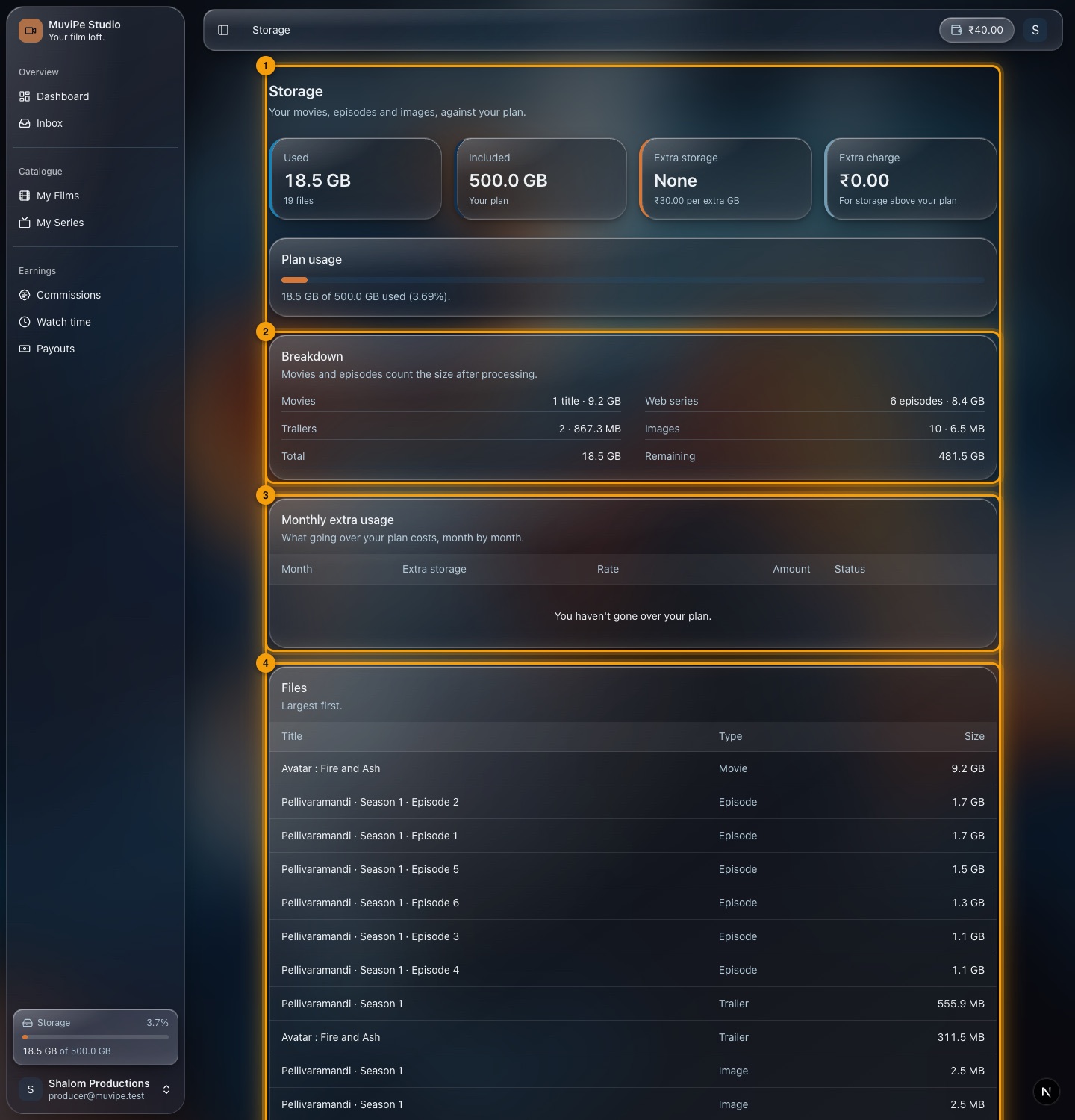
The Storage screen.
- 1Plan usage — how much you use of your plan.
- 2Breakdown — how the space is split up.
- 3Monthly extra usage — if you go over your plan, each month shows the extra storage, the rate, the amount and whether it is paid. Extra storage is billed on the monthly average.
- 4Files — every file with its title, type and size, largest first.
Account
Profile and settings
Your details, your payout account, and your sign-in security.
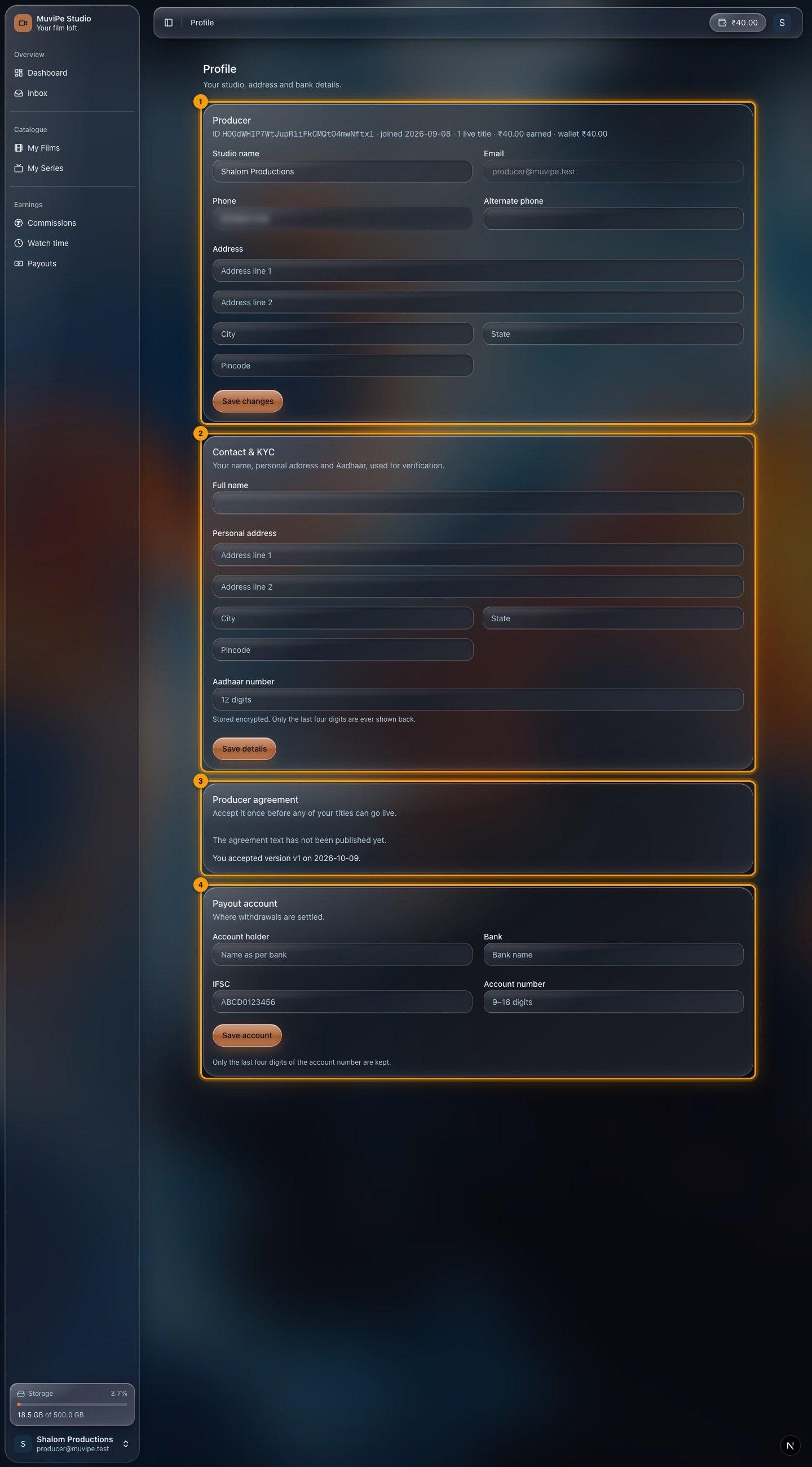
The Profile screen.
- 1Producer — your studio name, email (which cannot be changed here), phone numbers and address. Press Save changes to save.
- 2Contact & KYC — your full name, personal address and Aadhaar number, used for verification. The Aadhaar number is stored encrypted and only the last four digits are ever shown back.
- 3Producer agreement — you must accept it once before any of your titles can go live. It shows which version you accepted and when. When MuviPe publishes a new version you are asked to accept it again.
- 4Payout account — account holder, bank, IFSC and account number. Only the last four digits of the account number are kept.
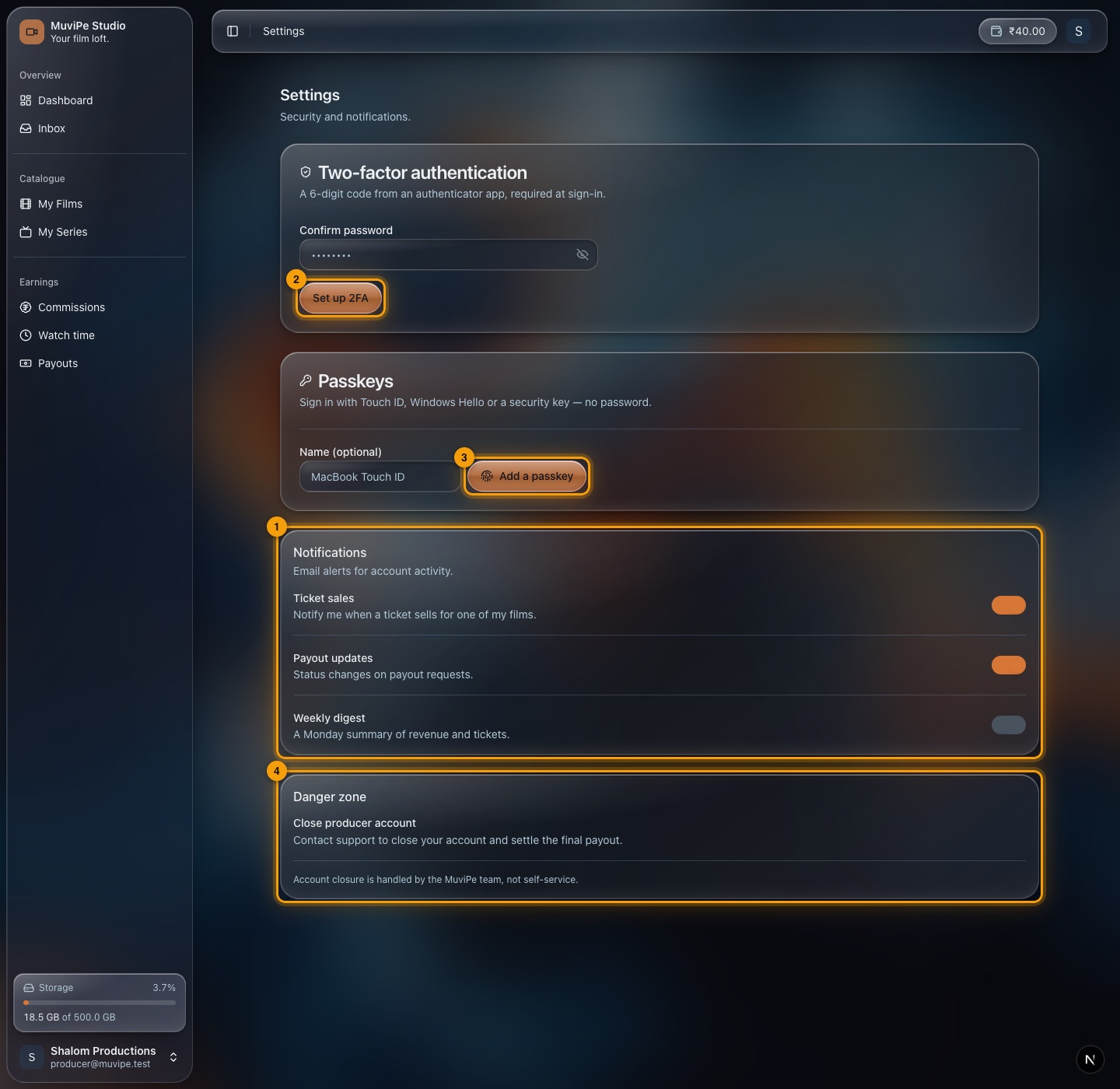
The Settings screen.
- 1Notifications — email alerts for ticket sales, payout updates and a Monday weekly digest.
- 2Two-factor authentication — enter your password and press Set up 2FA to require a 6-digit code from an authenticator app at sign-in.
- 3Passkeys — add a passkey (Touch ID, Windows Hello or a security key) to sign in without a password.
- 4Danger zone — closing a producer account is handled by MuviPe; contact support. The final payout is settled first.
Quick reference
Common tasks
Where to go for the things a producer does most.
My Films → open the film → Film video statistics for tickets, viewers and plays.
Dashboard for the season at a glance, or Commissions for each earning.
Profile → save a payout account → Payouts → request a payout once the balance reaches ₹10,000.
Contact MuviPe. Titles are managed by MuviPe, and a running title's price changes from the next season.
Profile → Producer agreement. Titles cannot go live until it is accepted.
Settings → Set up 2FA and Add a passkey.
Settings → Notifications → Weekly digest.
Storage → Plan usage and Files.
Good to know
Rules to keep in mind
- MuviPe manages your titles. Uploads, prices and going live or offline are done by MuviPe on your behalf. You see the results here.
- You earn on tickets sold. Watch time is information only.
- Producers do not earn from ads.
- Rules change by season. Ticket rules are fixed for a star season and change from the next one.
- Your agreement comes first. No title goes live until you have accepted the current producer agreement.
- One account, one role. A producer account cannot also be a viewer or sponsor account.