MuviPe · Manual
The Sponsor Panel
What each screen is for and how it works for a sponsor, from adding funds to creating, running and reading a campaign, with the real screens marked up.
Start here
What the sponsor panel is
MuviPe Ads is where a sponsor puts a video or a banner in front of MuviPe viewers. A sponsor adds money, uploads their ad files, creates a campaign, and watches the results. This guide walks through every screen, with the real screen beside what each marked part does.
The videos and images your ads run. They are reviewed before they can play.
A campaign says when, where and for how much a creative runs. Five short steps.
Money you add up front. Every view is taken off it as the ad is shown.
How to read this guide
Each screen is shown with amber outlines and numbers. The numbered list under the picture explains each marked part, in the same order. Click any picture to enlarge it.
Getting in
Signing in and signing up
A sponsor signs in with an email and password, or with a passkey. New sponsors create an account first.
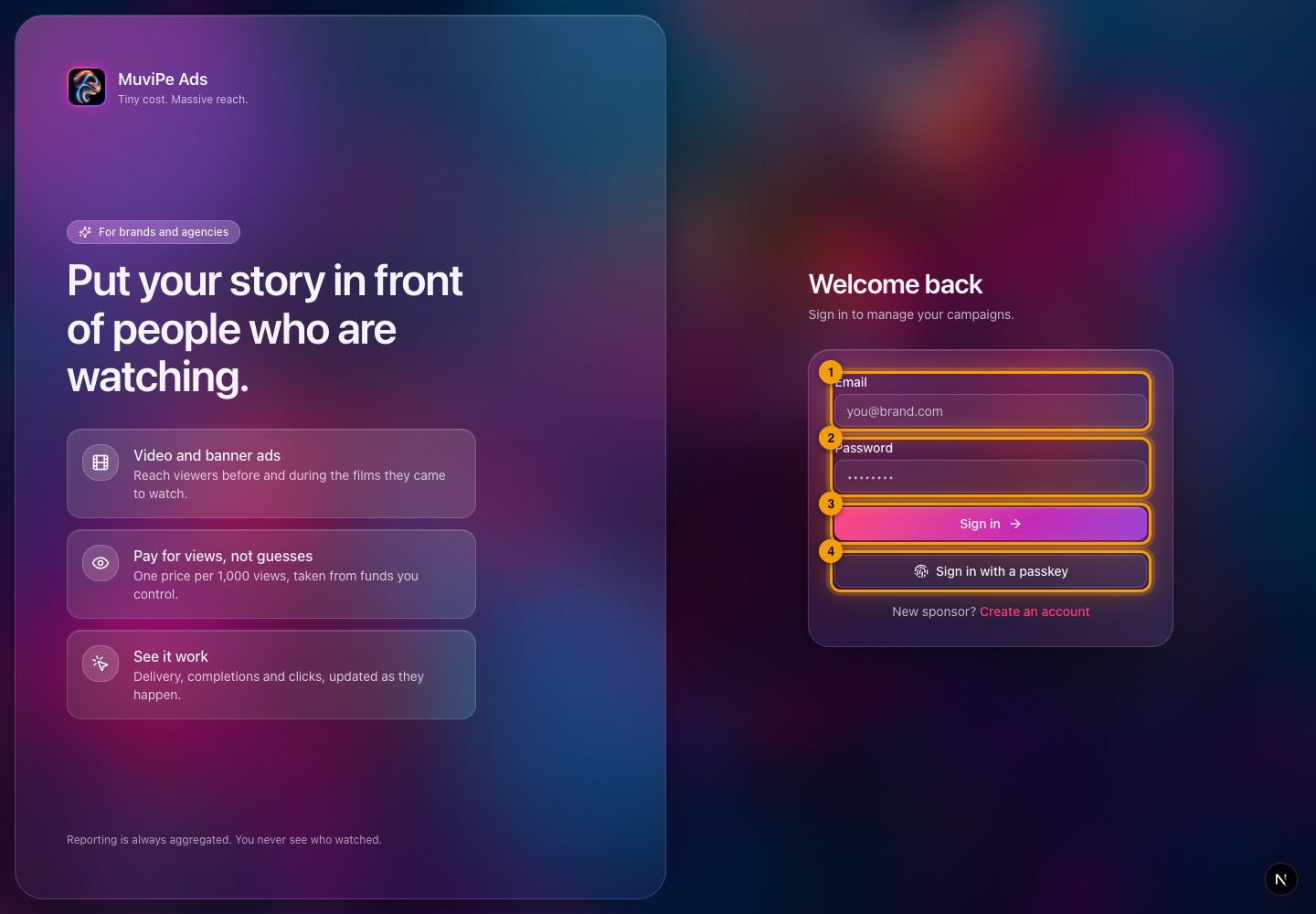
The sign-in page.
- 1Email — the address the account was created with.
- 2Password — your password.
- 3Sign in — signs in with email and password.
- 4Sign in with a passkey — use a fingerprint, face or screen lock saved on the device instead of a password.
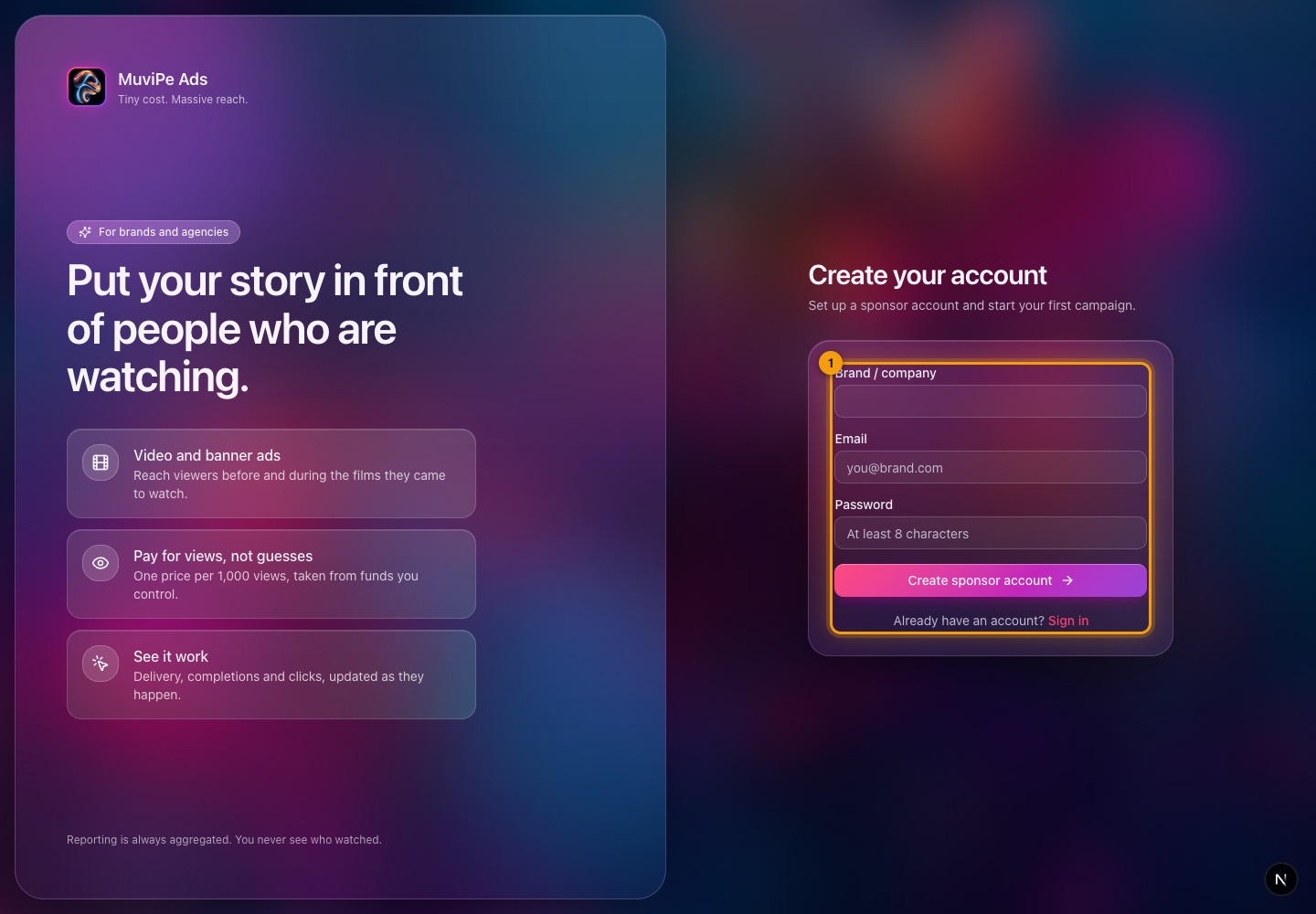
The sign-up page.
- 1Sign-up form — creates a sponsor account. A sponsor account is only for running ads; viewers and producers have their own accounts and panels.
Getting around
The layout and the dashboard
The Overview is the first screen after signing in. It also shows the frame every screen shares.
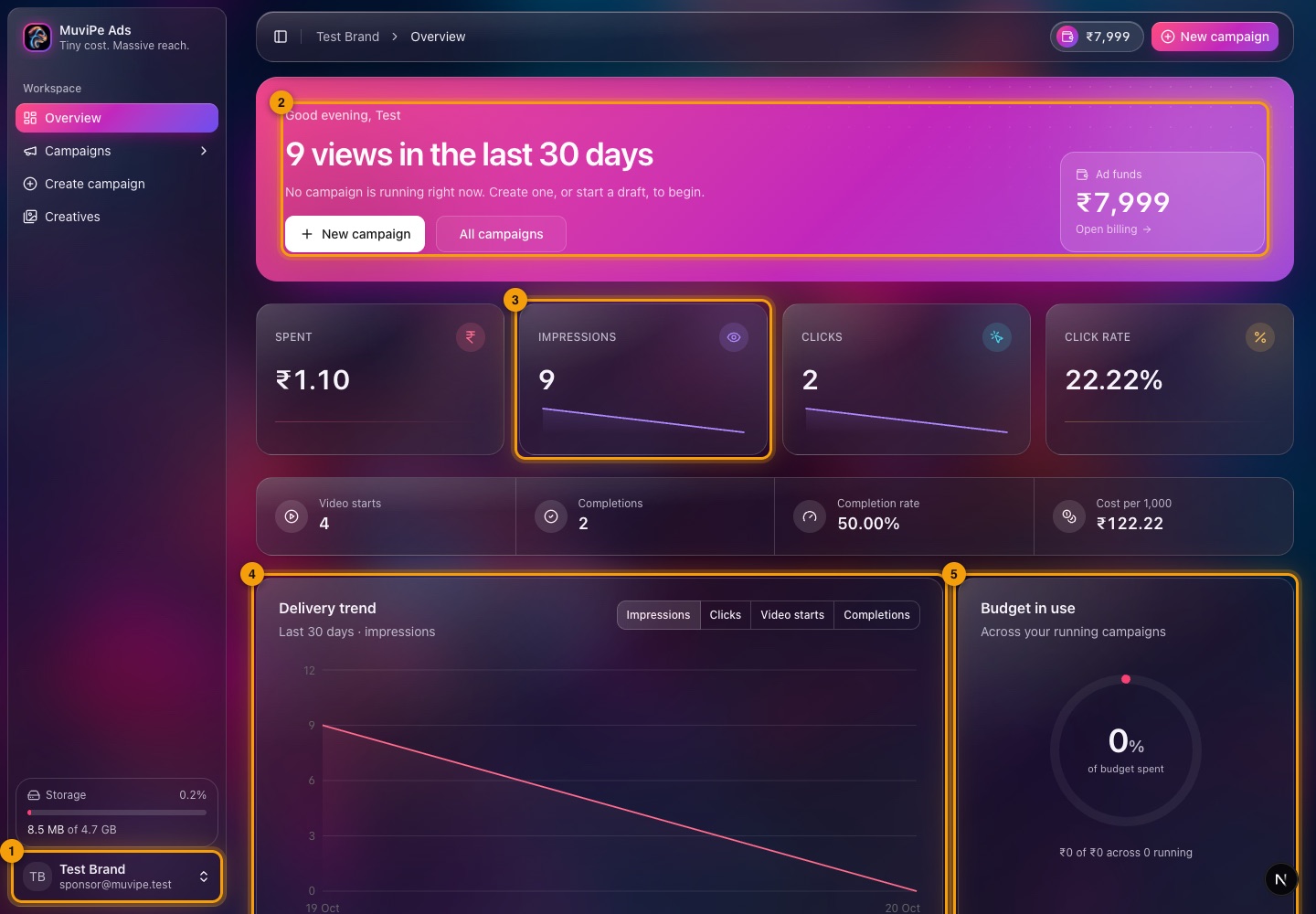
The Overview.
- 1Account menu — your brand name and email at the bottom of the sidebar, with your account options. Just above it is the Storage meter: how much of your storage plan your files use.
- 2Welcome banner — how many views your ads had in the last 30 days, shortcuts to New campaign and All campaigns, and your Ad funds balance with a link to Billing.
- 3Stat cards — Spent, Impressions, Clicks and Click rate, then Video starts, Completions, Completion rate and Cost per 1,000.
- 4Delivery trend — a chart over 30 days. Switch between Impressions, Clicks, Video starts and Completions.
- 5Budget in use — how much of your running campaigns' budget has been spent.
- The sidebar has Overview, Campaigns (with All, Active, Scheduled, Paused, Drafts and Completed), Create campaign and Creatives. The top bar shows where you are, your ad funds and a New campaign button.
- The panel is dark only, with glass cards over a photo background.
Running ads
Campaigns
Your campaigns
Every campaign of yours, with its spend and views at a glance.
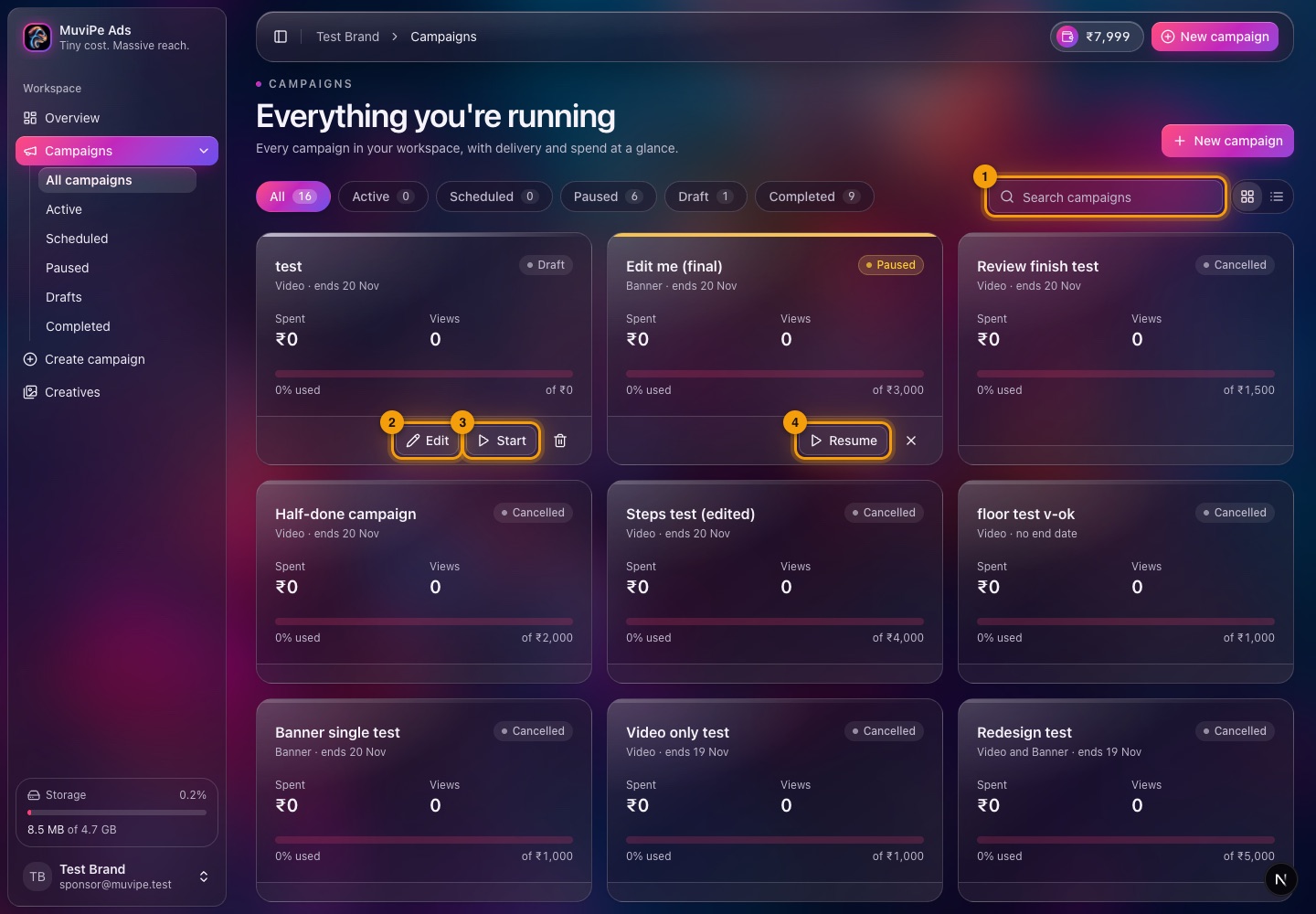
The Campaigns screen.
- 1Search and view — find a campaign by name; the two buttons beside it switch between a card grid and a list. The pills above filter by status: All, Active, Scheduled, Paused, Draft and Completed, each with a count.
- 2Edit — a draft can be edited until it is started.
- 3Start — starts the draft, so it begins running.
- 4Resume — restarts a paused campaign. A running campaign has Pause instead, and the cross cancels it.
Each card shows the campaign name, whether it is video or banner and when it ends, its status, what it has spent, its views and how much of its budget is used.
One campaign
Click a campaign to see how it is doing.
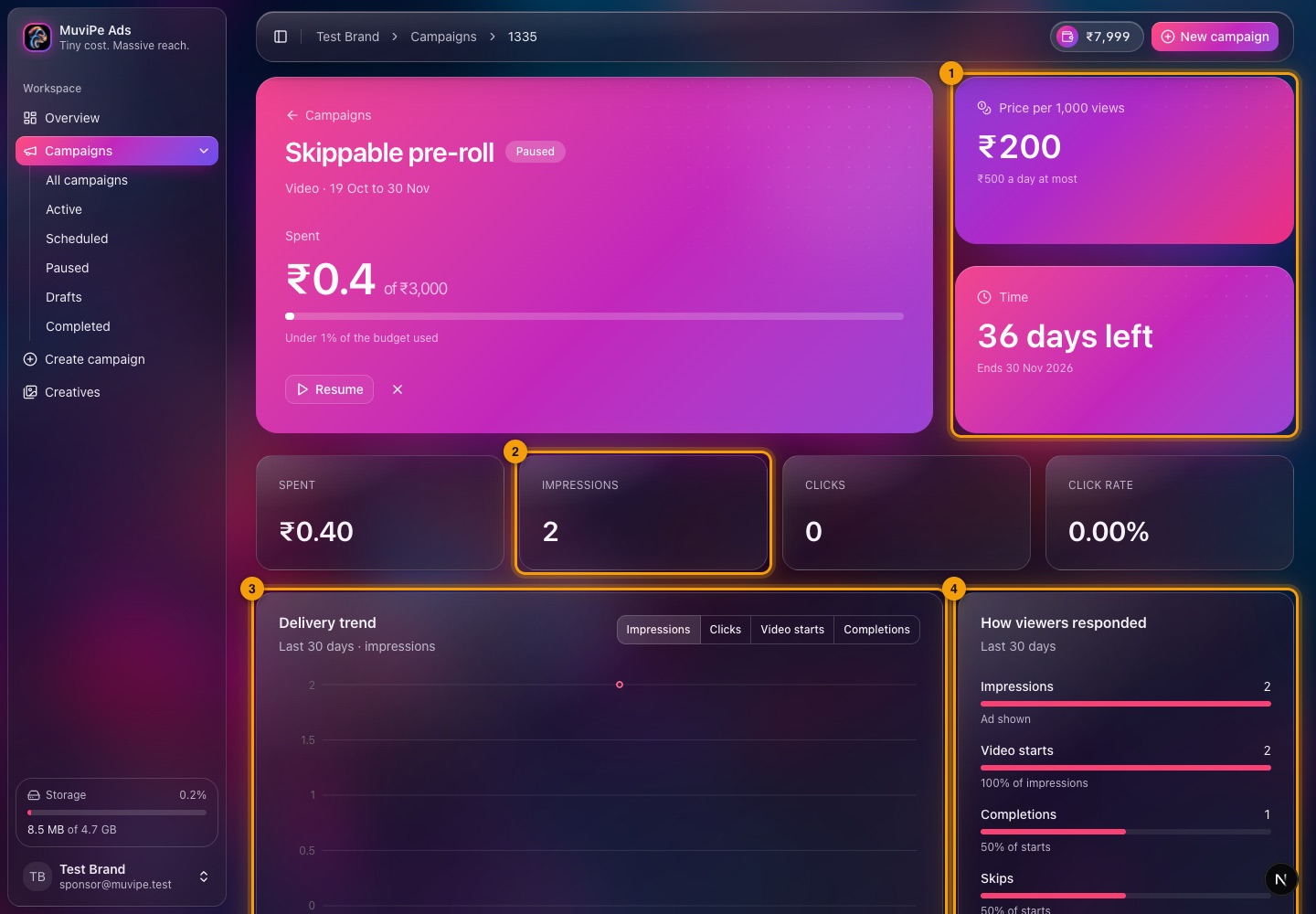
A campaign's page.
- 1Price and time — the price per 1,000 views (and any daily cap), and how many days are left.
- 2Impressions — with Spent, Clicks and Click rate beside it.
- 3Delivery trend — the same chart as the Overview, for this campaign alone.
- 4How viewers responded — impressions, video starts, completions, skips and clicks, each with its share of the one before.
The top card shows the campaign name and status, what has been spent against the budget, and the Resume or Pause button.
Creating
Creating a campaign
The five steps
Create campaign opens a five-step form: Campaign, Where it plays, Creatives, Budget & price and Review. The bar at the top shows where you are, with a tick on each finished step. A Summary card on the right fills in as you go, with an estimate of how many views your budget will buy.
The draft saves automatically. You can leave at any time and pick it up from the Campaigns list. Nothing runs until you start it.
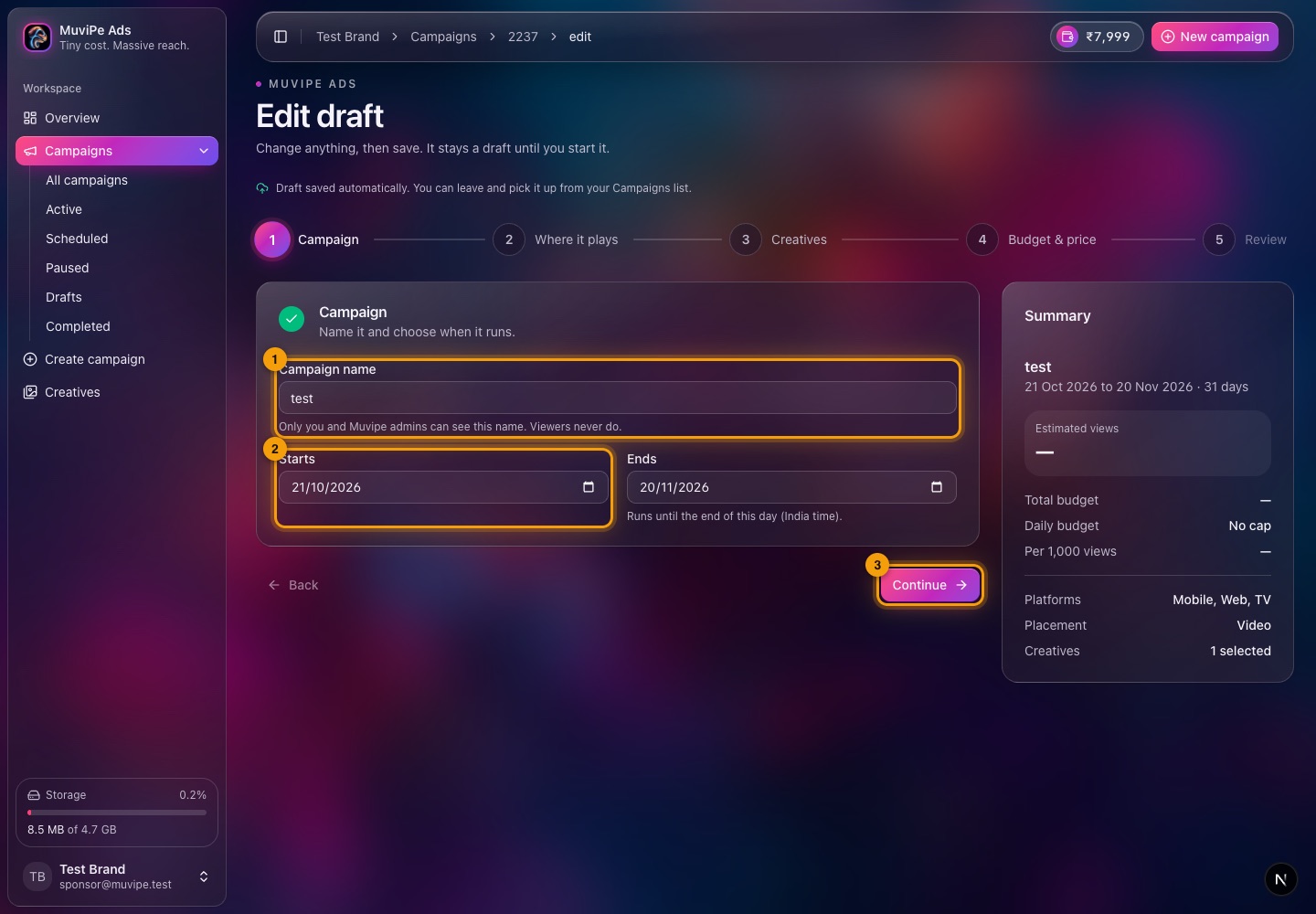
Step 1 · Campaign.
- 1Campaign name — only you and MuviPe admins see it. Viewers never do.
- 2Starts and Ends — the dates the campaign runs, to the end of the last day (India time).
- 3Continue — moves to the next step.
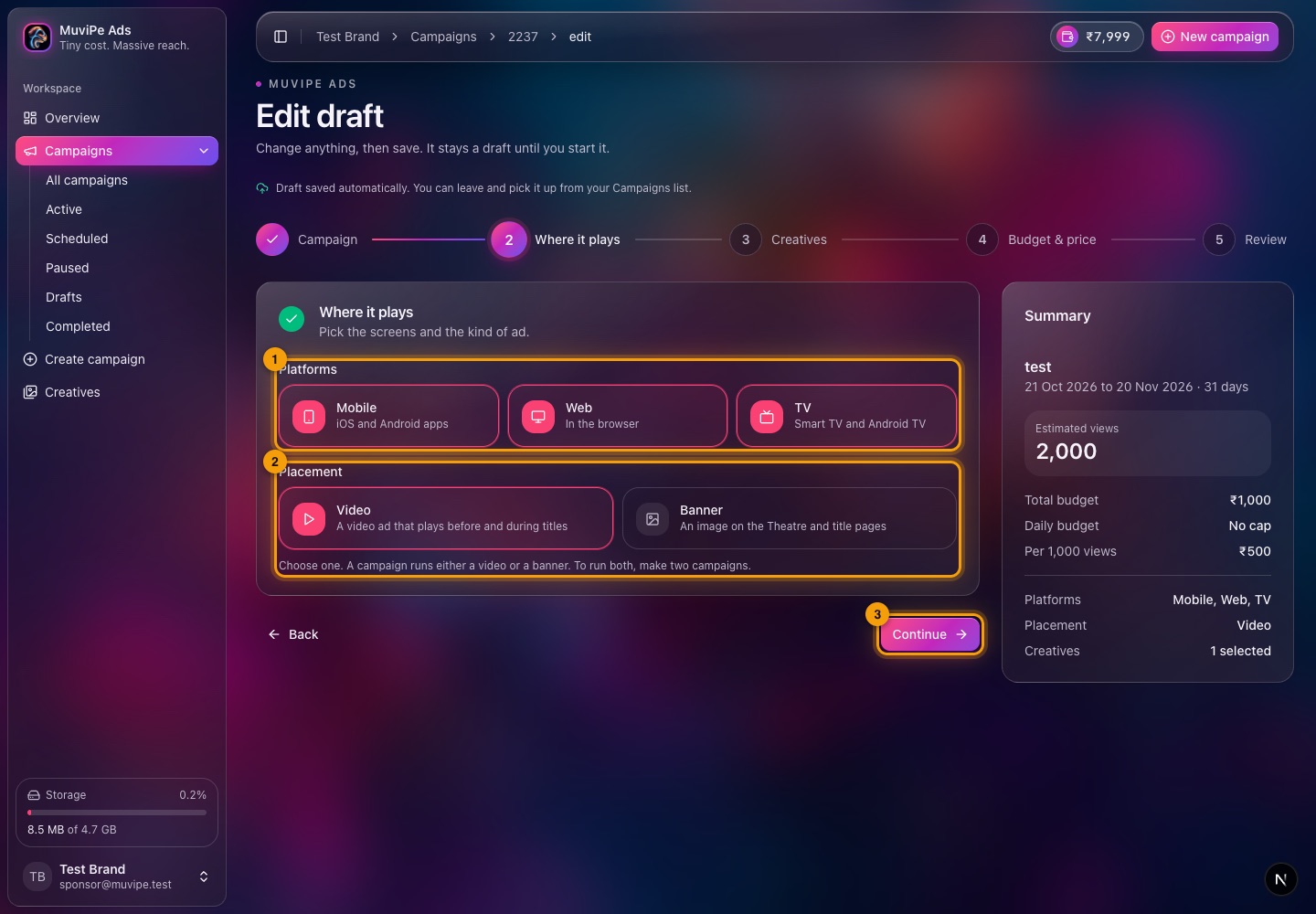
Step 2 · Where it plays.
- 1Platforms — Mobile (iOS and Android apps), Web (in the browser) and TV (smart TV and Android TV). Pick one or more.
- 2Placement — Video (plays before and during titles) or Banner (an image on the Theatre and title pages). Choose one. To run both, make two campaigns.
- 3Continue — moves to the next step.
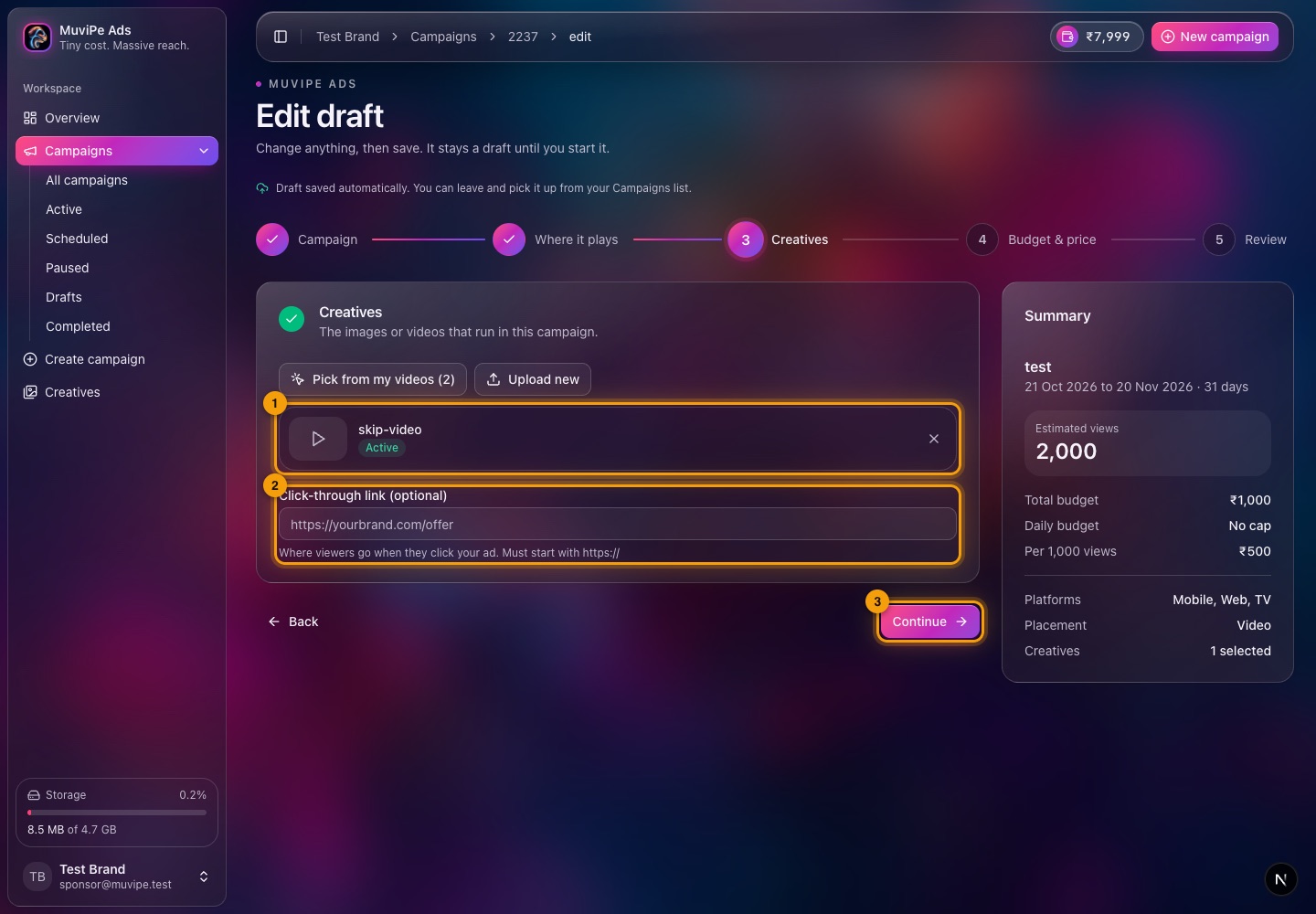
Step 3 · Creatives.
- 1The chosen creative — what will run. For video you can pick one or more of your uploaded videos; for banners, one image per shape.
- 2Click-through link — optional. Where viewers go when they click your ad. It must start with https://.
- 3Continue — enabled once a creative is chosen. Until then the step says Pick or upload a video to continue.
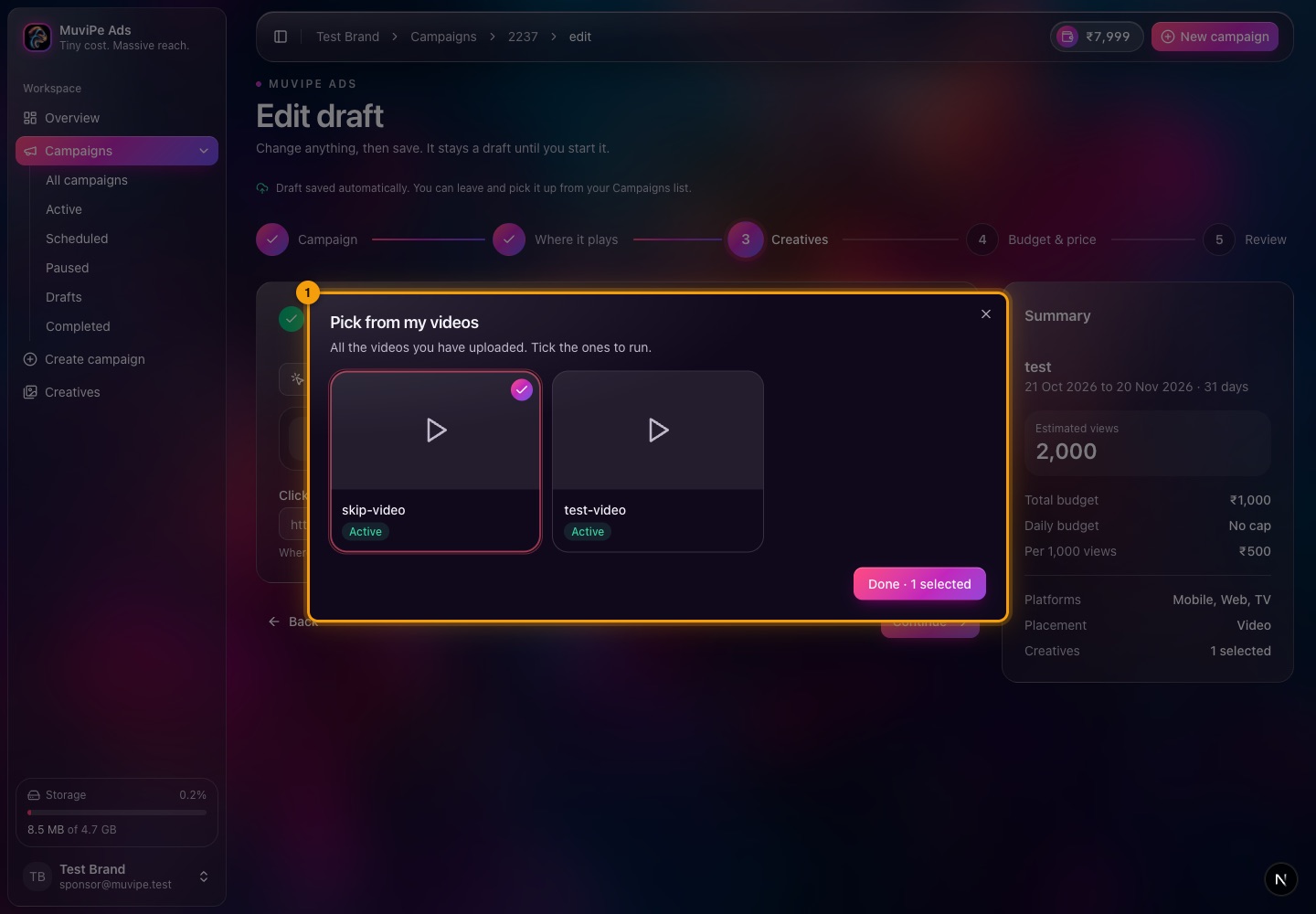
Picking from your uploads.
- 1Pick from my videos — every video you have uploaded. Tick the ones to run and press Done. Upload new adds a new one from the same step.
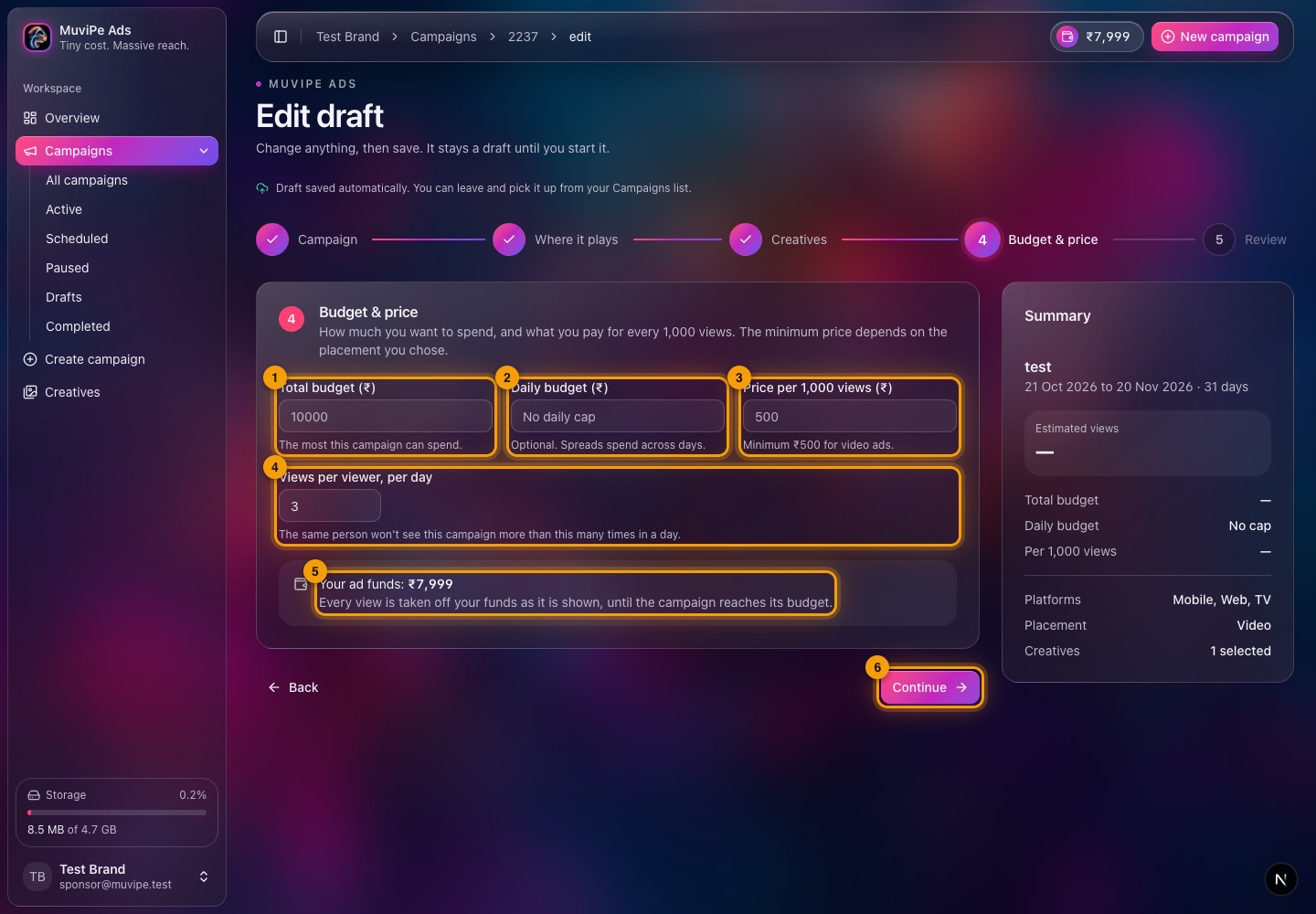
Step 4 · Budget & price.
- 1Total budget — the most this campaign can spend.
- 2Daily budget — optional. Spreads the spend across days.
- 3Price per 1,000 views — what you pay for every 1,000 views. There is a minimum for each placement (₹500 for video here).
- 4Views per viewer, per day — the same person will not see the campaign more than this many times in a day.
- 5Your ad funds — your balance. Every view is taken off it as it is shown, until the campaign reaches its budget.
- 6Continue — shows what is missing if the total budget or price is empty.
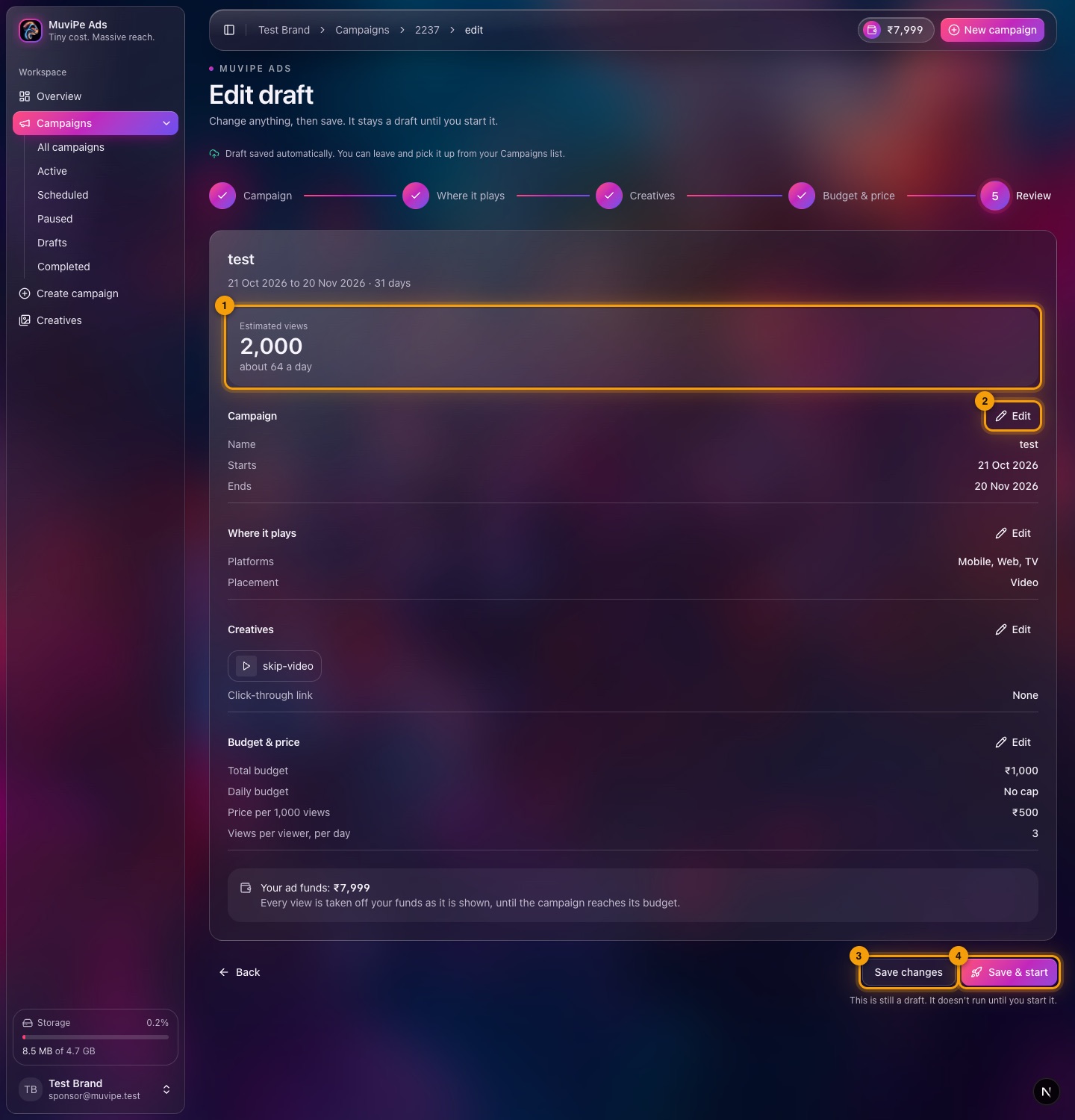
Step 5 · Review.
- 1Estimated views — roughly how many views the budget buys, and how many a day.
- 2Edit — each section (Campaign, Where it plays, Creatives, Budget & price) has its own Edit button that jumps back to that step.
- 3Save changes — keeps the draft as it is.
- 4Save & start — starts the campaign. Until you do, it is still a draft.
Your files
Creatives
The videos and images your ads run. Videos are for the Video placement; images are for banners. Both count against your storage.
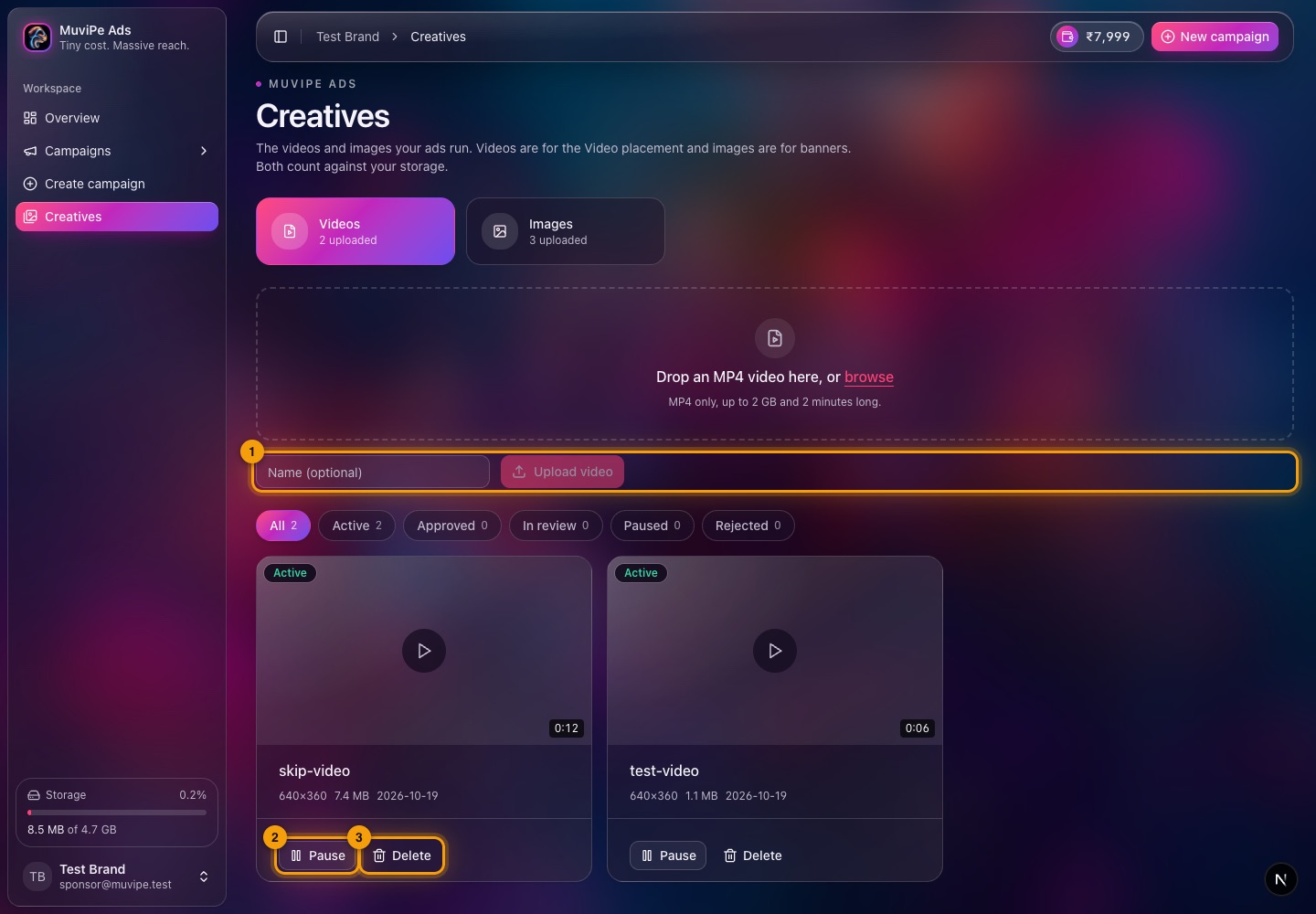
The Creatives screen.
- 1Upload — drop an MP4 in the box above, or browse for it. Give it a name if you like, then Upload video. A video must be an MP4, up to 2 GB and up to 2 minutes long, and the check happens before the upload starts. Images are uploaded the same way from the Images tab.
- 2Pause — stops this creative from running without deleting it.
- 3Delete — removes the file for good.
- Filters across the top show how many creatives are Active, Approved, In review, Paused or Rejected.
- Every file is checked automatically and then reviewed by a MuviPe admin before it can run. A rejected file shows the reason.
- Delete removes a file for good, so pause it instead if you may want it again.
Money
Billing, transactions and storage
Billing
Your ad funds, where the money went, and storage charges.
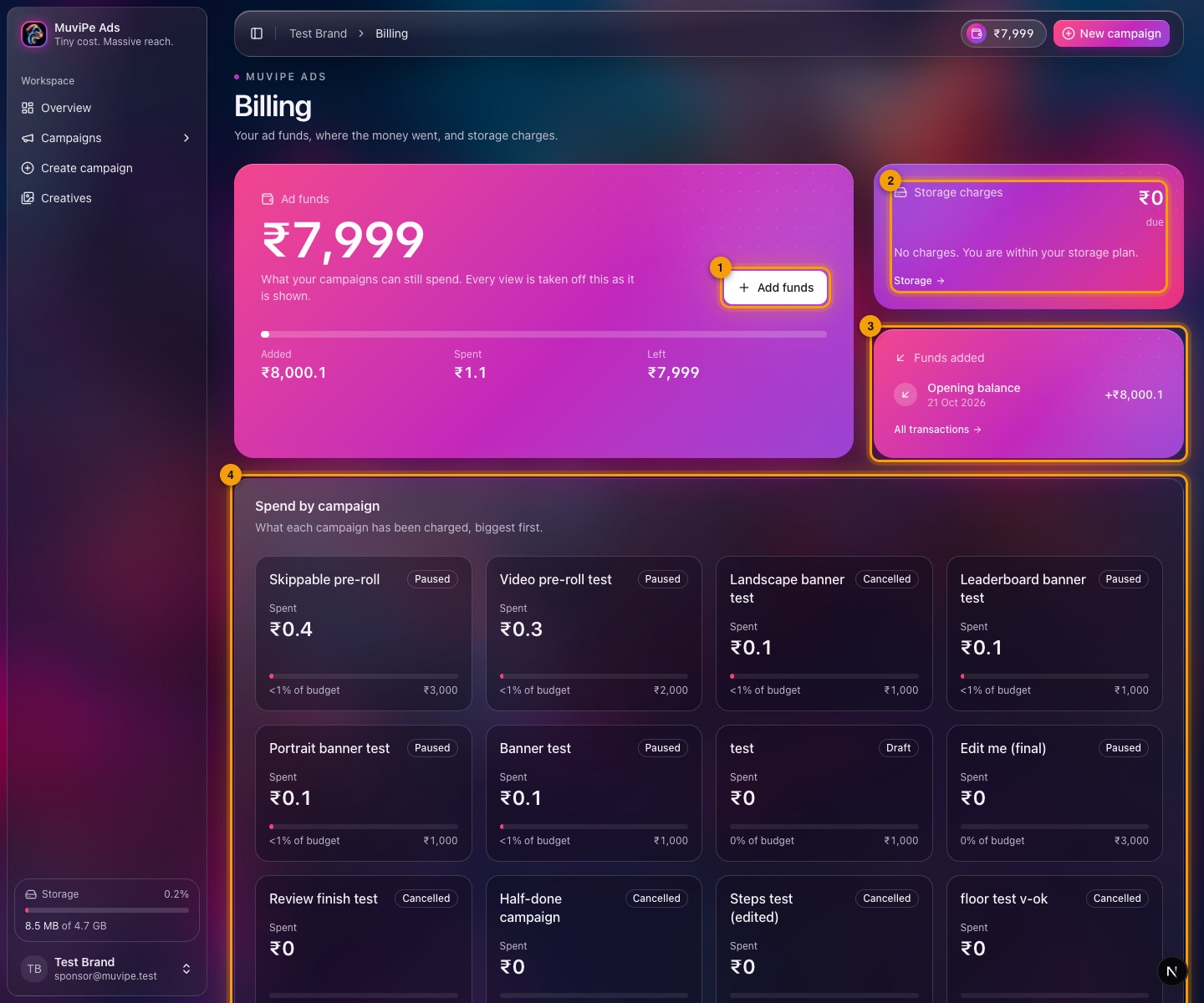
The Billing screen.
- 1Add funds — tops up your ad funds. The card also shows how much you have added, spent and have left.
- 2Storage charges — what you owe for storage above your plan, if anything. No charges means you are within the plan.
- 3Funds added — your latest additions, with a link to all transactions.
- 4Spend by campaign — what each campaign has been charged, biggest first, with its share of its budget.
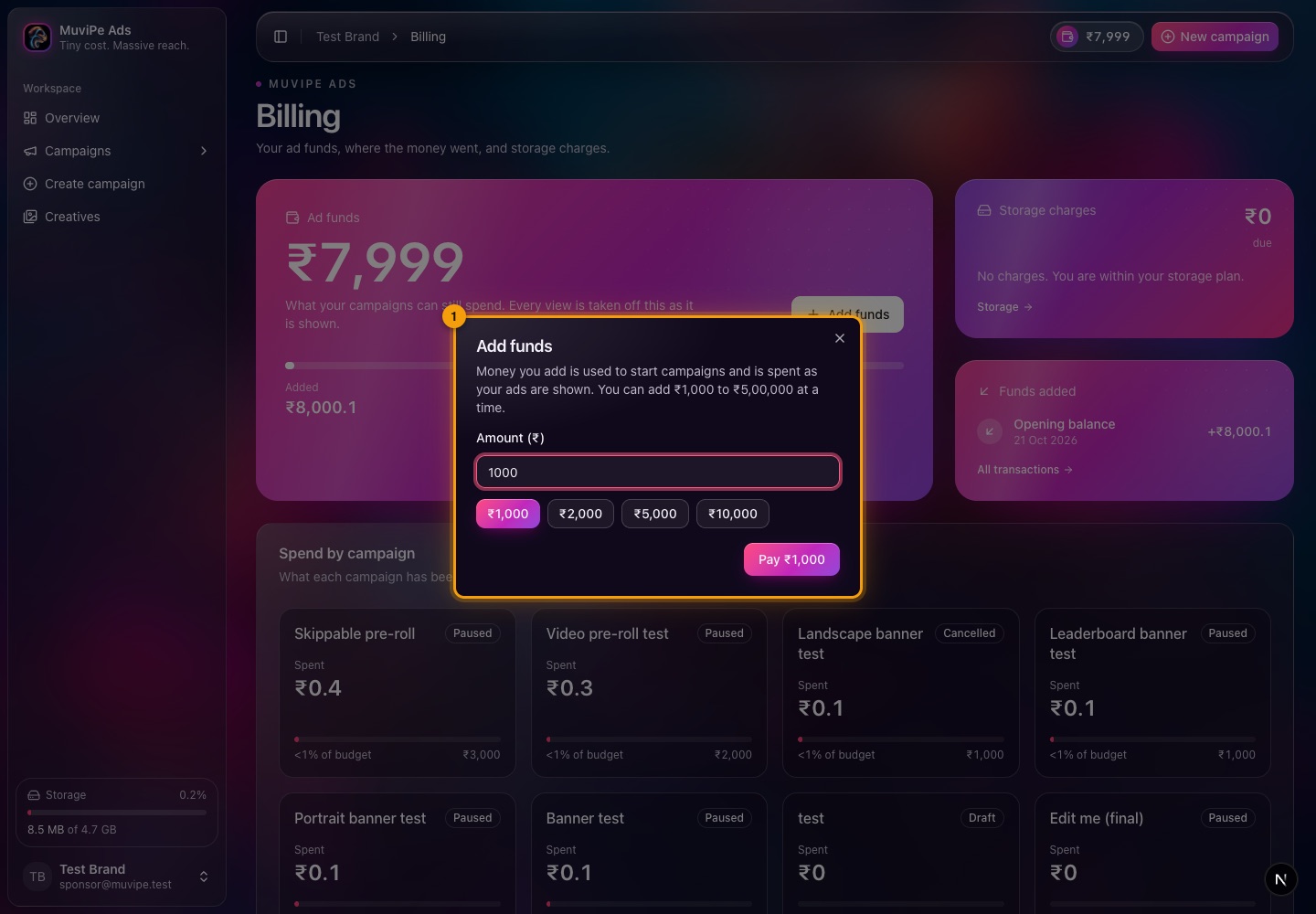
Adding funds.
- 1Add funds — type an amount or pick one (₹1,000, ₹2,000, ₹5,000 or ₹10,000) and pay. You can add ₹1,000 to ₹5,00,000 at a time. The money is used to start campaigns and is spent as your ads are shown.
- You are warned in the panel when your funds run low, and again when they run out and your campaigns stop.
- Views are charged per 1,000. A skipped video still counts as a view. Clicks are counted and reported but are not charged for.
Transactions
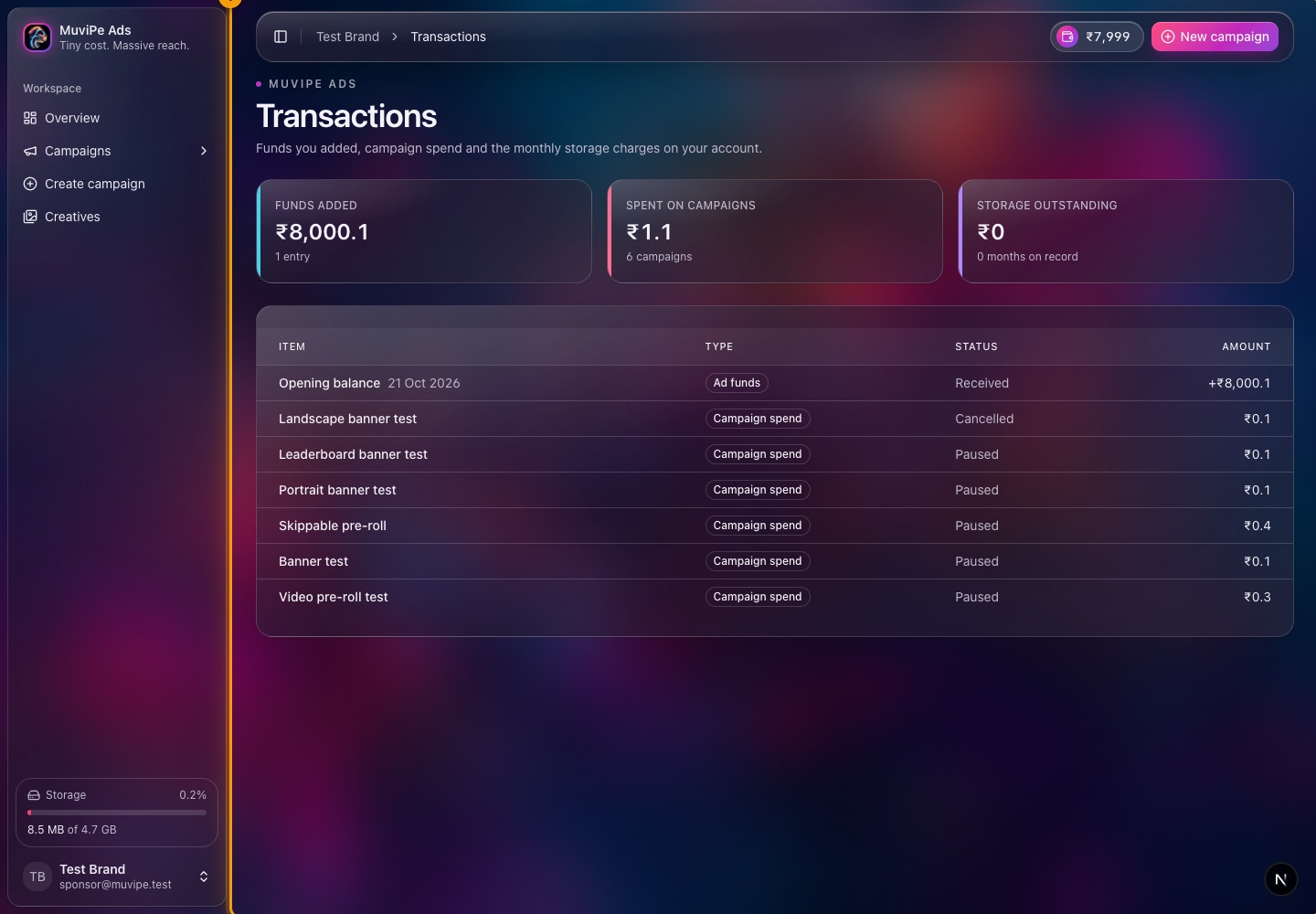
The Transactions screen.
- 1Transactions — every addition and charge on your account, with its type, status and amount.
Storage
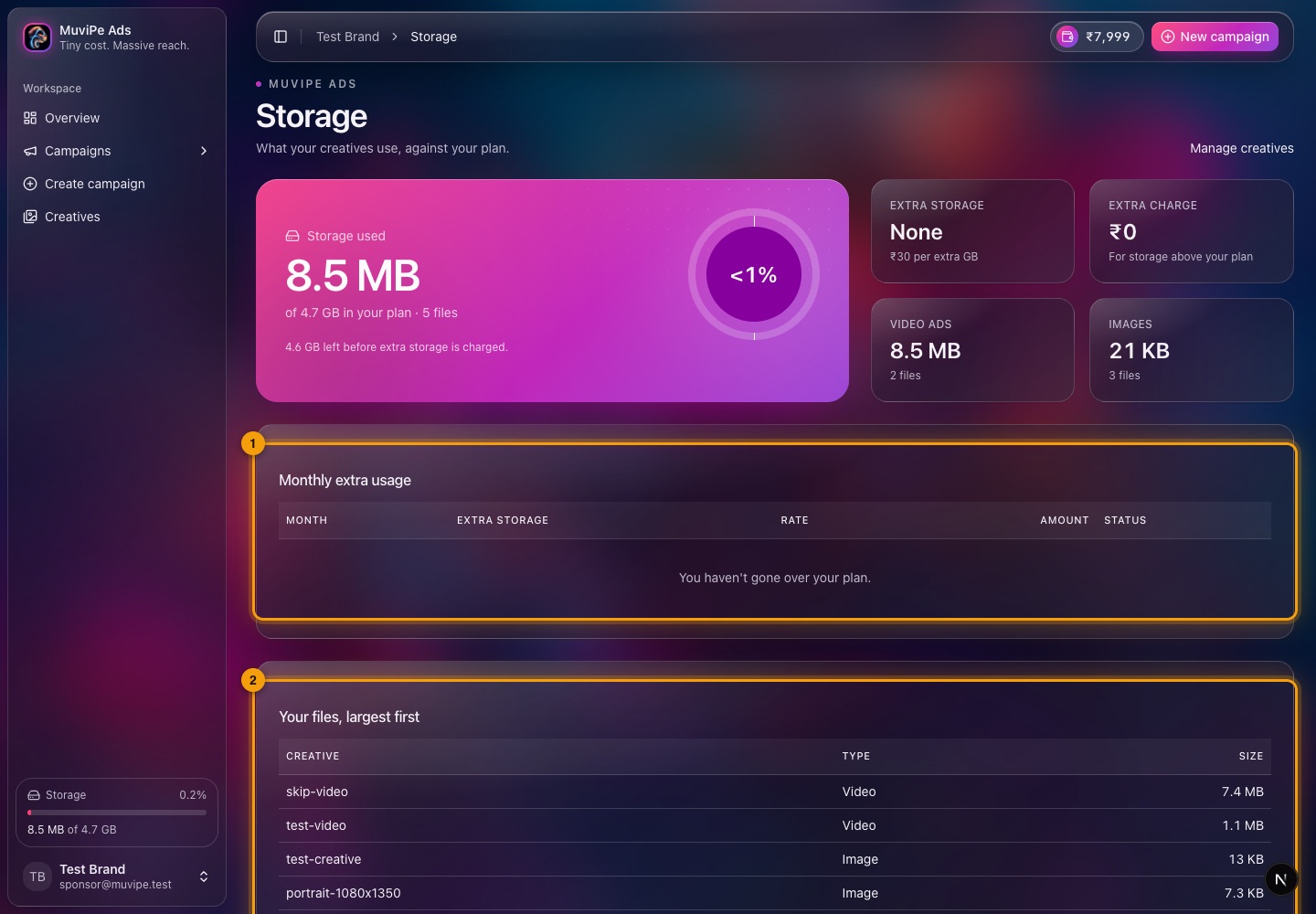
The Storage screen.
- 1Monthly extra usage — if you go over your plan, each month shows the extra storage, the rate, the amount and whether it is paid. Extra storage is billed on the monthly average. Empty here because the account is within its plan.
- 2Your files, largest first — every creative with its type and size, so you can see what to delete.
The top card shows how much of your plan you use, with a split between video ads and images, the price per extra GB and the extra charge so far.
Account
Profile and security
Your business details and your sign-in security on one page.
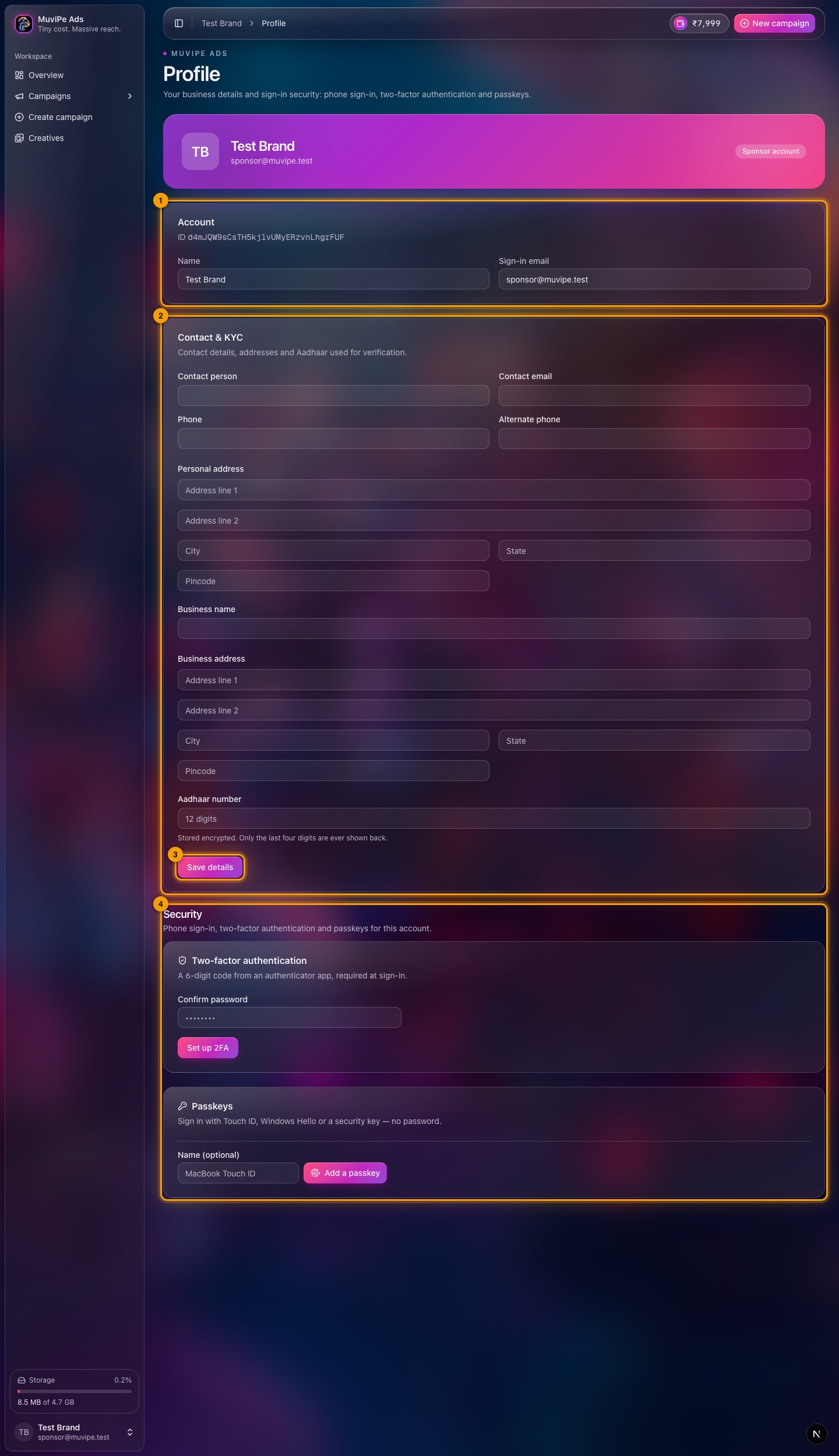
The Profile screen.
- 1Account — your name and sign-in email, and your account ID.
- 2Contact & KYC — contact person, email and phone, your personal and business addresses and Aadhaar, used for verification.
- 3Save details — saves the form.
- 4Security — set up two-factor authentication or add a passkey.
Support
Help
A built-in guide for sponsors.
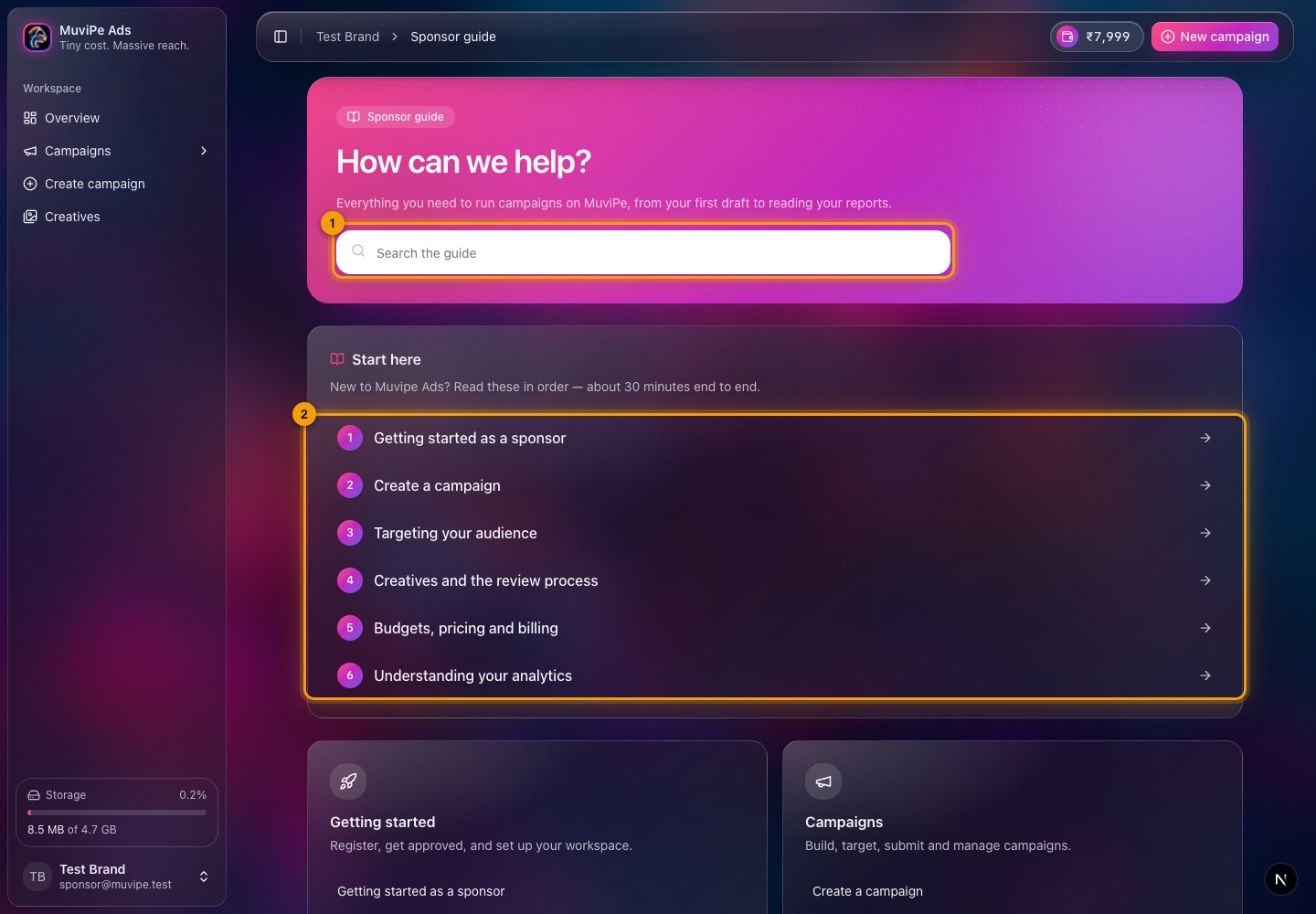
The Help centre.
- 1Search the guide — type to find an article.
- 2Articles — Getting started, Create a campaign, Targeting, Creatives and review, Budgets, pricing and billing, Understanding your analytics, and Campaign statuses and health.
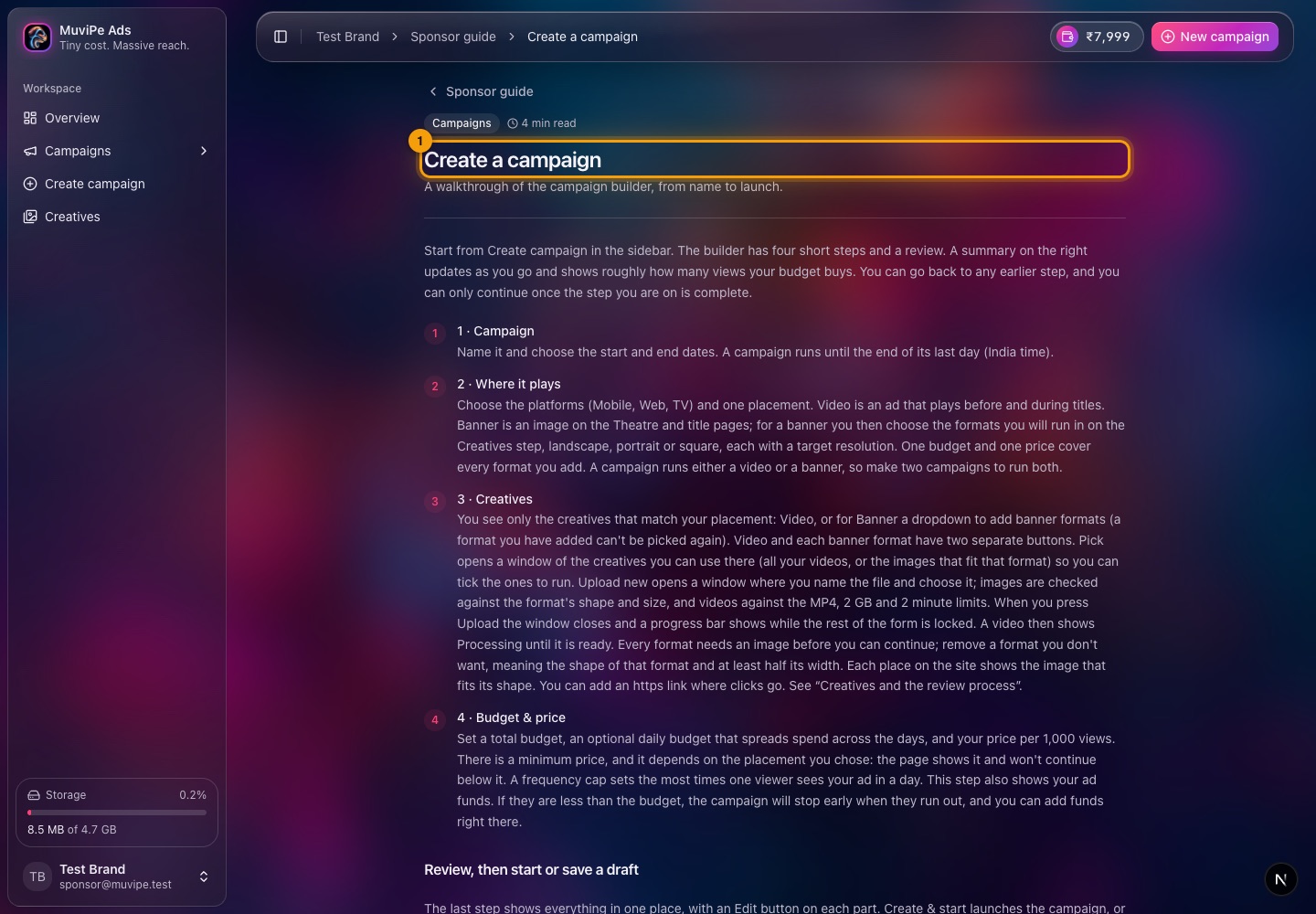
A Help article.
- 1The article — written for sponsors, with the steps for that topic.
Quick reference
Common tasks
Where to go for the things a sponsor does most.
Billing → Add funds → Creatives → upload a video → Create campaign → fill the five steps → Save & start.
Campaigns → the campaign → Pause. Resume starts it again.
Campaigns → Edit on the draft. It reopens where you left off. A started campaign shows its page and results instead of the editor.
Overview for everything together, or open one campaign for its own chart and the How viewers responded breakdown.
Billing → Add funds or the funds pill in the top bar. ₹1,000 to ₹5,00,000 at a time.
Storage → find the biggest files → Creatives → Delete the ones you no longer need.
Profile → Security → Add a passkey.
Help → search the guide.
Good to know
Rules to keep in mind
- One placement per campaign. Video or banner. To run both, make two campaigns.
- Pay per 1,000 views, from your ad funds. If the funds run out the campaign stops.
- Minimum prices. A campaign cannot be priced below the minimum for its placement, set by MuviPe. The step tells you the minimum.
- Every creative is reviewed. Only approved files can run.
- Drafts are safe. A draft saves as you go and never runs until you start it.
- One account, one role. A sponsor account cannot also be a viewer or producer account.