MuviPe · Manual
The User Panel
What each screen is for and how it works for a viewer, from signing in to buying a ticket, earning rewards and withdrawing money, with the real screens marked up.
Start here
What the user panel is
This is MuviPe as a viewer sees it: a theatre of films and web series, a wallet, rewards to collect, and a Star Vault of achievements. This guide walks through every screen, with the real screen beside what each marked part does.
A viewer buys a ticket for a title. A ticket carries watch time, and it opens its own referral tree of 363 seats.
Money in the wallet in rupees, and coins earned from rewards. Both show in the top bar.
Seasons of 90 days. Achievements earn coins, and the top rung pays real money.
How to read this guide
Each screen is shown with amber outlines and numbers. The numbered list under the picture explains each marked part, in the same order. Click any picture to enlarge it.
Getting in
Signing in
A viewer signs in with their mobile number, with Google or Apple, with a passkey, or by linking a new device.
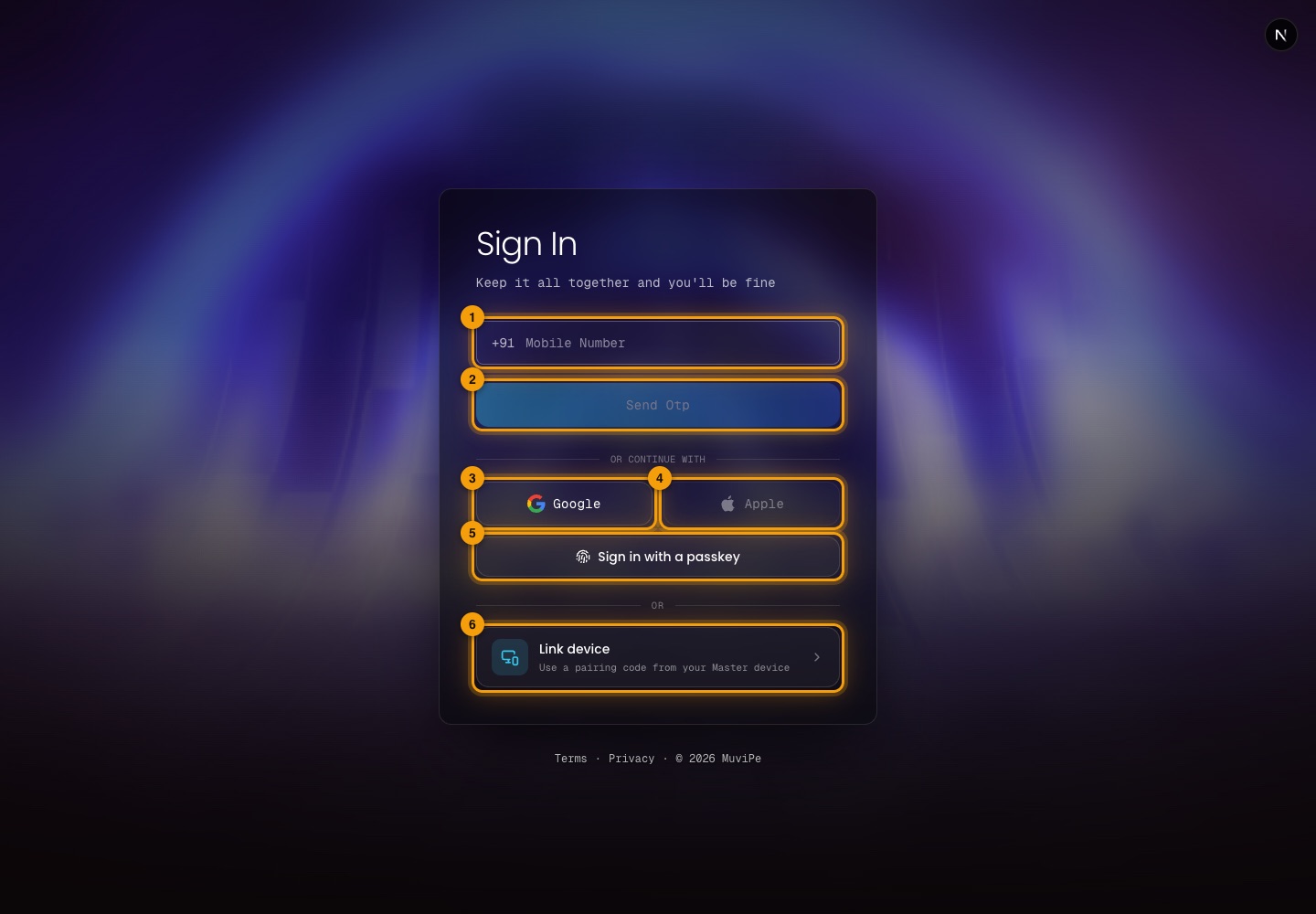
The sign-in page.
- 1Mobile number — enter the number (+91 India) the account uses.
- 2Send OTP — sends a one-time code by SMS to confirm it is you.
- 3Google — sign in with a Google account.
- 4Apple — sign in with an Apple account.
- 5Sign in with a passkey — use a fingerprint, face or screen lock saved on the device.
- 6Link device — sign in on a new device using a pairing code from the Master device (see Devices).
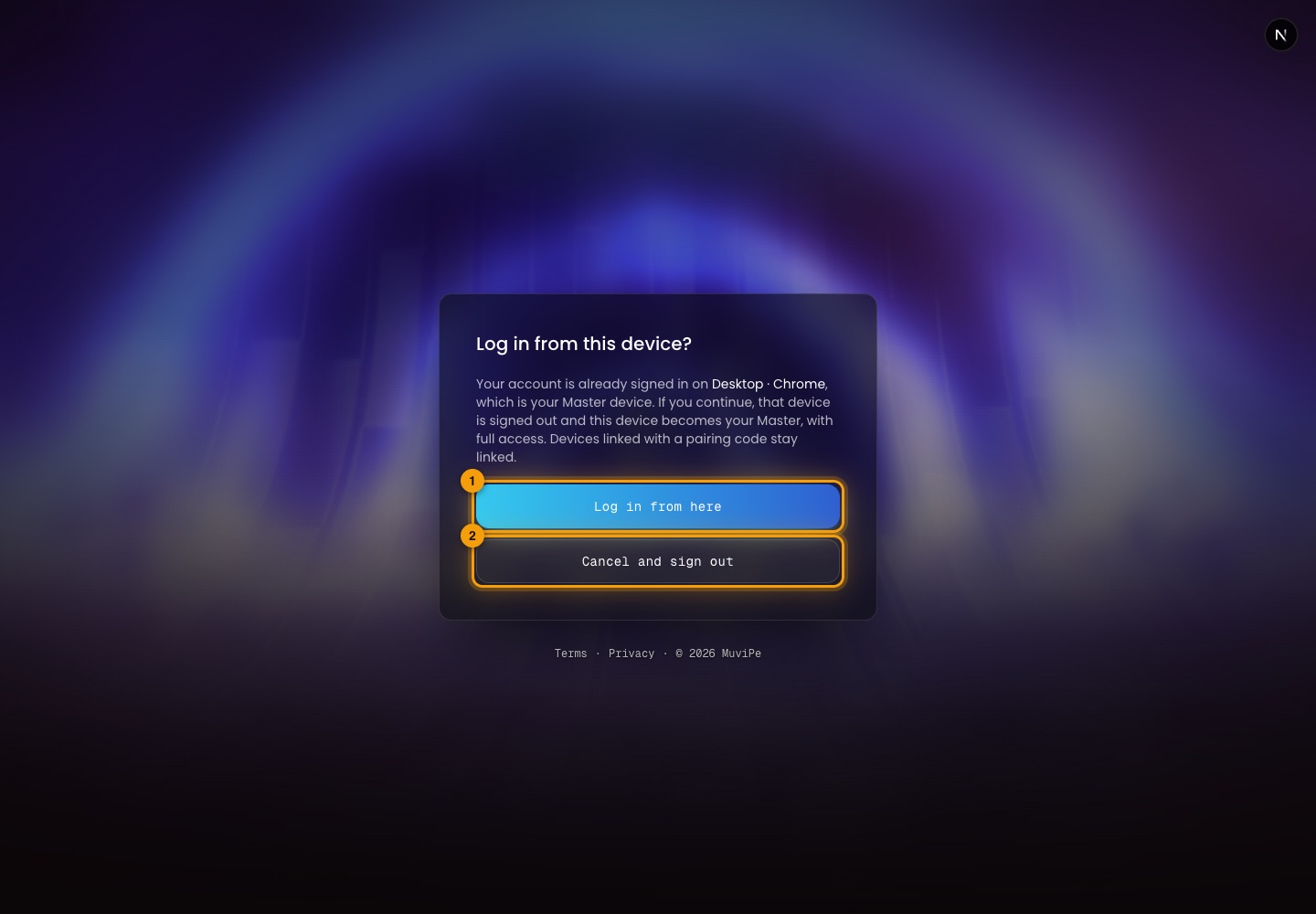
The first sign-in on a device asks to confirm it.
- 1Log in from here — makes this device part of the account and continues. The first device on an account becomes the Master device.
- 2Cancel and sign out — does not link this device.
Getting around
The layout: rail, top bar and activity panel
Every signed-in screen shares the same frame.
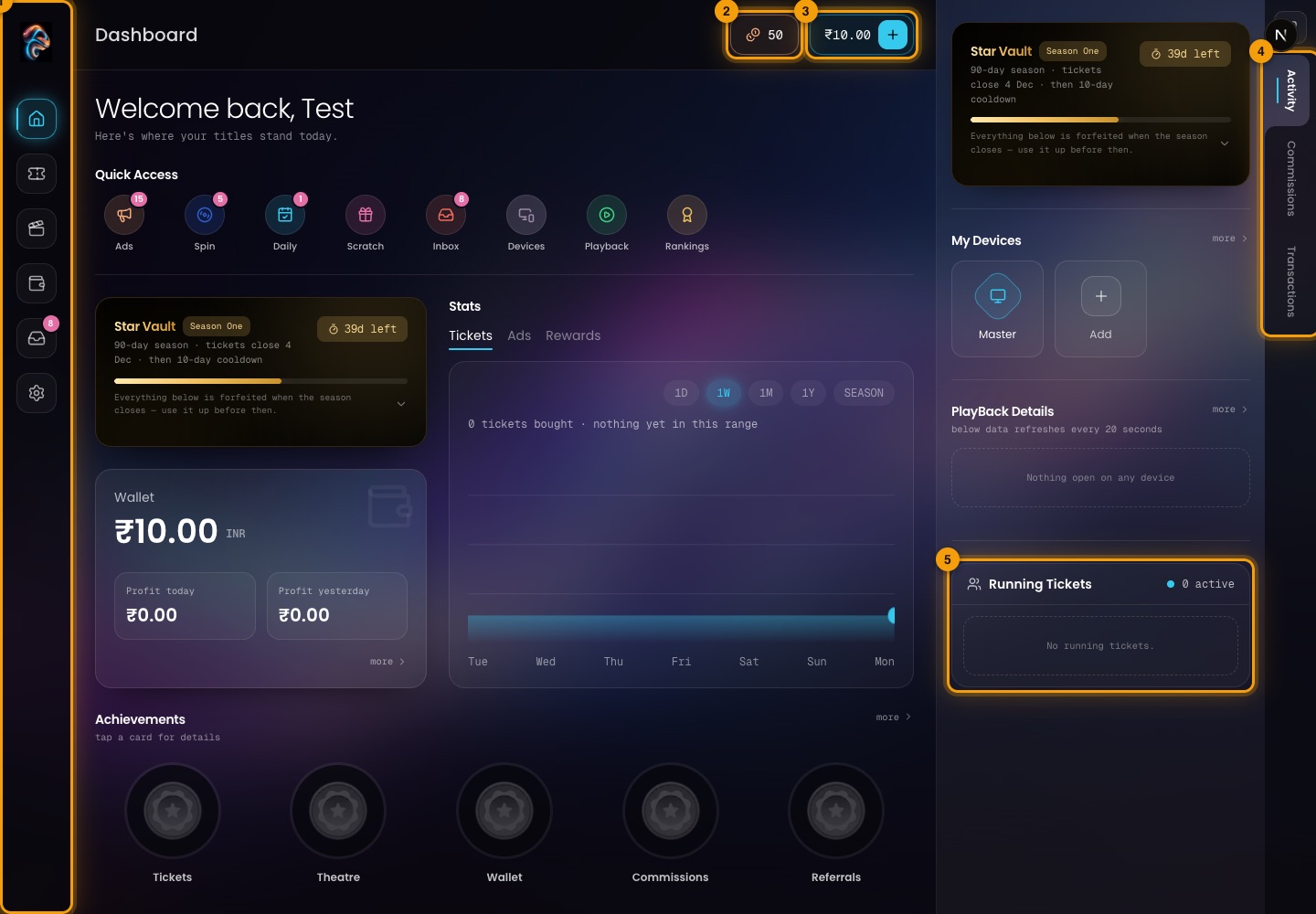
The frame around every screen, shown on the Dashboard.
- 1Left rail — Dashboard, Tickets, Theatre, Wallet, Messages (with a count of unread messages) and Settings.
- 2Coins — your coin balance. Coins come from rewards and are spent on things like wheel spins.
- 3Wallet balance — your money in rupees. The + beside it adds money.
- 4Side tabs — switch the right panel between Activity, Commissions and Transactions.
- 5Right panel — always in view: the Star Vault season card, My Devices, PlayBack Details and Running Tickets (the tickets you are using right now).
Home base
Dashboard
Where a viewer lands after signing in, depending on the Land on setting. It shows how the account is doing today.
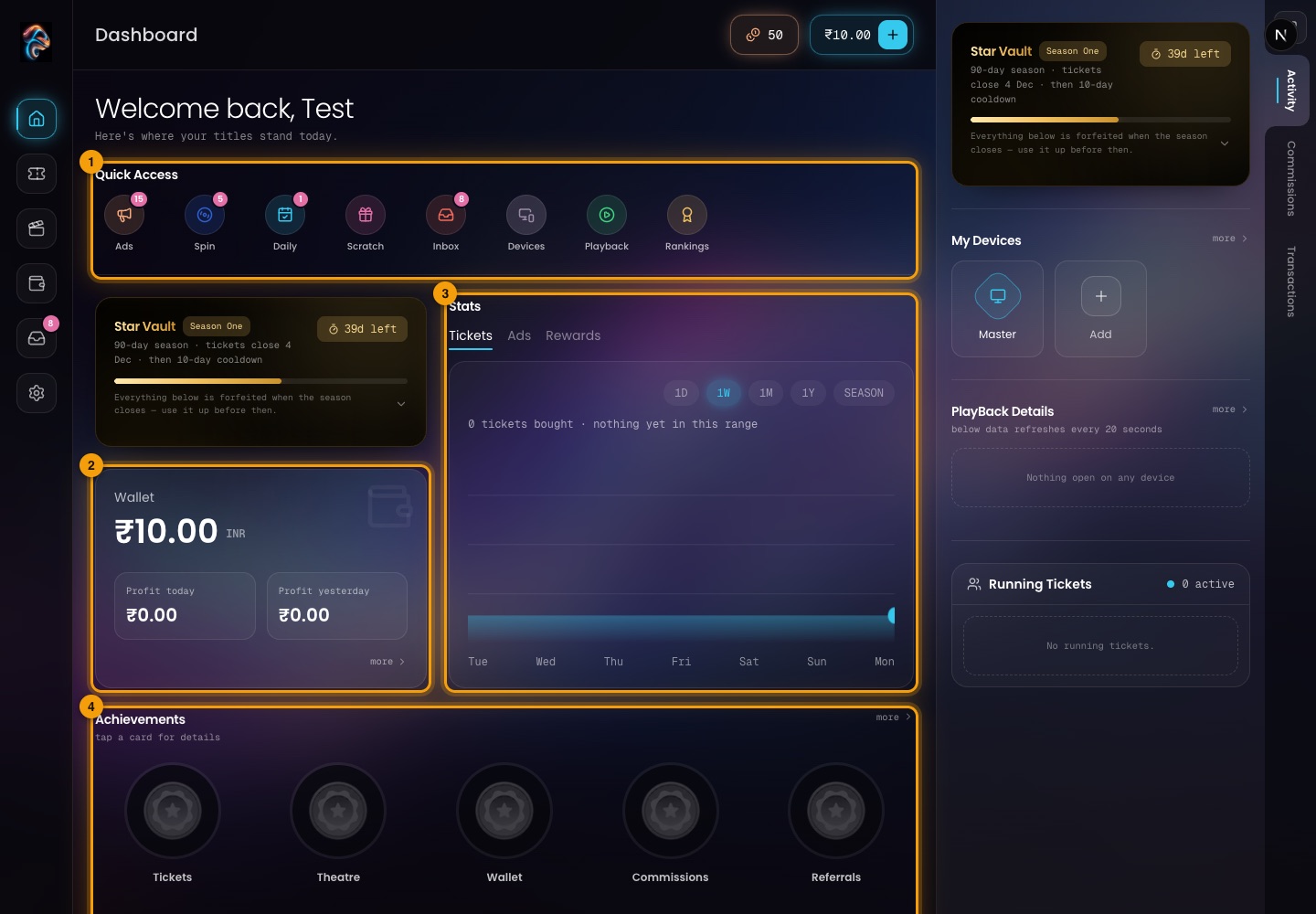
The Dashboard.
- 1Quick Access — shortcuts to Ads, Spin, Daily, Scratch, Inbox, Devices, Playback and Rankings. A small number on an icon is something waiting, for example ads left to watch today or an unclaimed daily reward.
- 2Wallet card — the balance, with profit today and yesterday.
- 3Stats — a chart with tabs for Tickets, Ads and Rewards, over 1 day, 1 week, 1 month, 1 year or the whole season.
- 4Achievements — the Star Vault tracks as medals. Tap one for details.
The Star Vault card shows the season and how many days are left. It carries a reminder: everything below is forfeited when the season closes, so use it up before then.
Watching
Theatre
Finding something to watch.
Home and browsing
The Theatre is where titles live. It has three views: Home, Movies and Web Series.
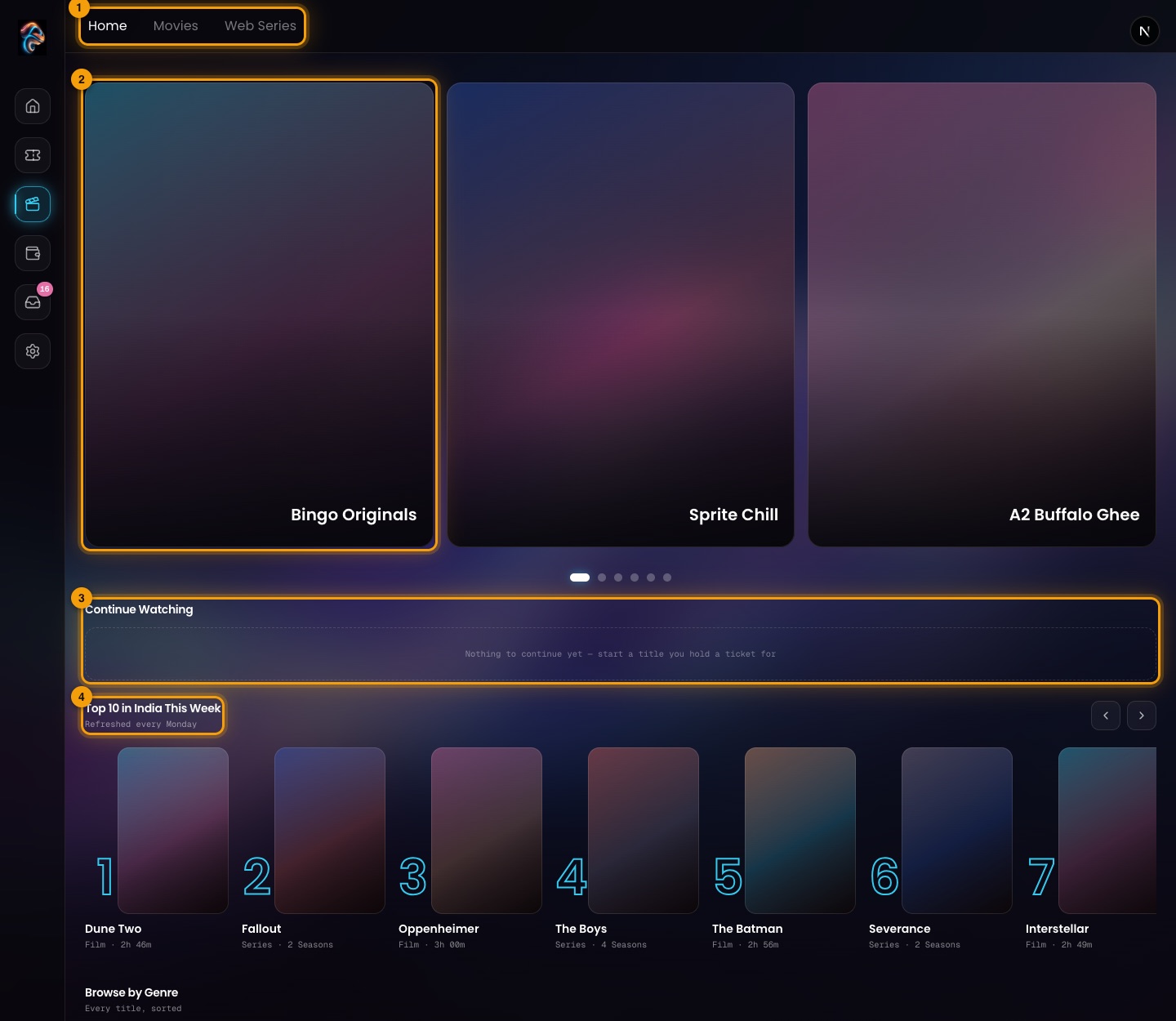
Theatre → Home.
- 1View tabs — Home, Movies or Web Series.
- 2Featured titles — the large cards at the top, which move through a carousel.
- 3Continue Watching — titles you have started. Empty until you watch something you hold a ticket for.
- 4Top 10 in India This Week — refreshed every Monday.
Further down: Browse by Genre, Top Productions, Coming Soon, Free with Ads, Watch in Your Language, My List and Trailers & Teasers.
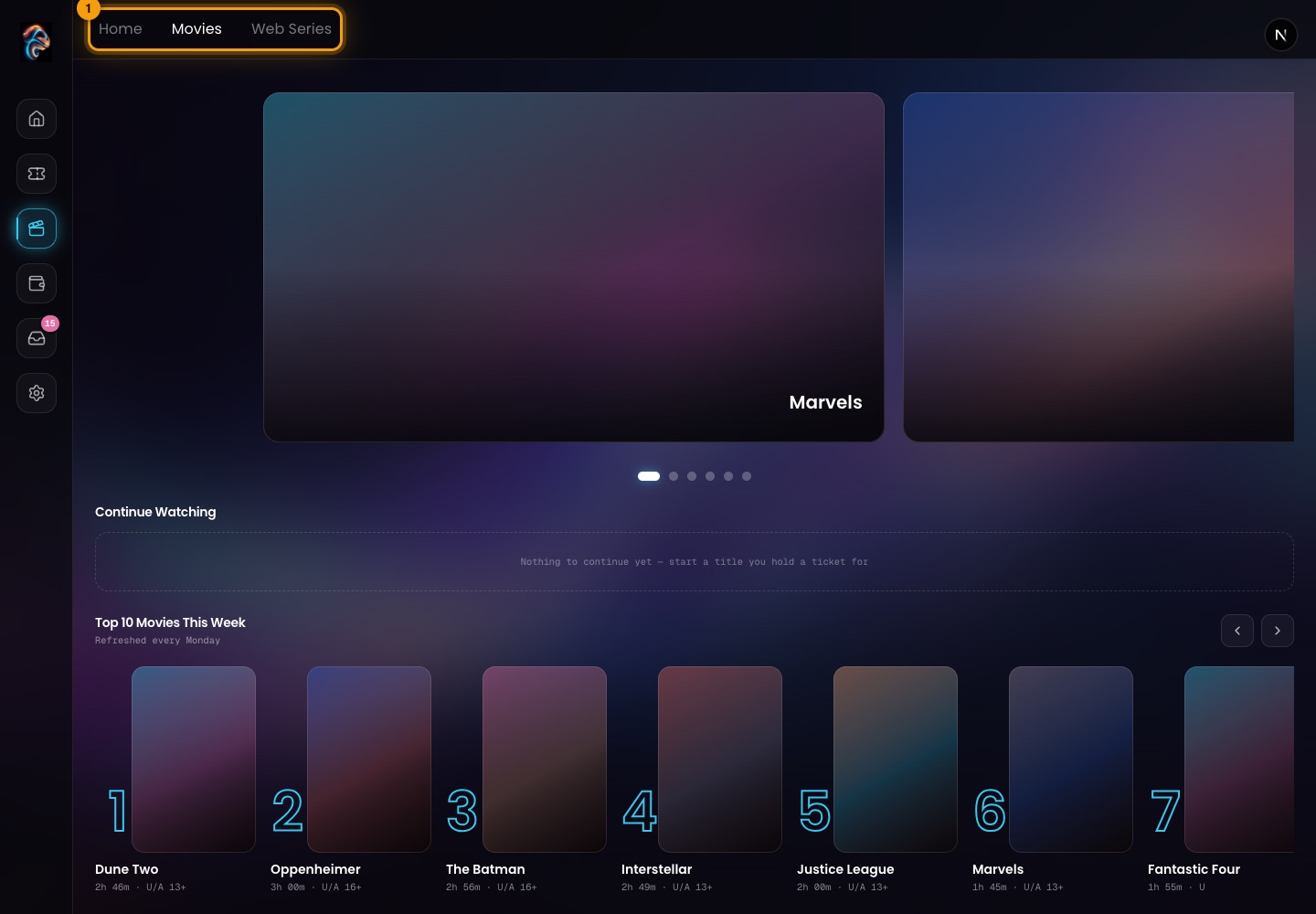
Theatre → Movies.
- 1Movies — only films. Web Series shows only series, with its own Top 10.
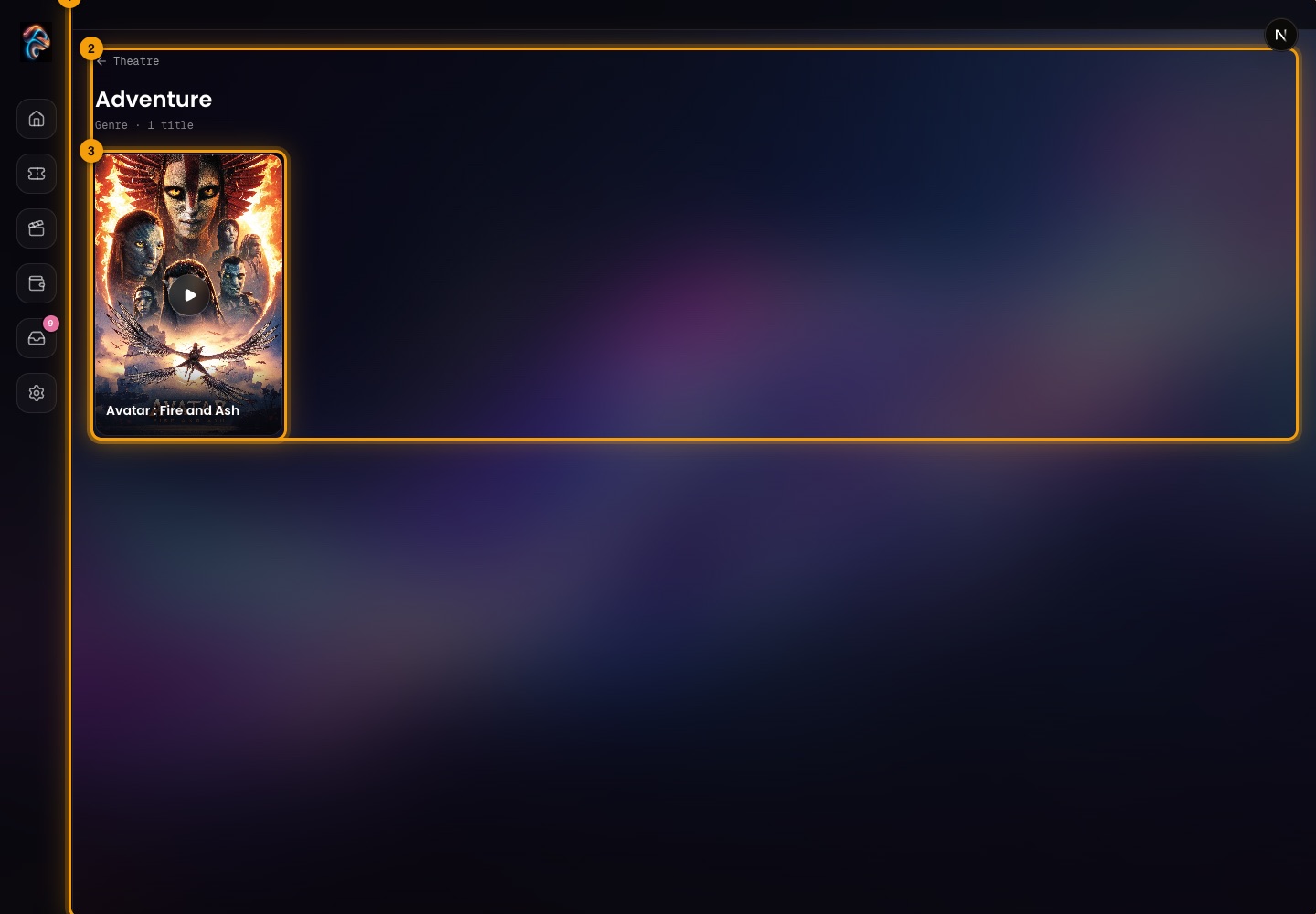
Browsing one genre.
- 1Back to Theatre — returns to the Theatre.
- 2Genre — the genre you opened and how many titles it has.
- 3Title card — open a title.
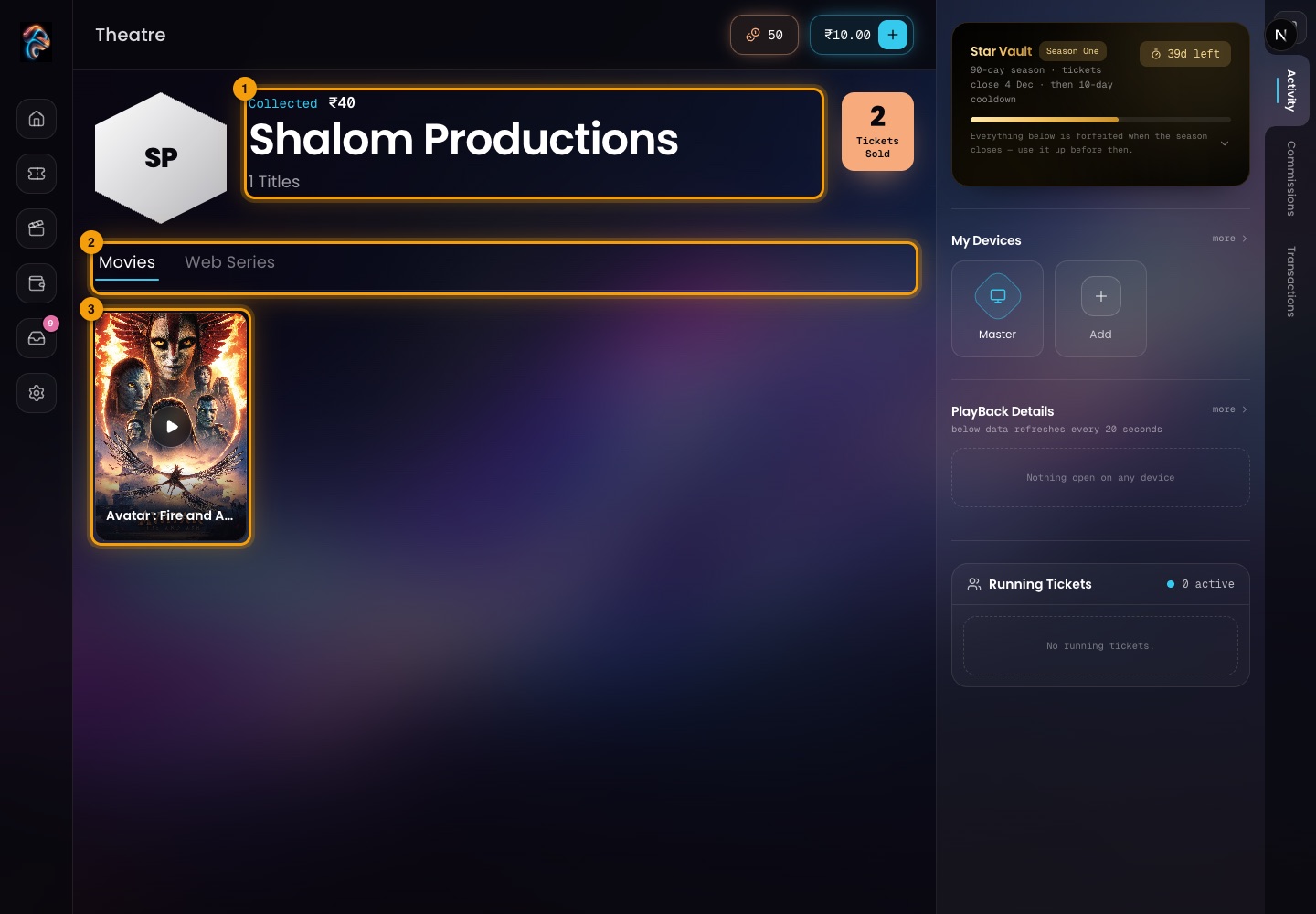
A production house's page.
- 1The production house — its name, how many titles it has and how many tickets they have sold.
- 2Movies and Web Series — switch between its films and its series.
- 3Title card — open a title.
A title's page
Everything about one film or series before and after buying.
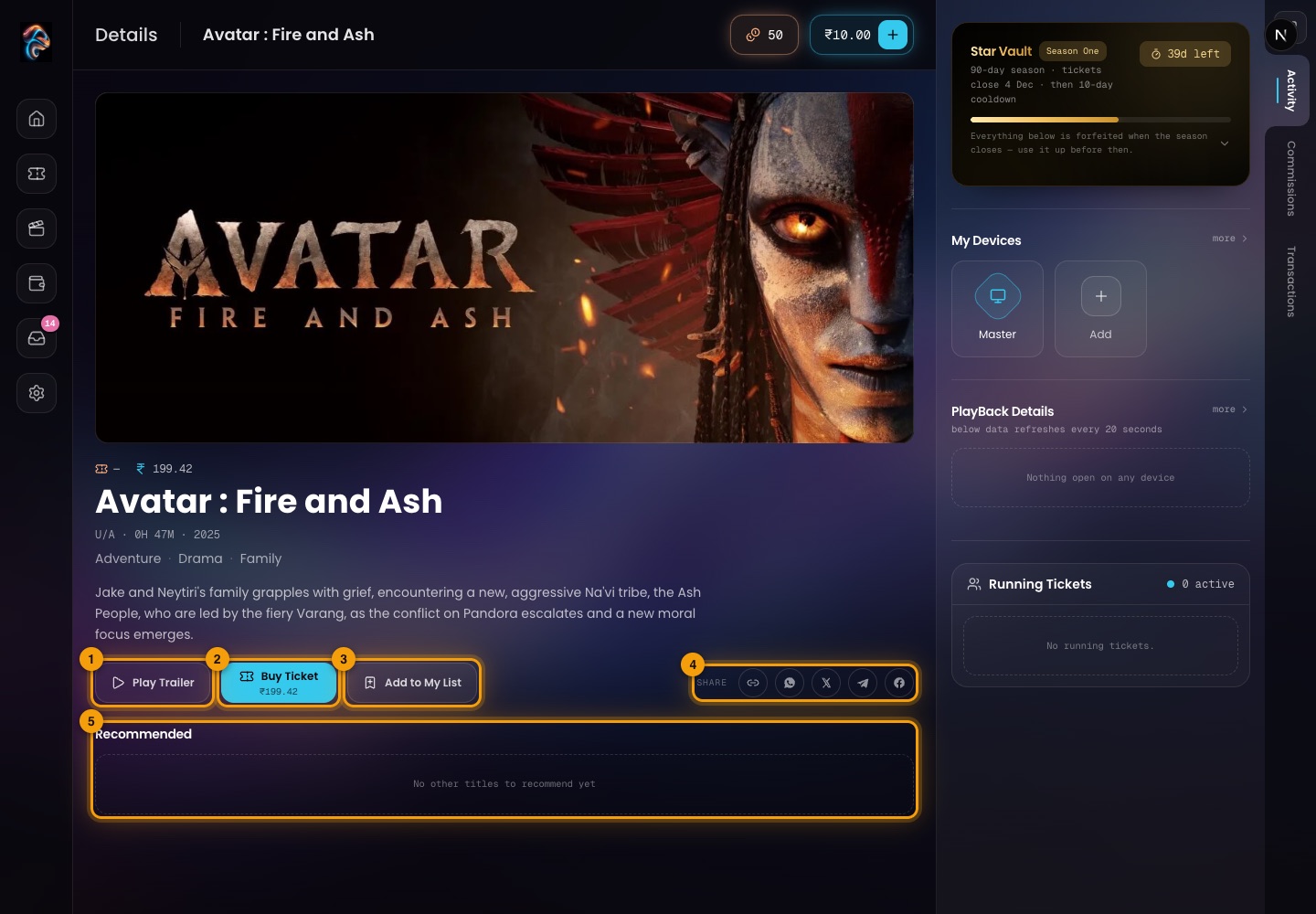
A title's page.
- 1Play Trailer — watch the trailer. Trailers are free; no ticket is needed.
- 2Buy Ticket — buy a ticket at the price shown. The ticket carries watch time and opens the title's referral tree.
- 3Add to My List — saves the title to My List in the Theatre.
- 4Share — copy the link or share the title on WhatsApp, X, Telegram or Facebook.
- 5Recommended — other titles close to this one.
Above the buttons are the title, certificate (such as U/A), length, year, genres and the synopsis.
Buying a ticket
Pressing Buy Ticket on a title asks how to pay. Nothing is charged until you choose.
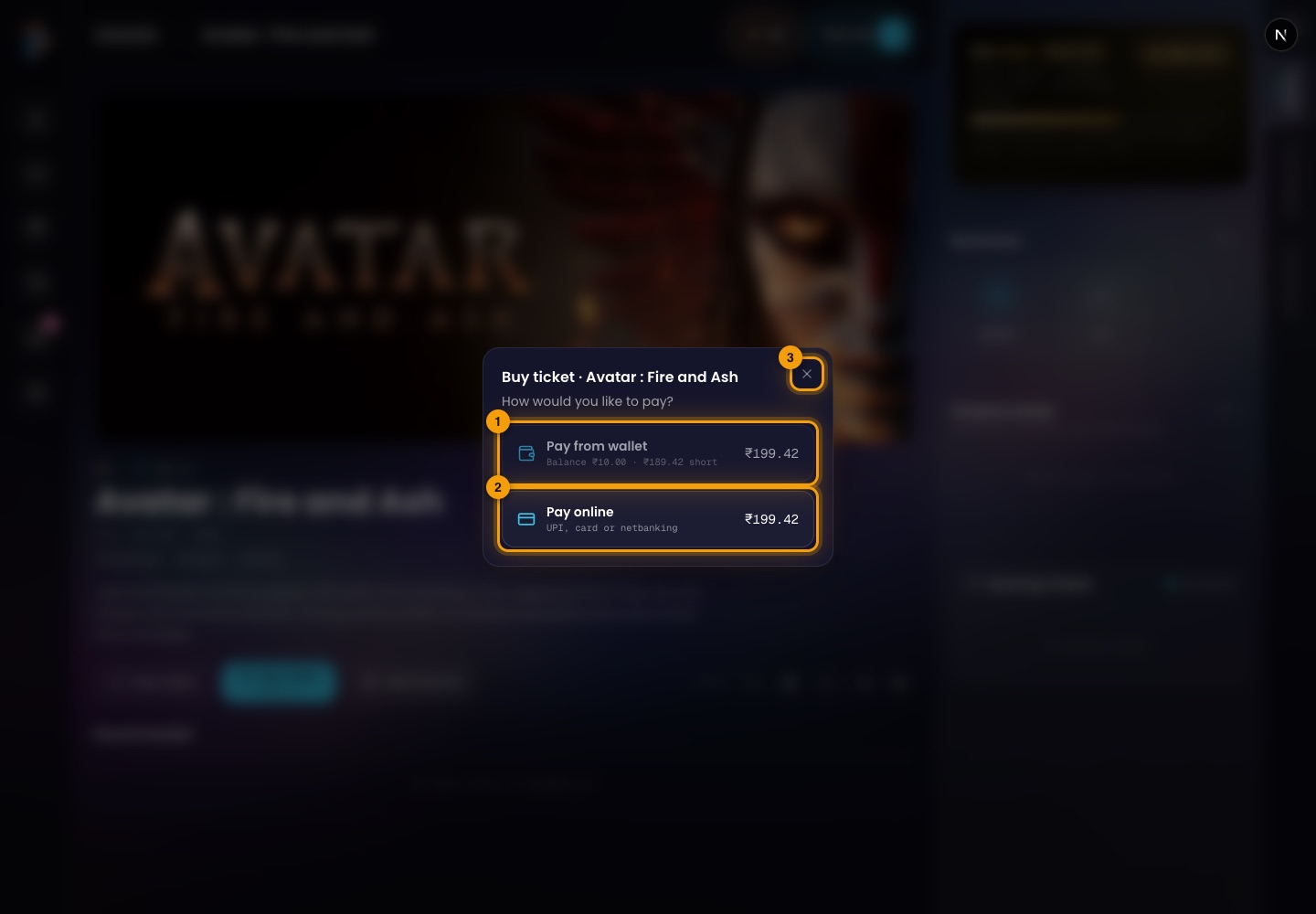
The Buy ticket window.
- 1Pay from wallet — uses the wallet balance. When the balance is too low it is greyed out and says how much you are short (here ₹189.42).
- 2Pay online — pays the ticket price by UPI, card or net banking through the payment gateway, without topping up the wallet first.
- 3Close — leaves without buying.
Once bought, the ticket appears under My Ongoing Tickets and the title can be played. Ticket sales are paused between seasons; the Buy button then says when sales reopen.
Watching: the trailer and the film
Trailers are free and need no ticket. The film itself needs a ticket with watch time left.
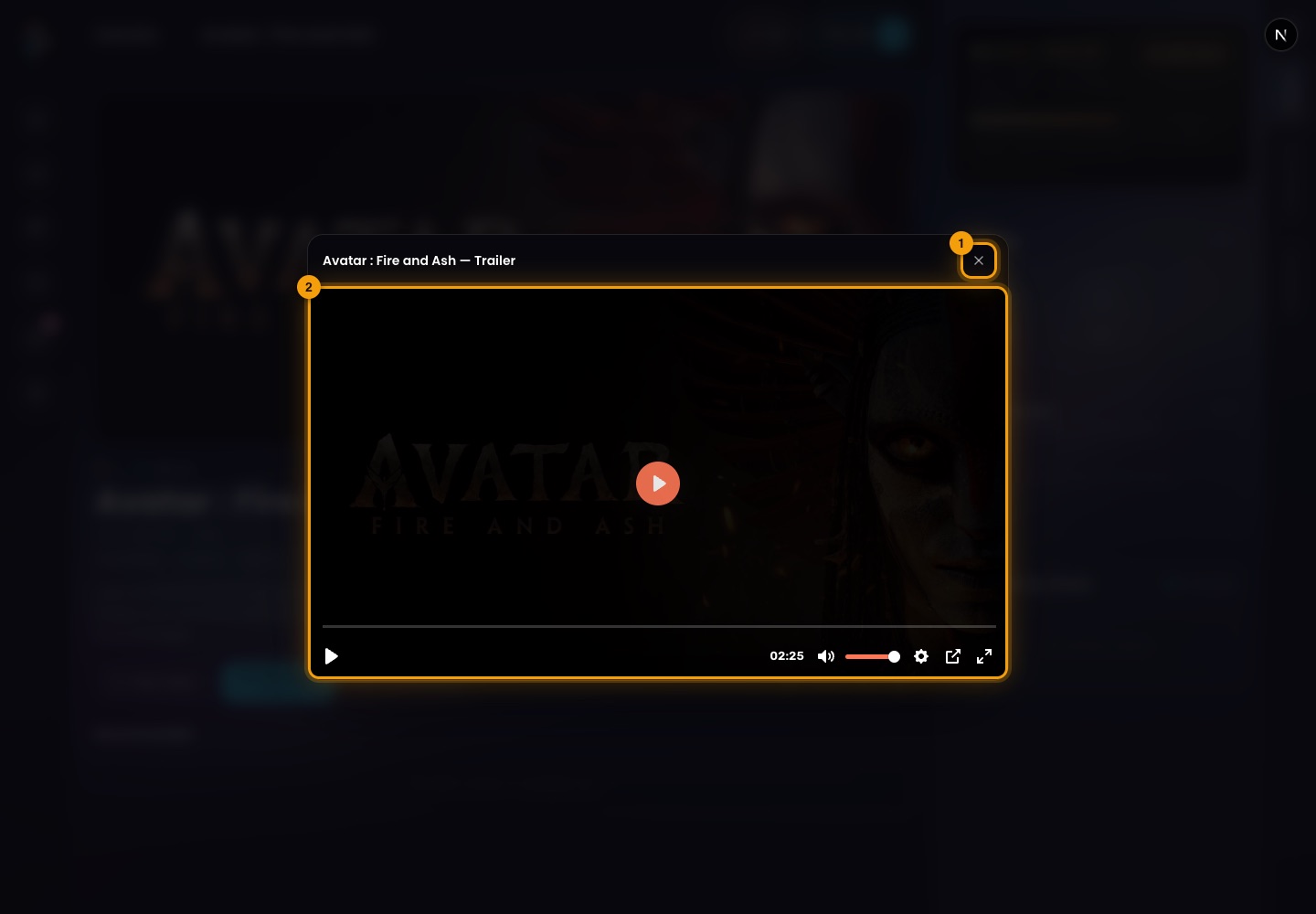
The trailer window.
- 1Close trailer — closes the window.
- 2The player — play and pause, a progress bar with the time, mute and volume, settings, and full screen.
The film player
Playing a film you hold a ticket for opens the full player. It needs a ticket, so it is described here and not pictured. It has:
- Controls — play and pause, a seek bar, mute and volume, a settings menu with playback speed (0.5×, 0.75×, 1×, 1.25×, 1.5× or 2×), miniplayer, picture in picture, and full screen.
- Keyboard — K or space play/pause, J and L back and forward 10 seconds, the left and right arrows 5 seconds, the up and down arrows volume, M mute, F full screen, I miniplayer, < and > slower and faster, and , and . one frame at a time while paused.
- Ad breaks — films of 5 minutes or more have ad breaks at 25%, 50% and 75% of the film. The breaks are marked on the seek bar.
- Watch time — every minute watched is taken off the ticket's allowance, whichever device is playing. When it runs out the player says You've used all the watch time on this ticket. Playback stops, but the ticket stays and its tree keeps earning.
- Errors — if the video cannot be played the player shows a message such as This can't be played right now or The video stopped loading. Please try again.
Buying
Tickets
A ticket is how a viewer gets to watch a title and to earn from it.
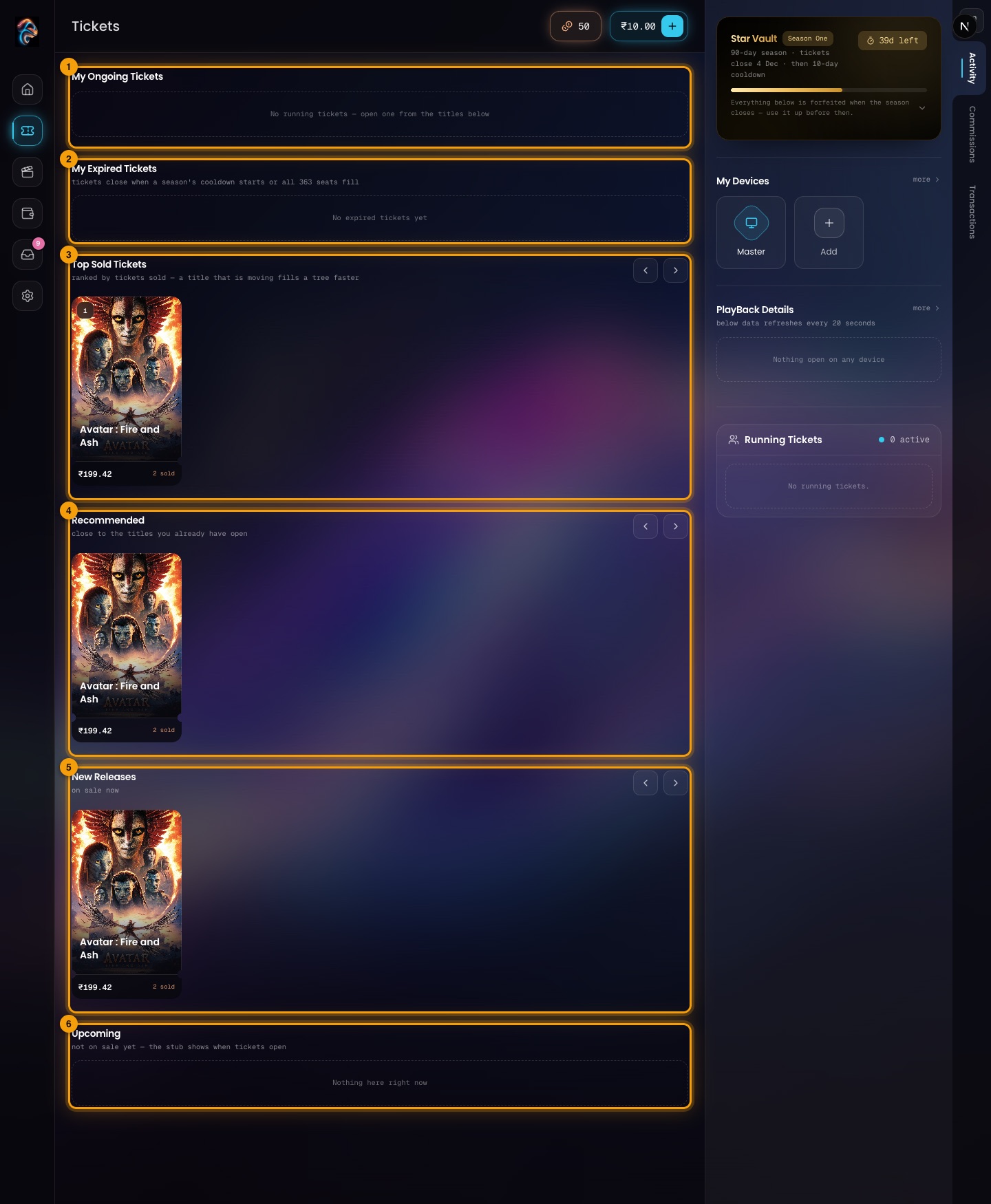
The Tickets screen.
- 1My Ongoing Tickets — tickets you are using now. Empty until you open one.
- 2My Expired Tickets — tickets close when a season's cooldown starts or when all 363 seats fill.
- 3Top Sold Tickets — ranked by tickets sold. A title that is moving fills a tree faster.
- 4Recommended — close to the titles you already have open.
- 5New Releases — on sale now.
- 6Upcoming — not on sale yet. The card shows when tickets open.
- Every ticket opens its own referral tree of 363 seats. The tree fills in a fixed order and closes when the last seat is taken.
- A ticket carries watch time of three times the title's own length (a 2-hour film comes with 6 hours).
- Running out of watch time closes playback, not the ticket. The tree under it keeps filling and keeps paying.
Devices
Devices and watch time
How the account's devices and watch time work.
Devices
An account can use up to three devices. One of them is the Master, which controls the others.
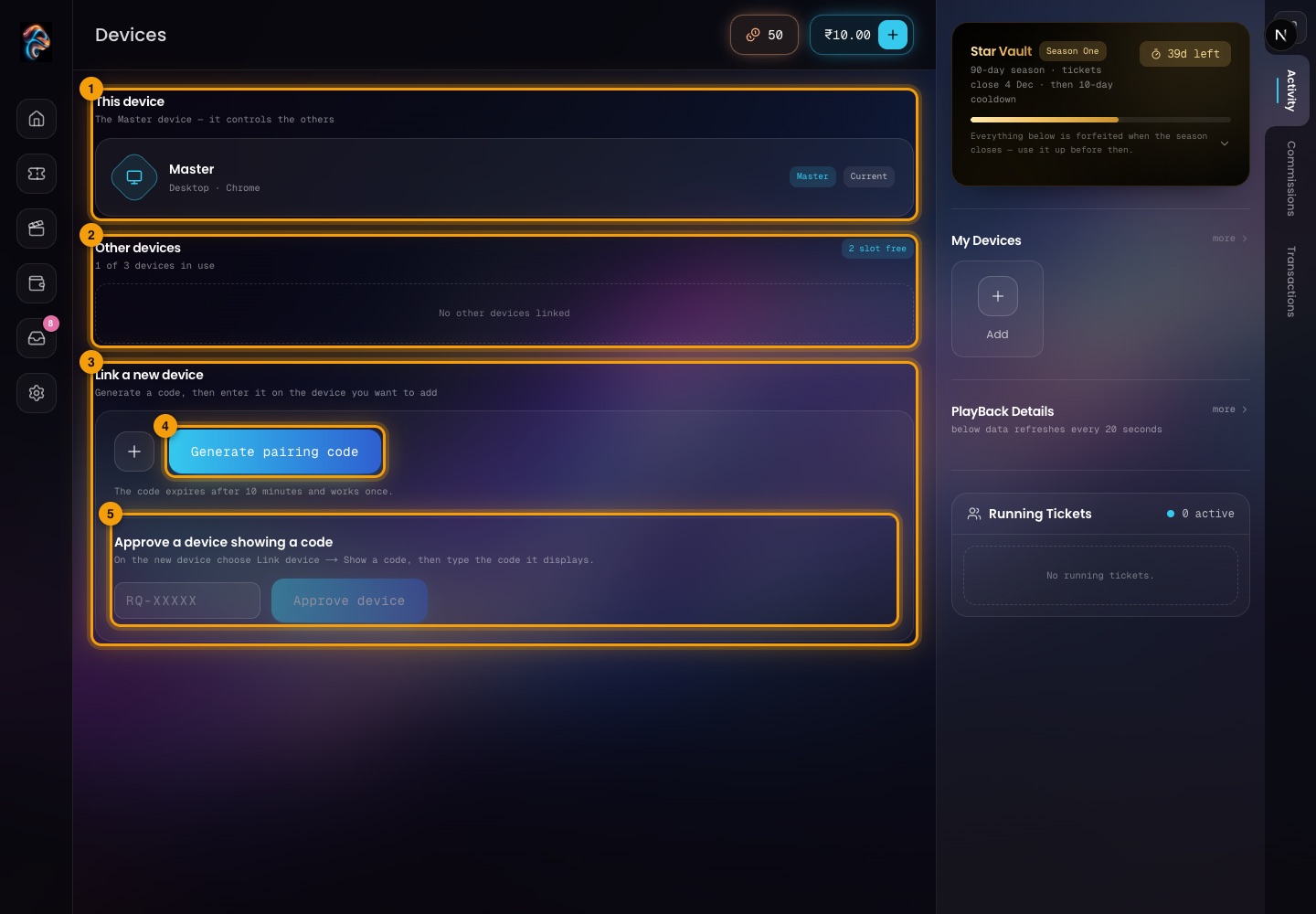
The Devices screen.
- 1This device — the device you are on, with its role (Master or not) and a Current tag.
- 2Other devices — the other linked devices, and how many of the three slots are free.
- 3Link a new device — adds another device. The code expires after 10 minutes and works once.
- 4Generate pairing code — makes the code to type on the new device.
- 5Approve a device showing a code — the other way round: on the new device choose Link device → Show a code, then type that code here and approve.
PlayBack details
Watch time is shared: whichever device plays, it is the same allowance that is spent.
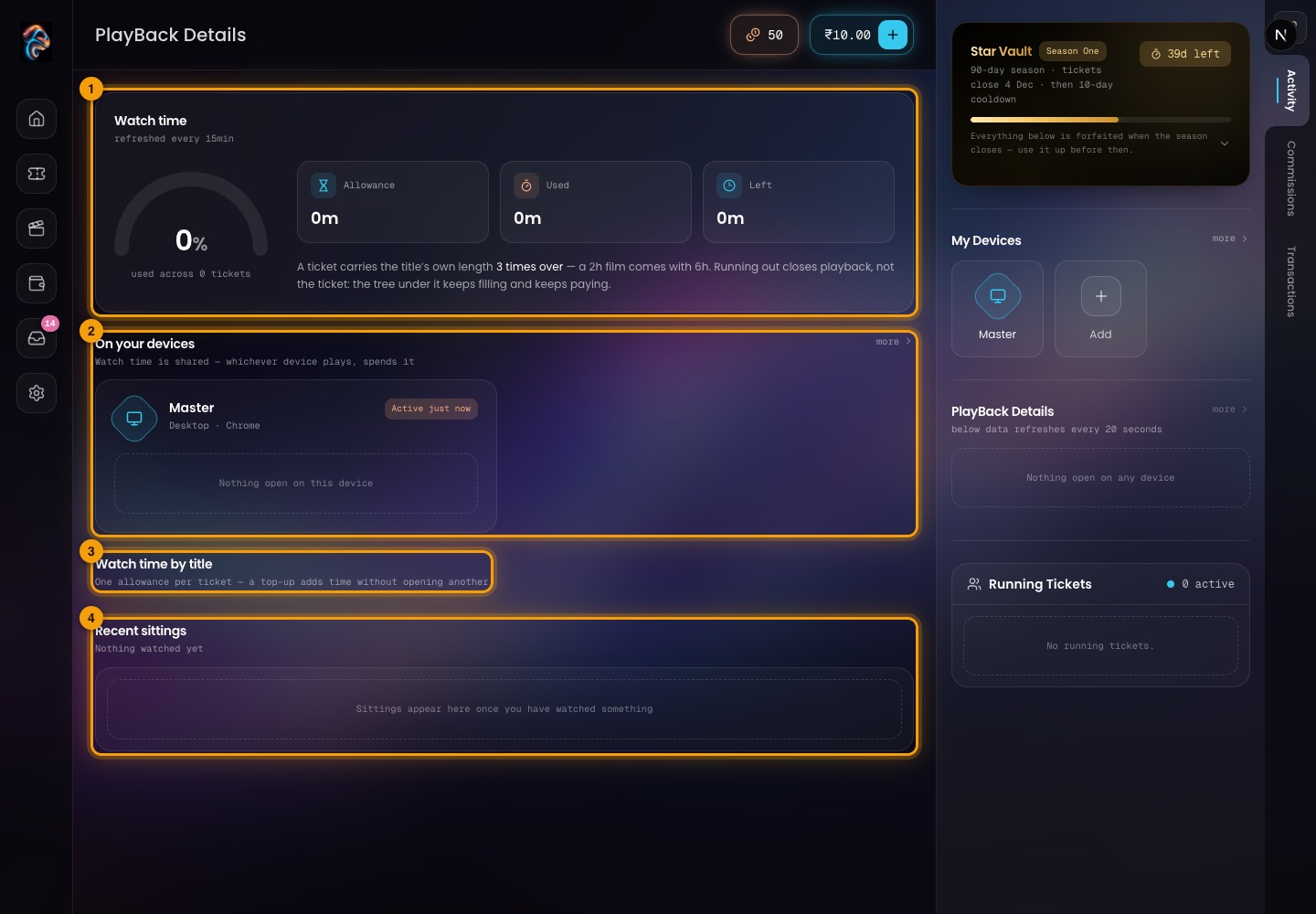
PlayBack Details.
- 1Watch time — how much of the allowance is used, with Allowance, Used and Left. It refreshes every 15 minutes.
- 2On your devices — what each device has open right now.
- 3Watch time by title — one allowance per ticket. A top-up adds time without opening another ticket.
- 4Recent sittings — each time you watched something, once there is something to list.
Money
Wallet
Rupees, coins and rewards.
Overview
The wallet holds real money in rupees. Money comes in from top-ups, commissions and rewards, and goes out as withdrawals.
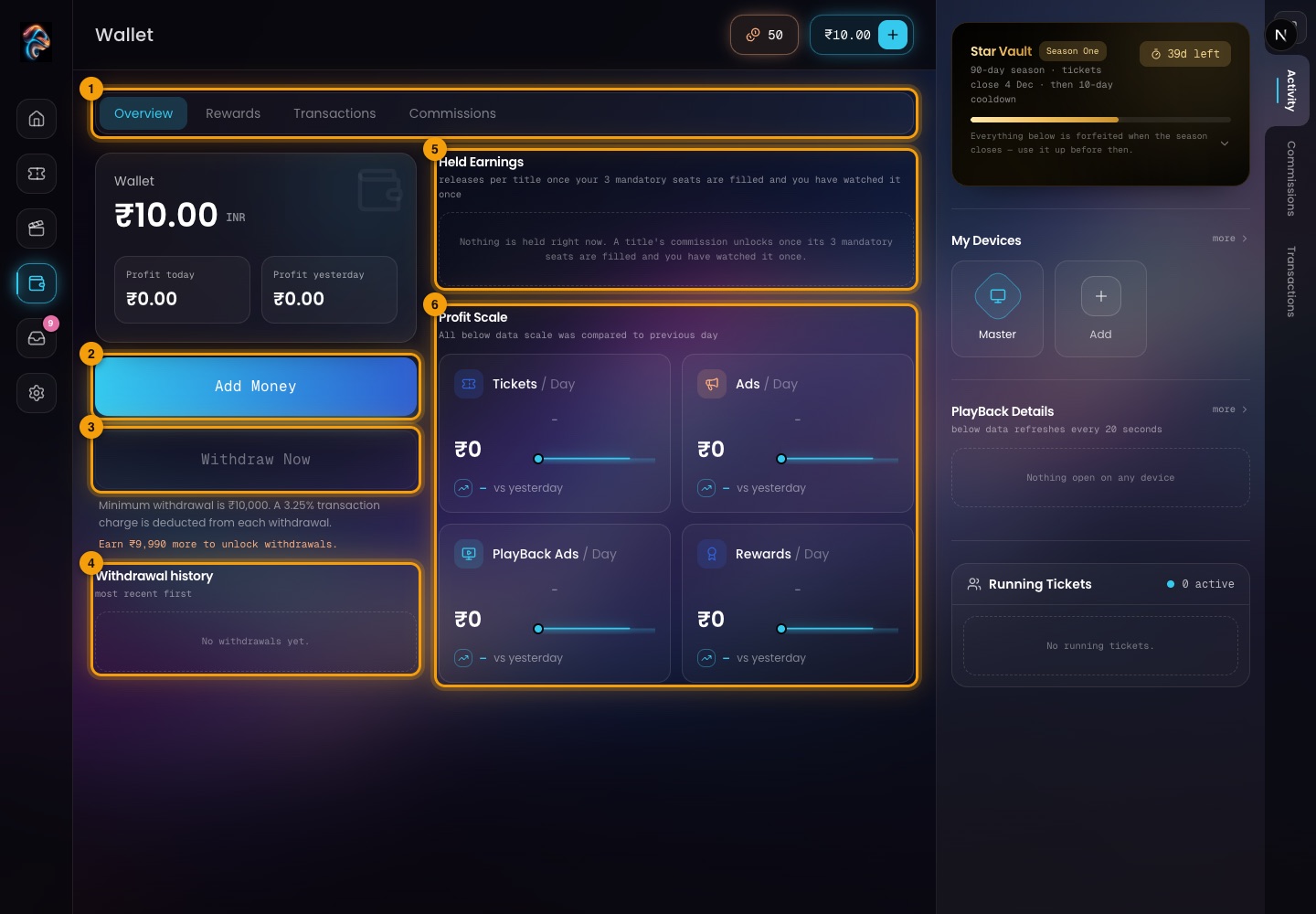
Wallet → Overview.
- 1Tabs — Overview, Rewards, Transactions and Commissions.
- 2Add Money — tops up the wallet.
- 3Withdraw Now — sends money to your payout account. It stays disabled until the balance reaches the minimum.
- 4Withdrawal history — your past withdrawals, most recent first.
- 5Held Earnings — commission that is held until it unlocks (see below).
- 6Profit Scale — how today compares with yesterday for tickets, ads, playback ads and rewards.
- Minimum withdrawal is ₹10,000. A 3.25% transaction charge is deducted from each withdrawal. The screen tells you how much more you need to earn to unlock withdrawals.
- Held earnings are released per title once your 3 mandatory seats are filled and you have watched the title once.
- The payout account is set up under Settings → Payments.
Adding money
Opened from Add Money on the Wallet, or the + beside the balance in the top bar.
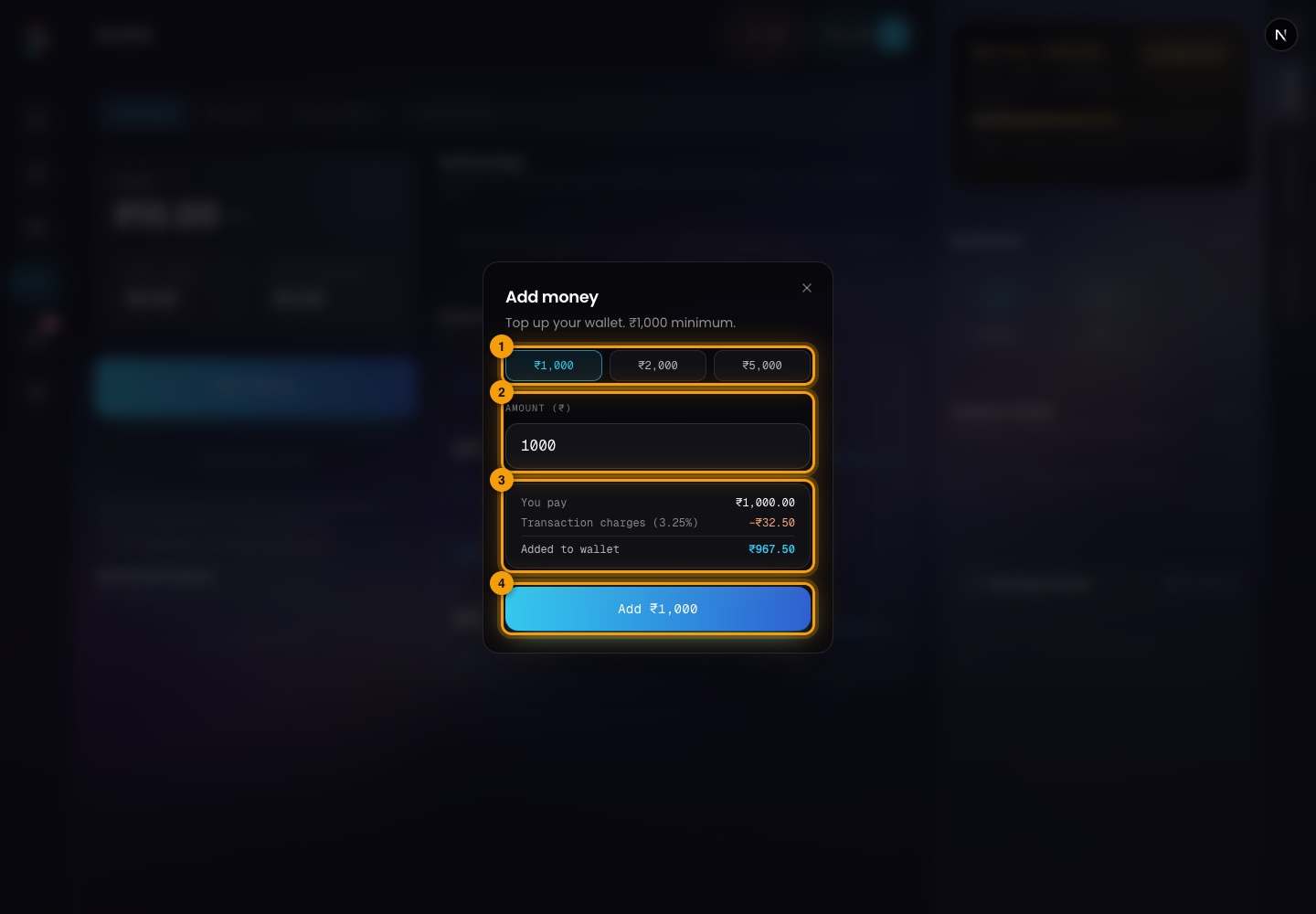
The Add money window.
- 1Quick amounts — ₹1,000, ₹2,000 or ₹5,000 in one tap.
- 2Amount — or type your own. The minimum top-up is ₹1,000.
- 3The breakdown — You pay the amount, a transaction charge (3.25% here) is taken, and the rest is Added to wallet.
- 4Add — continues to the payment gateway to pay by UPI, card or net banking. The wallet is credited when the payment is confirmed.
Withdrawing
Withdrawals go to the payout account saved under Settings → Payments. The Withdraw Now button stays locked until the balance reaches the minimum (₹10,000), and the screen says how much more you need.
Once unlocked, the button opens the Withdraw money window. It is not pictured because it can only be opened with enough balance. It has:
- Send to — the saved payout account. With none saved, add one first.
- Amount — between the minimum and the balance, up to two decimals. It says That's more than your balance if you enter too much.
- You withdraw / You receive — the amount you ask for and what arrives after the transaction charge.
- Withdraw — requests the payout. The window confirms Withdrawal requested — the amount is on its way, and it appears in Withdrawal history.
- On a test setup a notice says payouts are sandbox only and nothing is actually paid out.
Rewards
Four ways to earn coins, scratch cards and sometimes money: Ads, Spin, Daily and Scratch.
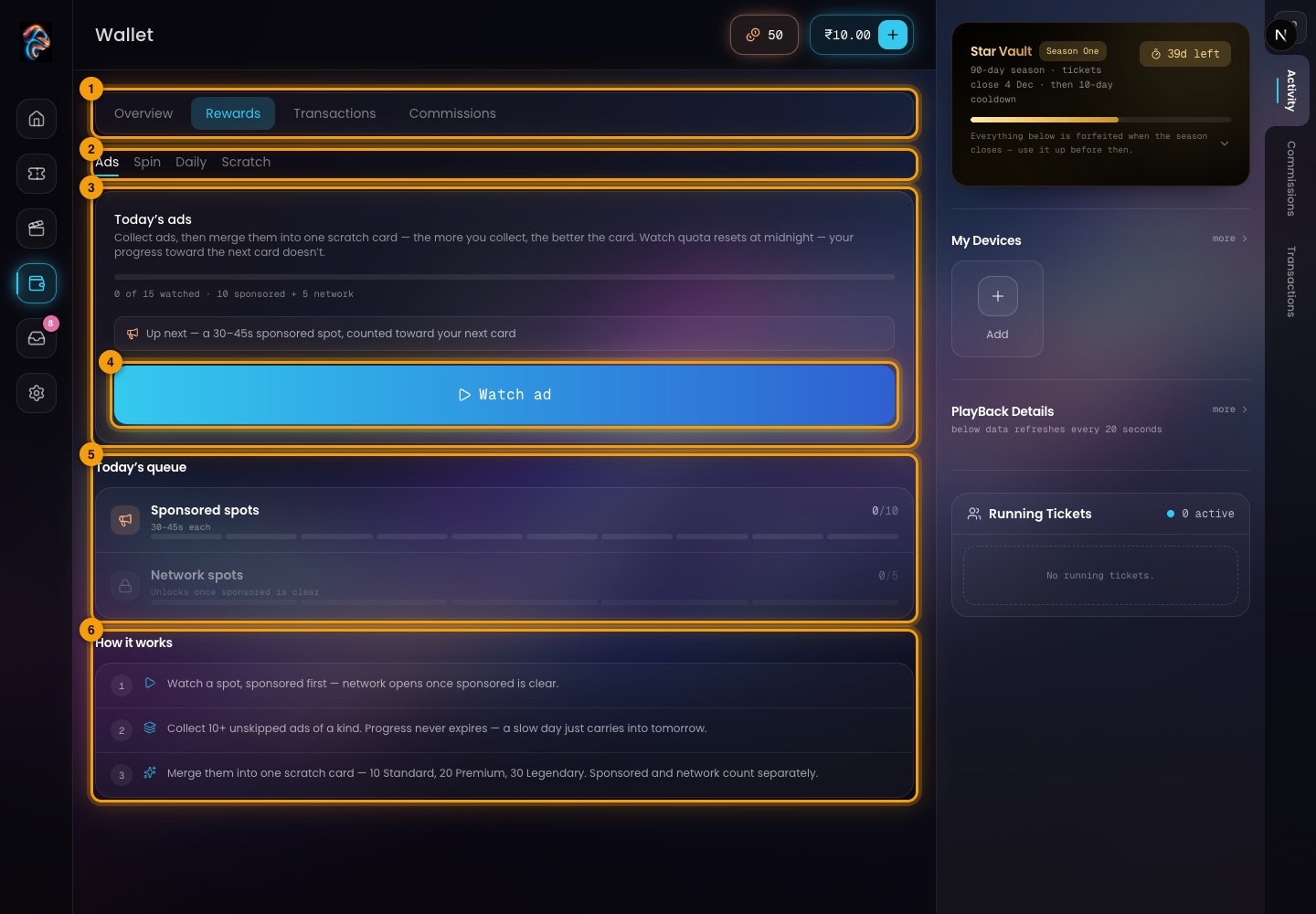
Wallet → Rewards → Ads.
- 1Tabs — Overview, Rewards, Transactions, Commissions.
- 2Reward types — Ads, Spin, Daily and Scratch.
- 3Today's ads — watched so far against the daily limit (15 here: 10 sponsored and 5 network). The limit resets at midnight, but progress toward the next card never expires.
- 4Watch ad — plays the next ad.
- 5Today's queue — sponsored spots first. Network spots unlock once the sponsored ones are done.
- 6How it works — watch ads, collect 10 or more unskipped ads of a kind, then merge them into one scratch card. 10 makes a Standard card, 20 Premium and 30 Legendary. Sponsored and network ads count separately.
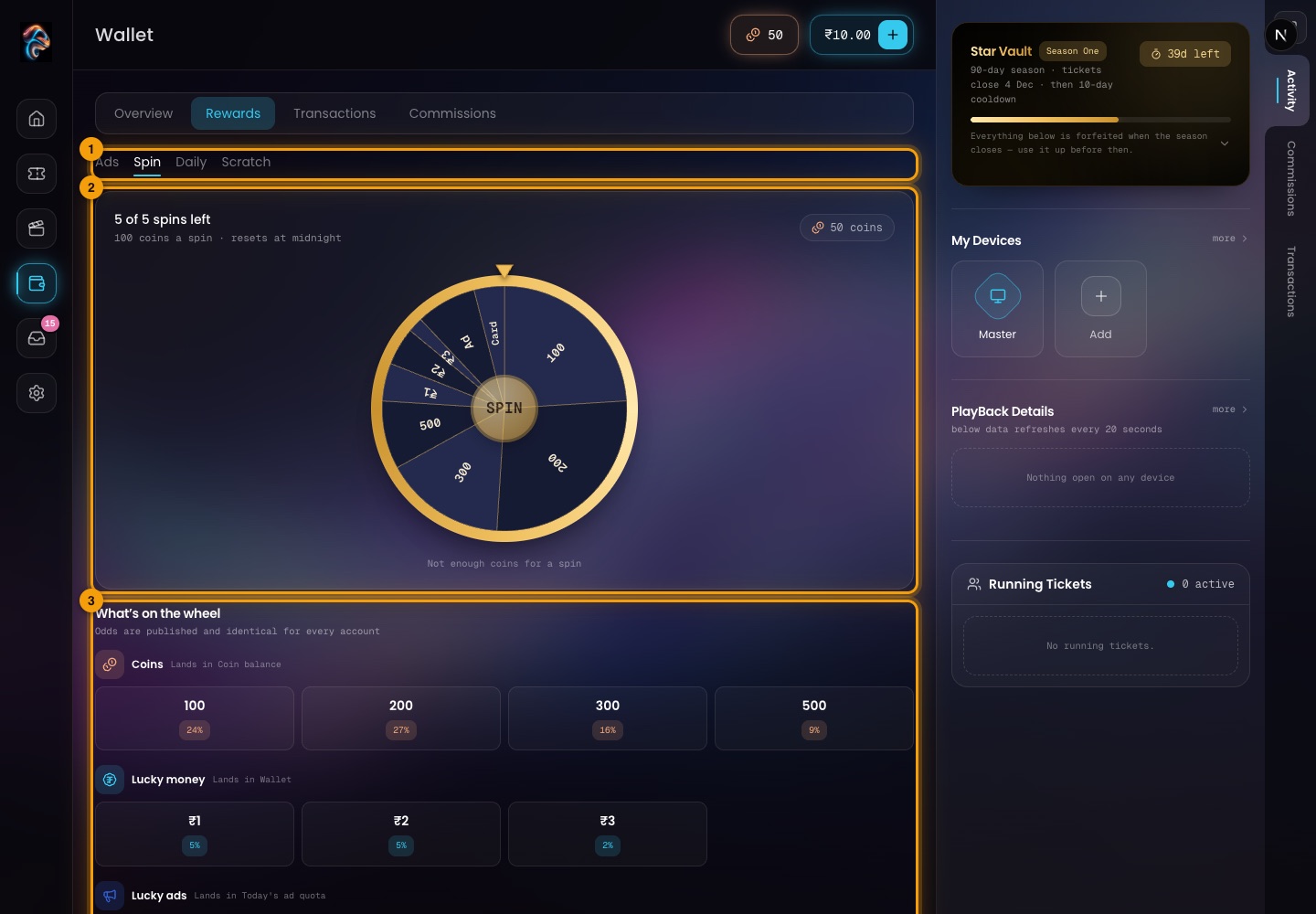
Wallet → Rewards → Spin.
- 1Reward types — Spin is selected.
- 2The wheel — a spin costs coins (100 coins a spin) and there is a daily limit of spins, shown as 5 of 5 spins left. It resets at midnight.
- 3What's on the wheel — every prize with its published odds, which are the same for every account: coins, lucky money in rupees, lucky ads and a scratch card.
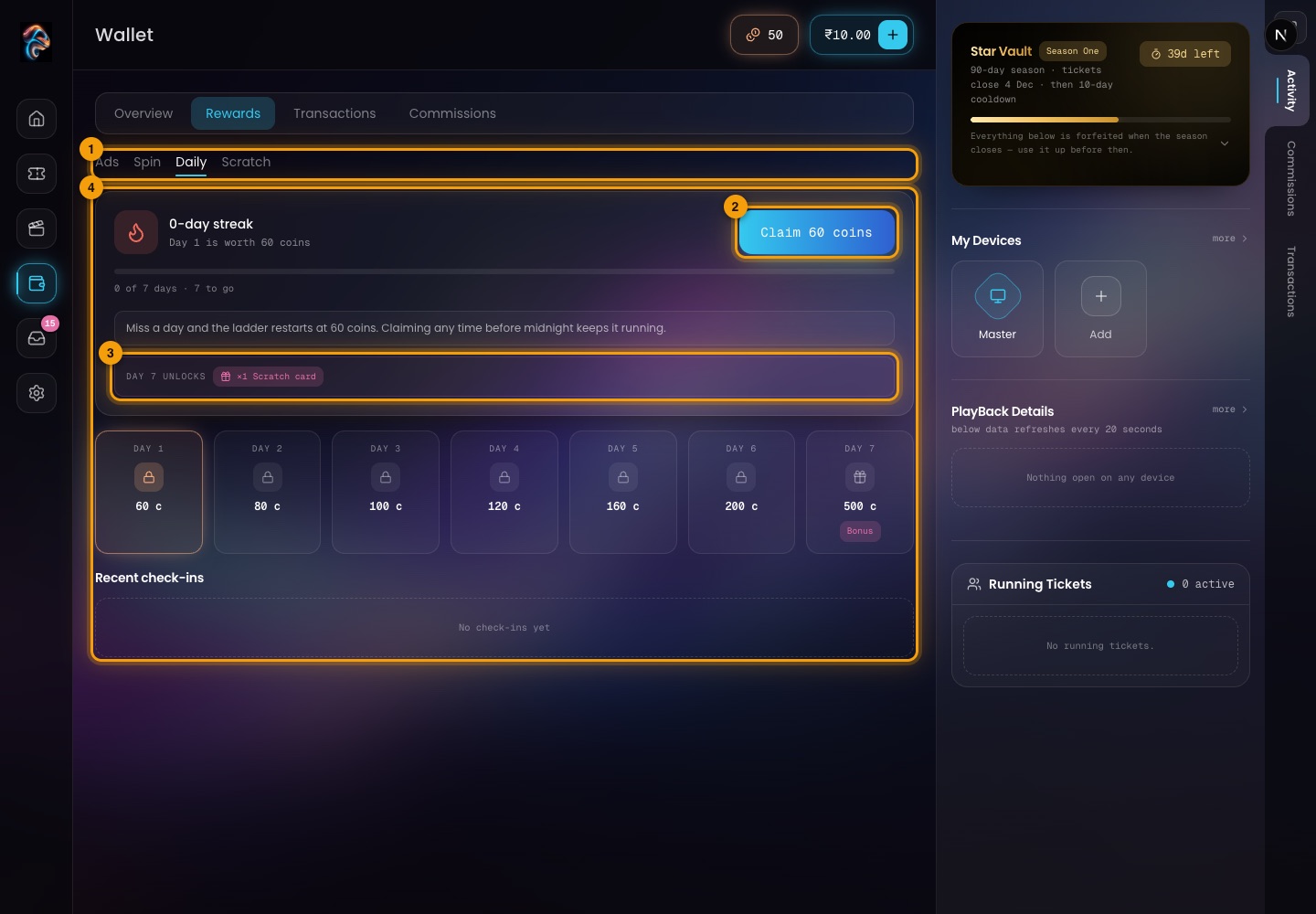
Wallet → Rewards → Daily.
- 1Reward types — Daily is selected.
- 2Claim — claim today's coins to keep the streak going.
- 3Day 7 unlocks — a scratch card at the end of the week.
- 4Recent check-ins — your claims so far.
The streak ladder pays 60, 80, 100, 120, 160, 200 and 500 coins on days 1 to 7. Miss a day and it restarts at 60 coins. Claiming any time before midnight keeps it running.
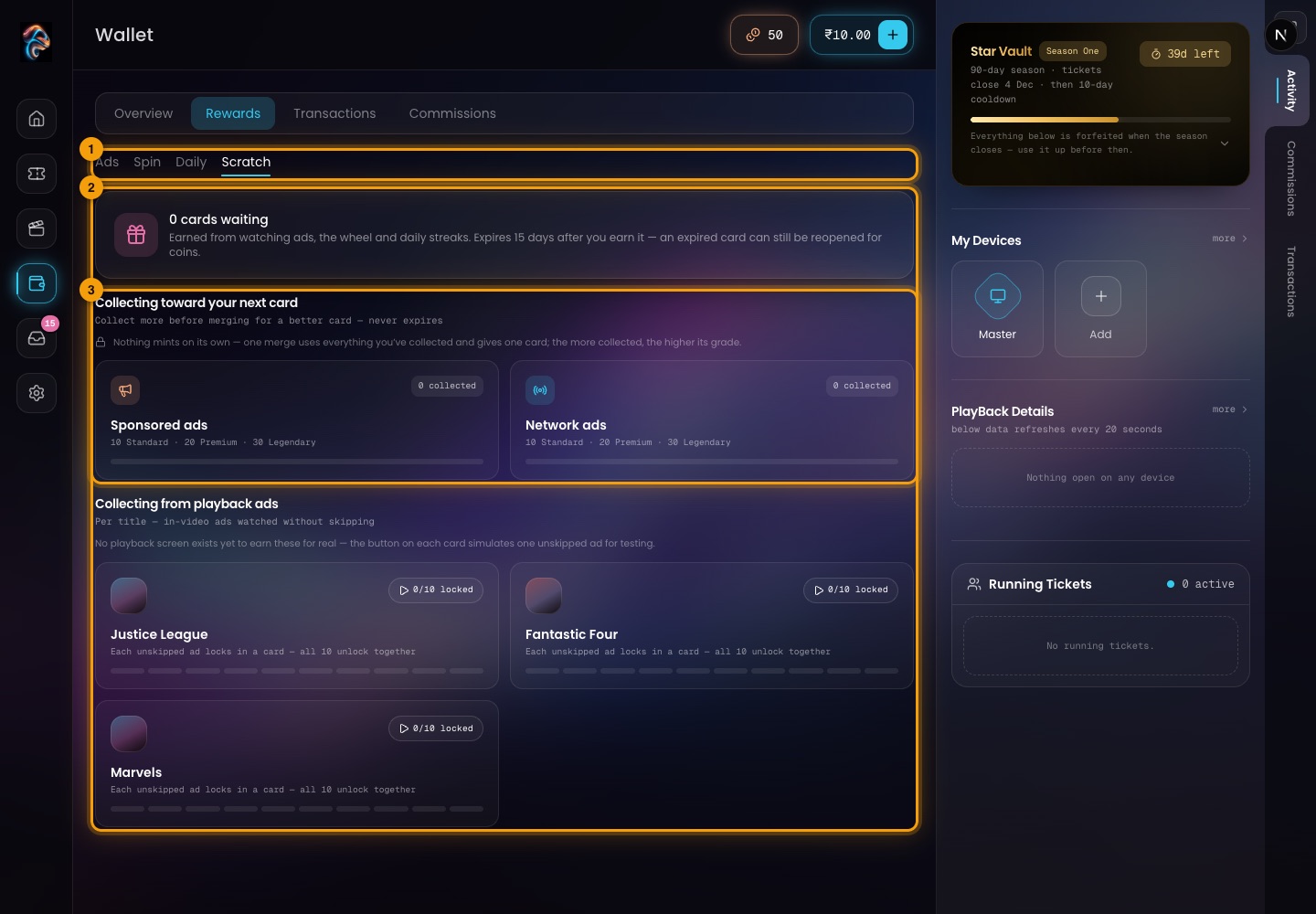
Wallet → Rewards → Scratch.
- 1Reward types — Scratch is selected.
- 2Cards waiting — scratch cards earned from watching ads, the wheel and daily streaks. A card expires 15 days after you earn it; an expired card can still be reopened for coins.
- 3Collecting toward your next card — the ads you have collected. Nothing mints on its own: one merge uses everything collected and gives one card, and the more collected, the higher its grade.
Transactions and commissions
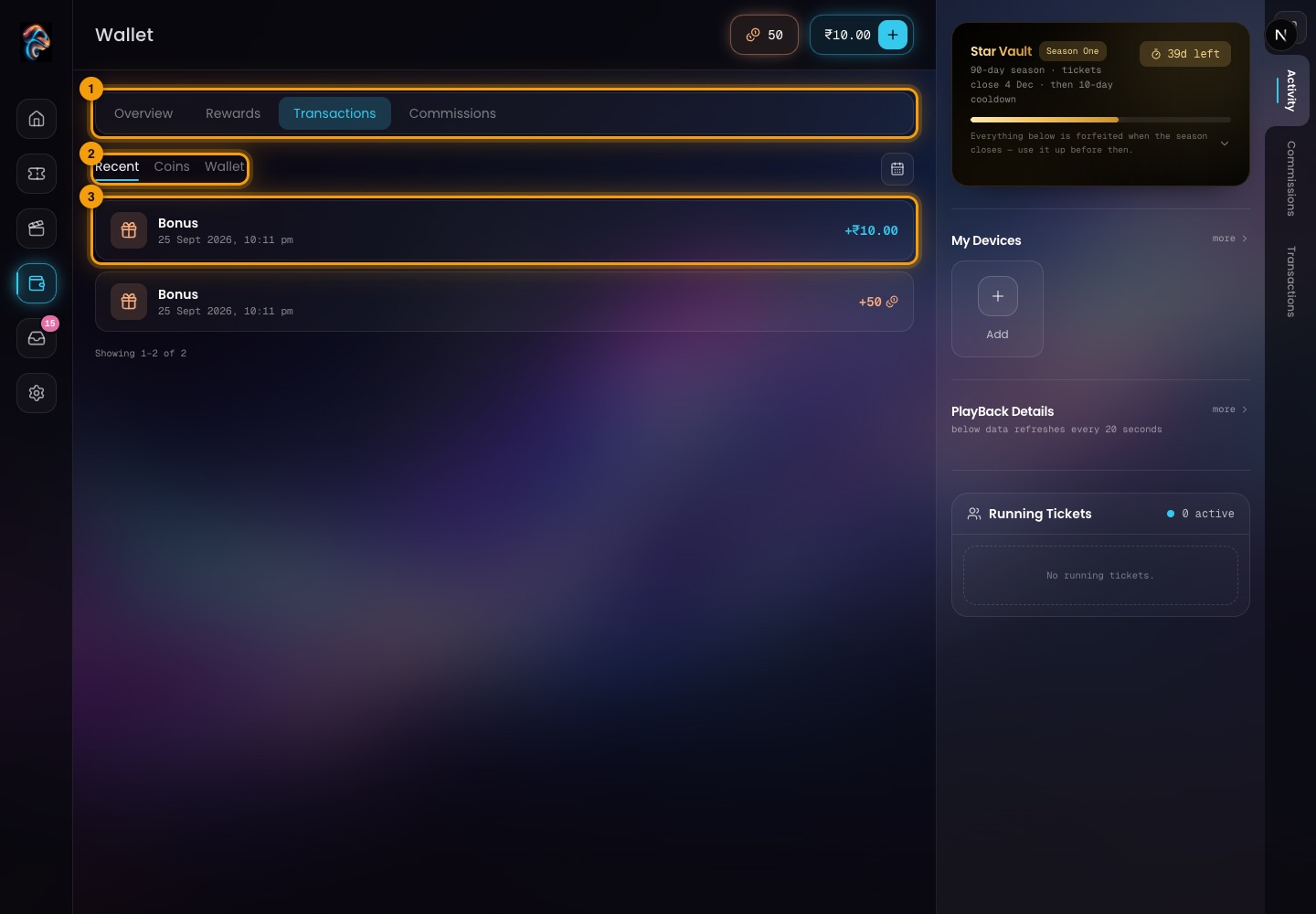
Wallet → Transactions.
- 1Tabs — Transactions is selected.
- 2Filters — Recent (everything), Coins or Wallet, plus a date range with the calendar button.
- 3A transaction — what it was, when, and the amount. Money shows in rupees and coins with a coin icon.
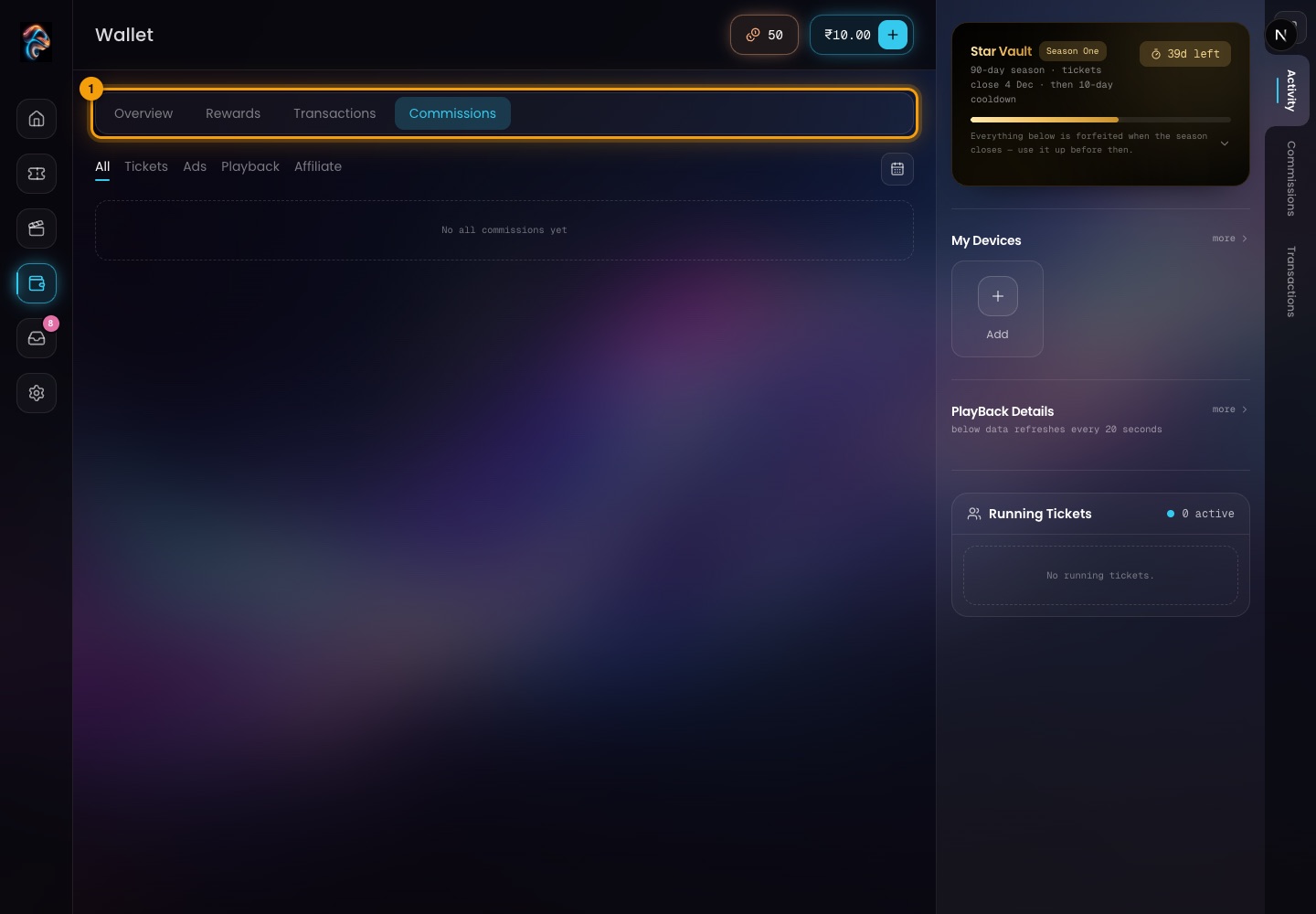
Wallet → Commissions.
- 1Commissions — what the viewer has earned from their trees, filtered by All, Tickets, Ads, Playback and Affiliate. It is empty until a ticket's seats fill.
Achievements
Star Vault
Seasons of 90 days. Every achievement pays coins, except the top rung, which pays real money. Everything resets with each season.
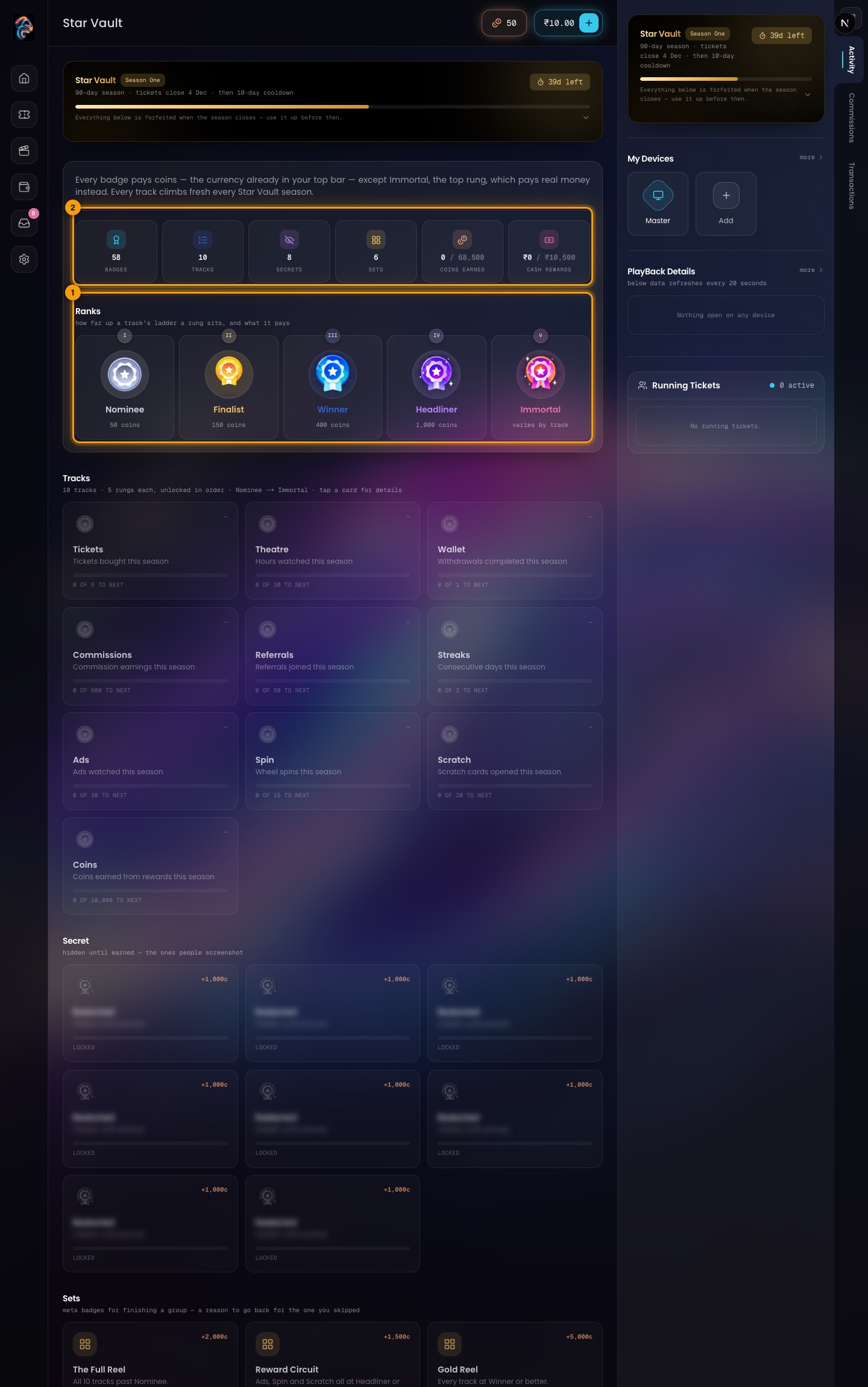
The Star Vault.
- 1Ranks — five rungs a track climbs: Nominee (50 coins), Finalist (150), Winner (400), Headliner (1,000) and Immortal, which pays real money that varies by track.
- 2Tracks — ten of them, each with a goal this season: Tickets, Theatre (hours watched), Wallet (withdrawals), Commissions, Referrals, Streaks, Ads, Spin, Scratch and Coins. Each shows how far you are to the next rung.
Above them are the totals for the season: badges, tracks, secrets, sets, coins earned and cash rewards. Further down are Secret badges (hidden until earned) and Sets (bonus badges for finishing a group, such as The Full Reel).
Inbox
Messages and profile
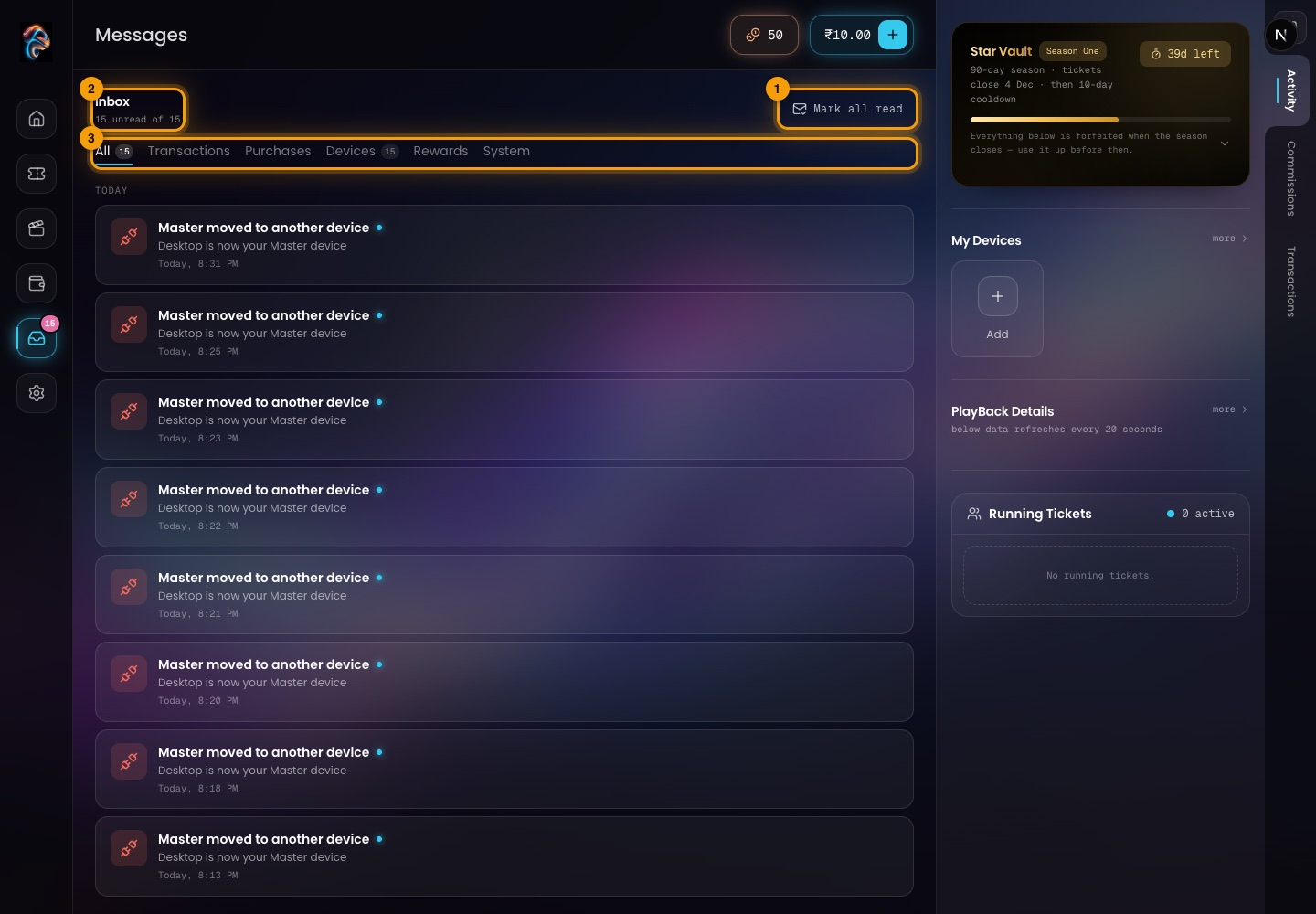
Messages.
- 1Mark all read — clears the unread count shown on the rail.
- 2Inbox — how many are unread. Messages are grouped by day.
- 3Categories — All, Transactions, Purchases, Devices, Rewards and System.
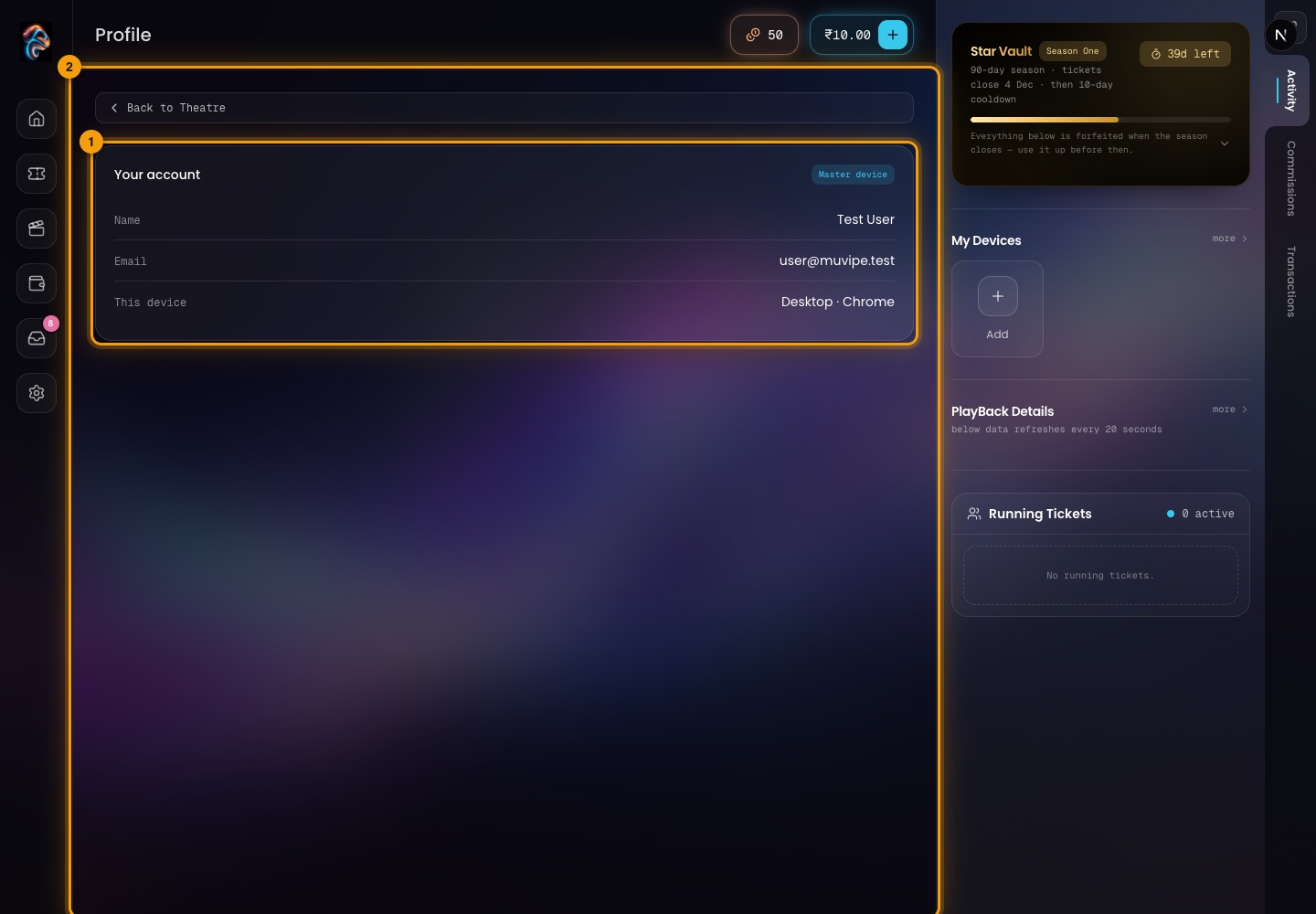
Profile.
- 1Your account — the Master device, your name, email and the device you are on.
- 2Back to Theatre — returns to the Theatre.
Account
Settings
Account
Settings has six tabs. Changes apply to the account across all devices.
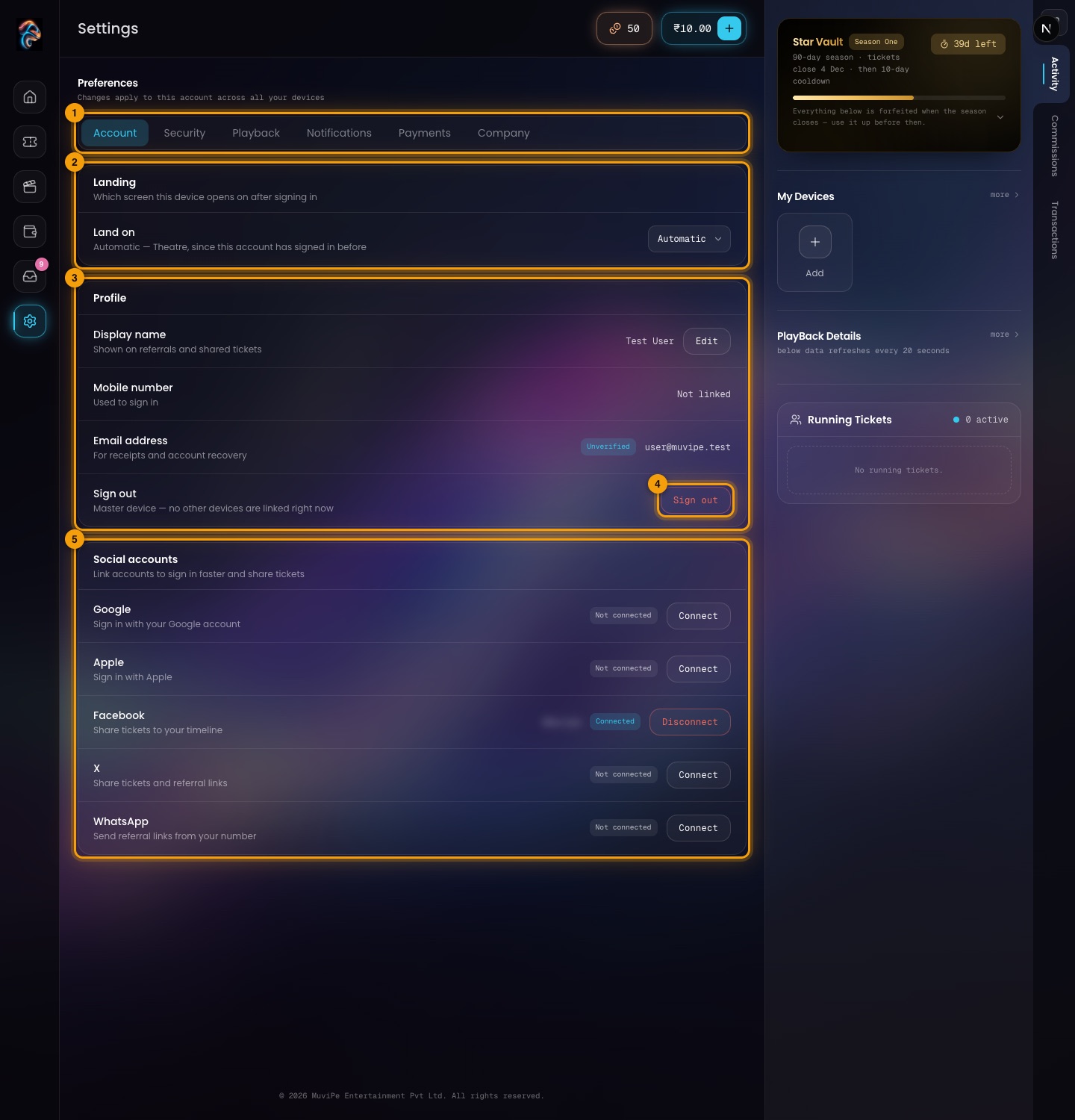
Settings → Account.
- 1Tabs — Account, Security, Playback, Notifications, Payments and Company.
- 2Landing — which screen this device opens on after signing in: Automatic, Dashboard or Theatre.
- 3Profile — display name (shown on referrals and shared tickets), mobile number (used to sign in) and email address (for receipts and recovery).
- 4Sign out — signs out of this device.
- 5Social accounts — link Google or Apple to sign in faster, and Facebook, X or WhatsApp to share tickets and referral links.
Security, Playback, Notifications, Payments, Company
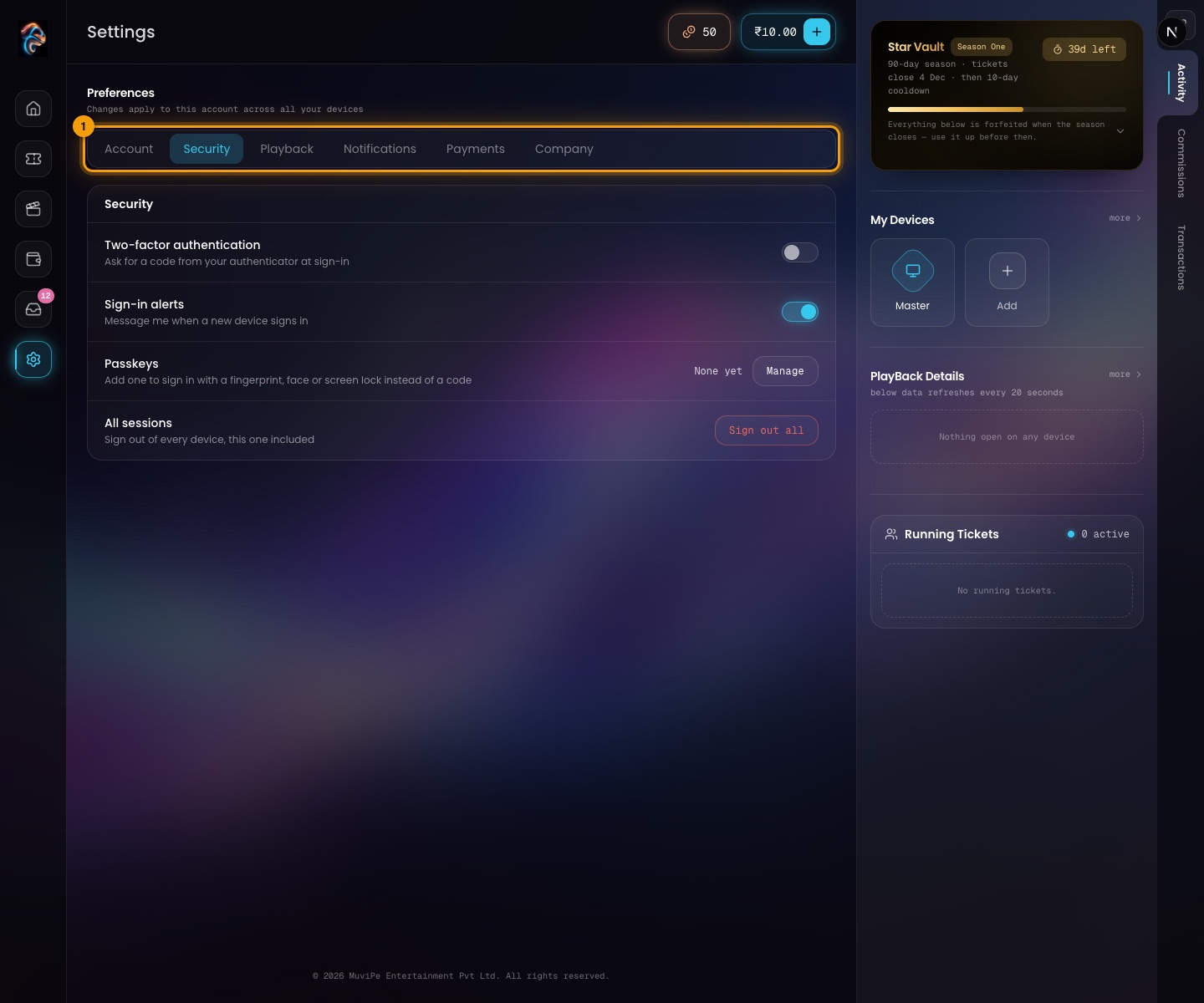
Settings → Security.
- 1Tabs — Security is selected. It holds Two-factor authentication (ask for a code from an authenticator at sign-in), Sign-in alerts (a message when a new device signs in), Passkeys and Sign out all (every device, this one included).
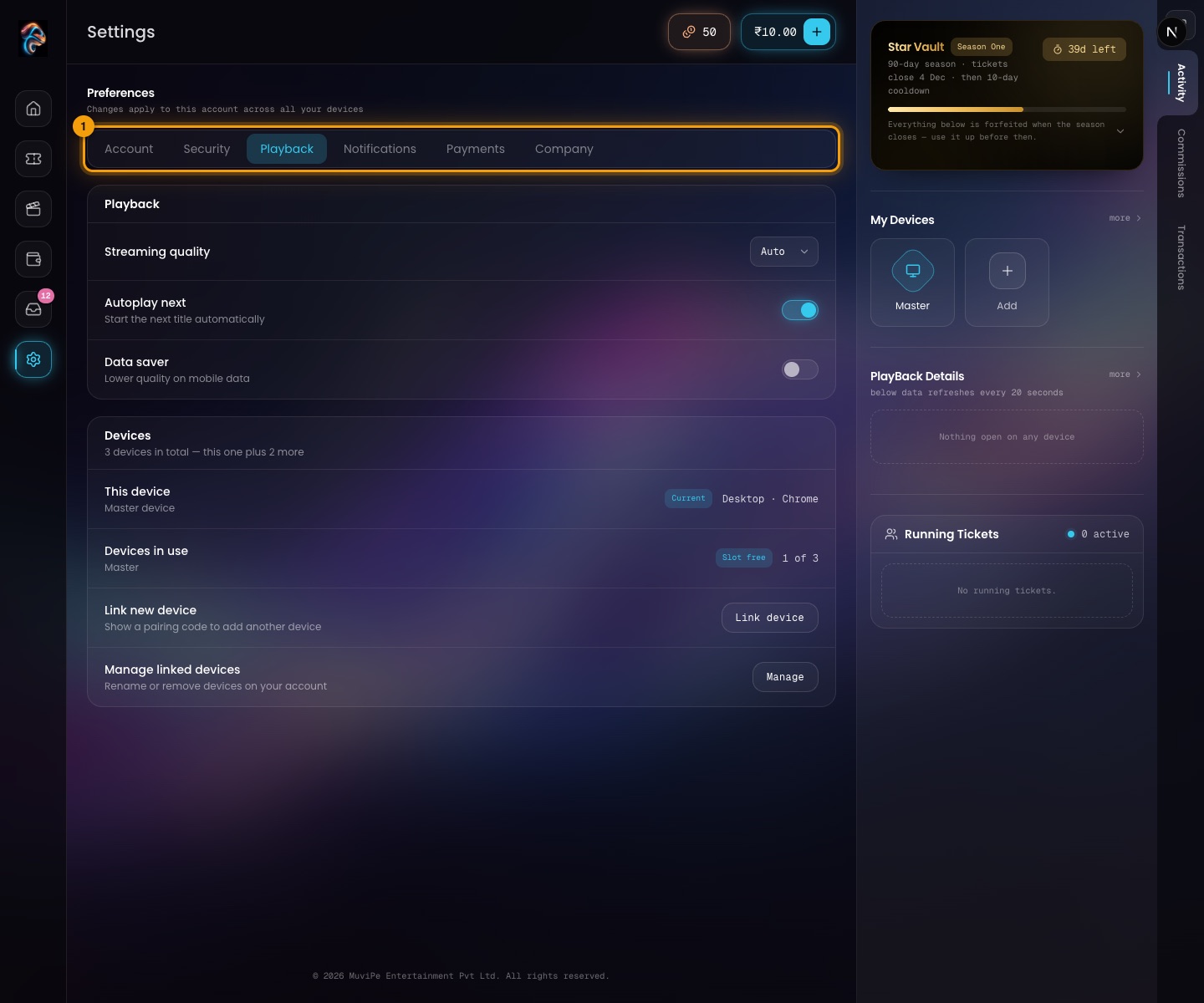
Settings → Playback.
- 1Tabs — Playback is selected. It holds Streaming quality (Auto by default), Autoplay next, Data saver (lower quality on mobile data), and a summary of devices with shortcuts to link a new device or manage the linked ones.
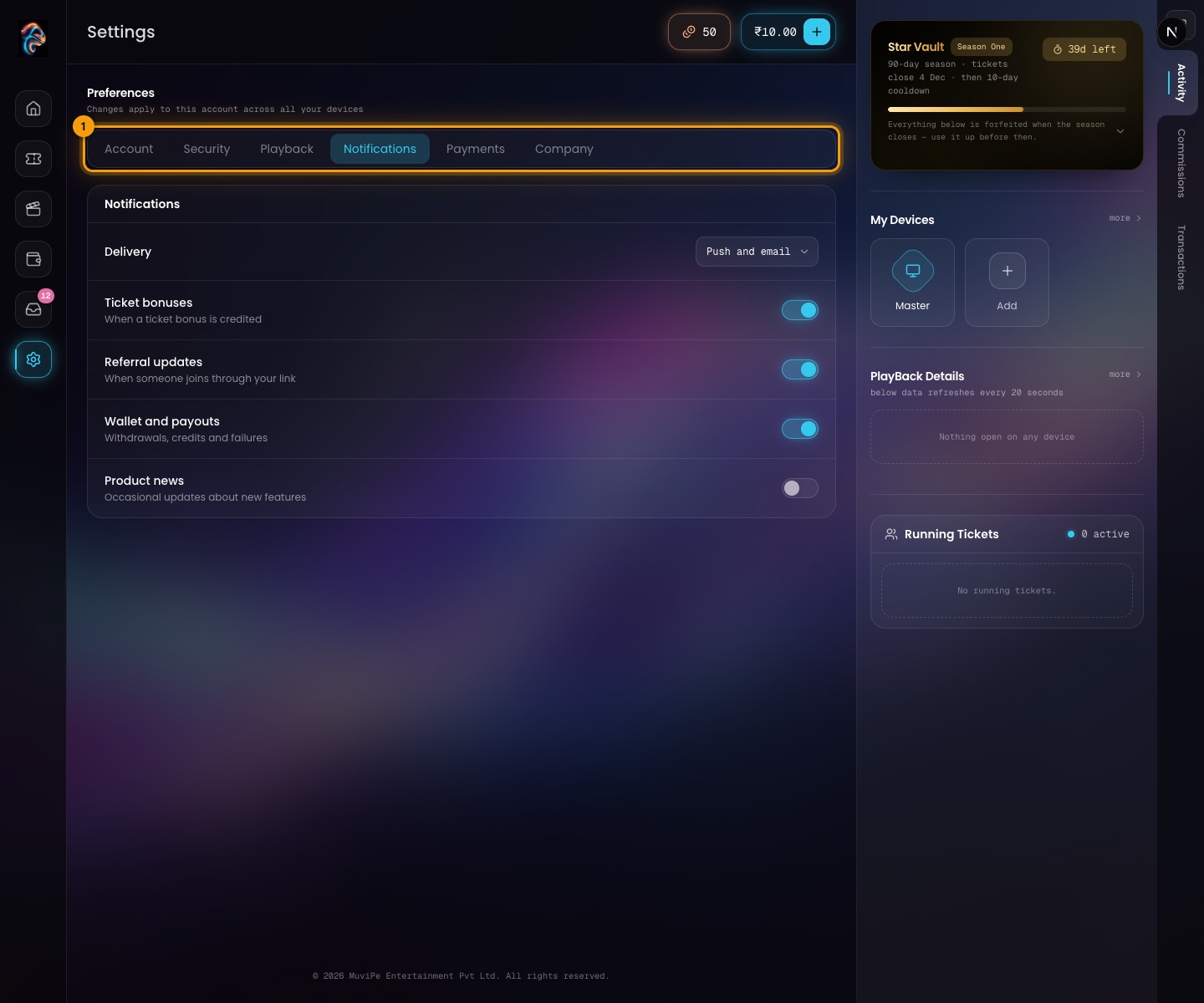
Settings → Notifications.
- 1Tabs — Notifications is selected. Delivery chooses push and email, push only, or email only. Switches control Ticket bonuses, Referral updates, Wallet and payouts and Product news.
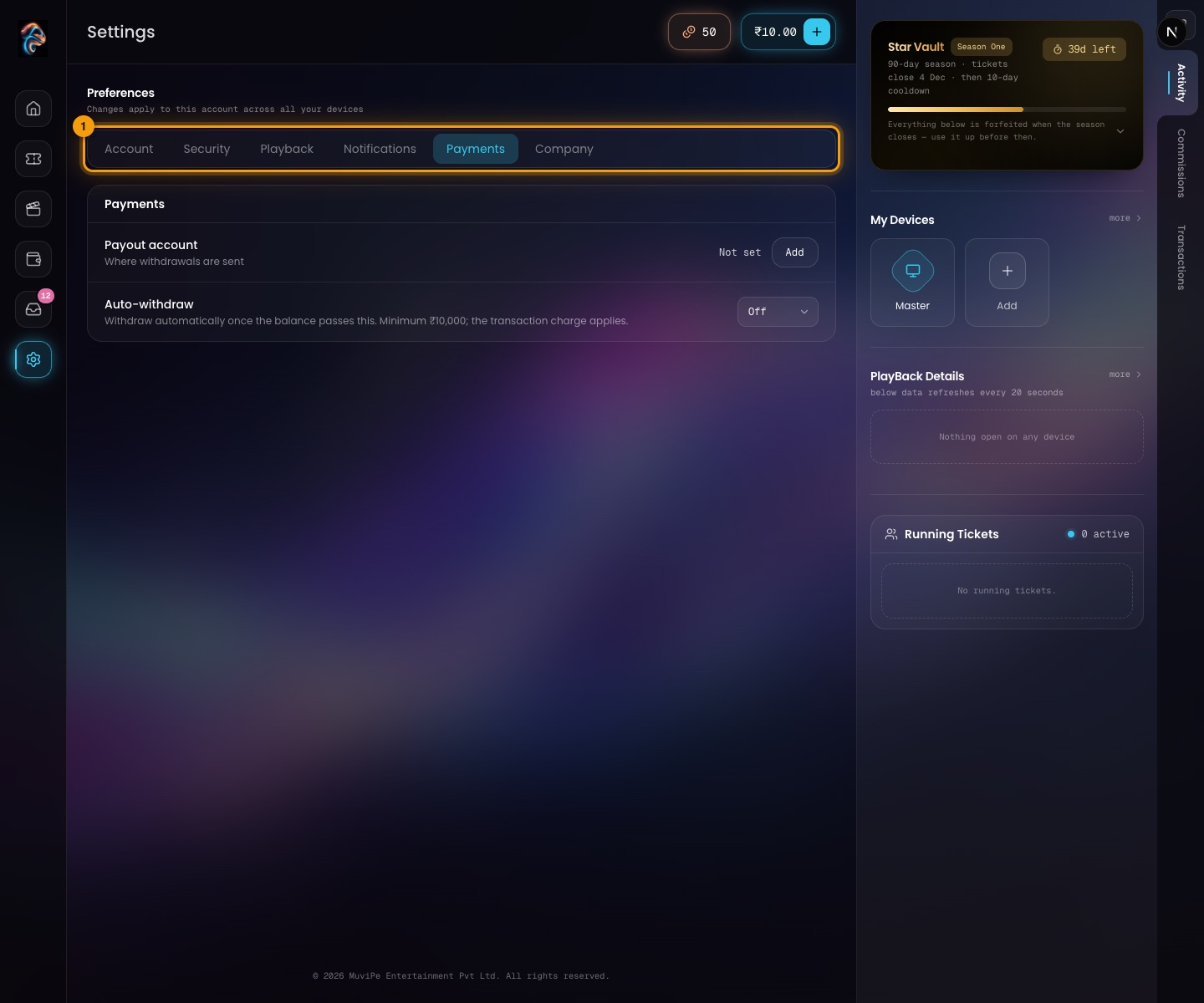
Settings → Payments.
- 1Tabs — Payments is selected. It holds the Payout account (where withdrawals are sent, with an Add button) and Auto-withdraw: withdraw automatically once the balance passes ₹10,000, ₹25,000 or ₹50,000, or turn it off. The minimum is ₹10,000 and the transaction charge applies.
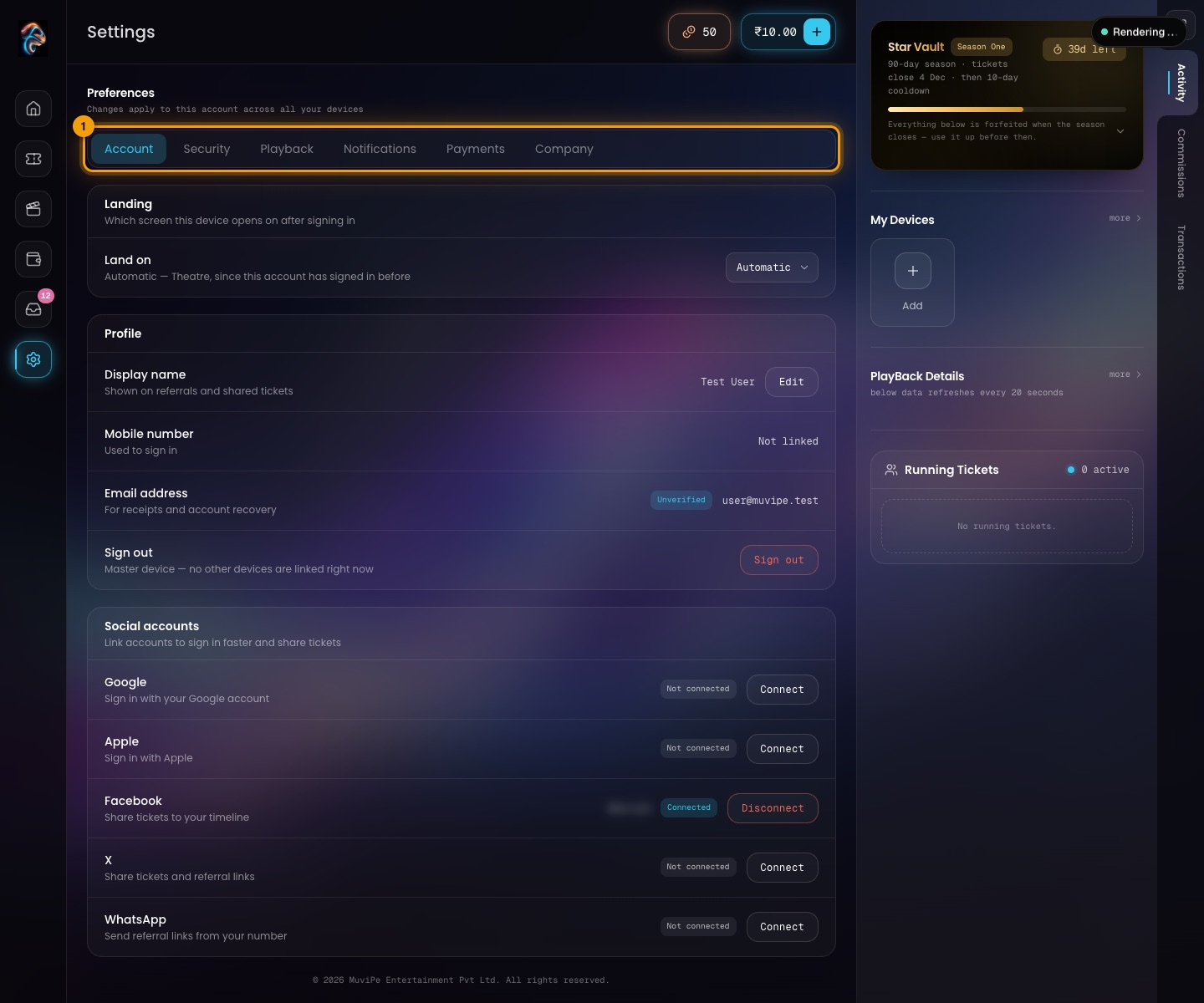
Settings → Company.
- 1Tabs — Company is selected. It shows who runs the app (the legal entity and registered office), the app version, and the legal documents: Terms of Service, Privacy Policy, Refund and cancellation, Community guidelines and the Grievance officer.
Payout account
Where withdrawals are sent. Opened from Settings → Payments.
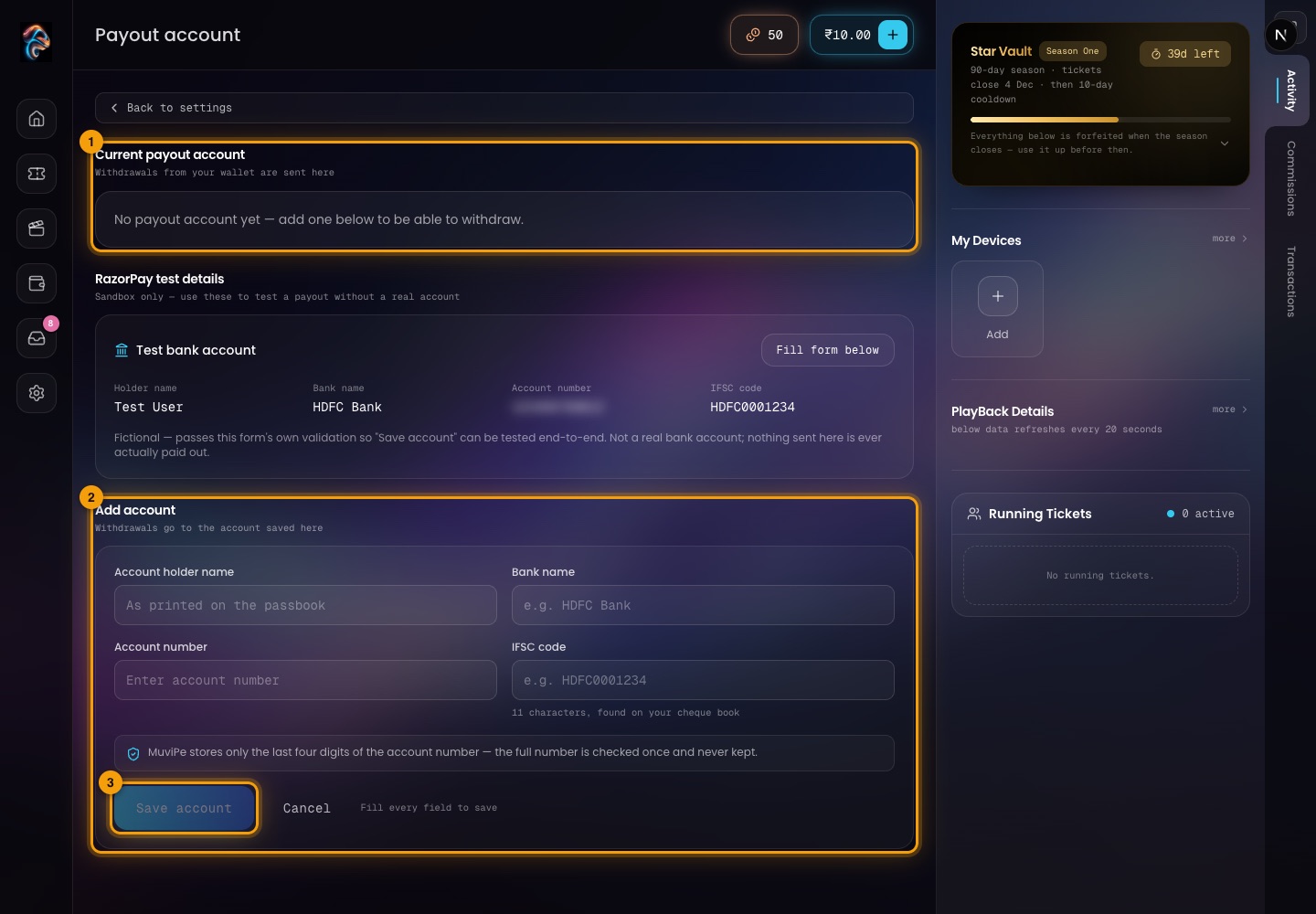
The payout account screen.
- 1Current payout account — the account withdrawals go to. None is set until you add one.
- 2Add account — account holder name, bank name, account number and IFSC code (11 characters, found on the cheque book). MuviPe stores only the last four digits of the account number; the full number is checked once and never kept.
- 3Save account — enabled once every field is filled.
Report a problem
Opened from Settings. Support reads every report; most get an answer the same day.
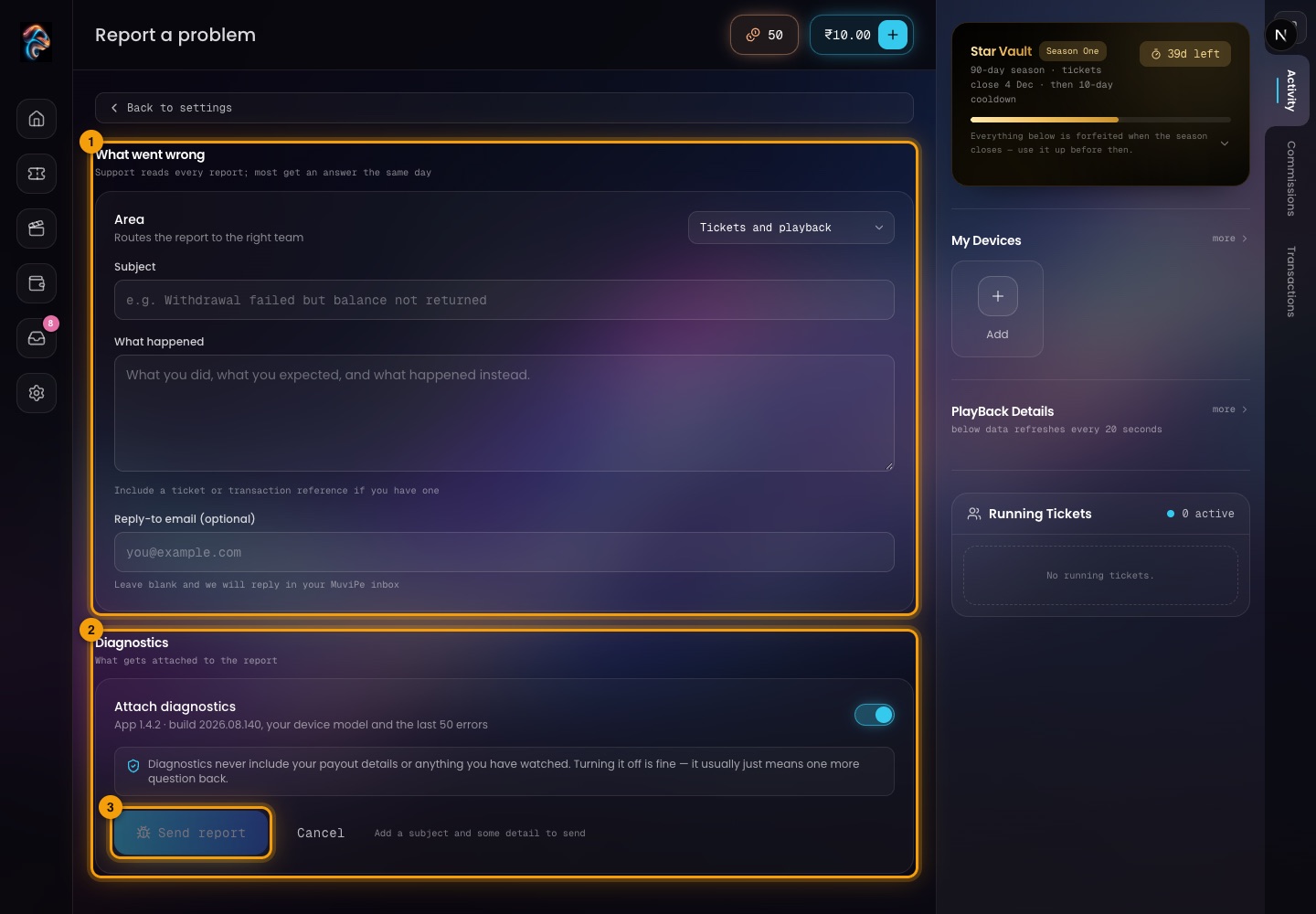
The Report a problem screen.
- 1What went wrong — choose the Area (Tickets and playback, Wallet and payouts, Referrals and commissions, Devices, Account and sign-in, or Something else), then a subject and what happened. Include a ticket or transaction reference if you have one.
- 2Diagnostics — attaches the app version, your device model and the last 50 errors. It never includes payout details or anything you watched. Turning it off is fine.
- 3Send report — enabled once there is a subject and some detail. Replies go to the optional email, or to your MuviPe inbox if left blank.
Quick reference
Common tasks
Where to go for the things a viewer does most.
Theatre → open a title → Buy Ticket. The wallet balance in the top bar is used, so add money first if it is low.
Devices → Generate pairing code → on the new device choose Link device and type the code. The code works once and expires after 10 minutes.
Wallet → Rewards → Daily to claim, Spin for the wheel, Ads to collect toward scratch cards.
First add a payout account (Settings → Payments → Add). Then Wallet → Withdraw Now, once the balance reaches the minimum of ₹10,000.
Settings → Security → switch on Two-factor authentication and add a passkey.
Settings → Account → Land on → Automatic, Dashboard or Theatre.
Settings → Notifications → Delivery → Push only.
Settings → Report a problem → choose the area, describe it and send.
Good to know
Things to keep in mind
- One account, one role. A viewer account is only a viewer. Producers and sponsors use their own panels with their own accounts.
- Seasons reset. Star Vault progress and rewards are forfeited when a season closes, so use them before then.
- Watch time belongs to the ticket and is shared by devices. Running out ends playback, not the ticket.
- Withdrawals have a floor and a charge. Minimum ₹10,000, with a 3.25% transaction charge on each withdrawal.
- Some numbers are fixed in the app. The ₹10,000 minimum withdrawal, 100 coins a spin, 10 sponsored ads a day and the 15-day card expiry are set in the app itself and cannot be changed from the admin panel. The transaction charge (3.25%) is different: it comes from the admin's Wallet fee setting.
- Your Master device controls the others. Keep it somewhere safe; sign-in alerts tell you when a new device is linked.